



Google Sheets is an easy and cost-effective way to manage your inventory, especially when you use ready-made templates. Instead of spending time building a spreadsheet from scratch, you can download a free template that already includes everything you need to track products, stock levels, and restocks.
In this article, we’ve created the best Google Sheets inventory management templates by niche, a quick guide, and tips to help you manage your inventory effectively.
Why Use Google Sheets for Inventory Management?
Managing your stock doesn’t have to be complicated or costly. With Google Sheets, you get a simple, flexible, and affordable way to track products, update quantities, and keep your inventory organized.
Here’s why so many sellers trust Google Sheets inventory template for management:
- It’s a cost-effective solution. Google Sheets is free to use, eliminating the need for costly inventory software fees, making it ideal for small businesses and startups.
- It gives you real-time updates. Because Google Sheets is cloud-based, your team can view and update stock levels at the same time. This helps sellers prevent overselling and reduce errors.
- It automated calculations. With formulas, you can automatically track stock changes, reorder points, sales trends, and product performance without manual math.
- It connects with other tools. Google Sheets integrates with Google Forms, automation platforms, and eCommerce tools, making your inventory system more powerful.
- It can automate and alert. Sellers can implement automatic reorder alerts and conditional formatting to highlight low stock, enabling proactive inventory control and avoiding stockouts.
You might also like:
Sell Everywhere With One Google Sheet
With LitCommerce’s file integration feature, you can upload, manage, and publish products across 20+ top platforms like Amazon, eBay, and TikTok, instantly boosting visibility and sales.

Free Editable Google Sheets Inventory Template
To help you organize your inventory quickly and efficiently, we’ve created ready-to-use Google Sheets inventory templates tailored for different business purposes and niches.
Each template we designed is to track stock, monitor costs, and manage products with minimal setup.
Notes: These templates are ready to use! Just make a copy for yourself, then feel free to customize it by adding or editing columns to fit your products perfectly.
Basic inventory template
This basic Google Sheets inventory template gives you a simple way to track items, quantities, suppliers, and stock value in a clean Google Sheets layout. It focuses on essential fields without overwhelming users, making it perfect for beginners.
The structure gives you a central place to manage products, restocks, and outgoing items so you always know what’s available. It’s designed to be flexible, easy to customize, and suitable for almost any type of inventory.
Main information:
- Inventory sheet for product details
- A purchase sheet for incoming stock, and a Sales sheet for outgoing stock.
Best for small businesses that need a simple stock-tracking tool, and beginners who want an easy-to-understand inventory spreadsheet.
Stock inventory tracker template
This template focuses on real-time stock tracking using automatic calculations. As you log purchases and sales, the system updates your current stock levels so you always know exactly how much inventory you have.
It reduces manual work by relying on formulas instead of manual counting. This makes it ideal for teams that move items frequently or want more reliable stock visibility.
Template information:
- Inventory sheet with automated stock balance columns
- Stock vendor sheets for organized supplier tracking
Best for stores that restock items often, fast-moving inventory environments, and eCommerce shops tracking incoming and outgoing units daily.
Retail Inventory Template
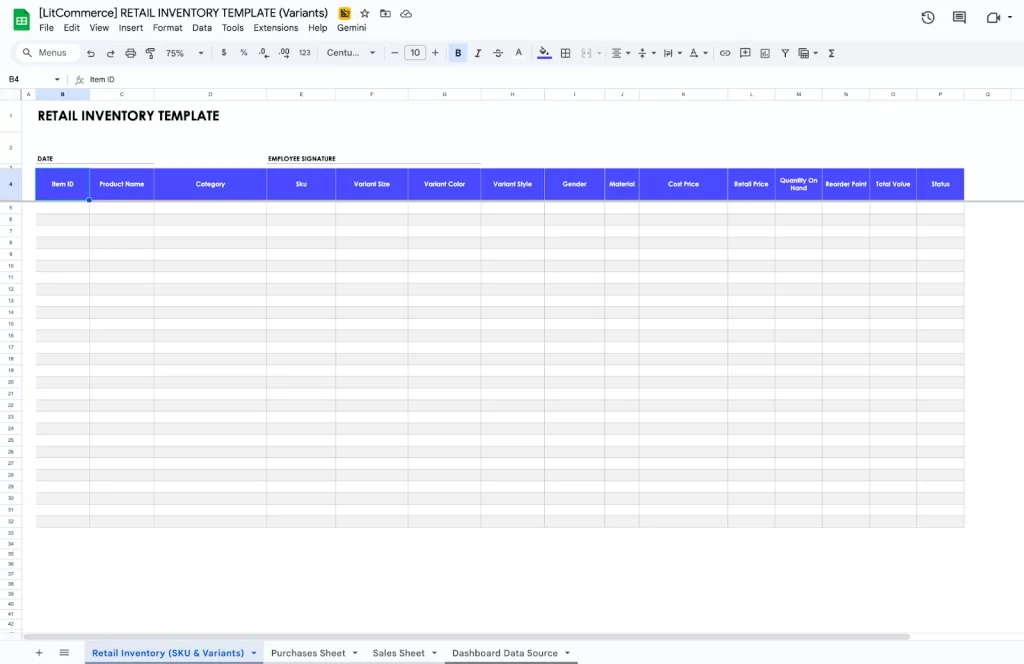
This template is designed for retail stores that manage products with multiple variations, such as sizes, colors, and styles. It helps you organize SKUs, price points, stock quantities, and product attributes in one place.
The retail Google Sheets inventory template structure supports typical retail workflows, receiving merchandise, selling through multiple channels, and monitoring bestsellers.
Template information
- Inventory sheet built specifically for retail variations
- A Purchases sheet for receiving stock
- A Sales sheet for recording daily transactions.
- A Dashboard provides insights on best-selling categories, low-stock SKUs, and margins.
Best for clothing stores, boutiques, and multi-variant product retailers, shops selling items with sizes, colors, genders, or materials, retailers wanting SKU-level management, or online shops (Shopify, Etsy, IG Shop) needing clean Sheets-based tracking
Warehouse inventory template
This template is designed for large or multi-location inventory operations where accurate tracking of stock placement is essential. It helps you manage aisles, racks, shelves, bins, and warehouse zones while monitoring quantities, incoming shipments, and stock movement.
Many businesses that start with Google Sheet inventory management find this structure helpful when they need a more organized way to map their storage layout
Template information
- Includes multiple sheets for warehouse workflow
- Location-focused Inventory sheet with aisle, rack, shelf, and bin fields
- Stock In sheet for logging deliveries and internal transfers
- Stock Out sheet for shipments and dispatch
- Movement Log for recording adjustments, relocations, and corrections
Best for warehouses, distribution centers, fulfillment teams, and businesses storing products across multiple physical zones. It suits operations needing clear stock placement, load balancing, and organized warehouse mapping.
Equipment inventory template
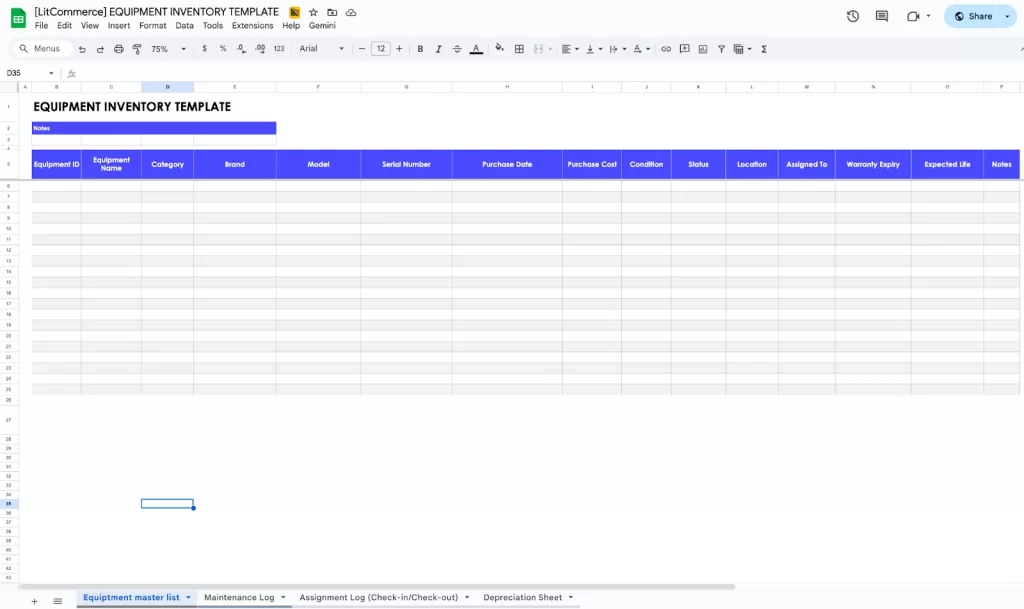
This template tracks tools, machinery, office equipment, and any asset requiring maintenance or assignment to employees. It allows you to monitor purchase history, condition, depreciation, status, and service schedules. It is ideal for companies needing asset accountability and a clear maintenance history.
Template information
- Equipment Master List covering specifications and ownership
Maintenance Log for tracking service dates, repairs, and warranty work - Assignment Log for checking equipment in/out to staff
- Depreciation sheet for asset life cycle tracking
Best for companies managing physical equipment such as tools, computers, and machinery.
Sales & inventory tracker template
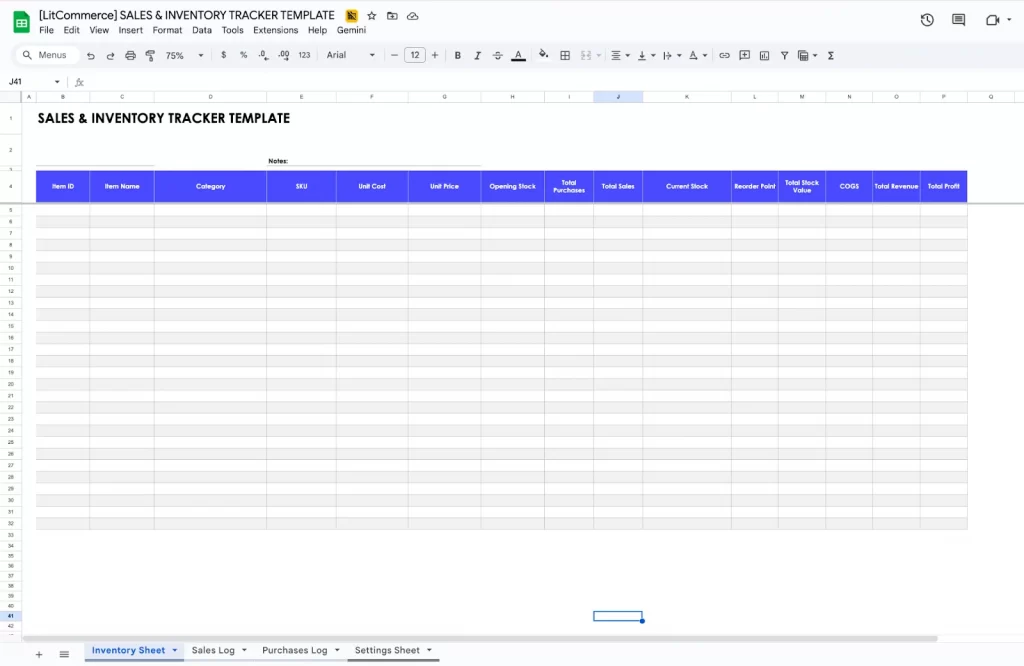
This template combines inventory management with sales performance tracking. It connects product data, stock levels, and daily sales to provide a complete overview of your business activity.
You can track revenue, COGS, profit, and stock in one integrated system. Teams that currently rely on Google Sheet inventory management often choose this format when they want clearer visibility into both inventory and sales trends.
Template information
- Inventory sheet with automated stock balance
- Sales Log capturing revenue, units sold, discounts, and profit
- Purchases Log for stock replenishment
- Profit Dashboard showing daily, weekly, or monthly results
Best for small stores and online sellers who want a unified system for reading sales trends and adjusting stock levels. Suitable for businesses needing full visibility of both stock and financial performance.
Fashion Inventory Template
This template is made for tracking apparel, footwear, and fashion accessories across styles, sizes, colors, seasons, and collections. It helps retailers stay organized by grouping product variations and monitoring stock levels for each SKU. The structure allows you to manage both restocks and sales while understanding which variants perform best.
Template information
- Inventory sheet for all fashion items and variants (size, color, material, gender)
- Purchases (Stock In) sheet for recording restocks and supplier orders
- Sales (Stock Out) sheet for tracking daily fashion sales and reducing stock
Best for fashion boutiques, apparel brands, online clothing stores, and multi-variant retailers needing structured tracking for sizes and colors.
Jewelry Inventory Template
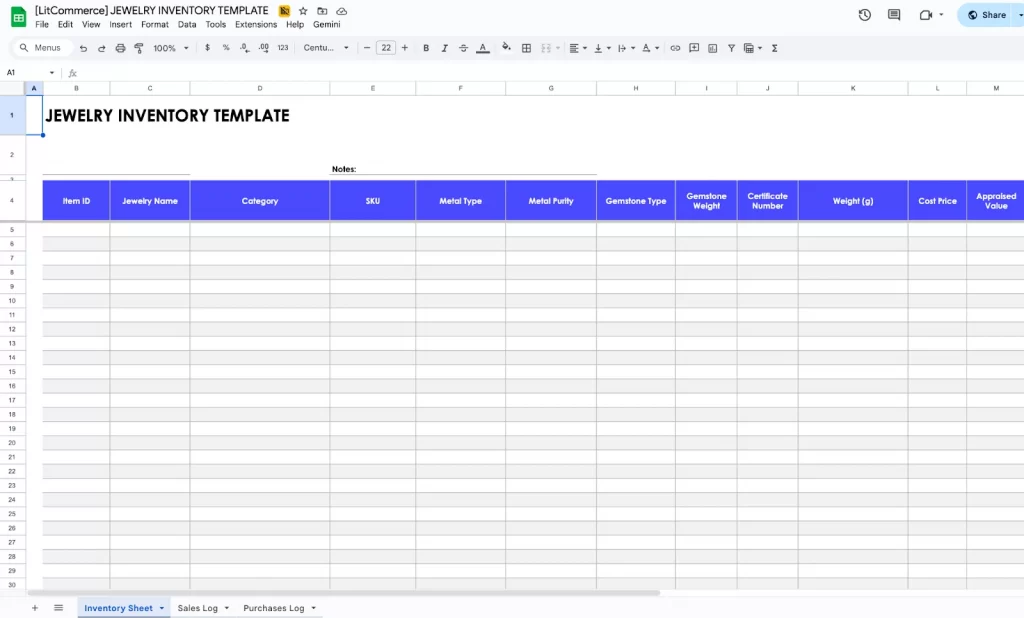
This template is built to track fine jewelry, handmade pieces, and accessory stock with detailed attributes like metal type, gemstone details, purity, weight, and certificate numbers. It helps sellers manage high-value items while keeping accurate records of quantity, pricing, and sales.
Template information
- Inventory sheet covering metals, gemstones, specifications, and valuations
- Purchases (Stock In) sheet for acquisitions, trade-ins, or manufacturing inputs
- Sales (Stock Out) sheet for recording jewelry sales and calculating profit
Best for jewelers, gem sellers, boutique jewelry brands, and online stores managing high-detail product attributes and insured items.
Home & Kitchen Inventory Template
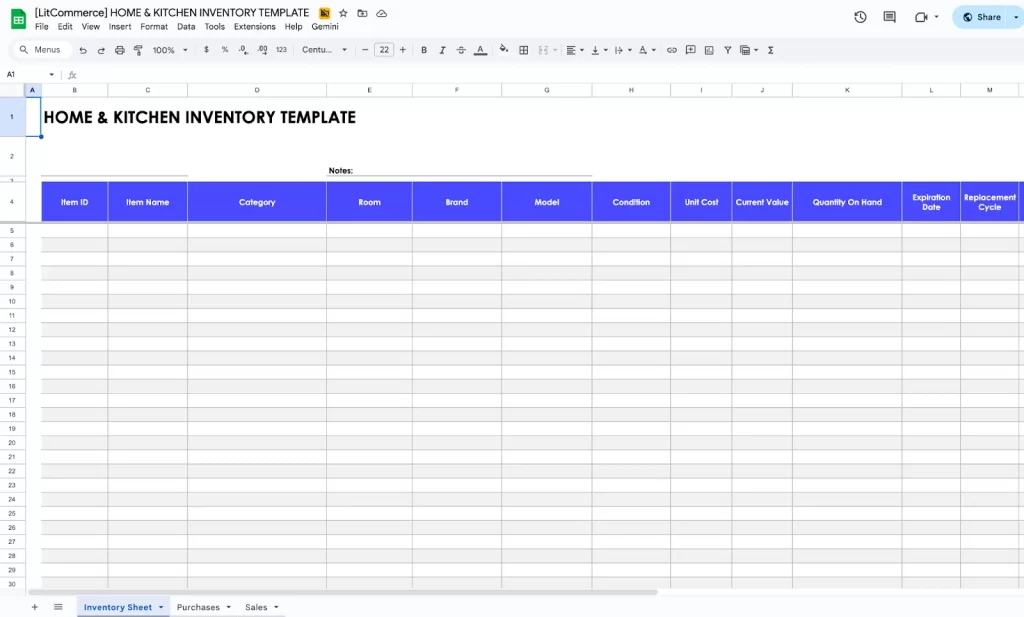
This template is designed for managing household or kitchen item stock such as cookware, small appliances, furniture, tools, and pantry supplies. It helps you keep track of quantities, expiration dates, and replacement cycles across various household categories.
People using Google Sheets inventory template for home organization appreciate how this setup simplifies tracking essential items.
Template information
- Inventory sheet organizing home items by room, category, and value
- Purchases (Stock In) sheet for new household items, replacements, or restocks
- Usage/Sales (Stock Out) sheet for items donated, discarded, or used up
Best for families, landlords, Airbnb owners, kitchen managers, and individuals organizing their home or rental inventory.
Book Inventory Template
This template is designed for bookstores, libraries, and collectors who need to catalog books with details such as title, author, genre, ISBN, format, condition, and stock quantity. It simplifies the tracking of incoming and outgoing books while keeping key bibliographic information organized.
Template information
- Inventory sheet listing book metadata and quantities
- Acquisitions (Stock In) sheet for new purchases or donations
- Loans/Sales (Stock Out) sheet for borrowed, sold, or removed items
Best for bookstores, personal collectors, libraries, and secondhand book sellers managing title-level inventory.
Accessories Inventory Template
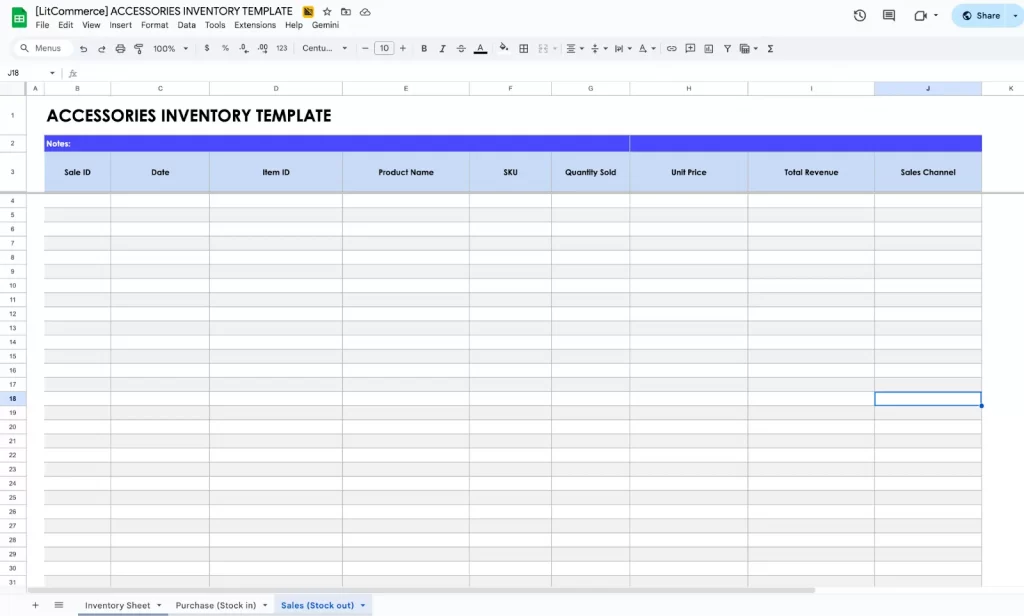
This template tracks inventory for accessories such as bags, belts, hats, scarves, wallets, sunglasses, and small fashion add-ons. It handles multiple styles and variants while managing suppliers, pricing, and quantities.
Template information
- Inventory sheet for accessory products with variant data
- Purchases (Stock In) sheet for restocking accessory items
- Sales (Stock Out) sheet for recording accessory sales
Best for accessory shops, online sellers, marketplaces, or boutiques selling smaller fashion goods with multiple styles.
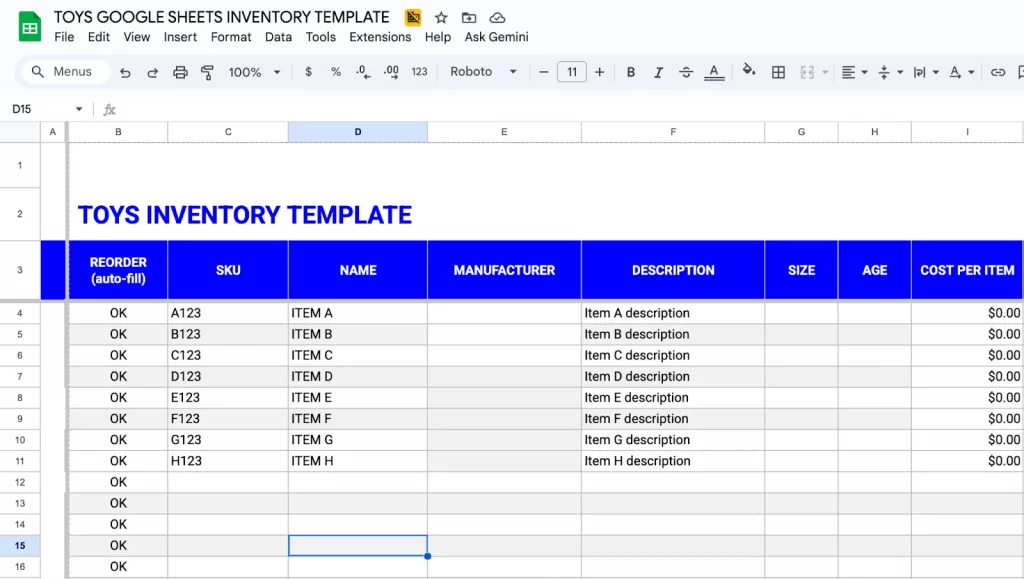
Toys Inventory Template
This template helps track toys, games, educational sets, and children’s products with fields for age group, category, brand, safety compliance, and stock. It supports retail toy stores and online sellers needing organized SKU-level tracking.
Sellers familiar with Google Sheets inventory template often adopt this layout when they need a cleaner and more structured way to categorize children’s products.
Template information
- Inventory sheet for toy product details, age rating, and stock
- Purchases (Stock In) sheet for new toy shipments
- Sales (Stock Out) sheet for recording retail or online toy sales
Best for toy stores, game shops, online marketplaces, and educational suppliers managing age-specific and category-specific toy stock.
Sports Inventory Template
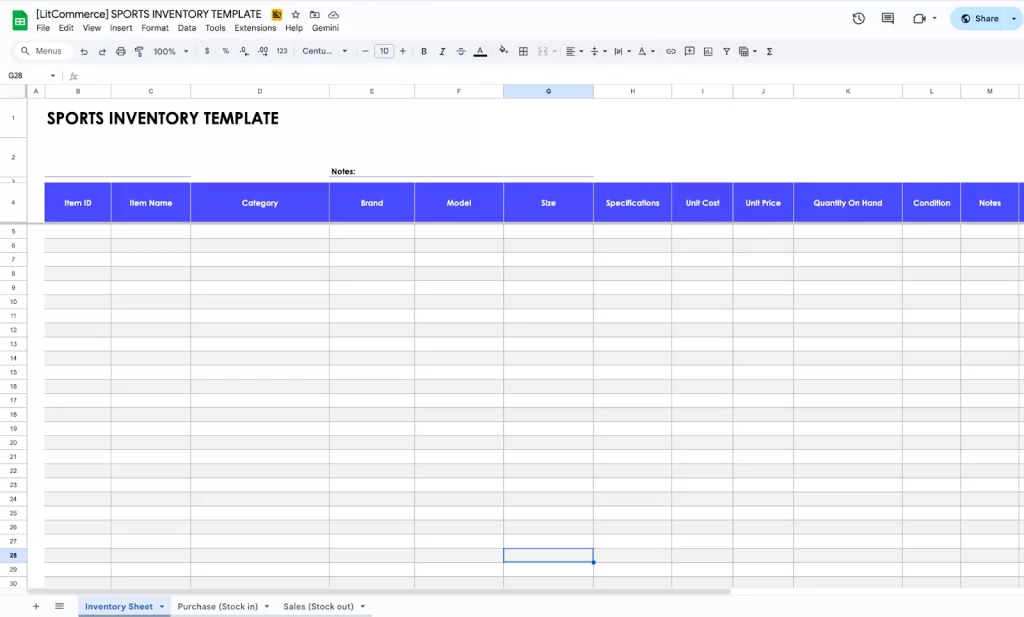
This template is made for sporting goods stores, gyms, or teams managing equipment, apparel, and accessories. It helps track categories such as balls, gear, footwear, training tools, or uniforms while managing stock movements.
Template information
- Inventory sheet for sports items with specifications
- Purchases (Stock In) sheet for ordering and receiving sports equipment
- Sales/Usage (Stock Out) sheet for sold or used gear
Best for sporting goods retailers, fitness studios, school teams, and training centers tracking both consumable and reusable sports items.
Electronics Inventory Template
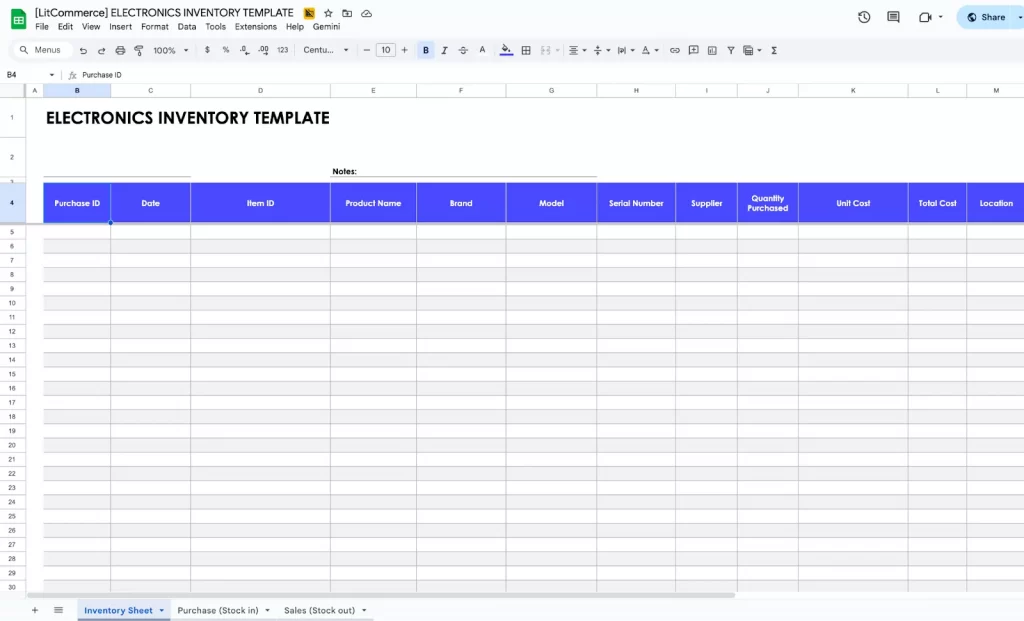
This template tracks electronic products, including gadgets, small devices, components, and accessories. It includes fields for model number, serial number, warranty, brand, and specifications.
Repair shops and electronics sellers who previously used Google Sheets inventory template often prefer this template because it offers more detailed tracking for high-value items.
Template information
- Inventory sheet for detailed specifications and stock of electronic items
- Purchases (Stock In) sheet for new electronics, components, or parts
- Sales (Stock Out) sheet for product sales or transfers
Best for electronics stores, repair shops, gadget sellers, and tech eCommerce brands that require detailed tracking for models and serial numbers.
Besides using files to manage inventory, here are 15+ Shopify Inventory Management Apps that Shopify sellers can use to streamline and automate their inventory tasks.
How to Create A Google Sheets Inventory Template From Scratch
Our Google Sheets inventory management template free makes it easy to organize your inventory quickly. If you want a more customized system tailored to your workflow, here’s how to create a Google Sheets inventory template from scratch.
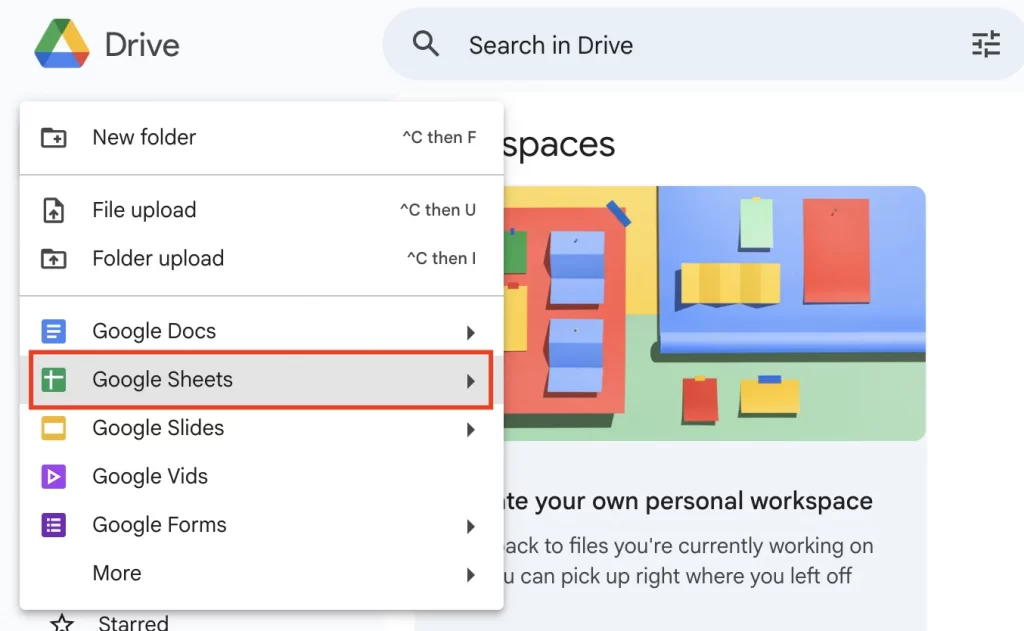
Step 1: Open Google Drive, click New, and choose Google Sheets.
Step 2: Create headers or any fields your store needs
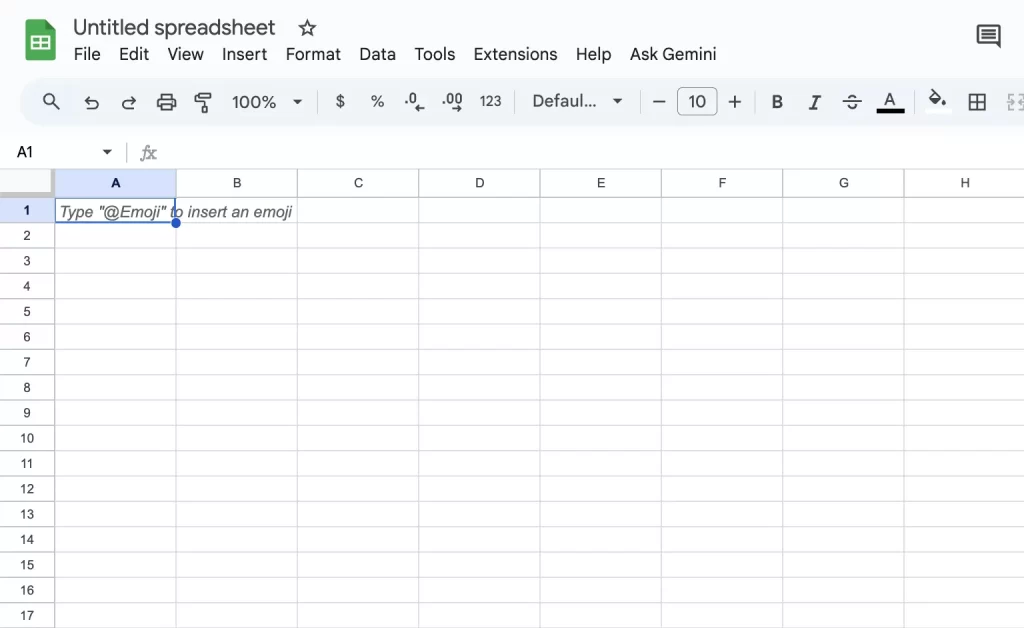
Here are some headers that you can include in your inventory management Google Sheets template:
- Product name: Identifies the item
- Description: Product details information
- SKU (Stock Keeping Unit): Unique identifier for each product
- Quantity: Current stock levels
- Cost: The purchase price per unit
- Price: Selling price per unit
- Supplier: Source or vendor of the product
- Category: Classification of products for easier tracking
- Last ordered date: The date before which customers can buy a product.
- Stock location: The physical or logical place where inventory is stored.
- Minimum stock level: The lowest quantity of a product a company should have in inventory to avoid running out of stock.
- Maximum stock level: The upper limit of inventory that a company should hold at any given time to avoid overstocking.
Notes: You can create separate inventory tabs for better organization
- Click the “+” icon at the bottom to add a new sheet tab
- Click on the arrow icon, choose “Rename”, then fill in the tab name and headers on each tab, such as:
- All products: SKU, Product Name, Category, Variant, Cost Price, Selling Price, Supplier, Current Stock, Min Stock, Status.
- Channel inventory: SKU, Product Name, Channel, Channel Listing ID, Stock Synced?, Current Stock, Reserved Stock, Available Stock.
- Stock in/receive: PO Number, Date, Supplier, SKU, Product Name, Qty Ordered, Qty Received, Cost, Status.
- Stock out: Order ID, Date, Channel, SKU, Product Name, Qty Sold, Price, Remaining Stock.
- Returns: Date, SKU, Product Name, Qty, Reason, Condition, Action Taken.
Step 3: Add your inventory items and product details row by row
Step 4: Automate stock level using formulas
Instead of filling in product details, totals, or costs manually, you can use formulas to automatically pull information from other sheets and keep your stock levels accurate at all times.
Start with the first formula to auto-fill product information: VLOOKUP
- On your Receive or Sales sheet, click the first cell under your Description column and enter: =IF(A2=””,””,VLOOKUP(A2,Items!A:C,2,0))
This formula will look at the Item ID you selected (A2), search for it in the Items sheet, and pull back the matching product name.
- Next, move to your Inventory sheet, use SUMIFS to add up every time that item was purchased: =SUMIFS(Receive!D:D, Receive!A:A, A2)
- Use the same structure for the Sale sheet: =SUMIFS(Sales!C:C, Sales!A:A, A2)
This is where you’ll calculate how much stock has come in and how much has gone out. The formula searches each sheet for rows where the Item ID matches the one in the Inventory sheet (A2). It then sums all the matching quantities.
- Finally, add a simple Reorder alert row by checking if stock falls below a certain level using =IF(E3 <= 20, “REORDER”, “”)
This instantly adds a “REORDER” warning when your on-hand quantity drops to 20 or fewer units. You can replace 20 to the stock alert level that fits your store.
On these formulas:
- A:A is the entire column A
- receive!A2:A is column A starting at row 2 in the “receive” sheet
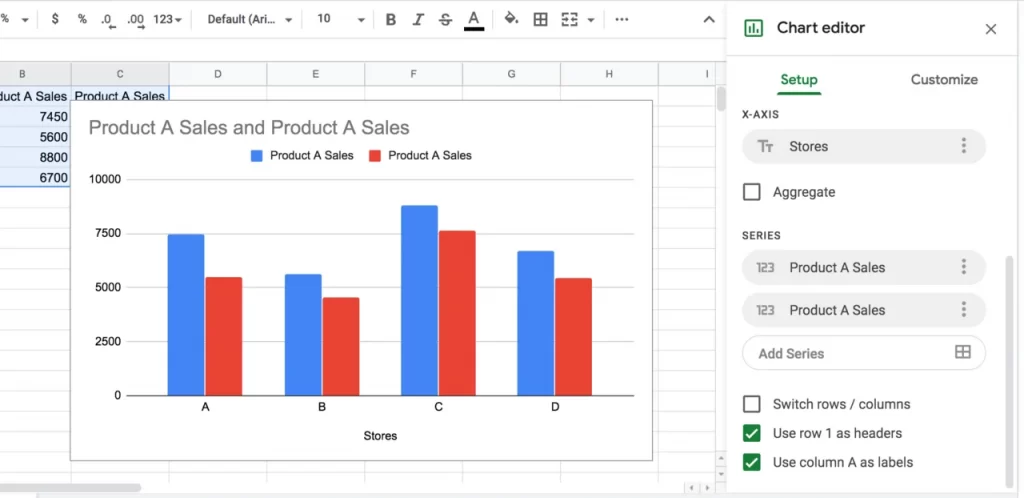
Step 5: Create an inventory report
- Select the cells with the data you want to visualize (including headers).
- Click on the “Insert” menu and select “Chart.”
- Google Sheets will automatically generate a default chart based on your data.
- Use the Chart Editor on the right to edit your chart.
Some data you sure need to check to create an insightful report when managing inventory:
- Units sold (daily, weekly, monthly) per SKU
- Sales growth
- Stock availability
- Sales value per SKU
- Gross profit per SKU
- Reorder frequency (times/month)
- Stockout risk score
4 Tips for Effective Google Sheets Inventory Management
A well-organized inventory doesn’t just happen. These 4 practical tips will help you use Google Sheets inventory template effectively, keeping your stock accurate, streamlined, and ready for sales.
Use pre-designed templates for faster setup
When you start your inventory system, you can save a lot of time by using a pre-designed Google Sheets template inventory management. These templates already include essential columns like SKU, product name, stock on hand, reserved units, supplier information, and reorder points.
In this blog, sellers can also download templates by niche, from fashion and jewelry to electronics and home goods, making it easier to find a template that matches your catalog.
While you can customize these templates to suit your specific products, starting with a pre-designed structure keeps your inventory organized and accurate from day one.
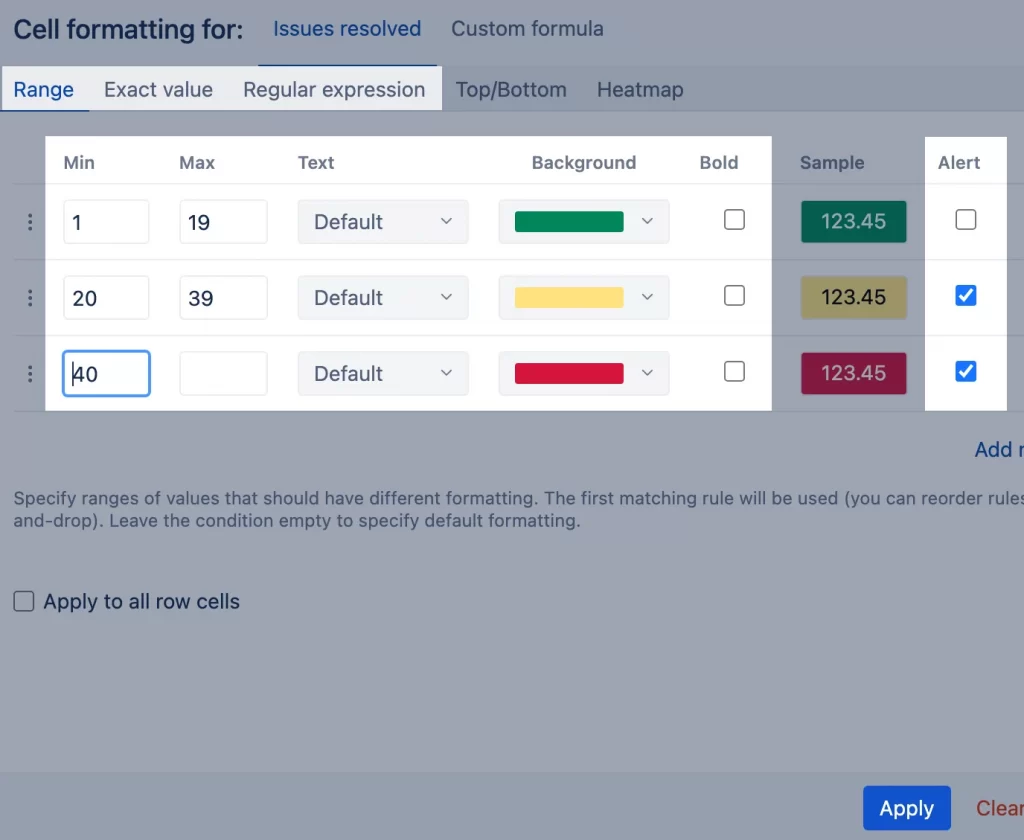
Apply conditional formatting for alerts
Once your data is in place, you can make your sheet smarter by adding conditional formatting. With a few rules, you turn low-stock numbers red or highlight items that are almost sold out.
Here are some inventory alerts that you should use:
- Lowstock warning
- Out-of-stock highlight
- Expiring or aging inventory
- Almost-out indicator
This means you no longer have to scan every row, because the sheet visually shows you where attention is needed. As a result, you react faster, avoid stockouts, and keep your customers happy with consistent product availability.
Update data regularly for a high-accuracy sheet
Since inventory changes daily, maintaining accuracy depends on consistently updating your sheet. With Google Sheets inventory management, you can update stock numbers right after an order comes in to prevent overselling. If real-time updates aren’t possible, doing a daily stock check will still help keep your data accurate.
During busy seasons or promotions, increase your update frequency to keep pace with higher sales volumes. Even a small delay can create errors across all your channels, especially if you sell on multiple platforms.
By keeping your sheet up to date, you make smarter restocking decisions, reduce storage costs, and avoid painful overselling issues.
Why Choose LitCommerce as an Alternative to Google Sheets Inventory Template?

Managing inventory with Google Sheets works at first, but as soon as you sell on multiple platforms, it becomes messy, manual, and error-prone. LitCommerce removes all the manual work and gives you a smart, automated, multi-channel system built for growth.
Here’s how the LitCommerce tool benefits you over Google Sheet inventory management:
- AI-powered attribute mapping automatically matches your file headers to LitCommerce default fields, ensuring your products meet the platform’s requirements.
- Identify missing or mismatched data instantly before your products go live on any sales channels.
- Set automatic syncs daily, weekly, or hourly to keep listings fresh & accurate
- Quick bulk editing tools enable you to update prices and shipping information for thousands of SKUs in a single click.
- Advanced filters before publishing to sort and group items (by category, price, stock) so you control what gets listed and where.
- Easy setup with just a file in a few steps, no technical skills required.
Automate Your Inventory Management Using LitCommerce
Our multichannel selling tool helps you sell and manage your inventory effectively on multiple channels. Giving you time to focus on growth, not spreadsheets!
Inventory Management Google Sheets: FAQs
Can I use Google Sheets for inventory management?
Yes, you can use Google Sheets is a flexible and beginner-friendly tool that lets you track stock levels, sales, reorder points, and product details without paying for inventory software.
If you want to use your inventory file to manage and sell on multiple channels. LitCommerce with the file integration feature is your best choice.
How to create a spreadsheet for inventory?
Follow these 4 steps to create a spreadsheet for inventory:
– Step 1: Open Google Drive, click New, and choose Google Sheets.
– Step 2: Create headers or any fields your store needs
– Step 3: Add your inventory items and product details row by row
– Step 4: Create separate inventory tabs for better organization
Does Google Docs have an inventory template?
No, it doesn’t. Google Docs does not provide a built-in inventory template. You can move to Google Sheets to create your inventory management template.
Where can I get free spreadsheet templates?
You can download free templates from sites like Microsoft, Google Sheets. With just one click, you can get a template, customize it to fit your business needs, collaborate with your team in real time, and easily print or save it as a PDF for sharing.
Simplify Your Workflow with Google Sheets Inventory Template
Google Sheets makes inventory management simple, flexible, and accessible for sellers of all sizes. By organizing your stock, tracking key details, and using templates or automated formulas, you can save time, reduce errors, and make smarter restocking decisions.
Whether you choose pre-designed templates or build your own spreadsheet from scratch, a well-managed inventory system ensures your business runs smoothly and efficiently.
For more tips and resources, check out our Blog or Contact Us anytime. We’re always here to support you.