



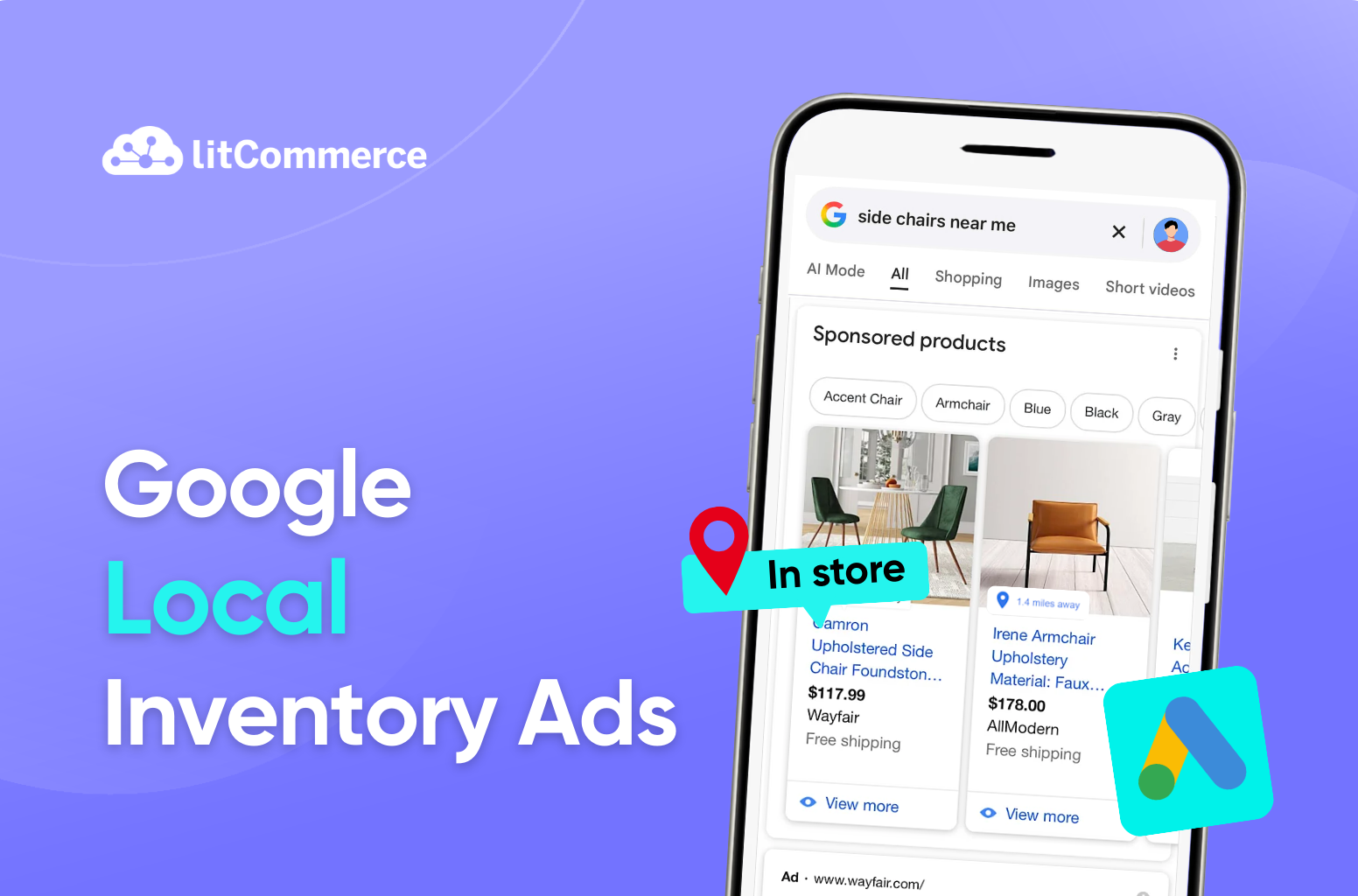
Wondering how shoppers search for “your product near me” and find your items at the top of Google? That’s the power of Google local inventory ads, which lets you promote products that are available at your physical store right now to nearby, ready-to-buy customers.
Instead of showing shoppers a generic product, local inventory ads show your in-stock items, along with key details like location, hours, and pickup options. This is one of the fastest ways to turn local searches into real foot traffic and connect high-intent shoppers with inventory you already have on the shelf.
In this guide, you’ll learn exactly how to use Google local inventory ads to drive more in-store sales, including:
- What Google local inventory ads are (with real examples)
- How to set up local inventory ads on Google step by step
- 6 best practices to optimize local inventory ads for better results
Now, let’s start with the basics – what Google local inventory ads are and how they work in real searches.
Launch Local Inventory Ads Faster
LitCommerce helps you create a Google product feed from your store, check feed issues, and keep inventory synced – so you can start reaching nearby shoppers sooner.
What are Local Inventory Ads?
Google local inventory ads (often called LIAs) are shopping ads that show nearby customers which products you have in stock at your local physical store. They appear when someone searches on Google for a product you sell, especially when the shopper is close to your location or adds “near me” to their search.
Along with essential product details like the product name, photo, price, brand, and ratings, these ads can also show your store location, hours, and pickup options. That’s why you might also see people refer to them as Google local shopping ads. These ads make it easier for shoppers to find what they need at the right moment and get to your store faster.
Let’s take a Google local inventory ads example: a shopper searches “wireless earbuds near me.” If you sell earbuds and your local inventory feed is set up, Google may show a local inventory ad with a specific earbud model, the price, and a message like the location of the product.
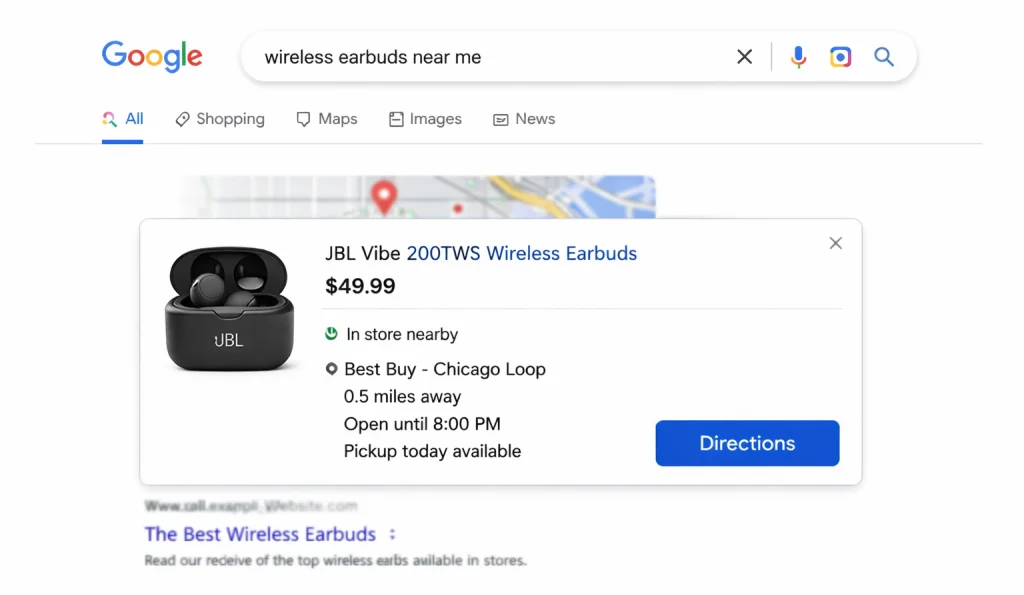
When the shopper clicks the ad, they’ll land on a product page that shows which store location has the item. This makes it easy for customers to visit a nearby store and buy the product the same day.
Benefits of local inventory ads
Now that you know what Google local inventory ads are, the next question is simple: why should you use them?
The way people shop has changed. Most customers don’t just walk into a store. They search on Google first to check what’s available, where to buy it, and how fast they can get it.
Local inventory ads then help you show up in that exact moment when shoppers are deciding which store to visit.
- Drive more foot traffic to your store: The biggest benefit is straightforward: LIAs help bring shoppers into your physical location. When your product ranks high in Google Shopping or on Google overall, and people can see that it is in stock nearby, they’re more likely to visit your store instead of waiting for shipping or going somewhere else.
- Give shoppers a more helpful local shopping experience: These ads answer the questions customers care about most: Does this store have it? Where is it? Are you open? Can I pick it up today? By showing availability and store details upfront, you reduce friction and help shoppers make faster decisions.
- Reach high-intent shoppers at the perfect time: Around 60% of shoppers research products online before buying in a physical store, and local inventory ads don’t target random browsers. They show up for people who are actively searching for a product in a specific area, often with “near me” or local intent. That means you’re reaching shoppers who are ready to buy, not just scrolling.
- Connect online search with in-store sales: LIAs are one of the easiest ways to bridge online and offline shopping. You show up in Google Search with real store inventory, then guide the shopper straight to your location. In many cases, that visibility can be the difference between someone choosing your store over a nearby competitor.
Local inventory ads vs Google Shopping ads
When you search for local inventory ads, you might also wonder: are local inventory ads and Google Shopping ads the same? At first glance, they can look almost identical. They both show a product image, price, and brand right on Google.
However, they’re built for different goals, and that changes how they work. Here are the key differences:
- Different goals: Google Shopping Ads are built to drive online sales, so they usually send shoppers to your website to buy. Meanwhile, Google local inventory ads (LIAs) are built to drive in-store visits and local pickup, so they help nearby shoppers find what’s available in a physical store.
- Different details in the ad: Local inventory ads, which can be called Google local listing ads, often show local signals like “In stock nearby,” “Pick up today,” and store-related details. Google Shopping Ads focus more on ecommerce info like shipping details, online promotions, and sometimes delivery estimates.
- Different click destination: While Shopping Ads typically lead to a product page on your website, Local inventory ads usually open a local storefront experience (Google-hosted or merchant-hosted) that highlights local availability, store hours, directions, and pickup options.
So, if your main goal is online revenue, Google Shopping Ads are a strong fit. If you want to increase store visits and local pickup, LIAs are a better tool. And if you sell both online and in-store, using both together helps you reach shoppers no matter how they prefer to buy.
People comparing LIAs vs Shopping often also ask, “Should I run Search ads too?”Still deciding whether to run Shopping or Search campaigns alongside LIAs? Check out our detailed guide on Google Shopping Ads vs Search Ads!
How to Set up Google Local Inventory Ads from A to Z?
Here are the 8 steps to set up your local inventory ads for Google:
- Step 1: Activate local inventory ads on your Merchant Center
- Step 2: Link your Google Business Profile to Merchant Center
- Step 3: Set up in-store experience and product page experience
- Step 4: Configure pick-up and product display
- Step 5: Add your product inventory
- Step 6: Link your Google Ads to Merchant Center
Before setting local Inventory ads, make sure you have these accounts in place:
- A Google Merchant Center account: This is where you upload and manage your product data.
- A Google Business Profile: This profile showcases crucial information about your business, such as name, address, opening hours, etc. Thus, this is important because Local Inventory Ads rely on store data like address, hours, and distance to shoppers.
- Google Ads: This is where you use to create, launch, and manage your Google LIA campaigns.
Once all these accounts are set, let’s walk through the setup so you can start running Google local inventory ads.
Step 1: Activate local inventory ads in your Merchant Center
First, you’ll need to enable the local inventory ads in your Google Merchant Center, so Google knows you want to show products locally.
To enable Local inventory ads in your Google Merchant Center, follow these steps:
- From the left side bar menu, click on Add-ons under the Settings section.
- Find Local inventory ads and click Add to turn it on. Or you can also add Free local listings if you want your in-store products appear across Google at no cost.
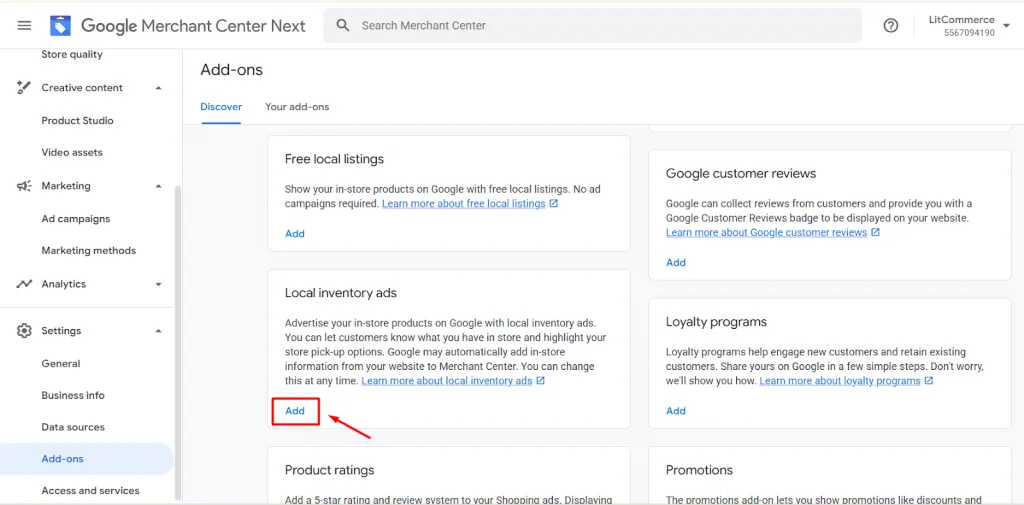
- Once finished, you will see it listed in the Your Add-ons tab. Click on Go to Local inventory ads.
- Then, click on Add country to select the country where you want your local ads to appear.
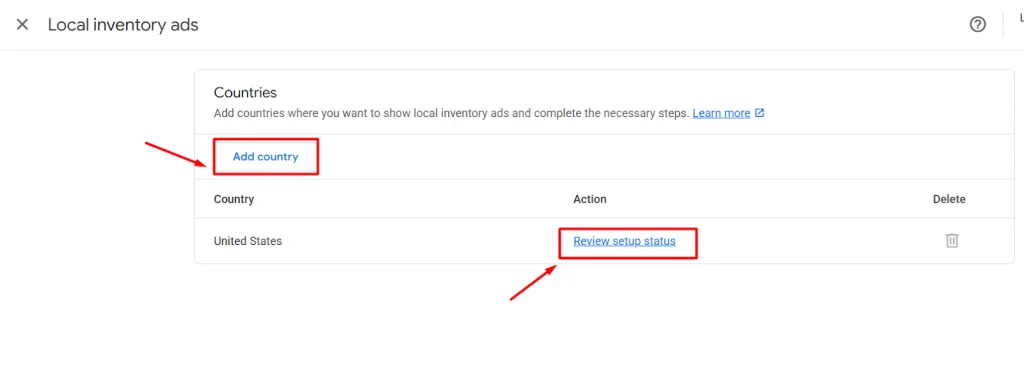
After that, click Review setup status to open the setup checklist and continue with the setup process.
Step 2: Link your Google Business Profile to your Merchant Center
As local inventory ads rely on store data like address, hours, and distance, linking your Business Profile to your Merchant Center allows Google to know where your physical stores are.
Here’s how to connect your Google Business Profile to Merchant Center to add your brick-and-mortar store location:
- In the Add stores step, click Manage stores.
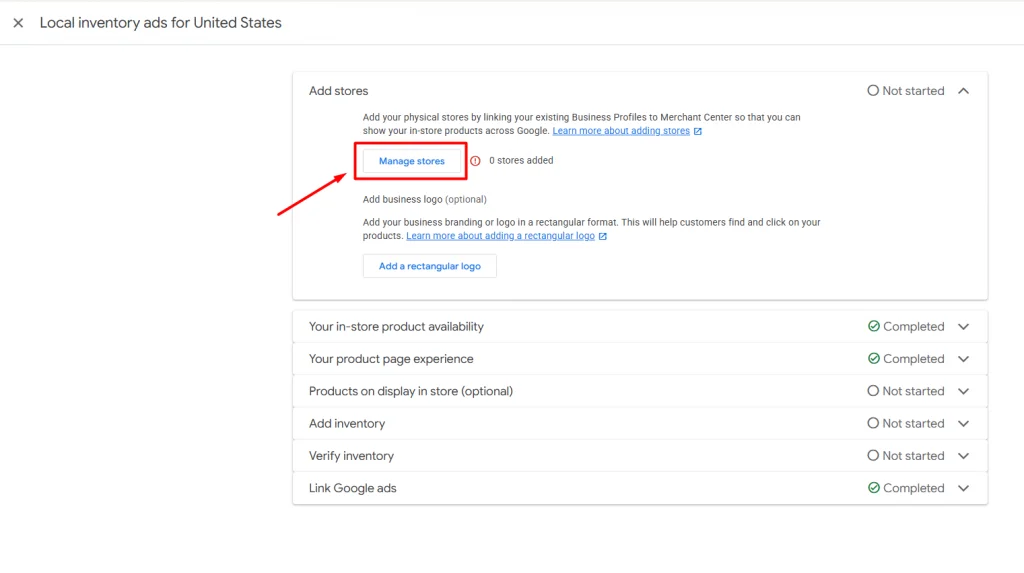
- You’ll be taken to the Business info page in Merchant Center.
- Click Add profile.
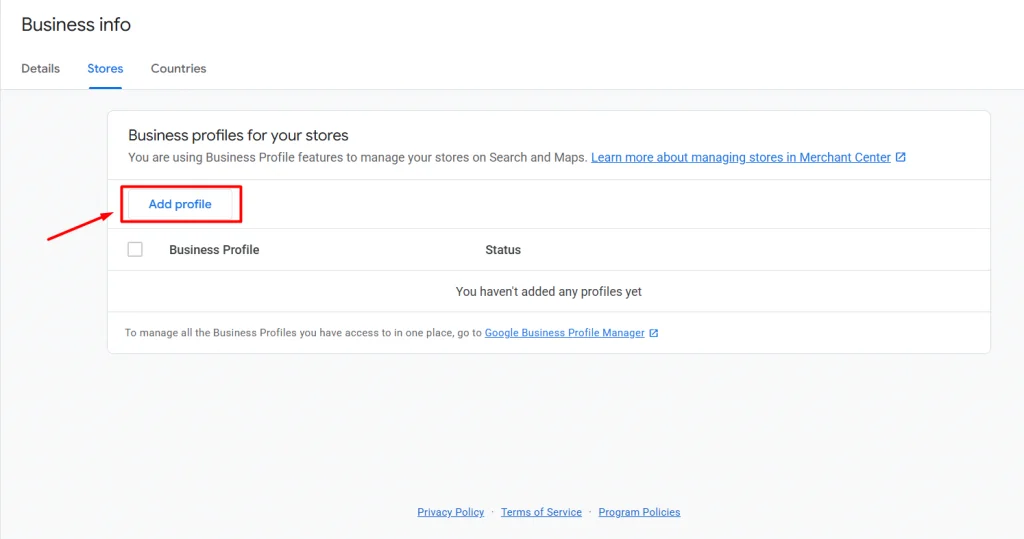
- Tick the box beside your preferred Google Business Profile, then click Next.
Once your accounts are linked, you can move on to setting up in-store availability and your product page experience.
Step 3: Set up in-store availability and product page experience
Next, let’s set up your in-store availability and product page experience, so Google how you handle local stock and what shoppers will see after they click your ad.
Regarding the in-store product availability, you can select between:
- Let customers know what I have in stock in my individual stores.
- Let customers know that I can ship products to stores.
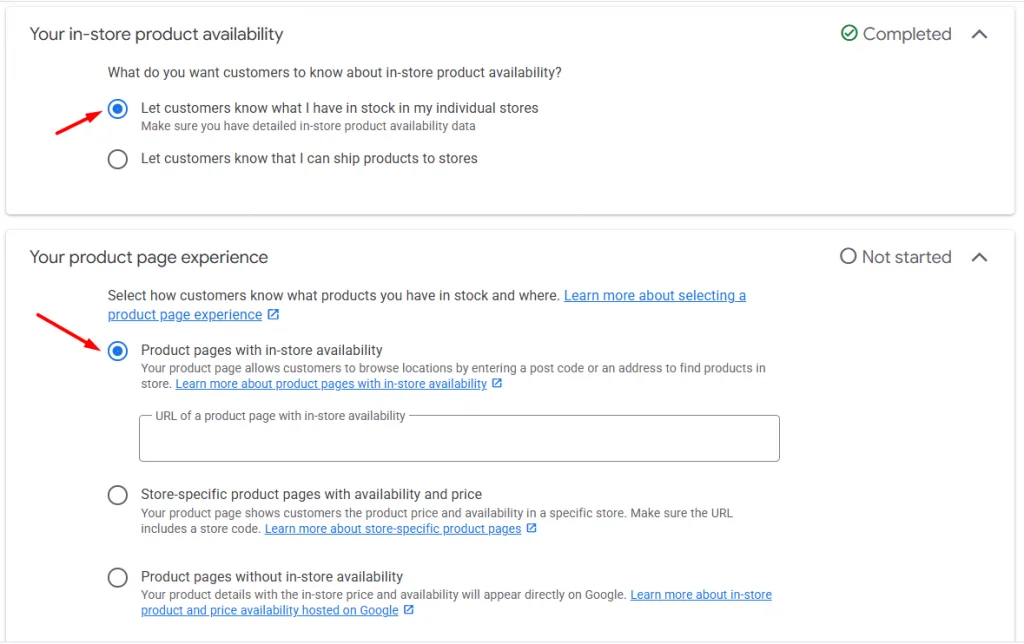
Then, as for the product page experience, you can choose from several page experience options based on your store setup and what you can support as a retailer. Here, simply choose the most suitable option for you:
- Product pages with in-store availability: Choose this option if your product pages let shoppers check store stock by entering a postcode/ZIP code or address to find nearby locations.
- Store-specific product pages with availability and price: With this option, your product page shows the item’s price and availability for a specific location.
- Product pages without in-store availability: This means your in-store price and availability are shown directly on Google instead of on your website.
Step 4: Configure pick up and product display
After you choose your in-store availability and product page experience, you’ll see an optional step to configure pickup.
You don’t have to enable pickup to run Google local inventory ads, but if you offer it, turning it on can make your ads more useful and more click-worthy because shoppers can see how fast they can get the product.
In this section, you’ll select how customers can pick up items from your store, such as:
- Pickup on the same day or next day: Best if you can prepare orders quickly. This option is great for shoppers who need the item ASAP.
- Pickup later: Choose this if you need more time to get the product ready for pickup (for example, 2–5 days).
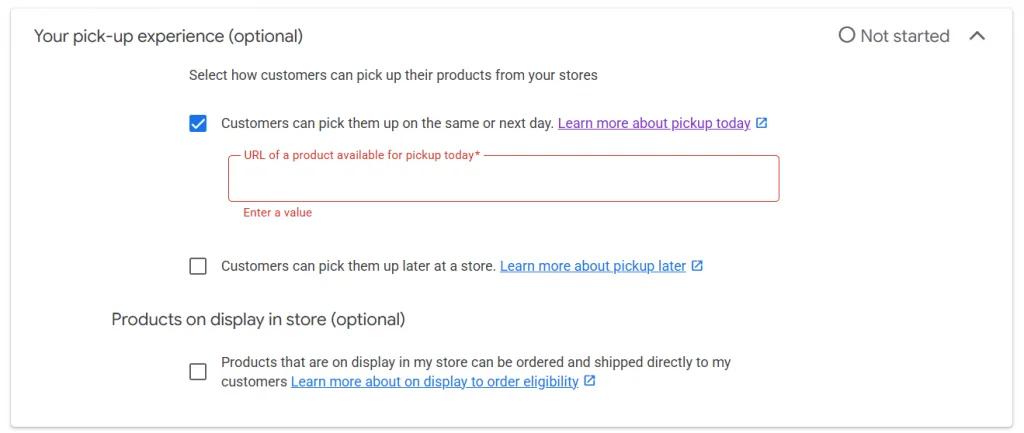
Besides pickup experience, you may also see a setting for products on display. This is simply where you confirm whether display items can still be ordered and shipped directly to customers.
If your display stock can be sold and shipped, enable it. If not, leave it off to avoid customer confusion and inventory issues.
Step 5: Add your local inventory
Next, you will need to add your local inventory. This is the step that makes your ads local. Here, you will need to upload inventory data that tells Google which products are available in each of your stores. This is how Google can confidently show messages like “in stock nearby.”
So, prepare your inventory file with the key fields Google needs:
- Store code (your store/location ID)
- Product ID (must match the ID in your main feed)
- Availability (in stock / out of stock)
- Price (only if your in-store price is different from your online price)
Once you add this inventory file, Google can match each item to the right store and show the correct availability to nearby shoppers.
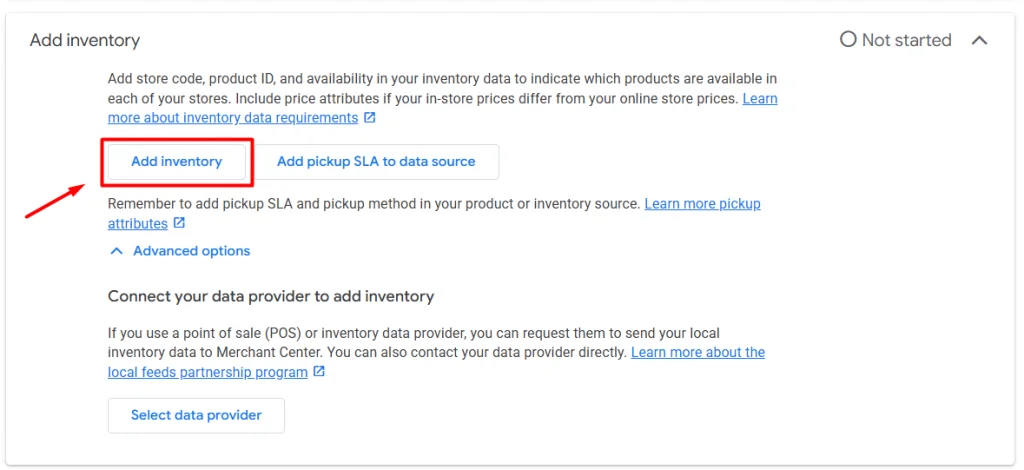
You can choose one of these three ways to add your local inventory in Merchant Center:
- Enter a link to your file
- Add a file using SFTP or Google Cloud Storage
- Upload a file from your computer
However, before adding your Google local inventory feed to Merchant Center, make sure that you already uploaded your primary Google product feed. The primary feed tells Google what the product is, and the local inventory data tells Google where it’s in stock.
This feed should include product basics like:
- Product ID
- Title and description
- Product images
- Variants (size, color, etc.)
- Price and standard availability
If you run your store on platforms like Shopify, WooCommerce, or Wix and want to build your feed faster, you can use a feed management tool like LitCommerce. It uses your store product data to generate a ready feed, maps items to the right Google categories, and lets you set rules to optimize titles, pricing, and other attributes so your feed meets Google’s requirements and reduces disapprovals.
Make Your Local Inventory Ads Work Better
LitCommerce helps you create, optimize, and sync your Google product feed, so your “in stock nearby” listings stay accurate without manual updates.
Step 6: Link your Google Ads to Merchant Center
Lastly, to run Google local inventory ads, you need to link your Google Ads account to your Merchant Center:
Here is how to link your Google Ads to Merchant Center:
- In your Google Merchant Center, go to Settings in the left menu and select Access and services.
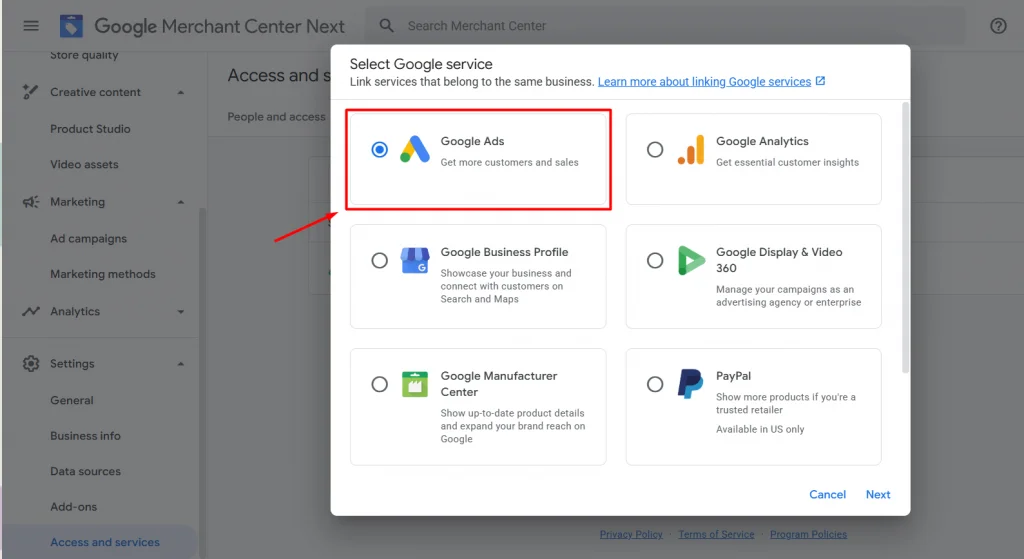
- Next, select Apps and services, click on Add service, and choose Google Ads.
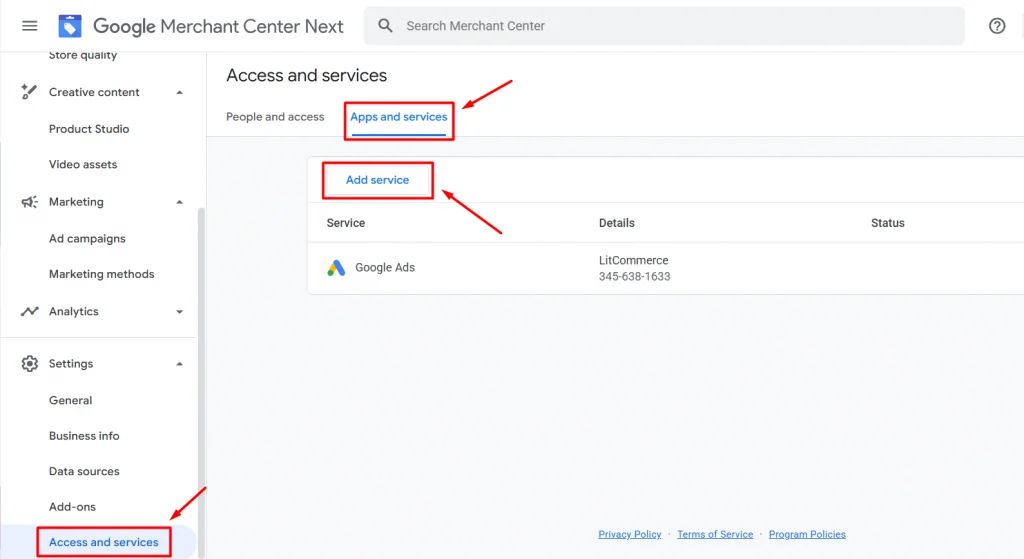
- In the pop-up, select Google Ads and then select your account settings, such as location, time zone, etc.
- Click Link to connect your Google Ads and your Business Manager.
- If you only want to link your Google Ads to your Google Merchant Center Next, click Link to Merchant Center only.
Once your Google Ads are linked to Merchant Center, click Go to Ad campaigns to customize your ad. Here you can name your campaign, set your budget, etc.
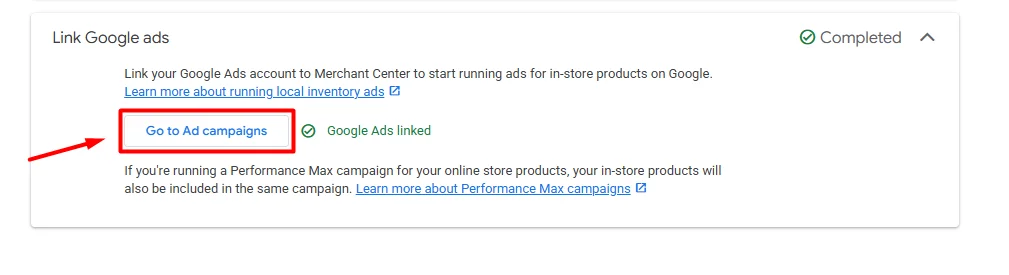
Once everything is set, click Save at the bottom of the page to launch your local inventory ads. And that’s how to set up Google local inventory ads, which are ready to help you reach more nearby shoppers and drive traffic to your offline store.
6 Best Practices to Optimize Your Google Local Inventory Ads
Getting local inventory ads live is only the first step. To get more clicks, store visits, and sales, you’ll want to make sure Google has clean data, and your campaigns are focused on the right products and locations. Here are five best practices that make the biggest difference.
1. Keep your local inventory feed up-to-date
Local ads work because shoppers trust the “in stock” message. If your feed says an item is available but it’s not, you risk a poor experience and wasted spend. Thus, update your local inventory feed as frequently as your stock changes. Daily is a good baseline, and more often is even better for fast-moving products.
Or, if you want to avoid manual updates, feed management tools like LitCommerce can keep your feed in sync on your schedule automatically, keeping inventory and pricing accurate and always up-to-date.
2. Optimize your product feed like you would for SEO
Your feed is what Google uses to match your products to searches. Strong titles and accurate attributes not only help you rank in Google Shopping, but also show up for more relevant queries. So, focus on these details while optimizing your product feed:
- Clear product titles (include brand + product type + key attribute)
- High-quality images
- Correct GTINs/identifiers
- Complete attributes like size, color, and material when relevant
- Correct categories
3. Increase bids for nearby shoppers
Not all clicks are equal. A shopper two blocks away is usually far more likely to visit your store than someone 20 miles away. So, try setting a higher bid for users close to your store or focus budget on tighter radius areas. This helps you show up in the exact moments people are ready to buy locally.
4. Run your local inventory ads during peak hours
And to push results even further, time those higher bids around your busiest hours – when local shoppers are most ready to buy. Local campaigns tend to perform best when customers are already in “shopping mode,” so check when your store gets the most foot traffic and adjust your ad schedule and bids to match.\
For example, if weekends are your peak days, raise bids on Saturdays and Sundays to reach nearby shoppers who are ready to visit and purchase.
5. Optimize your Google Business profile
Your Google Business Profile supports LIAs by providing the store details shoppers use to make a decision. So here are the key informations that you should keep accurate and up to date:
- Confirm your address, phone number, and store hours (including holiday hours)
- Add fresh photos of your storefront and popular products
- Respond to reviews to build trust
- Make sure your store categories and attributes match what you sell
A stronger profile improves confidence and can increase the chance shoppers choose your store after clicking your ad.
6. Track performance by store and optimize your LIA
Treat each location like its own mini-market. Check which stores, products, and areas generate the best results, then optimize based on what’s working:
- Shift budget toward higher-performing locations
- Reduce spend in areas that don’t convert to store visits
- Use reporting to spot top products and pause poor performers
Google Local Inventory Ads – FAQs
What are local inventory ads on Google?
Google local inventory ads (LIAs) are Shopping ads that show nearby customers which products you have in stock at a physical store. They can also display store details like location, hours, directions, and pickup options.
Is $20 a day good for Google Ads?
Yes, $20/day can be a solid starting budget, especially for local campaigns. Results depend on your industry, product prices, competition, and how well your feed and targeting are set up. Start with $20/day, watch performance for 1–2 weeks, then adjust based on store visits, clicks, and ROAS.
How to run local inventory ads?
To run Google local inventory ads, you typically need to:
1. Set up Google Merchant Center and add your products
2. Submit local inventory data (local product + inventory feed)
3. Verify and link your Business Profile/store locations
4. Enable local surfaces / local inventory in Merchant Center
5. Create a Shopping campaign in Google Ads that supports local inventory
6. Track results and optimize bids, assets, and feed quality
What is the difference between Google local inventory ads and standard Shopping ads?
Google local inventory ads focus on driving in-store visits by showing shoppers what’s in stock nearby and store details, while Standard Shopping Ads focus on online sales and send shoppers to your website to buy.
What is the role of product listings in local inventory ads?
Your product listings (product feed) are what Google uses to build and show your ads. They provide key details like title, image, price, brand, GTIN, and – most importantly for LIAs – local availability. Strong listings help your ads show for the right searches and improve performance (more relevant clicks and store visits).
Wrap-up
Google local inventory ads are one of the simplest ways to turn “near me” searches into real store visits. When your product and store data are set up correctly, these ads help nearby shoppers see what you have in stock, where to find it, and how fast they can pick it up – so you stay visible right when customers are ready to buy.
That said, your results will only be as good as your product feed. If you want to save time and keep your listings accurate, LitCommerce product feed management tool can help. LitCommerce lets you create and optimize a Google Shopping feed directly from your online store. It also supports easy categorization, smart rules for feed customization, quality checks to reduce errors, and feed sync to keep inventory and pricing updated automatically.