




How to search keywords in Google AdWords is the foundation of any successful Google Ads campaign. No matter which type of campaign you run, keywords determine when your ads appear, who sees them, and how much you pay for each click. Without proper keyword research, even well-written ads can struggle to deliver results.
In Google AdWords, Keyword Planner is the main tool for researching keywords. It’s free, easy to access, and provides reliable data such as search volume, competition, and mostly the bid range, which you can use to learn to set your ad budget properly. This makes it a cost-effective solution for making informed keyword-targeting decisions.
In this guide, you’ll learn how to search keywords in Google AdWords effectively, including:
- Which types of keywords should you target?
- How to search keywords in Google AdWords with Keyword Planner
- Other ways to research keywords beyond Google AdWords
Now, let’s get started.
Keywords Matter – Your Feed Matters Too!
Want to run Google Shopping ads? LitCommerce helps you easily create and optimize product feeds with AI auto-mapping and smart checks – so your listings can rank better.
Types of Keywords in Google AdWords You Should Know
Before learning how to search keywords in Google AdWords, it’s essential to understand which types of keywords you should actually target. Knowing this is essential if you want to choose wisely instead of adding every possible keyword and hoping something works.
There are two different keyword concepts: keyword match types and keyword intent types. They work together, but they serve different purposes.
Keyword match types
Keyword match types tell Google how closely a user’s search must match your keyword for your ad to appear.
- Broad match: Broad match keywords give you the widest reach. Google may show your ads for related searches, synonyms, or variations. Thus, you can use broad match to explore new search opportunities, but this offers less control. For example, you use the keyword “reusable silicone bags”, your ad may show for searches like: “eco-friendly food storage”, “reusable kitchen bags”, “silicone food containers”.
- Phrase match: Phrase match triggers your ad when the search includes your keyword phrase in the same order, with extra words before or after. It balances reach and relevance. Phrase match for the keyword “reusable silicone bags” can be: “best reusable silicone bags”, “reusable silicone bags for lunch”.
- Exact match: Exact match gives you the most control. Ads appear only when searches closely match your keyword’s meaning. This is ideal for high-intent or high-performing keywords.
- Negative keywords: Negative keywords prevent your ads from showing for irrelevant searches. They protect your budget and improve campaign efficiency.
Keyword intent types (What the searcher wants)
When learning how to find keywords for AdWords, it’s important to understand that beyond match types, keywords can be grouped by intent, which strongly impacts performance.
- High-intent commercial keywords: These show strong buying intent, such as “buy,” “pricing,” “near me,” or product-specific searches. They often cost more but convert better.
- Informational keywords: These are research-focused searches like “how does it work” or “what is the best option.” They’re useful for lead generation but usually not for immediate sales.
- Branded keywords: These include your business name or product names. Bidding on them helps protect your brand and capture high-intent traffic.
- Competitor keywords: These target other brands. They can work well later, once your campaigns are stable and profitable.
In a nutshell, depending on your campaign goals, select the keywords or a combination of keywords that best match your objectives. Beyond driving conversions, the right keyword strategy can also support long-term growth goals like increasing brand awareness with Google Ads, especially when using broader or informational keywords.
How to Search Keywords in Google AdWords with Keyword Planner?
Now that you understand the different types of keywords and how they affect performance, let’s move on to the practical part – how to search keywords in Google Ads using Keyword Planner. Whether you run Google Shopping Ads or Google Search Ads, keyword relevance can directly affect visibility and performance.
Step 1: Set up Google Keyword Planner
To start keyword research in Google AdWords, whether it’s you first need access to Google Keyword Planner.
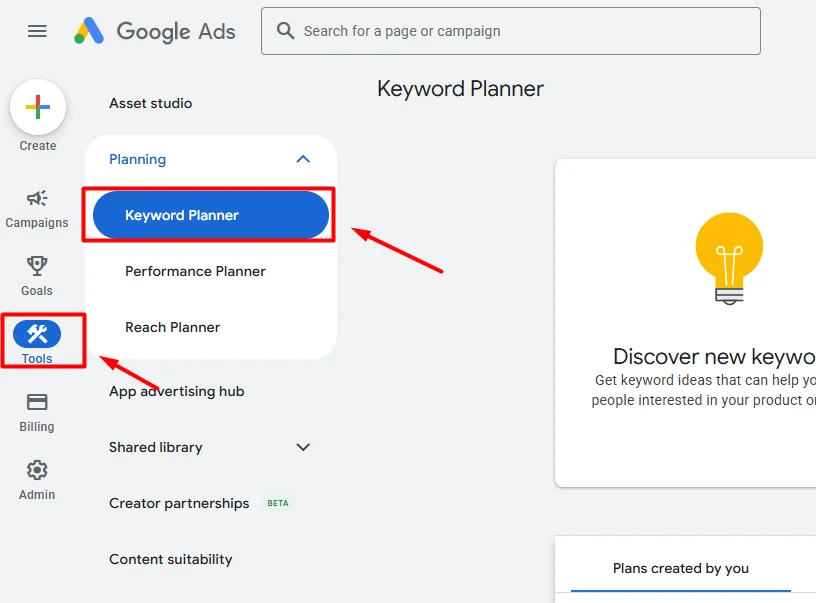
Log in to your Google Ads (formerly Google AdWords) account, open the Tools menu, go to Planning, and select Keyword Planner. While a Google Ads account is required, you don’t need to run active ads to use Keyword Planner. This makes it a free and cost-effective tool for keyword research.
Step 2: Select a keyword research option
Once inside Keyword Planner, you’ll see two main options for Google AdWords keyword research:
- Discover new keywords
- Get search volume and forecasts
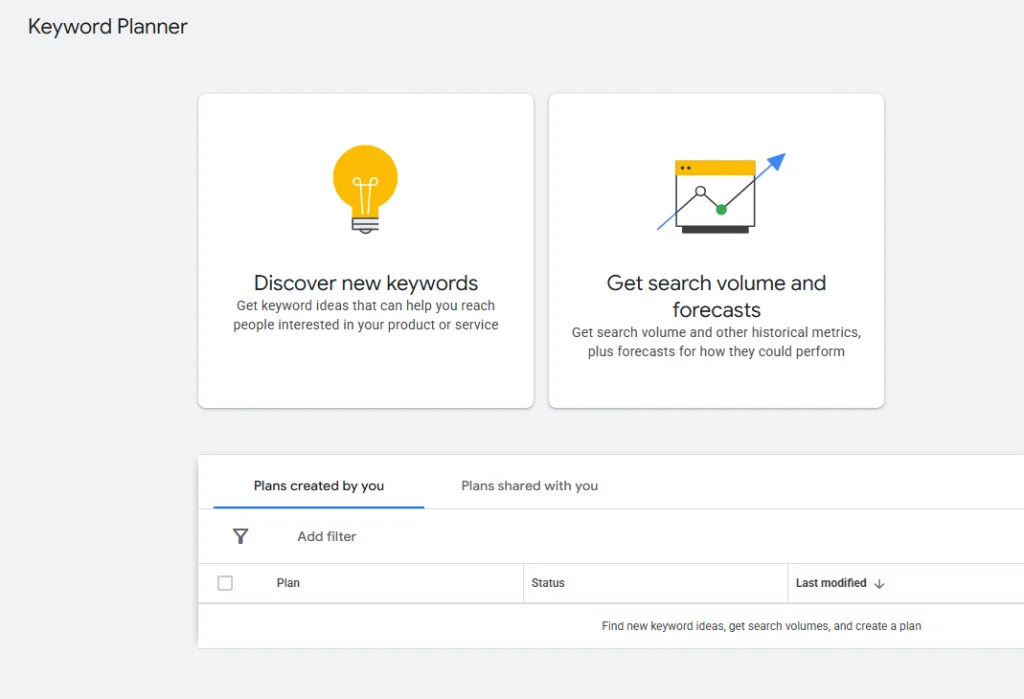
If your goal is to find new keyword ideas, choose Discover new keywords. This option is best for researching fresh keywords and building keyword lists from scratch.
The Get search volume and forecasts option is more useful when you already have a keyword list and want to check metrics like monthly searches, competition, or estimated bid range.
In this guide, we will explain in detail how to discover new keywords for your ads.
Step 3: Choose how to research new keywords
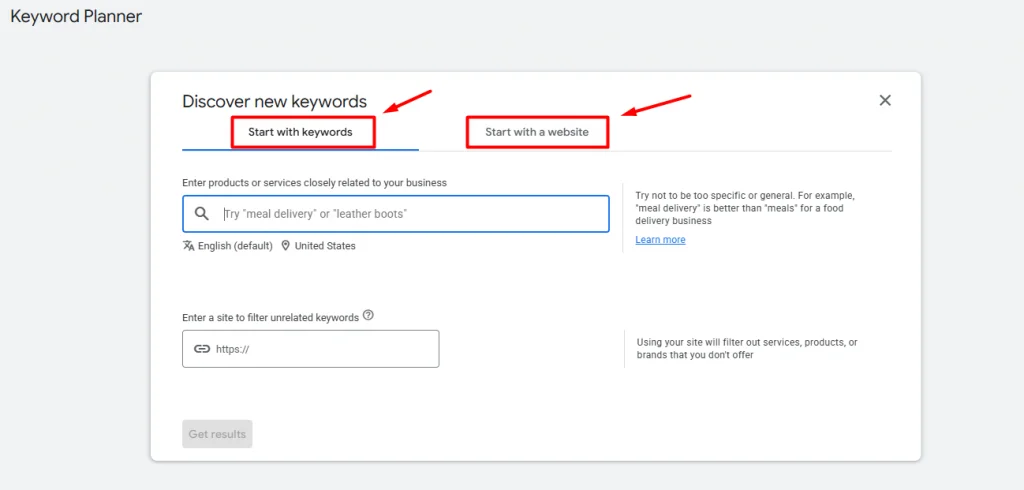
To discover new keywords, Google AdWords provides two options for searching keyword ideas. Each method helps uncover relevant searches depending on how you begin your research.
Start with keywords
The Start with keywords option allows you to enter phrases directly related to what your business offers. These can include:
- Product names
- Services you provide
- Common questions from customers
- Broad topics related to your niche
For example, if you sell eco-friendly kitchen products, you might enter terms like reusable food containers, silicone storage bags, or sustainable kitchen tools. Google AdWords will then generate keyword ideas that share similar search intent, along with useful data such as search volume and competition.
This method is ideal when you already know the main topics or products you want to target.
Start with a website
Google AdWords also lets you search for keywords by entering a website URL. This step is optional but highly useful.
When you add your own website, Google uses its content to:
- Filter out irrelevant keyword suggestions
- Generate ideas closely related to your products or services
When learning how to research keywords for Google AdWords, you can also enter a competitor’s website to discover keyword opportunities you may have missed.
Once you’ve entered your keywords or website URL, click Get results to view keyword suggestions and data.
Step 4: Choose the right keywords for your Google Ads
Once Google AdWords generates keyword ideas, the next step in how to search keywords in Google AdWords is review them carefully. Not every keyword will be a good fit for your campaign.
From the keyword list, you will see that results are split into two groups: Keywords you provided and Keyword ideas. The suggested keyword ideas are especially useful for expanding your keyword list beyond your initial assumptions.
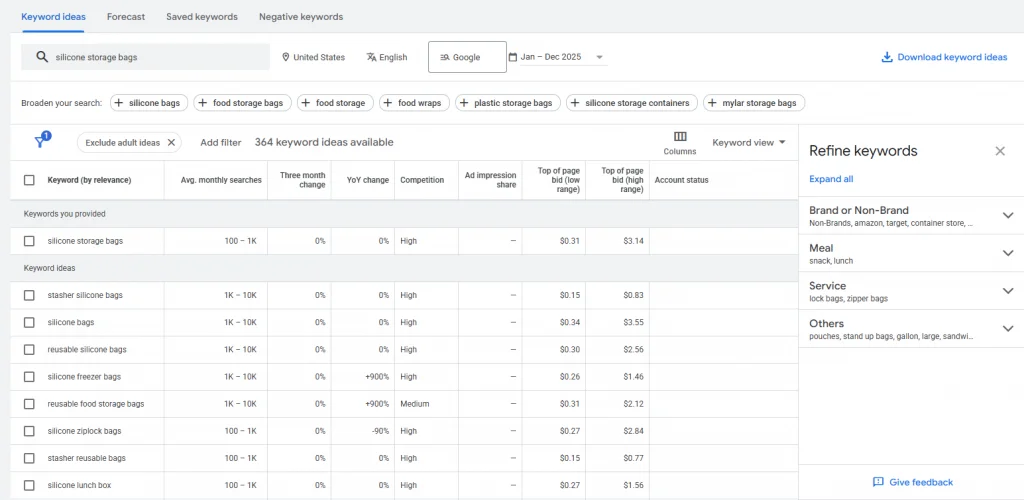
Here are some key metrics you should pay attention to with Keyword Planner’s results:
- Average monthly searches: This shows the total volume of searches for a keyword on Google, based on a 12-month average. Higher volume means more potential visibility, while lower volume often signals more specific, high-intent searches.
- Competition: Competition reflects how many advertisers are bidding on a keyword. Low or medium-competition keywords are usually easier and cheaper to target. High competition often indicates strong commercial intent but may require higher bids and better ad quality.
- Three-month change: This metric highlights short-term shifts in search interest. A rising trend may signal growing demand and opportunity, while a drop may signal declining interest or seasonality.
- Top of page bid (Low and High range): These estimates show how much advertisers typically pay to appear near the top of search results. For example, “reusable silicone bags” cost over $2 for a top-of-page bid, “silicone bags” are closer to $4, while “Stasher silicone bags” keywords average around $1. The low range gives you a baseline cost, while the high range reflects aggressive bidding. You can use these numbers to plan budgets realistically.
- Year-over-year change: This compares current search volume to the same period last year. It helps spot long-term trends and identify keywords that are gaining or losing popularity.
Moreover, when choosing keywords for your Ads campaign, focus also on these key factors:
- Relevance and intent: Choose keywords that closely match what you offer. A search term should align with the user’s expectations and your ad content.
- Keyword type: You should also watch out for branded keywords or terms that don’t fit your campaign goals. Decide whether they belong in your strategy.
This leads directly to the next step in how to find keywords for Google AdWords: Narrow down the keywords.
Once you’ve chosen the right keywords, pairing them with flexible ad formats like Responsive Search Ads can help Google match your ads to more relevant search queries.
Step 5: Narrow down the keywords with filters
Once you have a list of keyword ideas, the next step is to narrow them down. This helps you remove irrelevant terms and focus only on keywords that match your business and campaign goals.
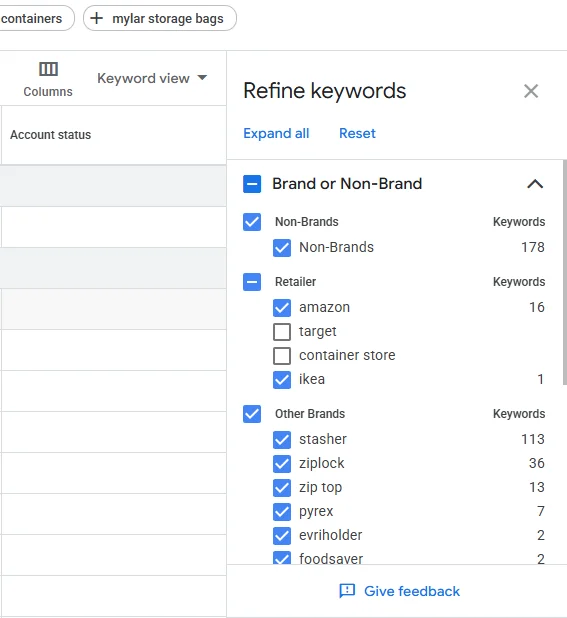
Refine keywords
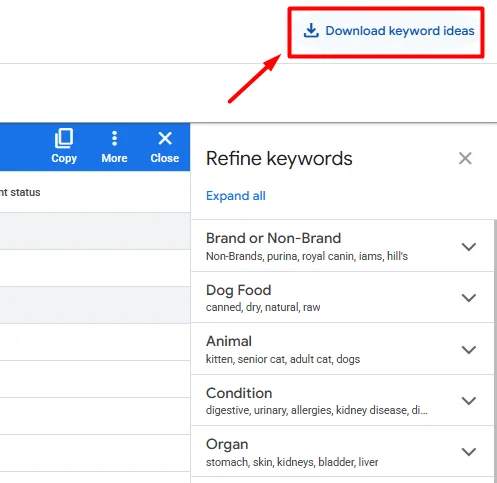
First, to narrow down your keyword list, use the Refine keywords panel in Google Keyword Planner. The available filters change depending on your industry, helping you remove keywords that don’t fit your brand, pricing, or offerings. You can refine results by:
- Excluding branded keywords: If you sell generic athletic shoes, you might want to filter out “Nike” or “Adidas” if you don’t carry them. Conversely, if you want to steal competitors’ traffic, you might keep them (but be prepared to pay more).
- Removing irrelevant categories: This helps you exclude keyword groups that don’t match your products or services. It keeps your keyword list focused and prevents wasted ad spend on unrelated searches.
- Filtering by specific attributes related to your business: This lets you narrow keywords based on features, options, or characteristics that matter to your audience.
Narrow results by location
After refining keywords, adjust your location settings to make sure the data reflects your target audience. By default, Google Keyword Planner shows keyword data for your current country. If your business only serves certain regions, cities, or states, you should update this setting.
This helps you see how people in your target area actually search, which is especially important for Google local inventory ads campaigns.
Click the location filter above the keyword list and select:
- A country
- A state or province
- A city or region
Add negative keywords
While reviewing your list, you may also spot keywords you don’t want your ads to appear for. These can be added as negative keywords directly from Keyword Planner.
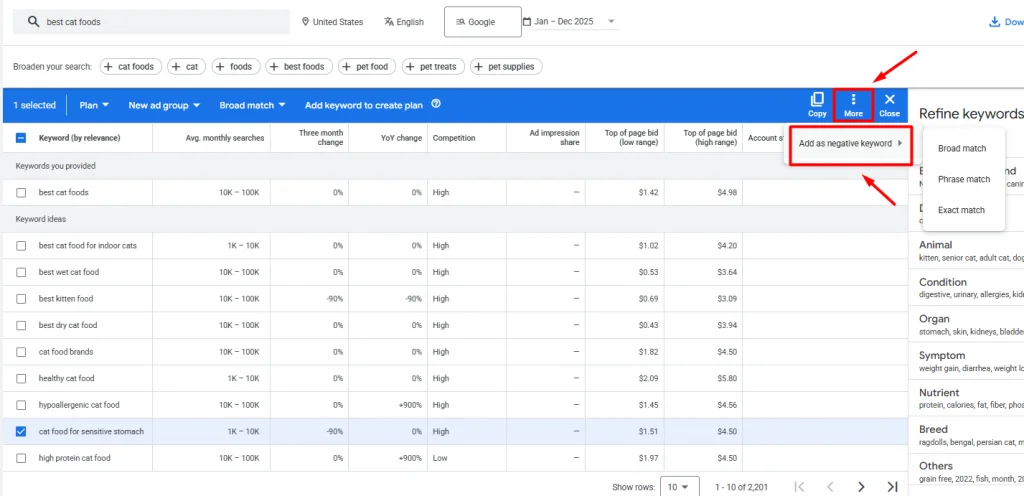
Select the unwanted terms, open the More menu, and choose Add as negative keywords. This step is essential when learning how to choose the best keywords for Google AdWords, as it helps protect your budget from irrelevant clicks.
Step 6: Save your keyword list
After narrowing down your keywords using filters, the last step on how to search keywords in Google AdWords is to save your final selections.
To save keywords in Google Keyword Planner, simply select the checkboxes next to the keywords you want to keep. A bar will appear at the top, showing how many keywords you’ve selected. From there, you can assign them to an ad group and choose the appropriate match type.
Once everything is set, click Add keywords to create plan to store them inside Google Ads.
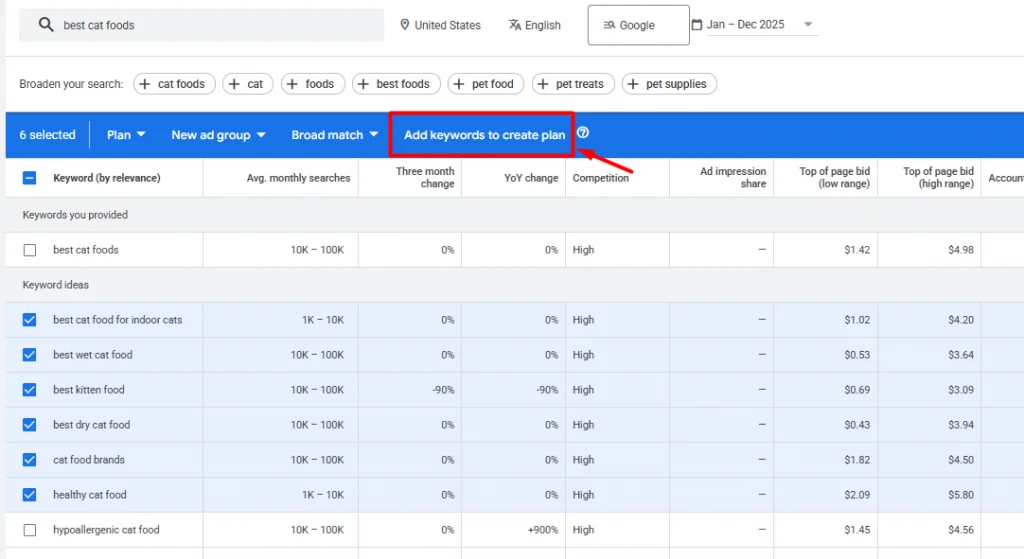
For easier management, download your keyword list by clicking the Download icon in the top-right corner. You can export the data as a CSV file or save it to Google Sheets. Keeping your keywords in a spreadsheet makes it easier to review, share, and upload them later when setting up or optimizing your campaigns.
So, how to search keyword in Google AdWords? To search for keywords in Google Ads (formerly AdWords), open Keyword Planner from the Tools menu under Planning. Choose Discover new keywords to enter related terms or a website URL, or select Get search volume and forecasts to review existing keyword lists. This lets you see important data such as search volume, competition, and estimated bid costs.
Other Ways to Search for Keywords Beyond Google AdWords
While Google Keyword Planner is the go-to tool for many advertisers, it’s not the only way to approach when you want to learn how to do keyword research for Google Ads. Using additional methods and tools can help you uncover new opportunities, validate ideas, and better understand competitor strategies.
Several other platforms offer deeper insights that complement Google Keyword Planner:
- SEMrush is useful if you want to explore question-based keywords and understand search intent. Its tools help uncover keywords people use when researching problems, which can be valuable for top-of-funnel Google Ads campaigns or educational content.
- Ahrefs provides keyword data across multiple platforms, including Google, Bing, YouTube, and Amazon. This makes it helpful if you’re running ads on more than one channel or want broader visibility into how keywords perform beyond Google Ads.
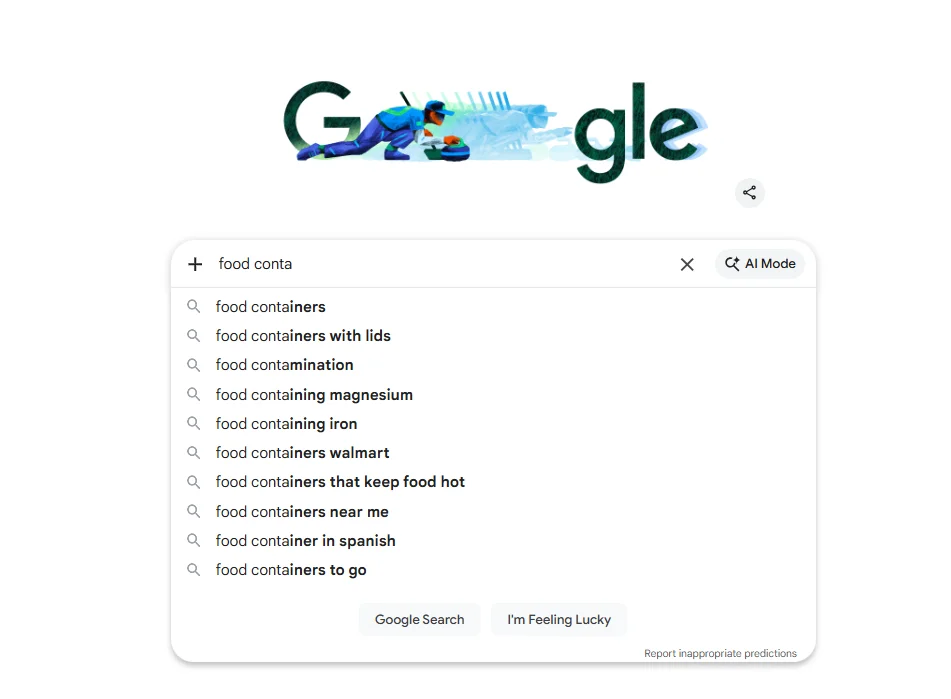
- Google Suggest is also an easy way to find more keyword ideas. When you type a keyword into Google’s search bar, Google shows autocomplete suggestions before you press enter. These suggestions are based on popular searches and can help you discover related keywords. You can also add different letters after your main keyword to find even more keyword ideas.
How to Search Keywords in Google Ads – FAQs
How do I search keywords on Google AdWords?
To search keywords on Google AdWords, follow these steps:
1. Log in to your Google Ads account
2. Click the Tools icon
3. Open the Planning menu and select Keyword Planner
4. Click Discover new keywords
5. Click Get results to generate keyword ideas
Does Google have a keyword search tool?
Yes, Google offers a free keyword research tool called Google Keyword Planner, available through a Google Ads account. It helps you find new keywords, view search volume data, and estimate advertising costs. The tool is also useful for SEO, as it reveals related keyword ideas and audience interest.
How to do keyword searching?
To do keyword searching, start by identifying topics related to your business, then use tools like Google Keyword Planner, Semrush, Ahrefs, etc to find keyword ideas. Analyze search volume, competition, and intent, and choose keywords that match what your audience is actively searching for.
What is Google Keyword Planner?
Google Keyword Planner is a free tool inside Google AdWords (now Google Ads) that helps advertisers find and analyze keywords for search campaigns. It shows search volume, competition, and estimated cost per click to support better keyword decisions.
Final Thoughts
And that’s how to search keywords in Google AdWords. By choosing the right keyword types, analyzing data, and refining your list, you can reach the right audience, control costs, and build more effective Google Ads campaigns.
If you’re running Google Shopping Ads, using the right tools matters too. LitCommerce is a product feed management tool that helps sellers create and manage Google Shopping product feeds directly from their online store. With features like easy categorization, smart rules, quality checks, and automatic feed syncing, LitCommerce keeps your product data accurate and ready for ads.
Combine strong keyword research with the right feed setup, and you’ll be well-positioned to grow your Google Ads performance with confidence.