


Already sell on Shopify and want to sell your Shopify products on Amazon? That’s a smart move. If you can leverage the full potential of two dynamic platforms – Amazon and Shopify, you get the chance to reach more customers and sell more. Find yourself stuck in the dilemma of manual Shopify Amazon integration? We’ve got you covered.
In this guide, we will walk you through 5 steps on how to connect Shopify to Amazon, list products, and sync inventory across these 2 channels using LitCommerce:
- Connect Shopify to Amazon
- List your Shopify products on Amazon
- Import and link Amazon products
- Turn on data synchronization
- Manage order flow on both channels
Now, let LitCommerce be your guiding star and walk you through 5 steps to connect Shopify with Amazon.
Kick Off The Multi-selling Race On Amazon and Shopify
Don’t miss your chance to multiply your profit by going live on Amazon and Shopify. Try LitCommerce for your multichannel selling journey and strike for skyrocketing revenue today!

What to Prepare to Connect Shopify to Amazon?
Before learning how to connect your Shopify store to Amazon, it’s important to prepare both platforms properly. Doing this early helps you avoid listing errors, sync issues, and account restrictions later.
- You have an active Amazon Seller account: This is another requirement for connecting Shopify and Amazon. Similar to the previous term, you must have a seller account ready. Or else, register with Amazon. However, the verification process may take you a while.
- You understand thoroughly Amazon policies: Familiarize yourself with Amazon’s policies, including product listing guidelines, prohibited items, and seller performance metrics. Adhering to these policies is crucial for maintaining a healthy seller account.
- You have all relevant product details in hand: Amazon requires stricter product data than Shopify, especially product identifiers. Before you connect Shopify to Amazon, make sure each item has an identifier – an ASIN (if the product already exists on Amazon) or a valid UPC/EAN/GTIN (if you’re creating a new listing). If you don’t have GTINs for your products, you can also apply for an Amazon GTIN exemption (when eligible) to list without UPC/EAN codes. Having this sorted upfront helps you list faster and avoid common upload errors.
- Your products are approved: As you sell on Shopify, you don’t face as many selling limits as selling on Amazon. Therefore, check again to ensure you don’t sell any products that are in Amazon restrictions. In other words, your products on Shopify should all be approved by Amazon.
Considering these key points and taking the necessary preparatory steps, you can set yourself up for success when connecting your Shopify store to Amazon.
Notes: You should check if you are using Amazon FBA. if you are using it, remember that FBA is only for Amazon products, not those sold from your source store. Therefore, pay high attention to shipping and fulfillment once you integrate Shopify with Amazon.
How to Connect Shopify to Amazon in 5 Steps with LitCommerce
LitCommerce is a powerful multichannel selling tool that helps automate all your manual tasks. Now, let LitCommerce be your guiding star and walk you through 5 steps to integrate Shopify with Amazon, so you can start selling your Shopify products on Amazon.
Here are the detailed guide on how to connect Shopify to Amazon and how to sell Amazon products on Shopify:
Step 1: Connect Shopify to Amazon
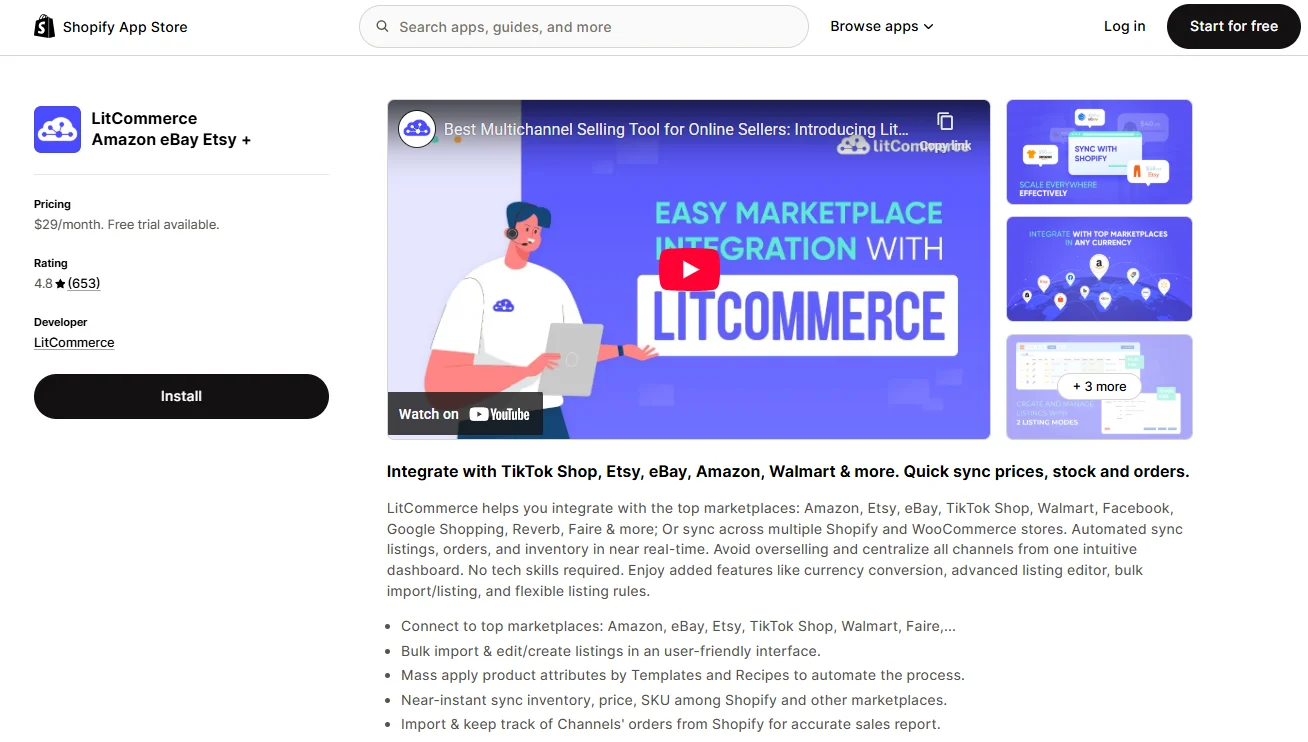
To begin our process, install the LitCommerce app on the Shopify App Store or go directly to app.litcommerce.com, log in/register a new account, and connect your Shopify store.
Moving on, how to connect Shopify to Amazon after connecting successfully your Shopify store to LitCommerce, it’s time to connect your Amazon store as a sales channel.
At this point, click Connect under the Amazon logo. Then, give your Amazon store a name on LitCommerce, select your Amazon country, and click Connect Your Account.
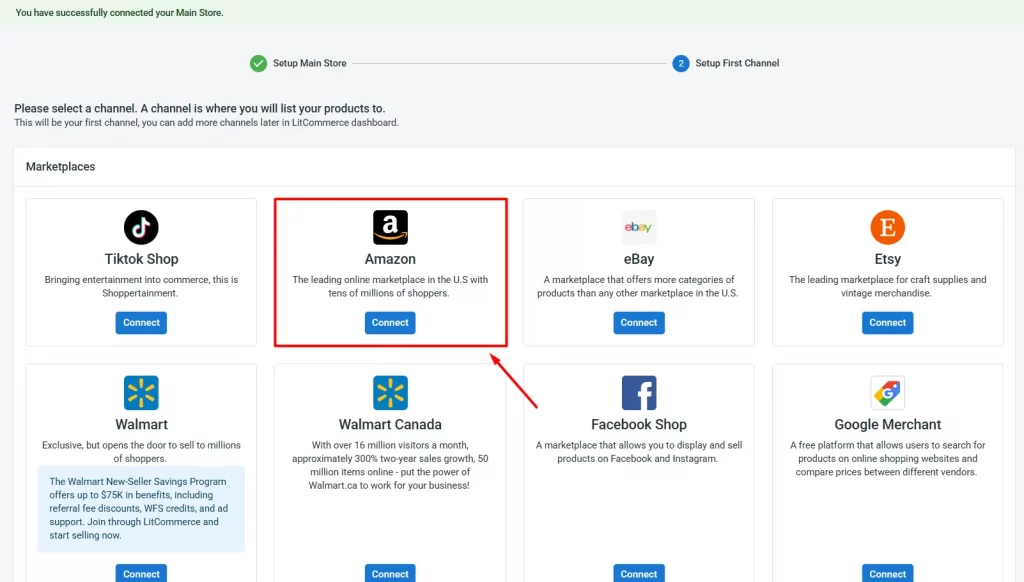
Once finished, you have succeeded in connecting Shopify to Amazon. Let’s head to the next step of Shopify and Amazon integration!
Step 2: List Shopify products on Amazon
After connecting Shopify and Amazon, you’re ready to list your Shopify products on Amazon.
Here is how to list Shopify products on Amazon using LitCommerce:
- Go to the left-sidebar menu and navigate to All Products.
- Tick the corresponding checkbox next to any Shopify product you want to list on Amazon.
- Then, click Select Action > Add to Channel Drafts, then select Amazon.
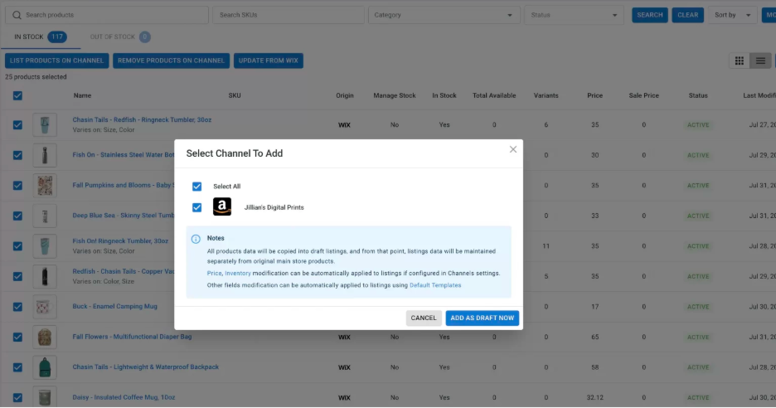
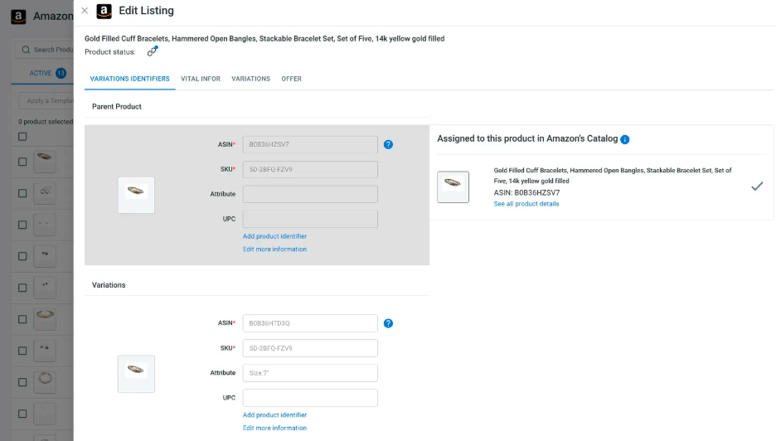
- Once finished, open the Amazon channel to review and edit your drafts before publishing them on Amazon. Simply click on any title to start editing your listing. Here you can edit and fill in the missing information for your Amazon listings, such as Variation Identifiers, Title, Variations, Shipping, Offer, etc.
- Finally, when your listings are ready to go live, click Save & Publish to Amazon to publish your changes to Amazon. If you’re not ready yet, choose Save & Close to save the listing as a draft, or Save Change to save your edits and keep editing.
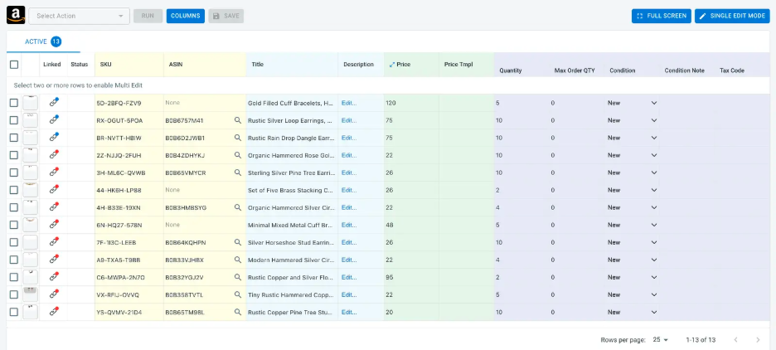
At this point, to connect Shopify to Amazon, instead of editing listings one by one, you can use the Multi-edit Mode (known as our QuickGrid). This features a spreadsheet-styled interface that allows you to edit multiple listings – all from a single screen, saving you time and effort.
Stop Managing Shopify and Amazon Manually
Updating listings, inventory, and orders across two platforms can quickly become overwhelming. LitCommerce connects Shopify with Amazon and automates your product sync so you can manage everything in one place.
As mentioned above, Amazon requires more product details than Shopify – especially product identifiers. Because of this, LitCommerce supports the three cases below when you learn how to connect Shopify to Amazon and list products on Amazon:
Case 1: Your product already has an ASIN on Amazon Catalog
An ASIN, or Amazon Standard Identification Number, is a unique 10-digit code comprising letters and digits, assigned to individual products or variations within Amazon’s internal catalog.
To list products on Amazon, you need to get your ASIN number first. To search for the ASIN number on the LitCommerce app, you can use the product title keywords, SKU, or other product identifiers such as GTIN, UPC, etc.
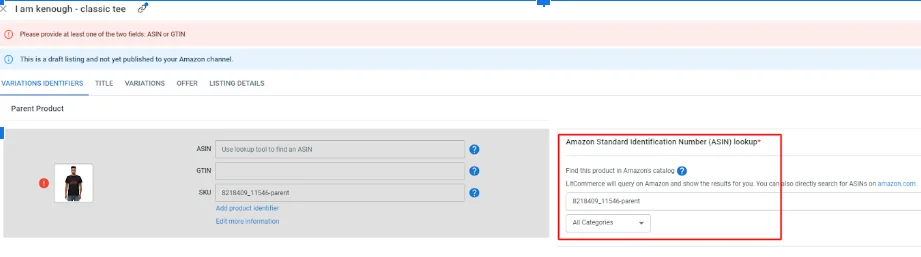
Once the ASIN is assigned, please fill in all the required information and publish on Amazon.
You may also like: How to List Products on Amazon in 2026: A Step-by-Step Guide.
Case 2: Your product doesn’t have an ASIN on the Amazon catalog yet, but it has a GTIN (UPC, EAN, ISBN, etc.)
In this guide to connect Shopify to Amazon, there’s a possibility that you don’t have ASIN number, but GTIN. However, your GTIN number must be approved and verified on Amazon, not the GTIN number you see on your Shopify store.
At LitCommerce, there’re 2 methods you can apply to find your ASIN number.
#Method 1: Use GTIN to search for corresponding ASIN from Amazon catalog
On this method, you can use your keywords from the title to find a matching products in the list and assign to your listings. From here, Amazon will have the information of what products you’re selling.
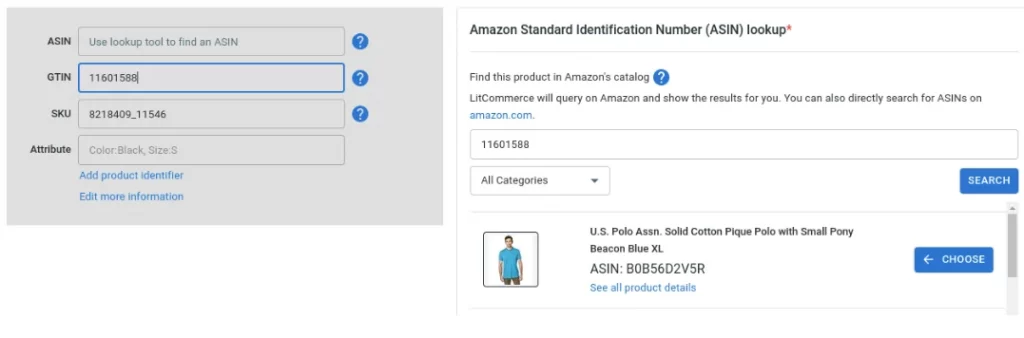
Please enter the GTIN in the ASIN search field. If the product is found in the search result, select that ASIN and proceed the step in the case 1 above.
#Method 2: Can’t find the ASIN using the GTIN
In this case, you need to submit your product with the GTIN to Amazon to see if your products have been approved on Amazon yet.
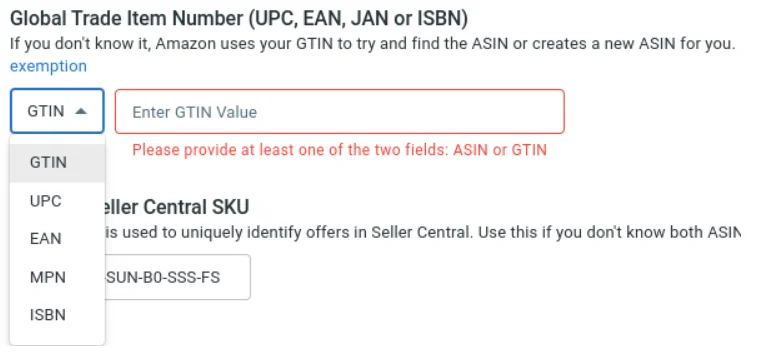
Simply enter your GTIN number, select the correct GTIN type (UPC, EAN, MPN, etc.), and publish as usual!
Case 3: List products on Amazon with GTIN Exemption
When listing products on Amazon, you must provide a product identifier like a GTIN (Global Trade Item Number). If you sell private label items without a GTIN or meet specific criteria, you can request a GTIN exemption from Amazon.
If you possess an Amazon GTIN exemption, kindly reach out to us, attaching the Amazon confirmation and specifying the approved Brandname and category. Without a configured GTIN exemption, the interface will only display the Listing Details tab and may not show all the required sections.

After setting up the GTIN exemption on LitCommerce, you can use the Listing Details template to input the necessary information specified by Amazon in the error message.
That’s how you can list and sell Shopify products on Amazon in specific cases we showed above. We believe that the listing process may take time to complete, but it’s worth listing and selling on this large online marketplace.
Check our guide on How to Sell on Amazon: 5 Steps for Beginners [Latest Updated].
Step 3: Import and link Amazon products
Besides listing Shopify products on Amazon, you can also import and link Amazon products to Shopify using LitCommerce.
This is an optional step in this guide on how to connect Shopify to Amazon. It’s especially useful if you already have an Amazon store and want to sell Amazon products on Shopify or link products across both channels for better inventory management.
#1. Import Amazon products
So, how to sell Amazon products on Shopify?
Let’s discover how to import Amazon products to Shopify and sell them there:
- In LitCommerce, go to the left sidebar menu and click on your Amazon channel. From there, choose Import from Amazon.
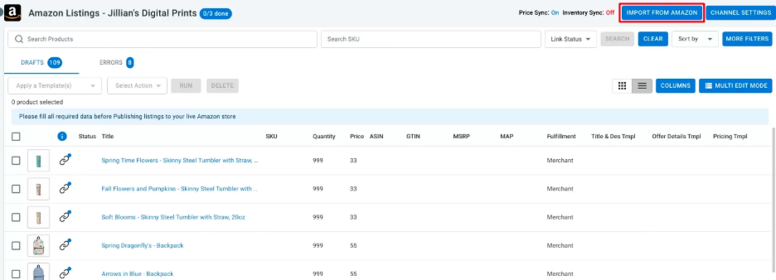
- Choose which Amazon products you want to import. You can adjust options, such as: Auto-link products (to link matching items automatically), Re-import all deleted Amazon products, Include FBA items, Include inactive listings, or other filters (to import specific items only).
Note on FBA items: LitCommerce doesn’t import FBA products by default because Amazon does not allow inventory sync for those items.
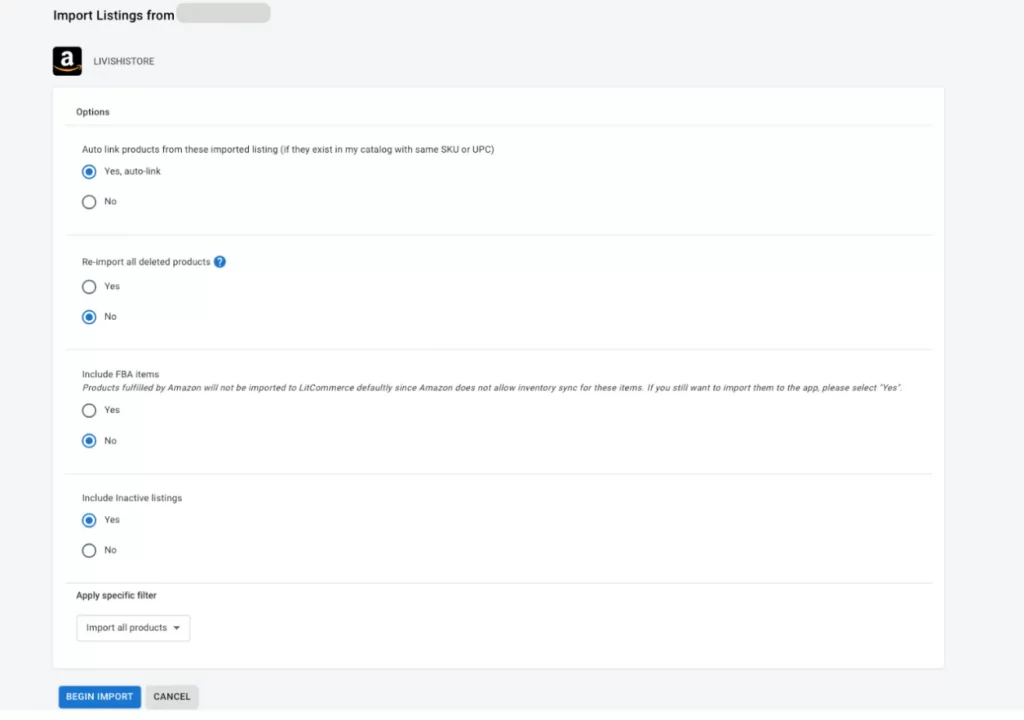
- Once finished, click Begin Import to start.
After the import finishes, your imported products will appear in your Amazon tab. Now, let’s create Shopify listings from Amazon products.
- In your Amazon sales channel in LitCommerce, select the Amazon products you want to bring to Shopify.
- Click Select Action, then choose Create on Shopify.
As soon as you’ve clicked the button, we will import your Amazon listings and add them to your Shopify store, so you can start selling them there.
#2. Link Amazon products
During your Amazon product import, enabling Auto-link products lets LitCommerce automatically link Amazon and Shopify items by matching SKUs or UPCs.
Once products are linked, LitCommerce can sync data to both channels, helping keep your listings up to date 24/7. Otherwise, if a listing isn’t linked, you can’t use inventory or price sync for that item during Shopify Amazon integration.
To check the linking status, look at the chain icon next to each listing in the Amazon channel:
- The blue dot means your products are linked.
- A red dot indicates your listings aren’t linked to any product.
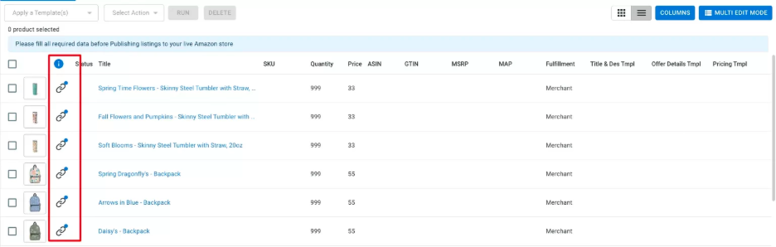
While linking Shopify to Amazon, you might have to link products manually. Discussing the matter further, there can be several root causes leading to this inconvenience, which include:
- Your SKU numbers across selling platforms have mismatched;
- Some of your listings don’t have SKUs.
Whatever case you are in, linking products is a must for successful Amazon Shopify integration, and here is how to do it:
- Look for the red link icon next to the item.
- Hover over it and select Link to a product.
- Choose the matching Shopify product from the list, or enter the correct SKU to find it faster.
- Click Select beside the product shown on the screen to confirm.
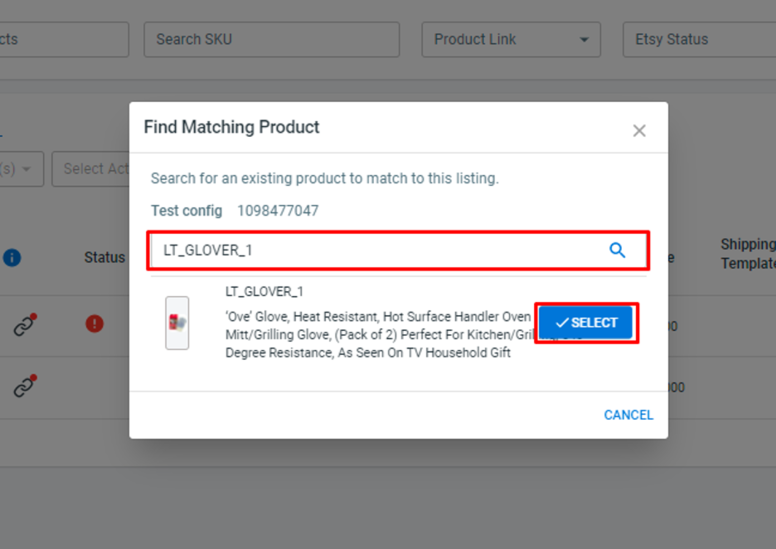
Once you have completed these steps, a notification will appear confirming that your listings and products are now linking to each other. Ensure all products are linked to smoothly perform Shopify Amazon fulfillment and inventory management later.
Step 4: Turn on Shopify Amazon sync
We are reaching the final steps on how to connect Shopify to Amazon. Now, let’s learn how to sync data among your stores, including pricing, inventory, and orders.
- Go to Channel Setting, which is located under the Listing section;
- Switch on Pricing, Inventory, and Order synchronizations;
- Choose Save Setting.
- Shopify Amazon pricing sync
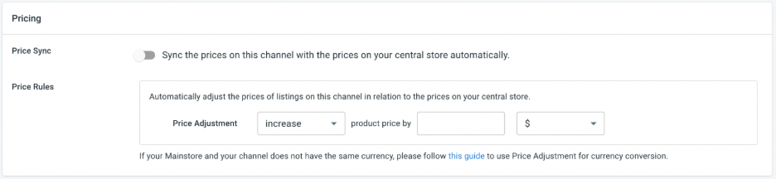
The pricing sync feature by LitCommerce helps you update pricing from your Shopify store and display it on Amazon up to your preference. More than that, you can create pricing rules, which include an increase or decrease (by percentage or a fixed amount).
- Shopify Amazon inventory sync
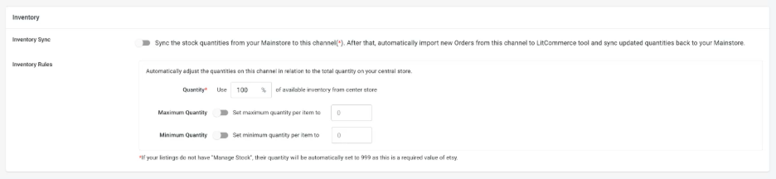
Like pricing sync, you can make any changes to your inventory on Amazon and Shopify and set rules for each sales channel. However, only inventory changes made from the LitCommerce dashboard take effect as you carry out Shopify to Amazon integration.
- Shopify Amazon order sync

Here is how we help you prevent overselling or out-of-stock incidents. When you turn on Order synchronization, our system automatically decreases the inventory number every second an item is sold. If you want to monitor orders on separate channels, you can turn off the Order sync anytime.
Step 5: Manage Shopify Amazon integrated order flow
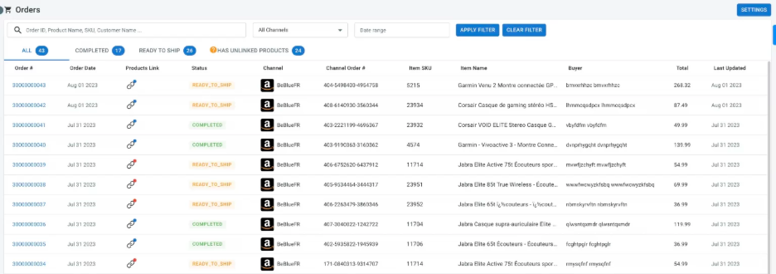
After allowing data synchronization for your Shopify and Amazon integration, you can track orders from your source store – Shopify. And the best part? All navigation is automatically done on one centralized dashboard.
Notice: Due to privacy policy, we do not sync your customer name and info.
To start managing the integrated order flow, go to Orders. From this tab, you can:
- Regulate and monitor orders across selling channels;
- View order information (status, order numbers, buyers’ details, shipment, etc.).
And that’s it! You have reached the end of our guide on how to connect Shopify to Amazon.
Start Selling on Shopify and Amazon Together
Stop switching between dashboards and updating listings manually. With LitCommerce, you can connect Shopify to Amazon, sync products automatically, and manage both channels from one dashboard..
How do Sellers Benefit from Shopify Amazon Integration?
Can I sell Shopify products to Amazon? Sure. Unlocking your multichannel selling chapter is undoubtedly challenging, yet it has much to offer in the long run. Here are some reasons you should implement Shopify Amazon integration:
- Enhance selling capabilities: Relying on a single platform limits your selling capabilities regarding certain aspects. As mentioned, when selling on Shopify, you can take advantage of its full eCommerce toolsets and face fewer sales restrictions. However, your chances of boosting product visibility or accessing an extensive fulfillment network on Shopify can’t compete with the Amazon Marketplace. So, why not diversify your sales channels by connecting Shopify to Amazon?
- Increase conversion rate: Once you have tapped into a massive audience from both selling platforms, you can increase the current purchase rate. Not to mention, both Amazon and Shopify have excellent reputations and numerous integration apps to help level up your conversion rate simultaneously.
- Simplify selling procedures: You should connect Shopify to Amazon as you won’t have to manage inventory or process orders separately from sales channels any longer. In most cases, sellers use an app like LitCommerce to connect Shopify to Amazon, which lets them manage their business from one screen.
- Earn in-depth customer insights: Another reason to carry out an Amazon-Shopify sync is to gain a better understanding of your existing or potential customers. Due to platform features, Amazon and Shopify have different customer journeys. Accordingly, you need to implement various methods from the approaching to converting stages. This will surely mean a lot of hard work for you. However, once you have optimized your eCommerce strategies based on the insights gathered, you might expect a rise in sales revenue.
Let’s Hear How LitCommerce Users Trust Us
We have helped thousands of sellers to connect Shopify to Amazon, and here are some kind words from them. From the bottom of our hearts, we are truly grateful that customers have trusted and let LitCommerce accompany them. We promise to always try harder so that we can innovate our Shopify Amazon integration in the future!
I am very impressed with this app. I tried several apps to post to Amazon, and none of them worked quite right. This one works, and has the benefit of a couple of other features that the other apps didn’t have 1) If there is an error pushing your listing to one of the channels, they tell you. And it tells you what the error is so it can be resolved. Many of the others are just “black boxes” that require support 5 times a day. 2) being able to add custom content to the Descriptions (such as meta fields from Shopify) was HUGE for me. It’s the only one I know of that does that.
From Vibeworks Guitars on Shopify
I am still testing this app. It seems to be working well, there is a learning curve, but I am taking my time and getting better. I am really, however, wanting to talk about the customer service. Because I feel a reputable good company means that there are good people that are there to help you. I am really impressed with the customer service I got with help making sure something was working correctly.
From Scrapwood Martial Arts, LLC on Shopify
How to Connect Shopify to Amazon – FAQs
1. Can you connect Shopify to Amazon?
Yes, ABSOLUTELY! You can connect Shopify to Amazon using LitCommerce and sell on both channels in just 5 steps:
– Step 1: Connect Shopify to Amazon by LitCommerce app
– Step 2: List Shopify products on Amazon
– Step 3: Import and link Amazon products
– Step 4: Enable live sync on both channels
– Step 5: Manage integrated Amazon Shopify order flow
2. How do I sync my Amazon inventory with Shopify?
When you integrate Shopify with Amazon using LitCommerce, you can sync Amazon inventory with Shopify by going to Channel Settings. Then, switch on Inventory synchronization and click Save Settings.
3. Can I connect my Shopify dropshipping store to Amazon?
Yes, you can connect your Shopify dropshipping store to Amazon using LitCommerce and any marketplace within our support.
Go Multichannel Selling with Shopify Amazon Integration
Can you link Shopify to Amazon? Yes, ABSOLUTELY. You can seamlessly conduct Shopify Amazon integration in 5 steps using the LitCommerce Multichannel Selling tool. Just in case you need a summary on how to connect Shopify to Amazon, here they are:
- Connect your Shopify store to Amazon
- List Shopify products on Amazon for sales
- Import and link Amazon products
- Turn on the data sync
- Manage Amazon Shopify integrated order flow
Do you have any questions on how to connect Shopify to Amazon? Leave us a message right here and we’ll reach out to you in no time.
Should you need more information about multichannel selling or eCommerce, you might want to check out the LitCommerce Retailer Blog. Every growth hack, insight, sharing, and so many more are waiting for you to check out. Happy selling!