


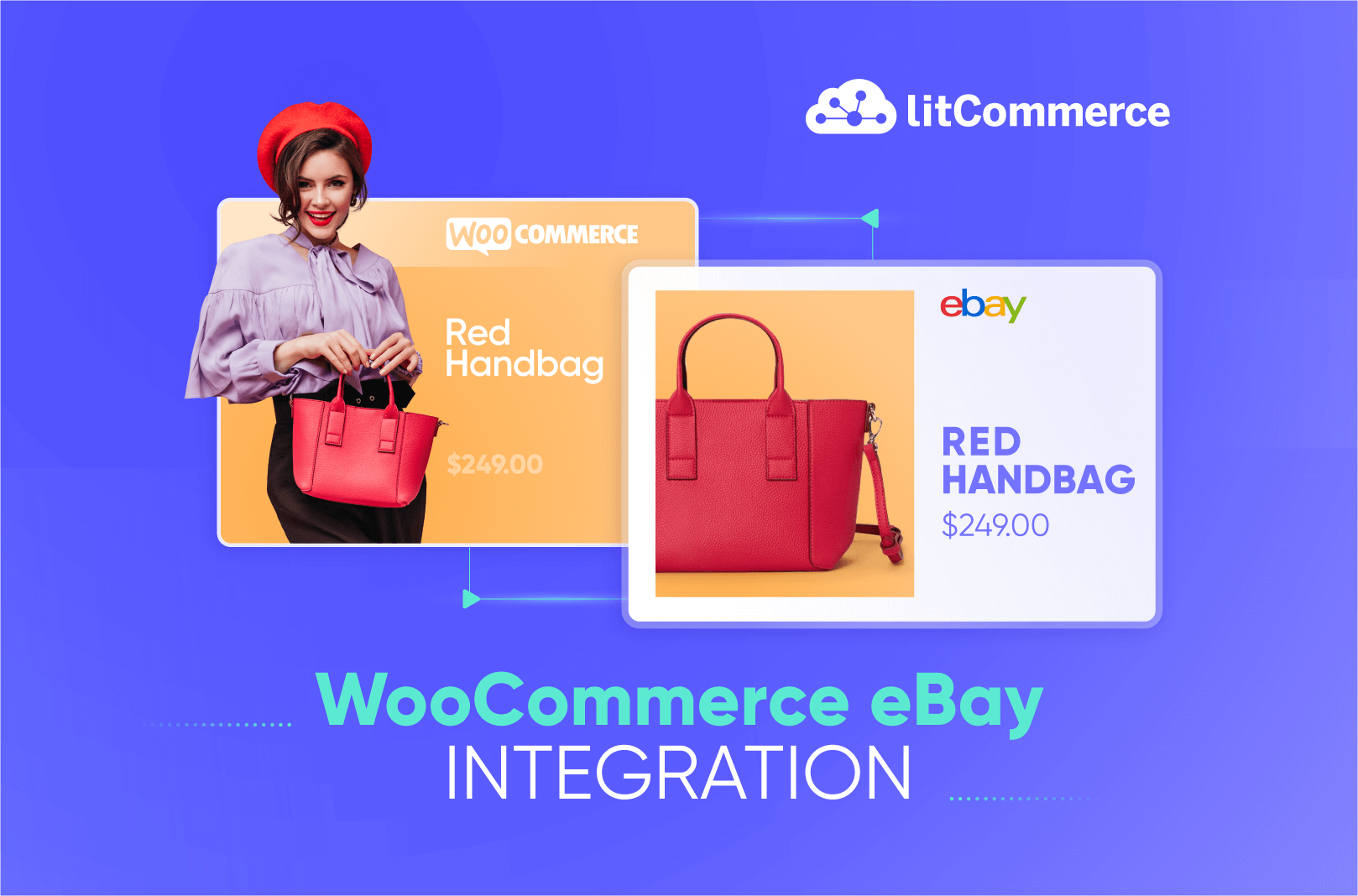
As highly reputable powerhouses in their respective categories, WooCommerce and eBay are all-time forces to be reckoned with. Simply put, WooCommerce eBay integration comes an online seller’s way if you dream of running the business to its best advantage. If you are split between these two best-selling platforms, why not meet the challenge head on by integrating them? If you are new to running several storefronts at once, our multichannel selling hub explains the fundamentals before you dive into the setup.
It’s part of a broader multichannel selling strategy that more sellers are adopting to reduce reliance on a single channel. Always aiming to relieve your stress, we would be delighted to guide you through 4 main steps of WooCommerce eBay sync using LitCommerce multichannel selling tool below:
- #Step 1: Connect WooCommerce to eBay
- #Step 2: List products on eBay
- #Step 3: Turn on WooCommerce eBay sync
- #Step 4: Manage eBay Orders
Let us explore in detail the process of WooCommerce integration with eBay to get your multichannel selling business up and running fast.
Maximize Your Profits with WooCommerce & eBay Integration.
Reach millions of new buyers on eBay without doubling your workload. This powerful integration streamlines your operations and unlocks explosive sales potential. See how it can transform your business.
How to Get WooCommerce eBay Sync Using LitCommerce
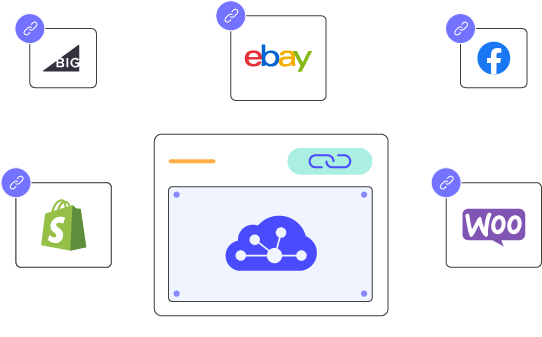
Among many collections available, LitCommerce is a reliable and powerful multichannel selling tool that allows you to integrate eBay with WooCommerce in just four simple steps. Let’s discover how LitCommerce can make it!
Step 1: Connect WooCommerce to eBay
Let’s dive into our WooCommerce eBay integration detailed guidelines
- First, log into the LitCommerce app, you can use your Google or Facebook account or create a new one.
For WooCommerce users: You can also install the LitCommerce WooCommerce eBay plugin on your WooCommerce dashboard. Here’s the guide:
1. Navigate to the Plugins section on the left-side menu bar and choose Add New.
2. Search for LitCommerce and click Install Now. After installation, activate the plugin.
3. You will see LitCommerce in the left navigation bar of your WooCommerce dashboard. Click on Connect to LitCommerce to initiate the connection process.
4. After completing this step, the system will redirect you to the LitCommerce app, where you can continue setting up your Woocommerce eBay integration.
After successfully connecting WooCommerce, proceed to the next step–Connect to eBay. First, make sure that you already have an eBay account.
If you would like a broader walkthrough that covers connecting eBay to any platform, our guide on how to integrate with eBay lays out the whole process step by step. Here is how to connect eBay with LitCommerce:
- Click the Connect button under the eBay logo in the Setup First Channel window.
- Access your eBay account and grant LitCommerce the necessary permissions to integrate with eBay.
- In the Setup First Channel section, select eBay as your additional sales channel. Enter a channel name, and select your store’s region, then click Connect Your Account to integrate with LitCommerce.
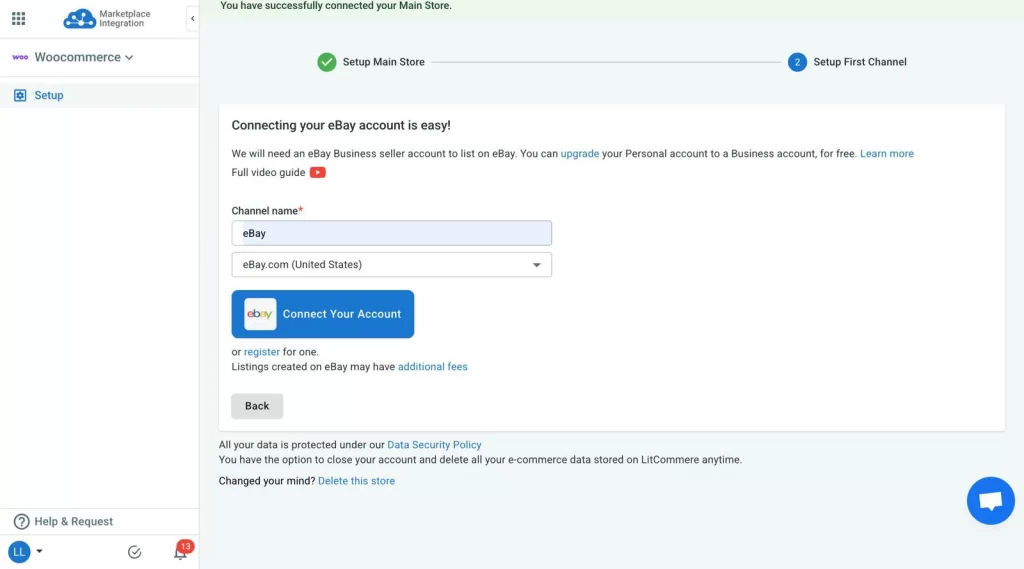
- Log into your eBay account to start listing the products in the next step.
Once finished, you’re taken back to the LitCommerce dashboard and finish step 1 to enable the WooCommerce eBay Sync feature.
Want to expand beyond eBay? You can also connect WooCommerce to Amazon, WooCommerce to TikTok Shop, or WooCommerce to Etsy to reach more buyers while keeping your listings, inventory, and orders in sync.
Step 2: List & import products
In this step of the WooCommerce eBay sync, your preferences can be divided into 3 cases:
- You haven’t sold anything on eBay and now you want to list WooCommerce products on eBay.
- You’re currently selling on eBay and you want to import eBay products to start selling on WooCommerce either.
- You’ve been selling on both WooCommerce and eBay for a while and now you want to link the same products on both channels to sync inventory and orders.
We will offer in-depth clarifications for each situation to facilitate the flawless execution of all preferences
Case 1: List WooCommerce products to eBay
After you connect WooCommerce to LitCommerce, your WooCommerce products will automatically be imported to the LitCommerce app.
From here, you can start listing products on eBay right away.
1.1. Manual Publish
If you want to list certain products individually, you can follow these below steps.
Step 1: Select the products you want to list on eBay
- Navigate to the All Products section in the left sidebar.
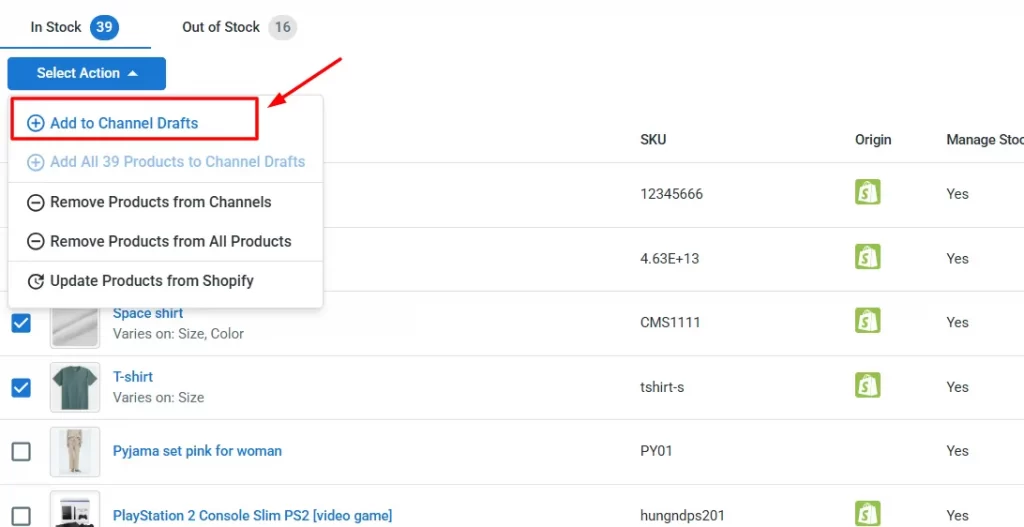
- Select the products you want to (bulk selection is supported) to list on eBay by checking the corresponding boxes.
- Click Select Action and Add to Channel Drafts.
- Check the box beside the eBay logo and click Add As Draft Now.
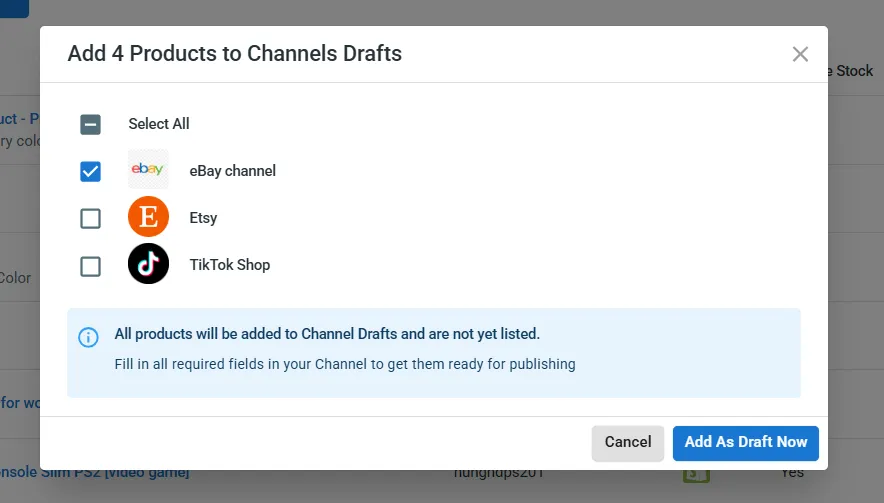
Your product listings will be saved as drafts on eBay, allowing you to review and edit them before making them live.
Step 2: Edit draft listings
eBay needs extra information that may not exist in WooCommerce, such as categories, business policies, and shipping rules. So, you need to edit draft listings before they go live.
To edit the draft listing, navigate to eBay on the left sidebar,
– Click on the title of the product you want to edit.
– Fill in the product’s info before posting your listing to eBay, such as:
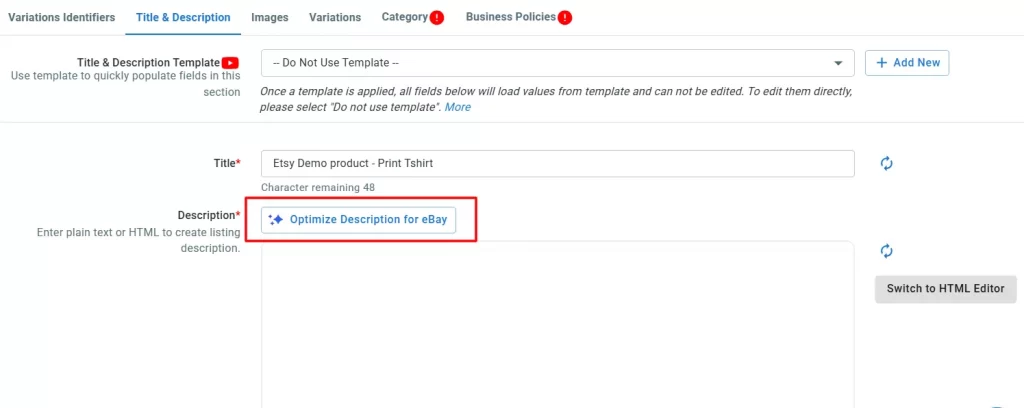
- Description: LitCommerce uses AI to help optimize your product description. It adjusts content to match eBay’s standards while still letting you add your own keywords and details.
- Category: When you click the Category tab, LitCommerce will help you find a suggested category from the eBay system. This automated feature saves time compared to manual searching. However, you can manually browse or search for different categories on eBay to assign to your products.
Alternatively, you can apply Templates and Recipes to adjust product information in bulk. When you apply a template:
- Any future changes to that template will automatically update all linked listings
- You save time by avoiding repeated manual edits
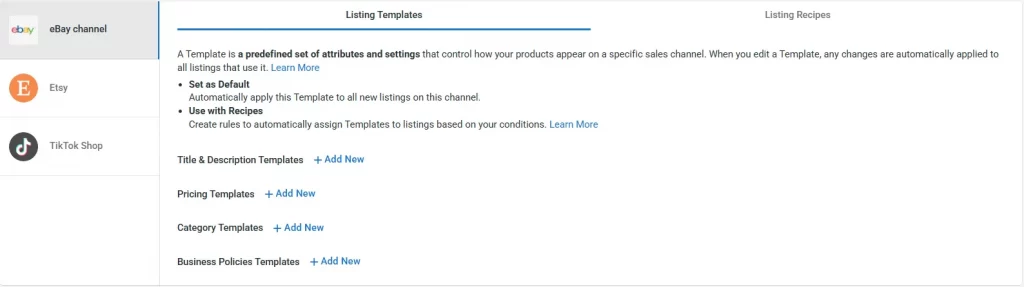
Available templates for eBay include:
- Category Template (required)
- Business Policies Template (required)
- Pricing Template (optional)
- Title & Description Template (optional)
Using different templates together creates a “recipe” that makes listing faster and more consistent.
To learn more about templates and recipes and quickly move to the WooCommerce eBay sync step, check out this informative video:
Step 3: Save & Publish Live to eBay
Once everything is ready, click “Save & Publish Live to eBay” and the listing will be moved to the Active tab.
1.2. Quick Publish to eBay & Automated Listings
For a quick and efficient way to list multiple WooCommerce products on eBay, we recommend using Quick/Auto Publish to eBay. This feature lets you list multiple products at once from a single screen.
To get started, go to Add / Manage Sale Channels in the left menu. Select eBay, then click Quick/Auto List to eBay at the top.
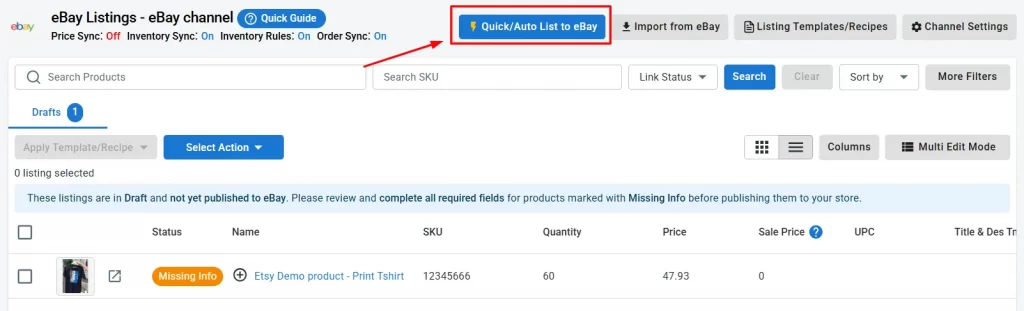
Step 1: Select Products
You can choose which WooCommerce products you want to publish to eBay in two ways:
- Select All Products from your WooCommerce. Choose this if you want to publish all products from your WooCommerce store to eBay.
- Select Products from your WooCommerce that match specific conditions. This option lets you filter products using simple conditions, such as product type, vendor, tags and status.
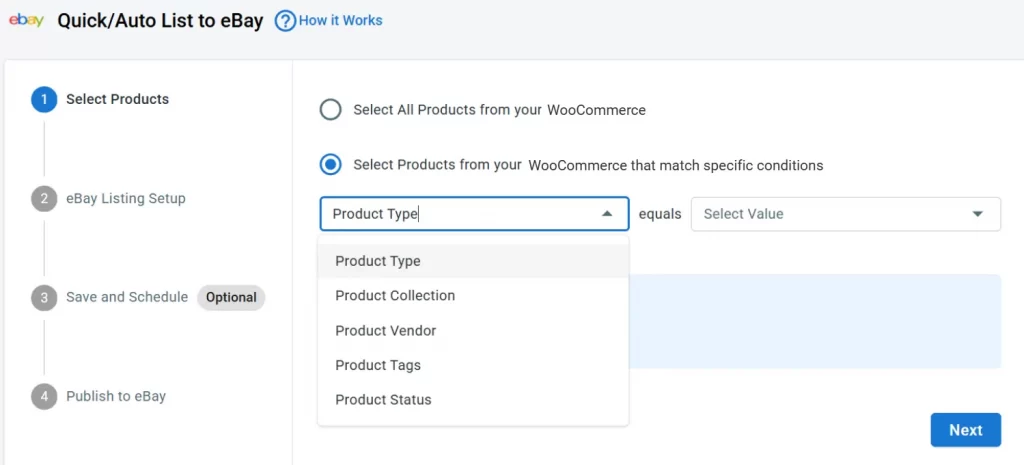
For example, if you only want to list products from the “Winter” collection, select Product Type and set it to equals “Winter.”
Step 2: eBay Listing Setup
Now you need to apply templates to your WooCommerce products so they meet eBay’s listing requirements.
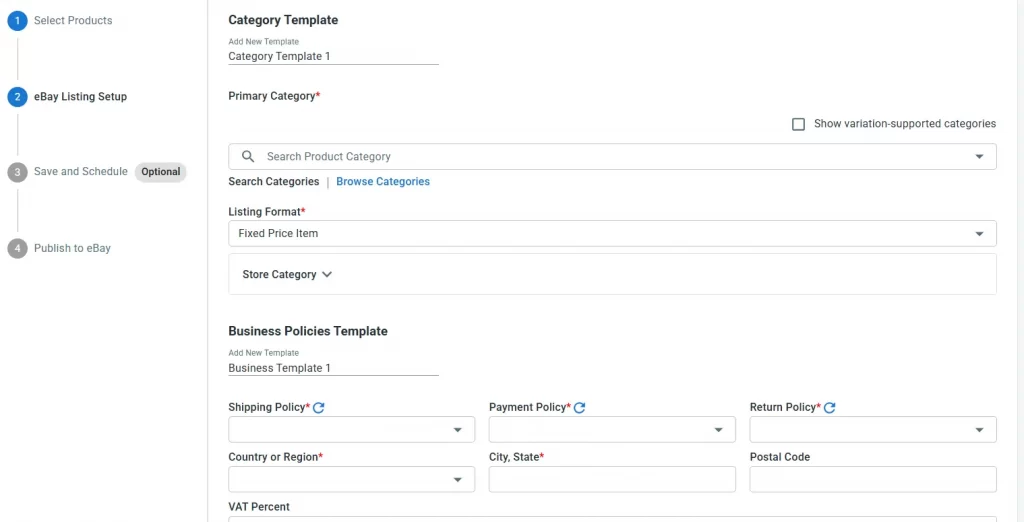
Once everything looks good, click Next to continue.
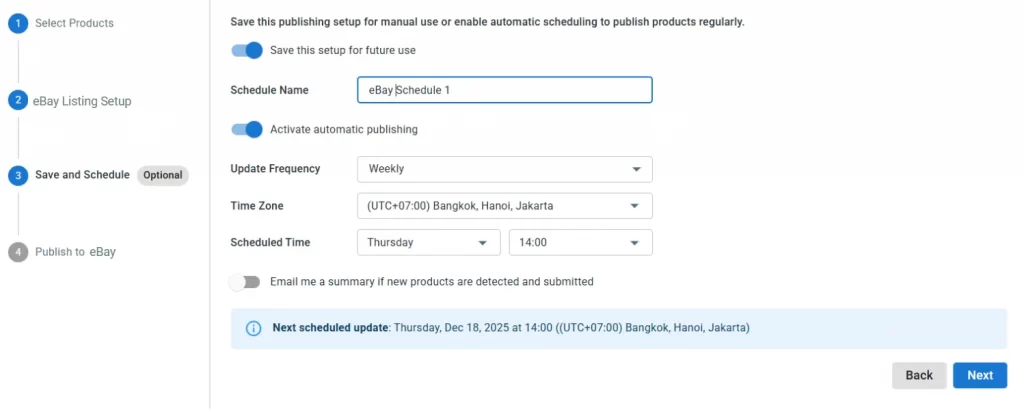
Step 3: Save and Schedule (Optional)
If you want to save your setup and automate future publishing, you can use the Automated Listings feature in this step.
- Turn on Save this setup for future use
- Give your setup a name so you can recognize it later
- Enable Activate automatic publishing if you want listings to run on a schedule
- Choose the timing options that fit your workflow
This feature is especially useful if you often add new products to WooCommerce and don’t want to list them on eBay manually each time. You can simply schedule this setup with your preferred update frequency, and LitCommerce will automatically publish new WooCommerce products to eBay for you.
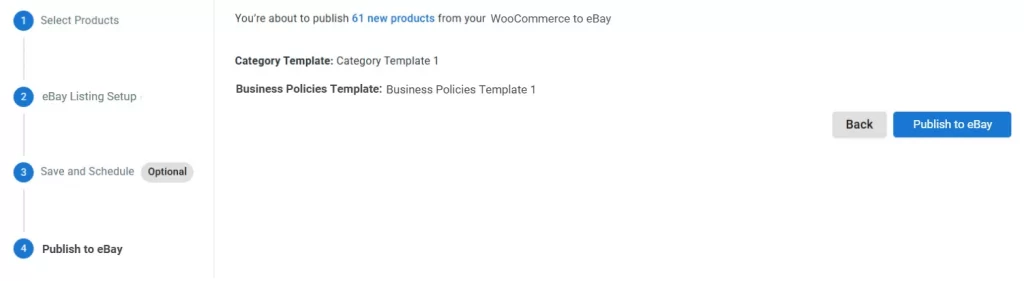
Step 4: Publish to eBay
You’ll now see a summary of how many products will be listed and which templates are applied.
When you’re ready, click Publish to eBay and LitCommerce will start listing your WooCommerce products on eBay automatically.
Case 2: Import eBay listings and create them on WooCommerce
In this second case, you want to build listings on WooCommerce by importing them from eBay. This guide applies when you have a live listing on eBay but not your WooCommerce store.
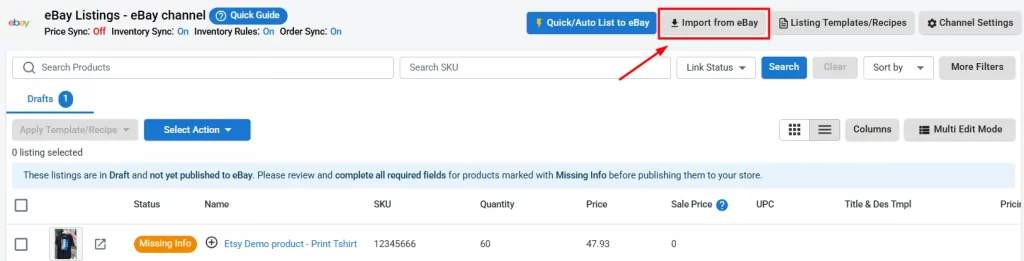
- On the left sidebar, go to your eBay store by selecting it from the sidebar menu in LitCommerce.
- From your eBay interface, click on the Import from eBay button.
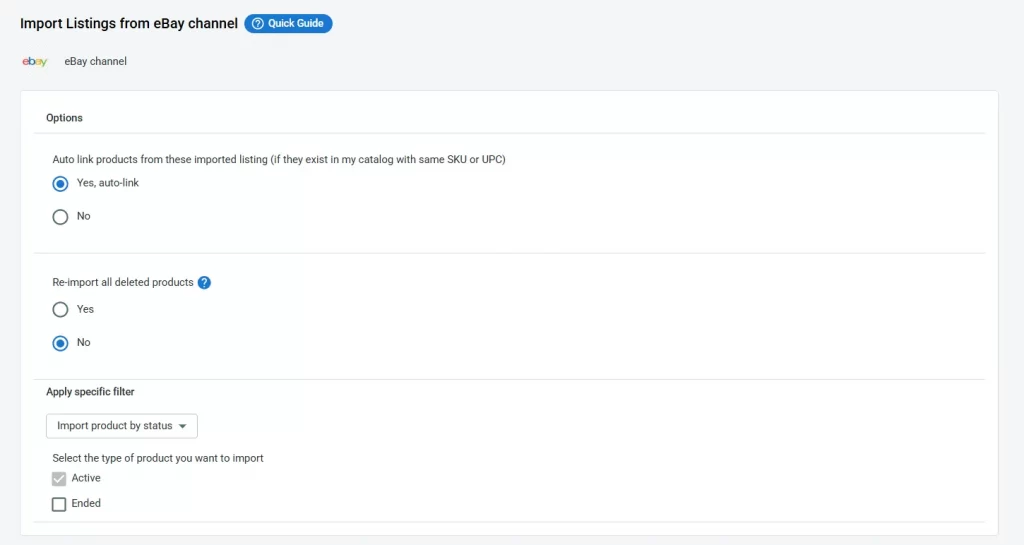
- Before starting the import, you’ll be prompted with a few more questions. Simply choose whether you’d like to re-import your eBay listings, auto-link products, or apply specific filters. Once everything is set, click Begin Import to proceed.
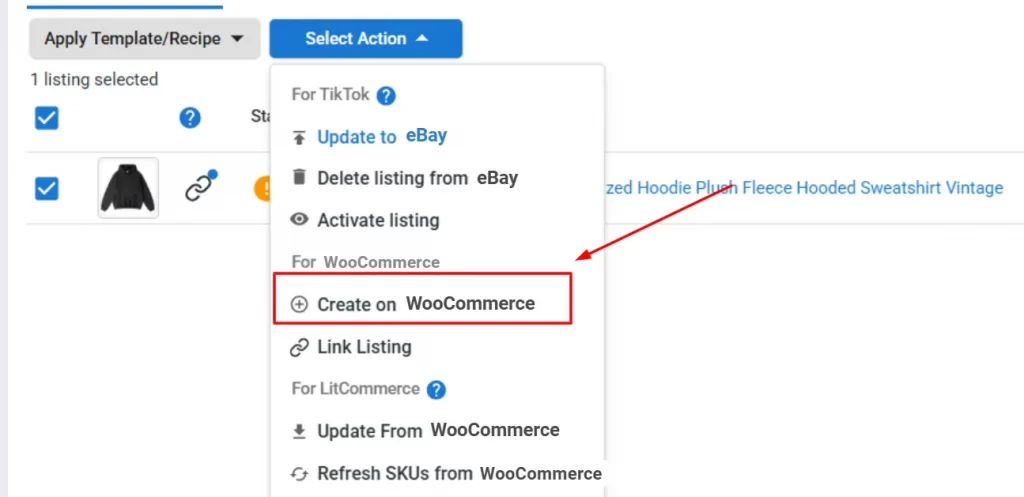
- Once the import is complete, go back to your eBay store in LitCommerce. You can see all eBay listings are now imported to the LitCommerce app. Select the products you want to list on WooCommerce, click Select Action, then choose Create on WooCommerce.
Case 3: Integrate eBay with WooCommerce when having products on both eBay and WooCommerce
For those with identical products listed on both WooCommerce and eBay, linking them to manage sales and inventory effectively is crucial.
There are two ways to link listing on LitCommerce. The first way is when you Import eBay listings. We have the option to auto-link listings, which you can select, and from there, the listings between eBay and WooCommerce will be linked automatically based on matching SKUs.
However, there may be instances where not all SKUs match. If that happens, here’s how you can manually link the same products across different sales channels:
- A blue dot indicates linked products
- A red dot shows unlinked items
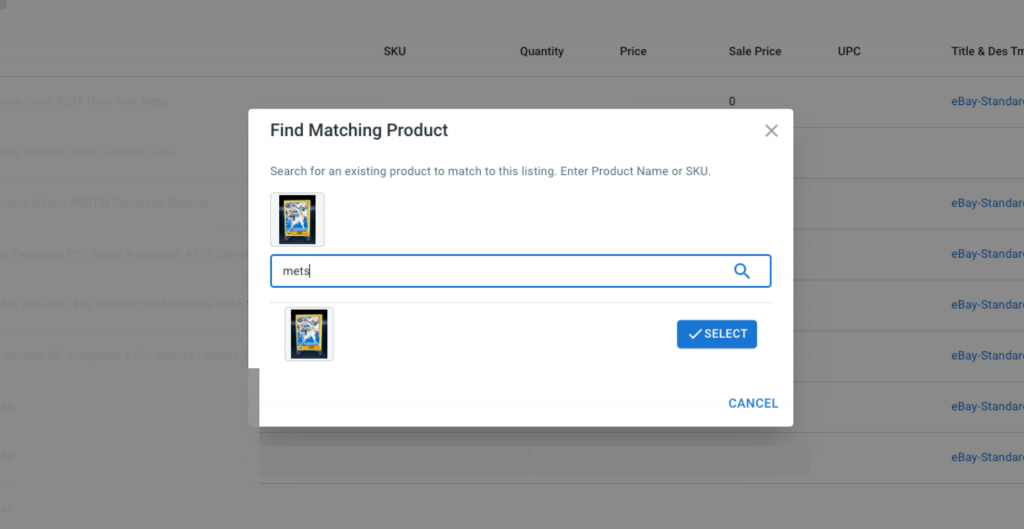
If any products remain unlinked, hover over the red icon, click Link to a product, and manually select or enter the matching product SKU, then click Select button once you found your preferred item.
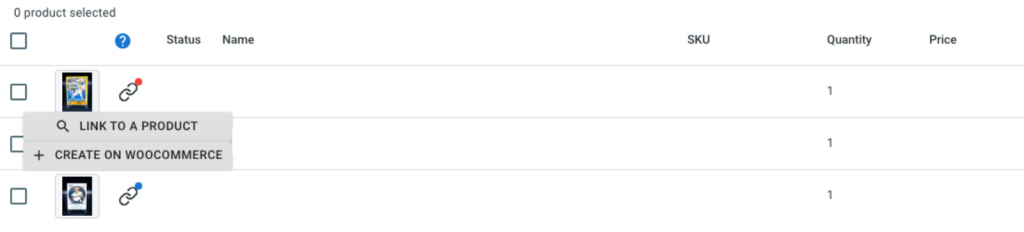
Once your product linking is completed, the red icon will turn to blue, and you’ll receive a notification from LitCommerce.
List Products Faster Across Multiple Channels
Save hours on manual listing with LitCommerce. Our free powerful listing editor helps you create and publish products across 10+ marketplaces, while flexible sync settings keep your listings optimized for each sales channel.
Step 3: Turn on WooCommerce eBay sync
After listing and importing products and also linking them together on LitCommerce. Let’s move to the WooCommerce eBay sync step by activating the three sync features on volumes, prices, and orders.
Click on the switches beside the features you would like to enable and confirm to activate it.
In your eBay window, go to Channel Settings. You will see 3 sections there: Pricing, Inventory, and Order when scrolling down to each section.
Pricing synchronization
With this eBay WooCommerce sync feature, you can manage prices on LitCommerce:
For the eBay marketplace, LitCommerce has a Strikethrough Price (STP) setting. This feature informs buyers that their listed items have been reduced in price. This feature entails using a line that is “striking” the item’s original price, indicating a discount. The listing will display the amount of money saved alongside a new Buy It Now price for the item.
- To enable the price sync feature, turn on the Price Sync button, and LitCommerce will help you sync prices for your sales channel.
- If you switch on the Use Sale Price option, LitCommerce will sync the sale price instead.
- You can set Price Rules for each channel to adjust and control pricing. These rules use the base price from your central catalog and apply the formula you’ve set before pushing updates to all listings on eBay. You can adjust the price of all your eBay listings by a specific amount or percentage. Once you’ve set the rules, they’ll automatically apply to all your listings.
- You can use the Price Rules feature to convert currency if you sell overseas.
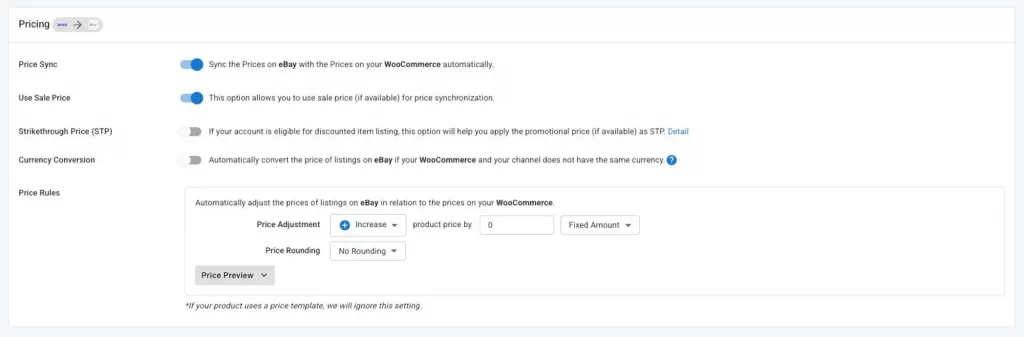
Note: From now on, Price Sync only updates the price from your WooCommerce store to eBay channels. If you update your listing price manually on your eBay account, LitCommerce will not reflect the system change; thus, the new price will not be updated on any channel.
Inventory synchronization
Besides pricing, switching Inventory sync buttons allows update the quantities on eBay to match WooCommerce, and any changes in the stock quantities in your main store will be reflected on eBay automatically LitCommerce will automatically update the inventory quantity on your eBay sales channels to match the quantity in your WooCommerce store. Also, let’s discover even more functions this feature offers:
- Keep the product active allows you to keep your product in eBay active if the product in the WooCommerce store is in status private/draft/archived.
- eBay Out of Stock Control helps you allows you to determine what happens when the stock of a product reaches 0 on eBay. You can keep the listing alive but mark it as out of stock or let the listing end when the stock quantity reaches 0 on eBay.
- Auto relist allows you to determine whether LitCommerce will automatically relist a product when it becomes available again in WooCommerce. You can automatically relist the product with the same listing details as before without deleting the old listing and do it manually. LitCommerce is now supporting 2 options: Auto Relist Fixed-price items and Auctions on eBay.
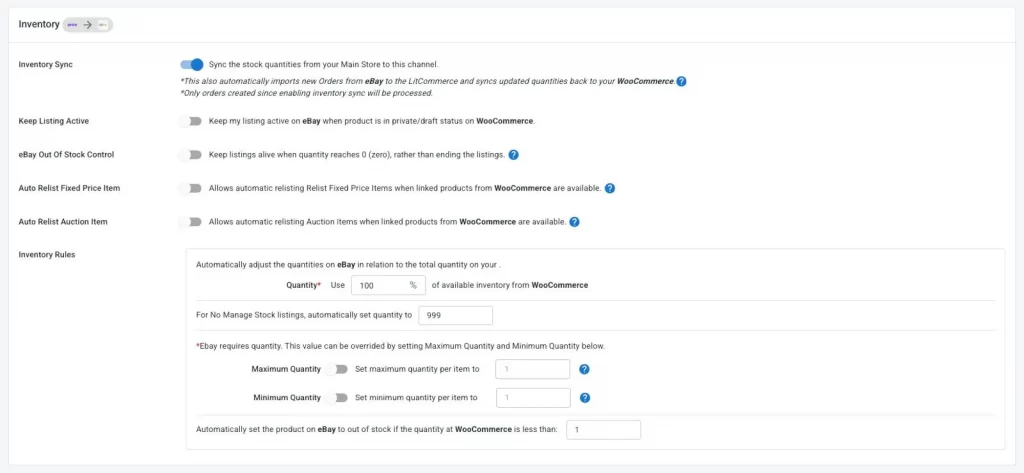
- Inventory rules: can create certain inventory rules to instantly adjust the displayed quantity on eBay in line with those on WooCommerce. Once you enable this feature, you can edit a particular Quantity, together with the Minimum Quantity and Maximum Quantity you want to show on eBay via this rule.
For example, the quantity in your WooCommerce is 500. If you set the maximum quantity per item to 200, then your quantity on eBay will appear as 200. This WooCommerce eBay sync feature is a useful technique to create scarcity in your listings, hide how many you actually have from other sellers, and get around eBay’s selling limits.
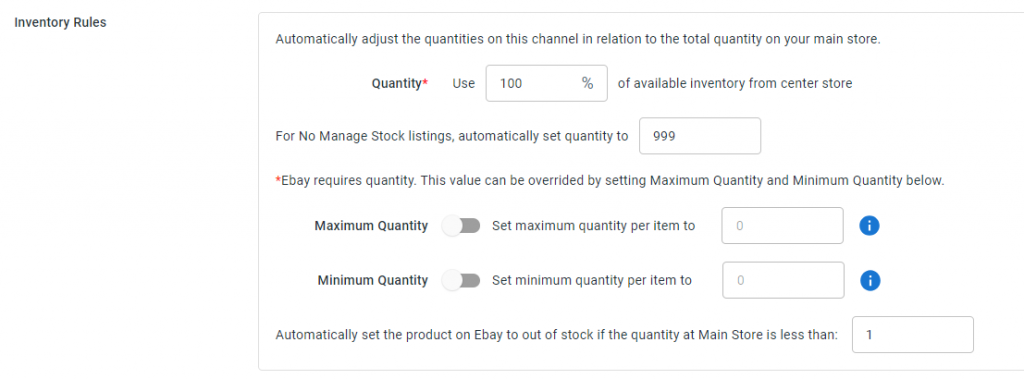
A word of caution here: You can only make updates on WooCommerce for this feature to work instead of on eBay.
Order synchronization
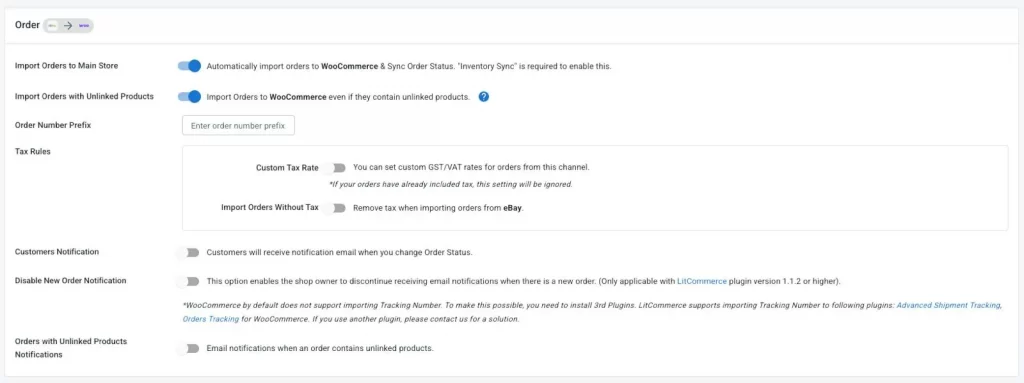
Continue scrolling down to the Order section. The WooCommerce eBay sync feature on LitCommerce saves your effort in managing multiple channels by allowing order synchronization. In specific, new eBay orders can be synced into WooCommerce, allowing you to manage and fulfill everything from your WooCommerce dashboard.
To enable this, make sure the Import Orders to Main Store option is switched on. When customers place new orders, inventory quantities are automatically reduced across all connected channels. From now on, you can supervise and fulfill your order flow from both channels in just one place. In addition, here are some more functions on this feature:
- Order with Unlinked Products Notifications option will allow us to send an email when you have an unlinked order on LitCommerce that can not be imported to WooCommerce on LitCommerce.
- Import Orders with Unlinked Products enables even unlinked products to be imported into WooCommerce. In addition, when products are imported into WooCommerce, linked products will have their stock updated, but unlinked products won’t.
- There are other order sync options such as Order Number Prefix, Import Order Without Tax, Customers Notification, Disable New Order Notification, Order with Unliked Products Notification.
Other settings
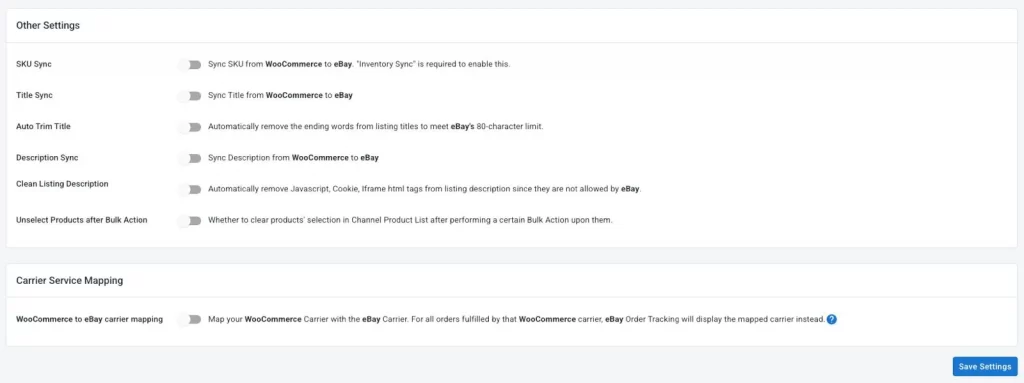
LitCommerce also offers additional sync options, such as SKU sync, title, description sync.
And:
- Auto Trim Title option to auto fit your title to meet eBay’s 80-character limit.
- Clean Listing Description option to auto remove Javascript, Cookie, iframe html tag from description since they are not allowed by eBay
Carrier service mapping
Carrier service mapping lets you map your WooCommerce carrier to an eBay carrier, so any order fulfilled through WooCommerce will show the correct tracking carrier on eBay.
Step 4: Manage orders on WooCommerce
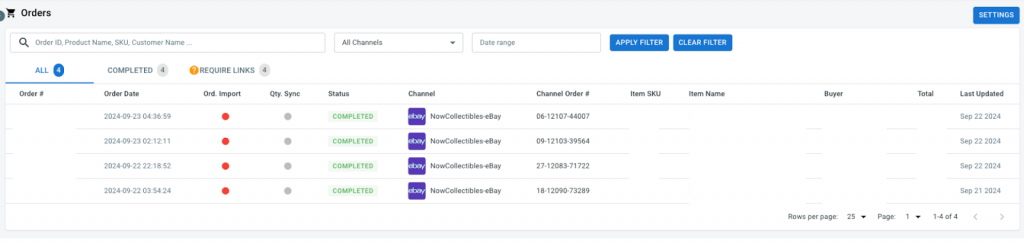
After enabling the order sync feature, you can manage all your WooCommerce orders through the WooCommerce dashboard.
There are 5 main tabs on the order page: All, Open, Completed, Ready to Ship and Unlinked. This dashboard will be your central hub for tracking and managing orders across all your sales channels.
Selling eBay from a different platform instead of WooCommerce? We have dedicated walkthroughs for that too, including our BigCommerce to eBay sync guide for BigCommerce merchants. Squarespace owners can follow the Squarespace to eBay integration guide, while Wix sellers will find the Wix to eBay integration guide covers the same workflow for their store.
Why LitCommerce is Your Go-to Tool for WooCommerce eBay Integration
LitCommerce offers a powerful WooCommerce eBay sync plugin that allows sellers to manage their products, inventory, orders, and listings efficiently. Below, we explore the critical features of LitCommerce’s WooCommerce eBay sync, detailing how each feature can benefit your eCommerce business.
AI auto optimize description for eBay listings
LitCommerce offers an AI-powered description tool made specifically for eBay. It helps you save time by automatically improving your product descriptions to match eBay’s listing rules and buyer expectations.
With this AI feature, you can:
- Improve your existing descriptions while still adding your own keywords and details
- Optimize listings based on eBay SEO guidelines to help your products rank better in search.
Reprice WooCommerce products to eBay
LitCommerce allows you to adjust the prices of your WooCommerce products specifically for eBay.
On our tool, you have the flexibility to set either a fixed price adjustment or a percentage-based markup between your WooCommerce and eBay listings.
For instance, if you sell a product for $100 on WooCommerce, you should list it for $110 on eBay to cover eBay’s seller fees. LitCommerce automates this process.
This feature is helpful if you want to account for eBay fees, shipping costs, or other factors that influence pricing differently on eBay compared to your WooCommerce store.
Update product changes automatically across channels
LitCommerce helps you keep product information consistent across channels which is vital for maintaining efficiency. Whenever you have any changes related to pricing, description, or stock levels on your WooCommerce store, they’ll be automatically synced with your eBay listings.
This WooCommerce eBay sync feature ensures real-time updates, preventing discrepancies, overselling, or misinforming customers.
WooCommerce eBay inventory sync
Overselling and out-of-stock issues can quickly lead to unhappy customers and even account penalties on both WooCommerce and eBay. That’s why keeping your inventory in sync is so important.
LitCommerce helps by automatically syncing stock levels between WooCommerce and eBay. When a product sells on one channel, the stock number updates on the other channel right away.
For example, if you have 10 units of a product and sell 3 on eBay, LitCommerce will update both WooCommerce and eBay to show 7 units left.
Maximize Your Profits with WooCommerce and eBay Integration
Reach millions of new buyers on eBay without doubling your workload. LitCommerce streamlines your operations and syncs everything automatically every 15 minutes across all plans.
Discover WooCommerce x eBayeBay order fulfillment and management
LitCommerce lets you manage all eBay orders directly inside WooCommerce. You can see customer details, ordered items, shipping information, and payment status in one place.
When a customer places an order on eBay, it appears in your WooCommerce dashboard with everything you need to fulfill it. This means you don’t have to switch between platforms, which saves time and reduces mistakes.
LitCommerce also supports automatic order syncing. Once you fulfill an order, tracking details are sent back to eBay automatically, keeping buyers informed and helping prevent delivery related disputes. You can see the full feature set on our eBay integration page.
Easily expand to 20+ other marketplaces
LitCommerce supports 10+ marketplaces, so you’re not limited to selling only on WooCommerce and eBay. When you’re ready to expand to channels like Amazon, Etsy, TikTok Shop, and more, you can connect them in just a few clicks.LitCommerce automatically syncs your product data across all connected channels. This lets you manage inventory, orders, and listings in one place, without juggling multiple dashboards. The same approach works across platforms beyond eBay, so if you also run Shopify, our guide on how to integrate Etsy with Shopify shows another popular pairing you can automate. If eBay is your primary focus, our dedicated eBay integration page covers the marketplace-specific features in more depth.
What Our Customers Say About LitCommerce
If you are still wondering whether to use LitCommerce, these customer reviews provide insights into the experiences of other buyers, helping customers make informed choices. Let’s listen to our beloved customer reviews to know what they think about us.
LitCommerce is a dedicated integration service provider catering to all customers’ needs. For that reason, a favorable review like this is more than a solid encouragement for our team:
Responsive and friendly team.
Litcommerce is very responsive and listens to their subscriber’s needs. I experienced some issues when trying to connect my site to eBay, but the Litcommerce team was able to help me resolve all of my issues one by one. They have been very patient and have looked into and resolved all of my issues. Thank you!
– From Michael, Store Owner –
A solid platform
It’s a good platform, easy to navigate, and gets set up. They have a good number of popular e-commerce apps to which they connect. The product syncing is good, and the support team has quickly resolved any open questions or the occasional glitch.
Timely and thorough customer support, easy-to-use channel settings!
This is such a great tool for a very reasonable price. As a small business with multi-channel E-commerce needs, we’ve received great tech support from the litcommerce team any time we had any confusion on the channel setup or if there was a small error that needed a quick fix. Highly recommended for anyone selling items online across multiple sales channels.
To better understand how LitCommerce impresses other users as an effective and cost-saving integration solution, check Trustpilot for more feedback.
WooCommerce eBay Sync – FAQs
1. Which is better, WooCommerce or eBay?
Both WooCommerce and eBay can brilliantly differentiate themselves from their competitors with distinct and admirable features.
WooCommerce entices store owners with its high flexibility that grants complete control over their site configuration at reasonable prices. Over 1,000 WordPress plugins are also at your service whenever you plan to empower your business with the abundance of functionalities they provide.
At the same time, eBay still stands tall as a multinational eCommerce empire to date. Adopting the unique auction-listing business model, our resident online marketplace allows store owners to sell items, whether brand new or second-hand, at minimum cost. Despite operating as an online marketplace all along, eBay also offers user-friendly storefront customization, developing seller identity apart from eBay’s.
All things considered, integrating WooCommerce with eBay makes perfect sense to make use of their merits together, especially when LitCommerce allows it to happen swimmingly.
2. Can I connect WooCommerce to eBay?
Online store owners can make WooCommerce eBay integration possible with just 4 simple steps below:
Step 1: Connect WooCommerce to eBay.
Step 2: Import from eBay to WooCommerce.
Step 3: Turn on WooCommerce eBay sync.
Step 4: Manage eBay orders.
3. How do I sync my WooCommerce inventory with eBay?
To make the most of your multichannel selling business, you cannot miss out LitCommerce as a WooCommerce eBay sync tool.
On your LitCommerce dashboard, in the WooCommerce section, go to Channel Settings and you will see the function right there. Enable it by turning the mode on, then set the inventory rules until you deem them appropriate. Your WooCommerce inventory will be automatically synced with eBay by LitCommerce for you.
4. How do I list my WooCommerce products on eBay?
It is entirely feasible to push your WooCommerce products to eBay in bulk with LitCommerce’s product listing feature. Visit All Products on your LitCommerce dashboard > Import from WooCommerce. You can choose either all products or certain ones to list and click on eBay from the List Products on Channel dropdown menu.
As soon as you make sure you are ready to publish the products, in the Draft tab, choose Select Action > Publish to eBay > Action.
5. What are the benefits of WooCommerce eBay sync?
Three key benefits of WooCommerce eBay sync for any online merchant:
– Save time with the bulk listing tool: The process of integrating WooCommerce with eBay can be time-efficient when utilizing LitCommerce. By using the LitCommerce tool, you will spend little to no time listing and editing products in bulk between WooCommerce and eBay in real-time without logging in to separate accounts and worrying about losing product attributes.
– Manage everything with the centralized solution: When you have an existing WooCommerce store and intend to sell on online marketplaces, namely Amazon, Etsy, and eBay, you can easily manage everything when performing integration with LitCommerce. It accommodates product import from eBay to WooCommerce and uploads from WooCommerce to all these channels with ease.
– Improve your business efficiency: While the integration process itself is not complicated, connecting WooCommerce to eBay with LitCommerce is worthwhile when it comes to business operations. For example, you can ensure larger sales generation and collect wider customer behavior analysis courtesy of the two channels combined. Similarly, it is easier for you to handle other important tasks when running your own business, given the benefits above.
Let’s Connect WooCommerce to eBay!
When you plan to expand to online marketplaces like Amazon, eBay, and Etsy, the integration process can be laborious, especially for your WooCommerce store.
To fulfill the role of a WooCommerce eBay lister app, LitCommerce is determined to prove itself over time with constant improvement. Let’s have a chat with us, and our Customer Support team will guide you through the process right away.
LitCommerce Retailers Blog is of great help if you want to look into multi-channel selling further.