

eBay Amazon Integration Without Manual Relisting or Breaking Marketplace Rules




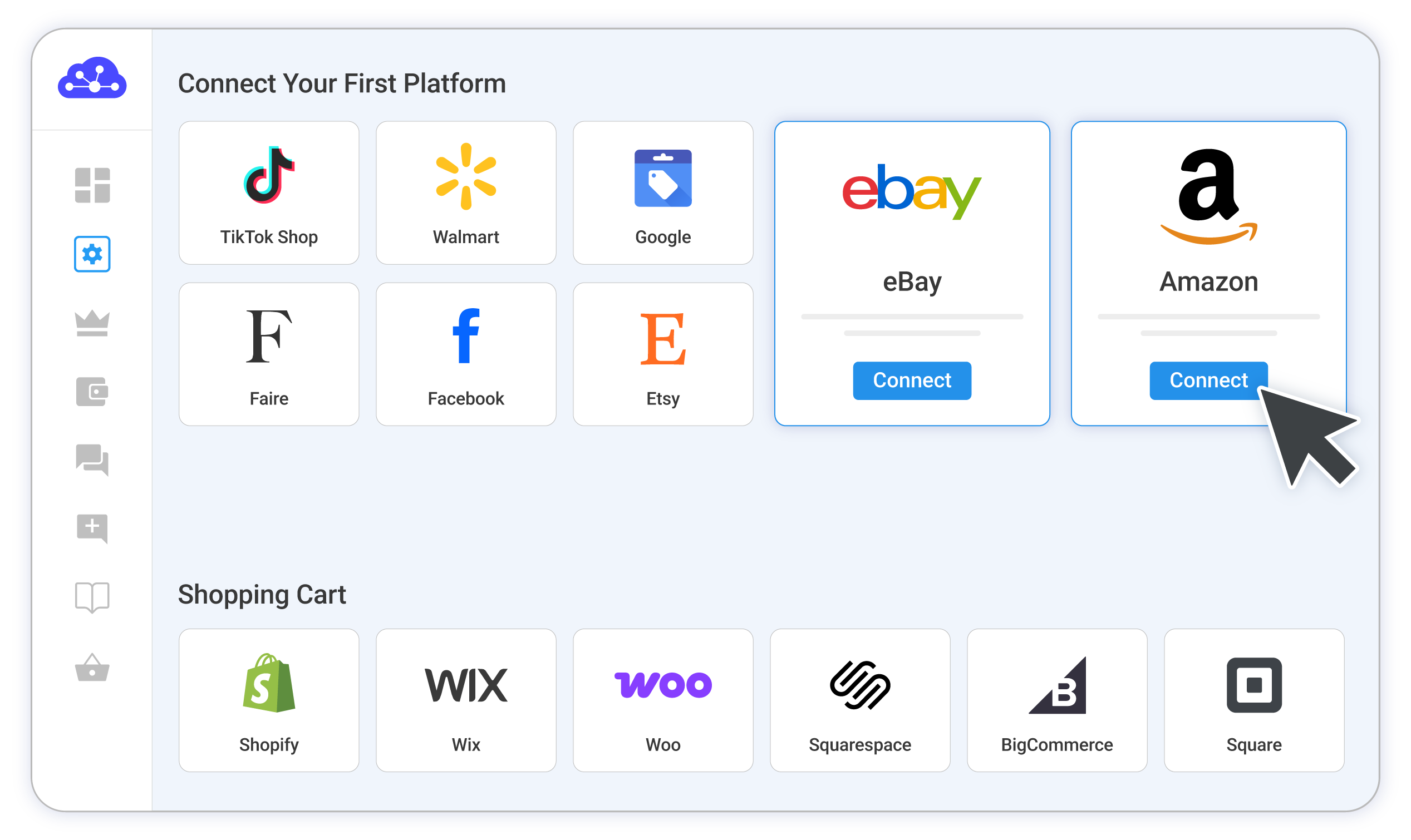
Detailed Guide on eBay Amazon Integration
Selling on both eBay and Amazon? Connecting the two is one of the smartest ways to reach more buyers without doubling your workload, whether you’re expanding from eBay to Amazon or the other way around.
The catch is that these two marketplaces don’t talk to each other on their own. Each keeps its own listings and stock counts, and neither updates the other. LitCommerce sits in the middle as your central hub, holding both stores together so you run everything from one screen. You connect eBay to LitCommerce and Amazon to LitCommerce, and everything routes through that one hub, never from one marketplace straight to the other.
Here’s the full process:
- Step 1: Connect eBay and set your Main Store, then import your products
- Step 2: Build your central catalog in LitCommerce
- Step 3: Connect Amazon and cross-list from your catalog
- Step 4: Turn on price and inventory sync
- Step 5: Manage orders and track your sales
You don’t need any technical skills to follow along. Let’s get started.
Step 1: Connect eBay and set your Main Store, then import your products
Set your Main Store first
Your Main Store is the central hub that connects your eBay and Amazon stores. It’s your source of truth, the place where your full product catalog and stock data live, and the place every channel syncs to and from. You have two options:
- Use LitCommerce as your Main Store. If you only sell on marketplaces and don’t have an online store yet, let LitCommerce act as your Main Store. This is the simplest path for marketplace-only sellers.
- Use your existing online store. Already run a store on Shopify, WooCommerce, Wix, or BigCommerce? Set it as your Main Store, and your eBay and Amazon product data flows through it.
For this guide, we’ll set up without an online store, so we’ll use LitCommerce as the Main Store.
Connect your eBay store
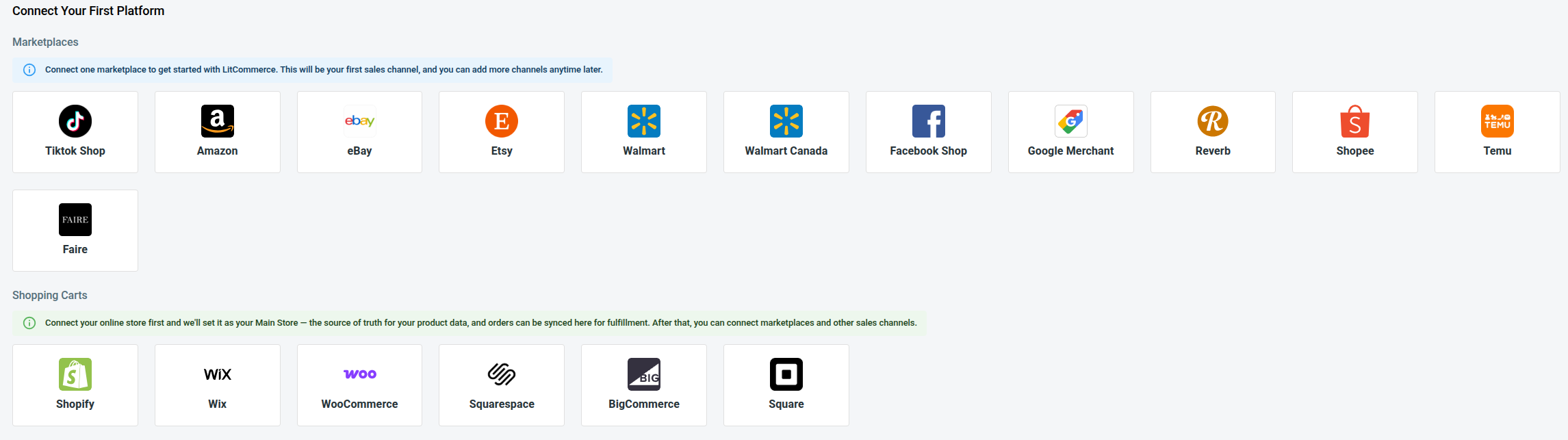
- From the list of supported marketplaces, find eBay and click Connect under the eBay logo.
- Enter your eBay store name, choose your eBay country, then click Connect Your Account.
- Allow LitCommerce to access your eBay seller account.
If you don’t have a shopping cart to use as the Main Store, click “Skip, I don’t have any of these” to set LitCommerce as your central hub. Your eBay store then appears as a channel on your dashboard.
Import your eBay products into LitCommerce
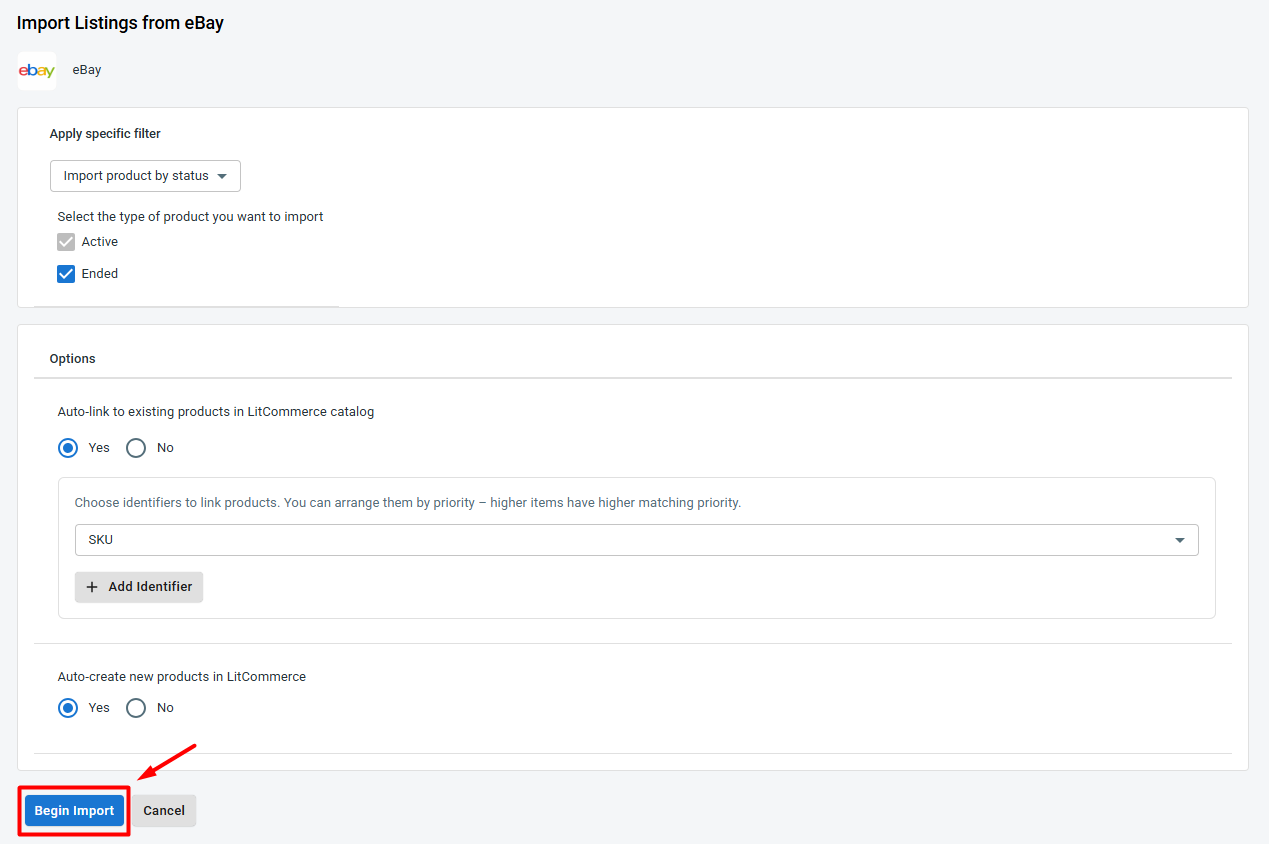
- Open the eBay channel tab and click Import from eBay.
- Filter which products you want to bring in, and keep auto-link enabled so LitCommerce matches items where it can.
- Click Begin Import.
Your eBay listings load into LitCommerce, ready for the next step. Importing gives you one clean catalog to work from instead of copying details by hand later.
Step 2: Build your central catalog in LitCommerce
Now turn those imported listings into products in your Main Store, so LitCommerce becomes your single source of truth. For any listing that doesn’t yet exist in your Main Store, select it, click Select Action, then choose Create on Main Store. A blue dot on the link icon confirms it’s created.
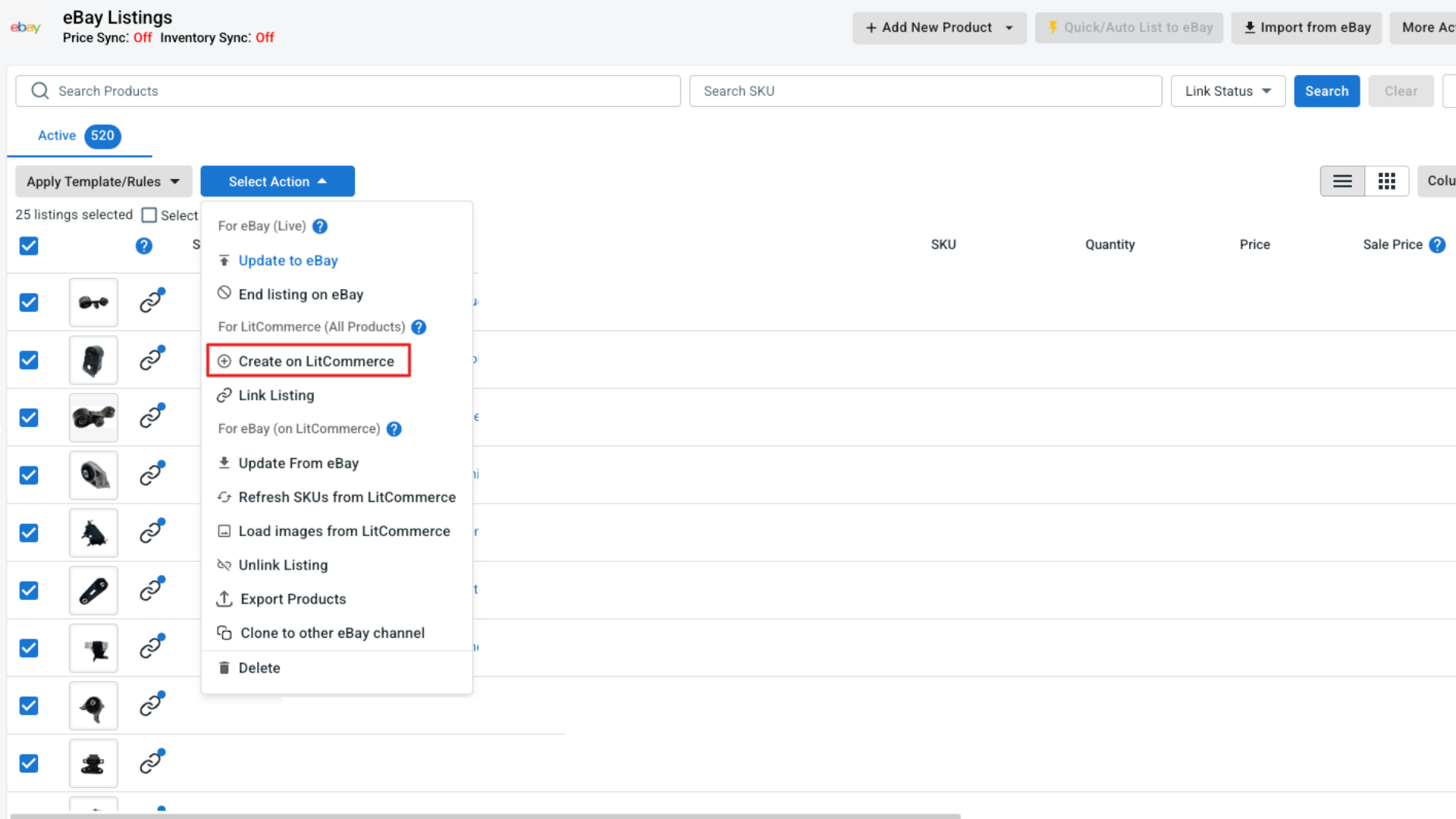
LitCommerce auto-links a listing to a Main Store product when they share the same title, SKU, or UPC. If anything stays unlinked (shown by a red link icon), hover the icon, click Link To A Product, search by SKU or keyword, and select the match. You can also bulk-link from the Select Action menu. Once every listing is linked, your catalog is ready to cross-list.
Step 3: Connect Amazon and cross-list from your catalog
With your catalog in place, add Amazon as your second channel.
- Click Add/Manage Sales Channels, then Add New Channel.
- Find Amazon and click Connect under the Amazon logo.
- Enter your Amazon store name, pick your Amazon marketplace country (Amazon US, for instance), and click Connect Your Account.
- Authorize LitCommerce to access your Amazon seller data.
Before you cross-list, check which case each product falls into:
- Case 1: The product already exists on Amazon. You’ll list it using the existing ASIN from the Amazon catalog.
- Case 2: The product isn’t on Amazon yet. You’ll need to apply for a GTIN Exemption and send a proof to LitCommerce so they can configure it for your store.
Either way, the listing steps are the same. Here’s how to cross-list your eBay products to Amazon with LitCommerce.
1. Go to All Products and select the eBay items you want to list on Amazon.
2. Click Select Action, then choose List Products to Channels.
3. Check the box next to your Amazon store, then click Add As Draft Now.
4. Open the Amazon tab and review each draft listing.
5. Fill in the details Amazon requires (product identifiers, shipping, condition, etc), including the ASIN or GTIN Exemption that applies to your case.
6. Once a listing looks good, click Save and Publish to Amazon.
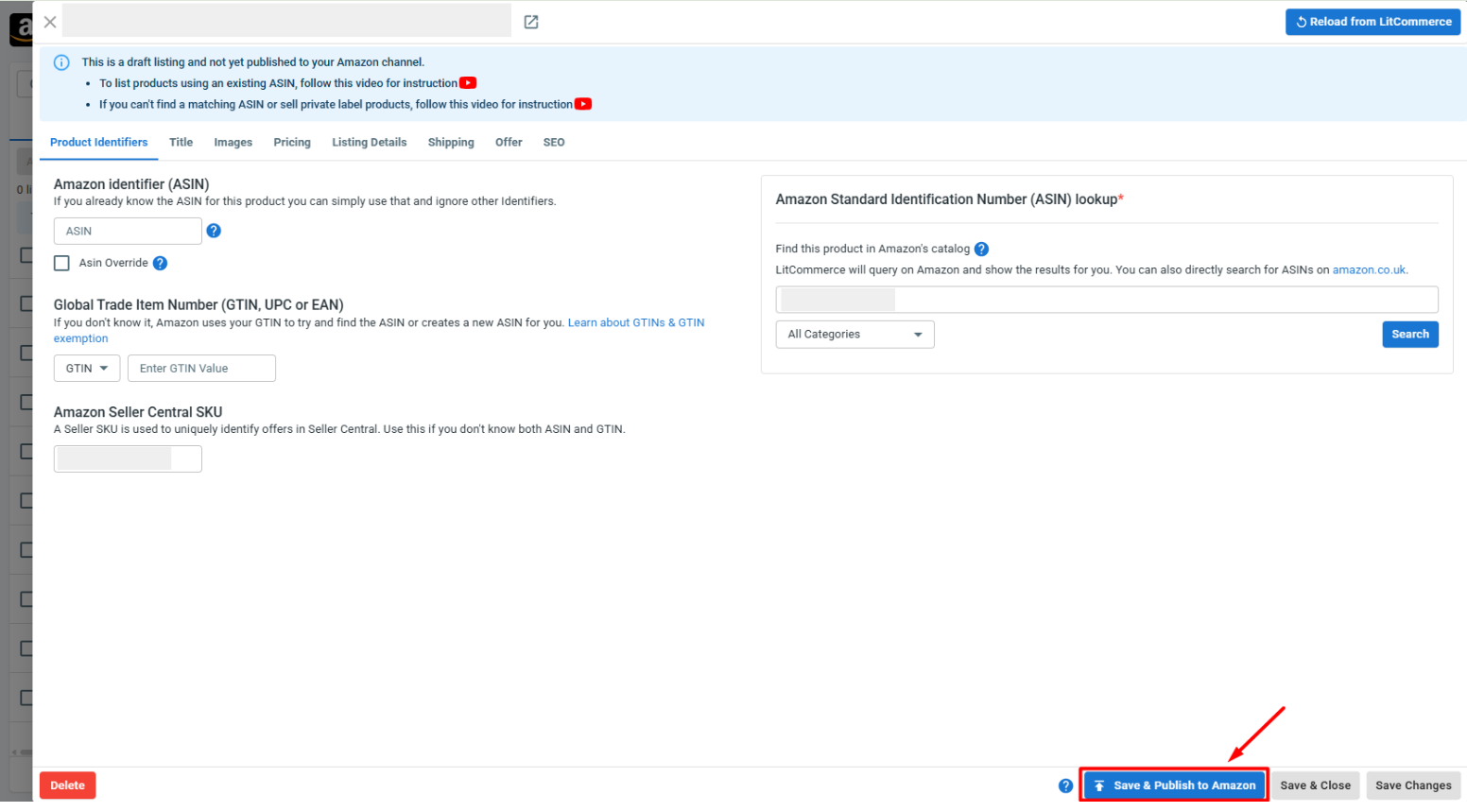
Pro tip: for a large catalog, build templates for offer, shipping, and pricing, then apply the same details to many products at once to edit your Amazon listings in bulk.
Going the other way: cross-list from Amazon to eBay
The flow works in reverse too. Import your Amazon listings into LitCommerce, create them on your Main Store, then list them on eBay.
Step 4: Set Up eBay Amazon Sync
Now let’s set up eBay and Amazon sync to keep your data consistent across both marketplaces.
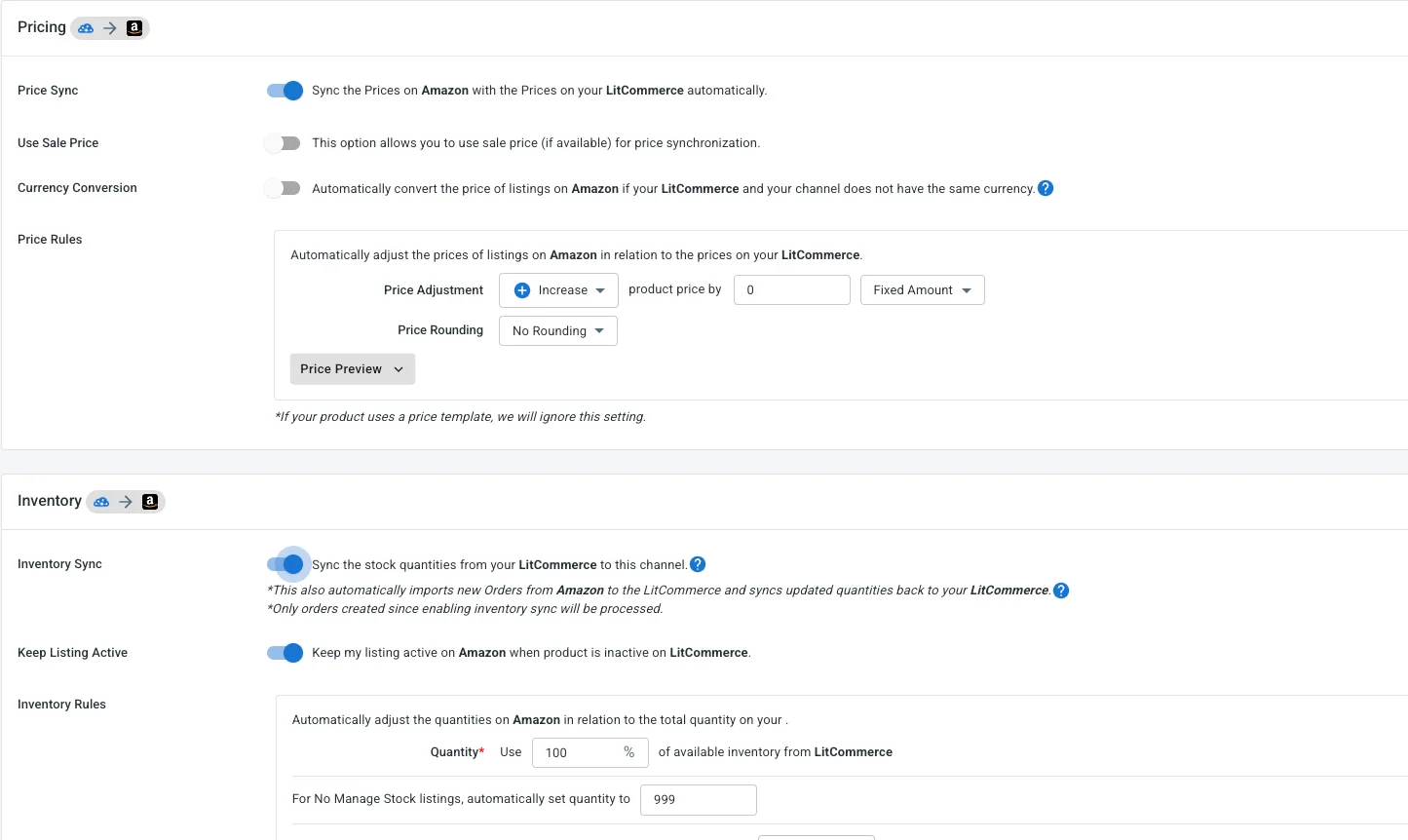
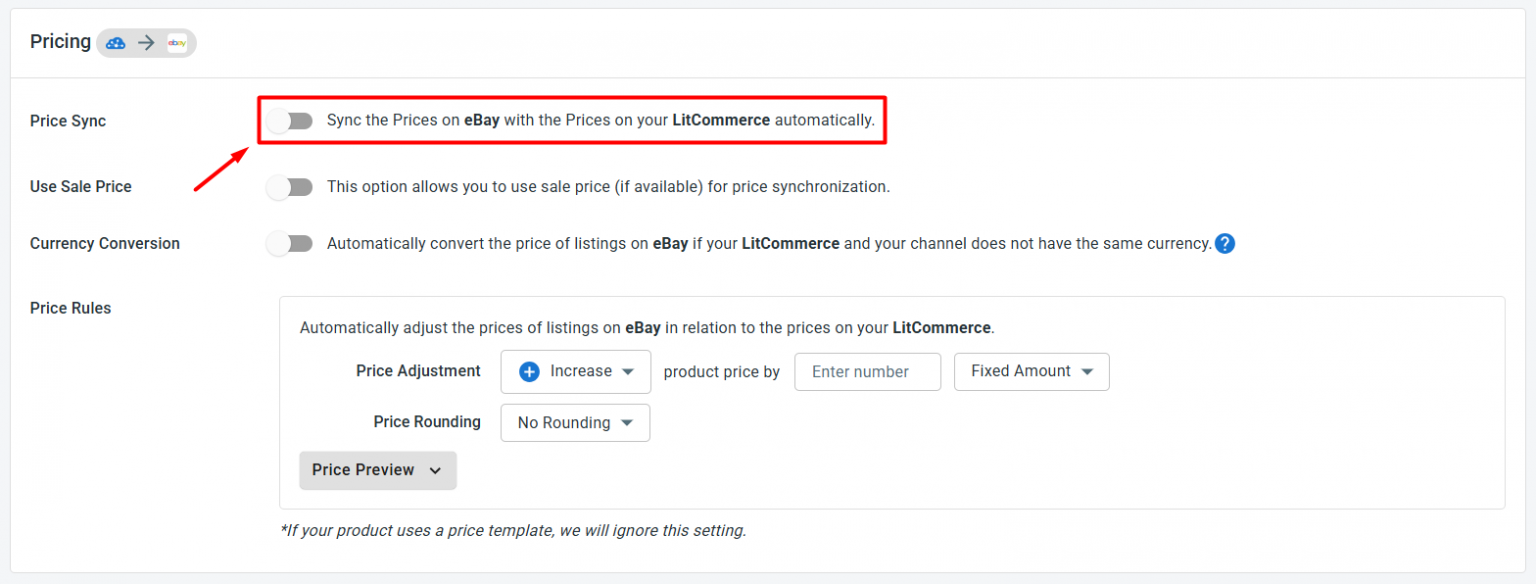
To access sync settings, click Channel Settings inside both your Amazon and eBay stores in LitCommerce. Here are the main sync settings you can turn on for your eBay and Amazon integration:
- Price sync. Any price you adjust in LitCommerce updates on each channel every 15 minutes. Apply price rules to raise or lower prices by a set amount or percentage, useful since Amazon’s fees often differ from eBay’s.
- Inventory sync. Keep stock aligned across your stores every 15 minutes, so you never sell the same item twice. Turning on Inventory Sync is also what lets LitCommerce start importing your orders.
A note on Amazon products: LitCommerce can’t sync inventory for items fulfilled through Fulfillment by Amazon (FBA), since Amazon keeps FBA stock in its own warehouses, separate from your store’s inventory. Also, because of Amazon’s data limits, orders imported from Amazon won’t carry shipping or customer details such as name and address. You’ll still see product information like title, SKU, and price.
Click Save Settings at the bottom of the page, and your two stores stay in step on their own.
Step 5: Manage orders and track your sales
With Inventory Sync on, your orders from Amazon and eBay flow into one place: LitCommerce. No more bouncing between two seller accounts to see what sold and what needs shipping. From LitCommerce, you can:
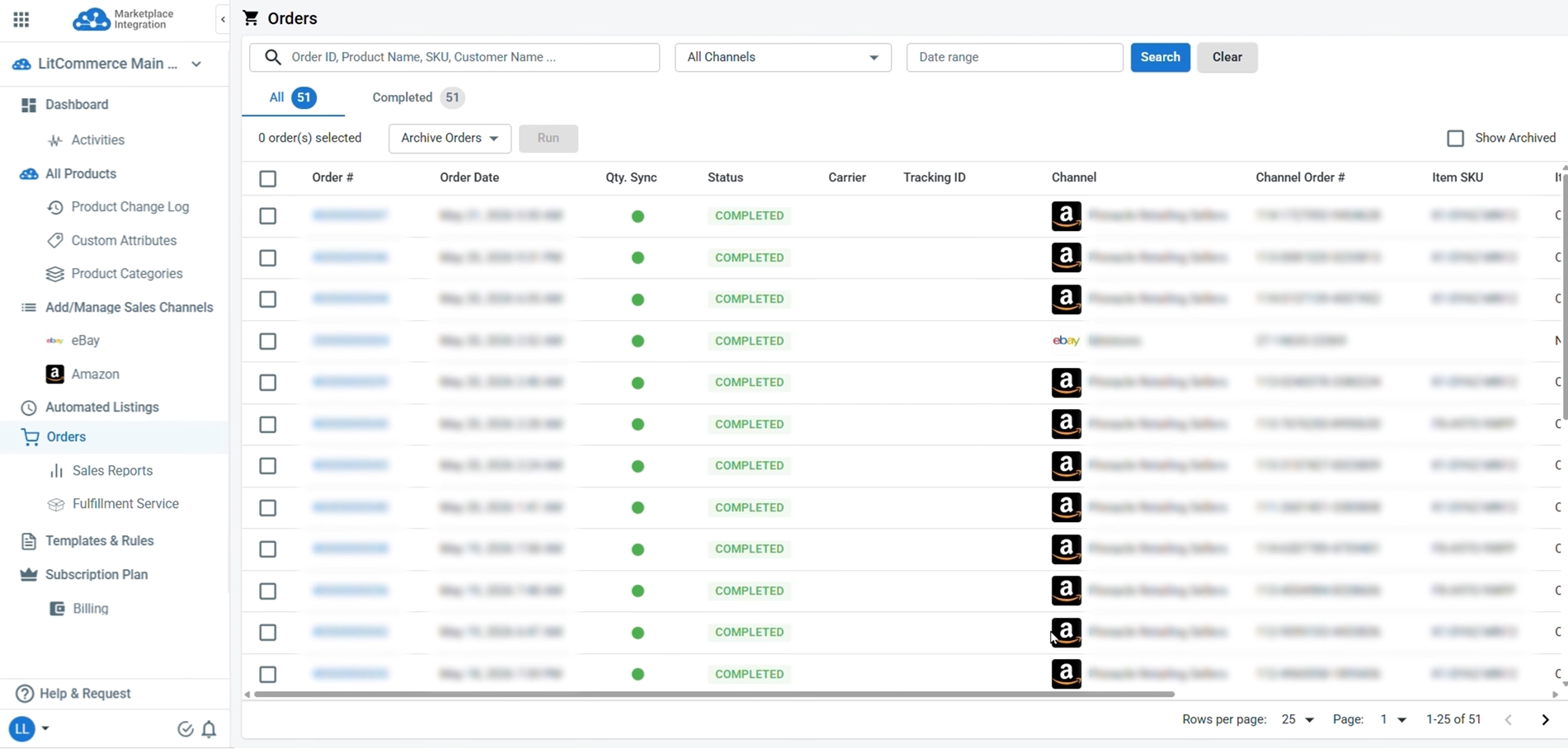
From LitCommerce, you can:
- Review every order in one place. The Orders tab shows all your eBay and Amazon orders together, so you can track each one’s status from a single hub.
- See which channel is winning. Head to Sales Reports to compare performance across both marketplaces, spot which one drives more revenue, and learn what’s working, so you can build a smarter selling strategy.
For Amazon, remember that order status you fulfill in your Main Store does not sync back to Amazon.
And that’s your eBay Amazon integration, set up end-to-end. Your products reach two large audiences while your stock and orders stay in step through one central hub.

Tools built specifically for selling on Amazon
✅ Create Amazon listings without an existing ASIN using a GTIN exemption
✅ Optimize Amazon titles and descriptions with AI to improve search visibility
✅ Import both FBA and MFN orders into one dashboard
✅ Set Amazon regional pricing rules to protect margins across markets
✅ Separate taxes from order totals for accurate accounting and reporting
✅ Activate Amazon Offers in-app to set up discounts and promotions faster

Tools built specifically for selling on eBay
✅ Design eBay listings with mobile-responsive, eBay-compliant templates
✅ Publish eBay listings in bulk or schedule them to go live later
✅ Enable Auto-Relist to keep eBay listings active without manual relisting
✅ Turn Amazon listing content into eBay-ready, keyword-rich descriptions with AI
✅ Adjust prices and currency rules, and GST/VAT settings for different eBay regions
✅ Get eBay selling limit alerts to prevent listing interruptions

Inventory
Syncs stock every 15 minutes across channels. Set display quantity rules to reduce overselling while keeping products available.

Price
Accurately sets prices for each channel, keep prices aligned, and protect your margins without editing every listing one by one.

Orders
Imports eBay and Amazon orders into one dashboard and connects them to fulfillment services for faster processing.
Real Stories, Real Growth
How Our Customers Achieve Success

“We chose LitCommerce because it offered a seamless integration solution that promised to simplify our multichannel management. The user-friendly interface and comprehensive features stood out compared to other options. And since implementing LitCommerce, our inventory management has become much more efficient. We’ve seen a significant reduction in errors, which was improved our customer satisfaction.”

“One thing I can certainly attest to is LitCommerce’s support has been fantastic. There’s a big time zone difference between them and me, but they answer my questions timely, and they’re always courteous and friendly, and they’ve done a great job of addressing the problem and getting it fixed as quickly as possible once it’s brought to their attention. So I really can’t speak highly enough to the support in that regard.”

“I used several of other platforms but LitCommerce had one thing that we needed here at our facility which was the Square integration, which works absolutely awesome. Upload all your products into Square, goes into LitCommerce and just spreads to the world all the way around with all these product channels. So it works super awesome.”