

Link or list Main Store variants as simple listings on eBay

You can now connect each variant of a Main Store product to its own simple listing on eBay. There are two ways to do it: link variants to simple listings you already have on eBay, or publish a product’s variants to eBay as separate simple listings.
This helps if you sell each size or color as its own listing on eBay, but keep them as one product with variants in your main store.
Option 1: Link variants to existing simple listings
Use this option when the simple listings are already live on eBay.
When you search for a product to link, turn on Show Variant SKUs in the Find Matching Product window. Variants then show up in the results with a VARIANT label and their SKU, so you can link each eBay listing to the right variant.
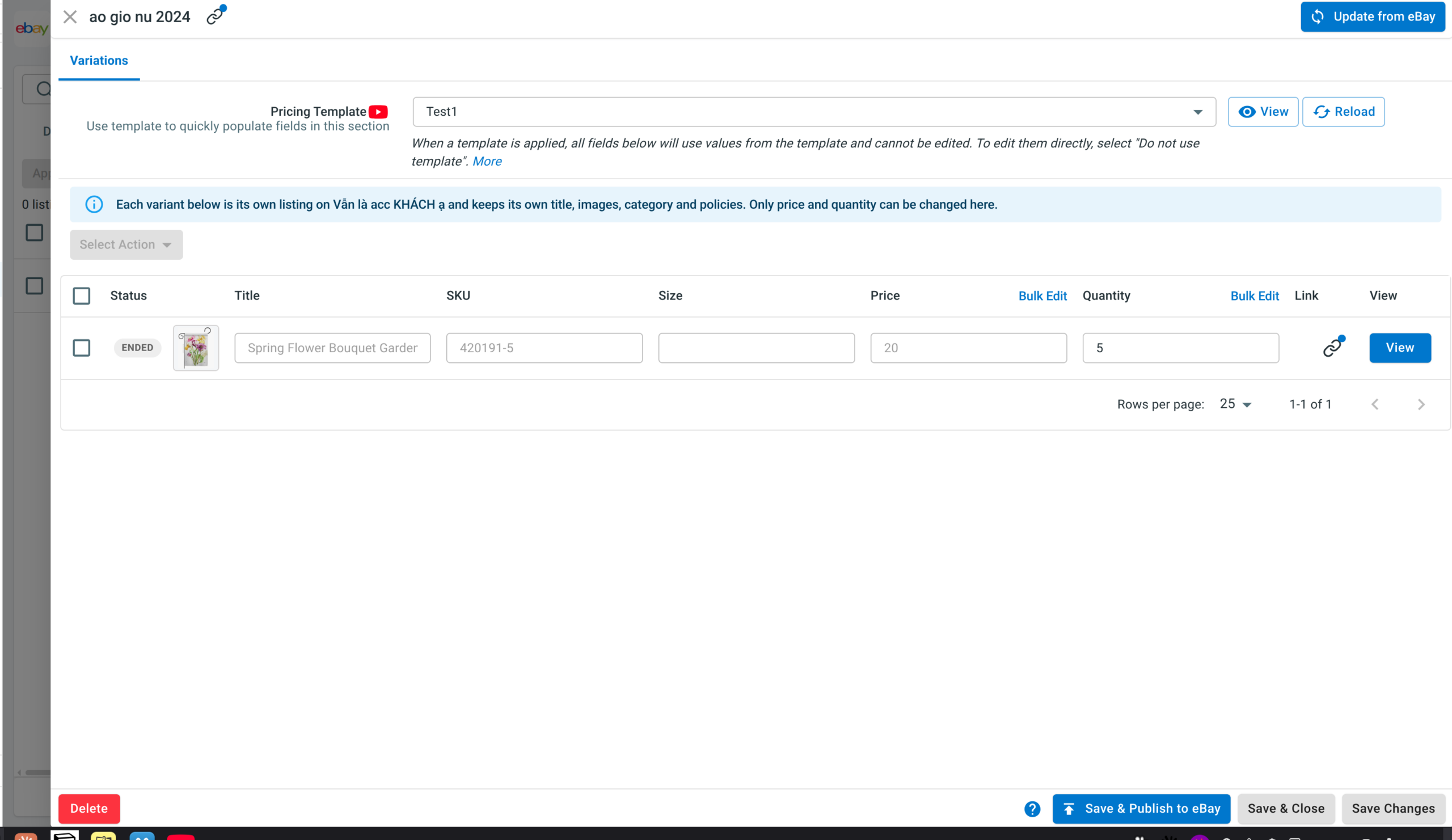
A few rules apply to products linked this way:
- Once one variant of a product is linked to a simple listing, the other variants of that product can only be linked to simple listings too.
- LitCommerce groups the linked listings under one virtual parent product, so you manage them in one place.
- Price and quantity come from the matching variant in your main store. Each listing keeps its own title, images, category and policies on eBay, and you can’t edit those fields from LitCommerce.
Option 2: Publish variants as separate simple listings
Use this option when the product isn’t on eBay yet.
Go to Draft in your eBay Channel Listing, select the products, then choose Publish Variants as Separate Listings from Bulk Actions. Each variant is published to eBay as its own simple listing. In LitCommerce, the variants stay grouped under their parent product, so you still manage them from one listing.
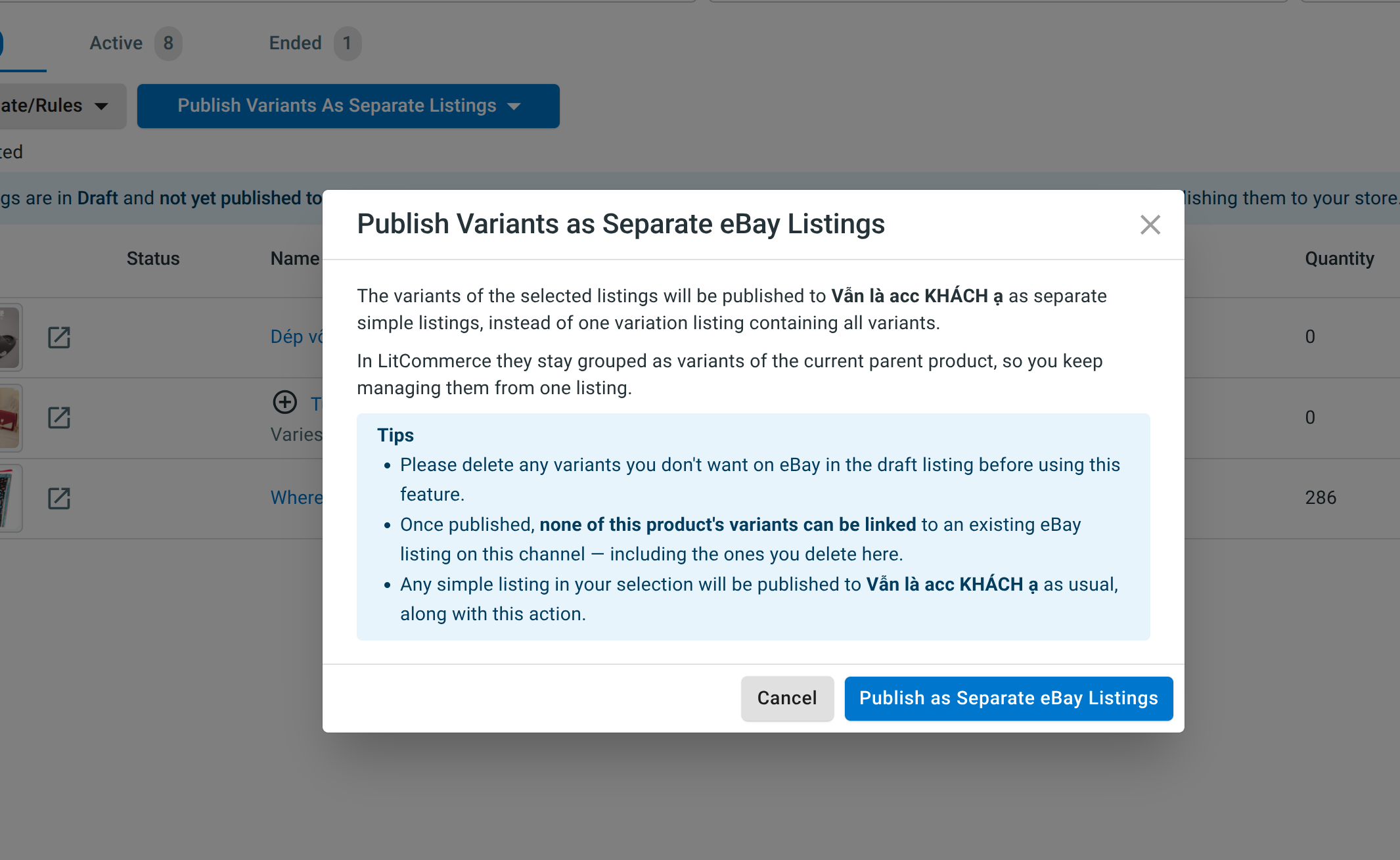
Before you publish, delete any variants you don’t want on eBay from the draft listing. After publishing:
- You can’t link any variant of that product to an existing simple listing on eBay, including variants you delete later. You can only remove variants.
- Edit each listing’s title separately in the Variations tab. All other details follow the parent product and the matching variant in your main store.
Which option should you use?
If your variants are already on eBay as separate listings, link them with Option 1 so those listings stay as they are. If you’re starting fresh, use Option 2 and let LitCommerce create the listings from your Main Store data.