

Feeds update: connect Google Merchant Center and choose ChatGPT Ads

The LitCommerce Feeds app for Shopify has three updates: you can now submit feeds to Google Merchant Center from inside the app, choose whether a ChatGPT feed is included in ChatGPT Ads, and the LLMS.txt feature has been removed.
Connect and submit your feed to Google Merchant Center
You can now connect your Google Merchant Center account to LitCommerce Feeds and submit a feed directly. Before this update, you had to copy the feed link and paste it into Merchant Center yourself.
Open your Google Shopping feed and find the Google Merchant Center card. Click Connect to Google Merchant Center and sign in with the Google account that owns your Merchant Center. LitCommerce then submits the feed for you, with no link to copy and no manual setup in Google.
If you prefer to set things up yourself, Submit feed manually is still available, and you can copy the feed link from the Overview tab as before.
Choose whether to include your ChatGPT feed in ChatGPT Ads
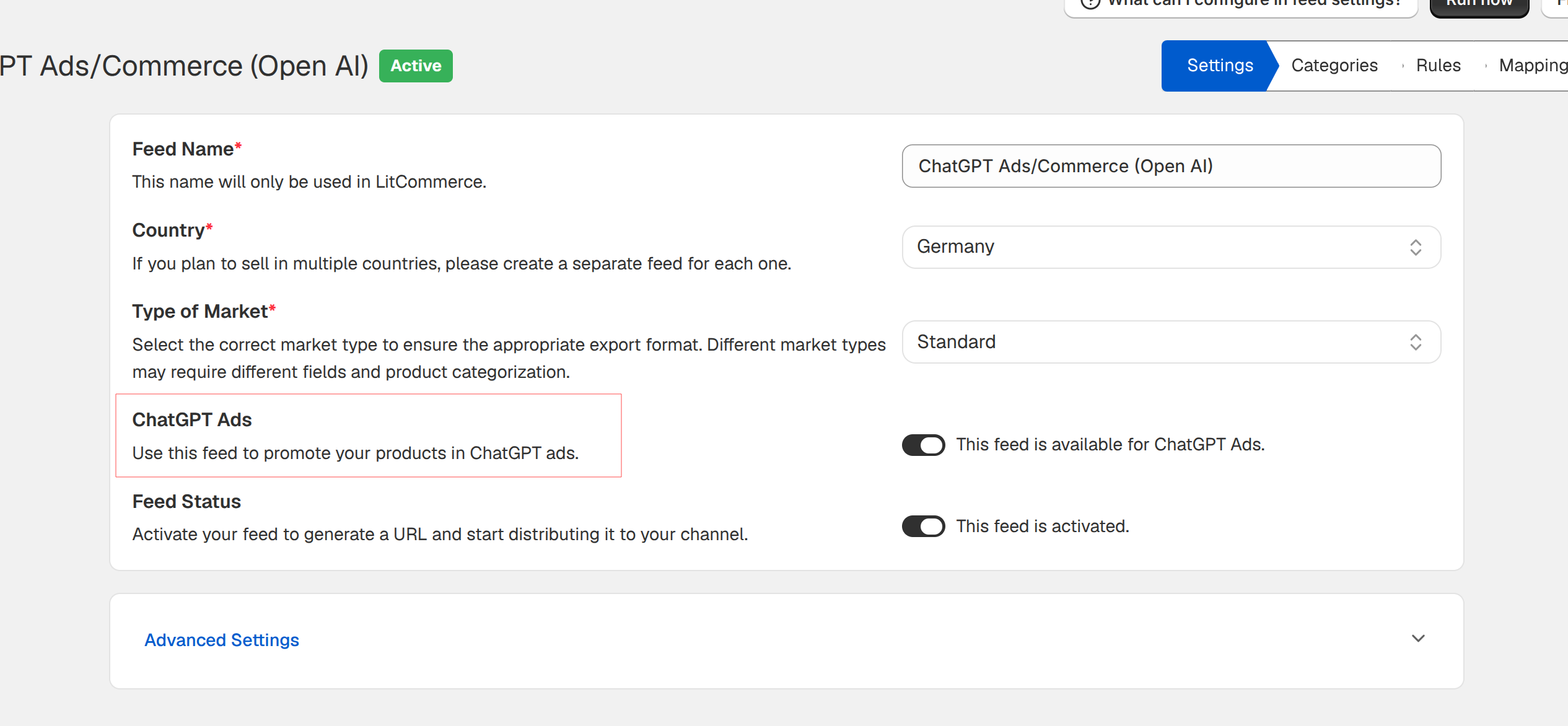
ChatGPT feeds now have a ChatGPT Ads option. Use it to decide whether the products in that feed can be promoted in ChatGPT Ads.
You’ll find the option in your ChatGPT feed’s settings, below Type of Market. Turn on the toggle to make the feed available for ChatGPT Ads, or leave it off to keep the feed out of ChatGPT Ads.
LLMS.txt has been removed
The LLMS.txt feature is no longer available in the LitCommerce Feeds app. We removed it because Shopify changed the permissions the feature relied on.