

Shopify Reverb Integration

Which Data is Included
In the Shopify Reverb Sync?


Shopify Reverb Integration: How to Connect in 4 Steps
Your Shopify catalog may be ready for Reverb, but moving it there is only half the job. The real challenge begins when a price changes, an instrument sells, or an order arrives in another dashboard. A Shopify Reverb integration brings those moving parts into one connected setup.
LitCommerce makes this Reverb Shopify integration possible without custom code. Shopify serves as the central catalog, Reverb becomes the connected marketplace channel, and you decide which products and data should move between the two platforms.
Here is the complete workflow for Shopify Reverb Integration:
- Step 1: Connect Shopify to Reverb
- Step 2: List and import products on Reverb
- Step 3: Enable Shopify Reverb sync
- Step 4: Manage Reverb order flow
Step 1: Connect Shopify to Reverb
First, let’s set up Shopify as your Main Store on LitCommerce. Your Main Store is home base. It’s where all your products, stock, and orders live, and every channel you add later will sync with it.
There are two ways to connect Shopify. You can install LitCommerce from the Shopify App Store, or add Shopify directly from the LitCommerce dashboard. Both options lead to the same setup, so choose whichever is more convenient for you.
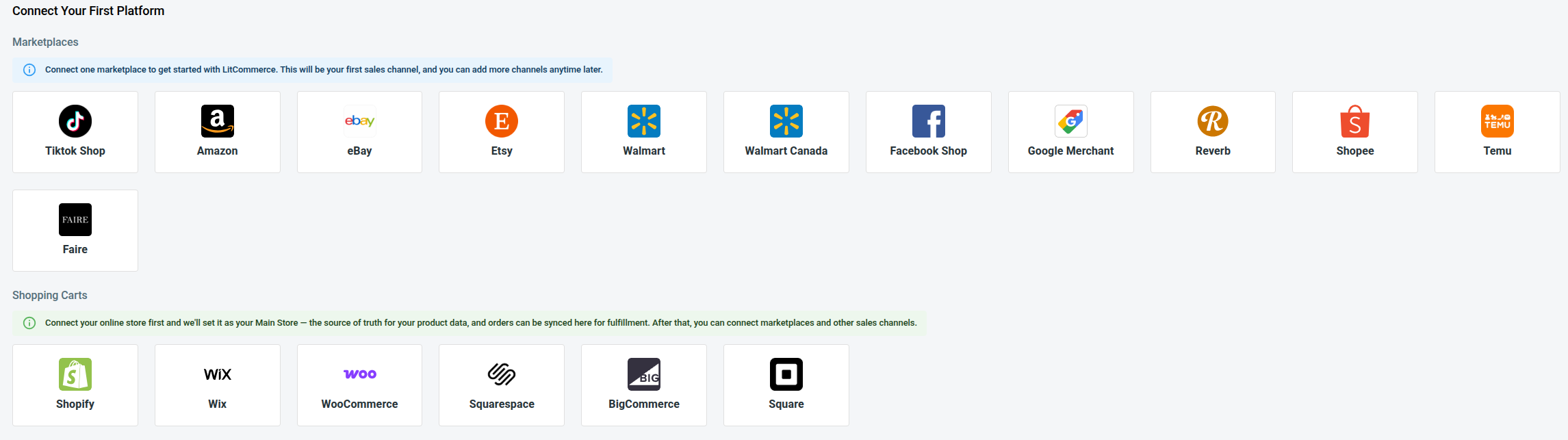
When Shopify is set as your Main Store, LitCommerce will take you to the First Channel Setup page. From here, follow these steps to start your Shopify Reverb integration:
- From the list of supported channels, select Reverb from the available channels.
- Enter your Reverb shop name and click to connect
- Enter your Reverb shop name and click Connect Your Account.
- Sign in to your Reverb seller account and allow LitCommerce to access the requested information.
During the setup, LitCommerce will display the information required for the channel you are connecting. Complete all required fields before continuing.
After you approve the connection, Shopify remains the Main Store and Reverb appears as a connected sales channel. You can then manage Reverb products and orders from the same LitCommerce workspace.
Step 2: List & import products on Reverb
After the connection is complete, LitCommerce pulls your Shopify products into its central catalog. What you do next depends on where your listings currently live.
Here’s how each case works.
Case 1: You want to list Shopify products on Reverb
If the products are already in Shopify but not yet on Reverb, add them to Reverb as drafts. This gives you time to review the imported information and complete any channel-specific requirements before publishing.
Here is how to list Shopify products on Reverb:
- Go to All Products and select the Shopify items you want to list on Reverb.
- Click Select Action and choose Add to Channel Drafts.
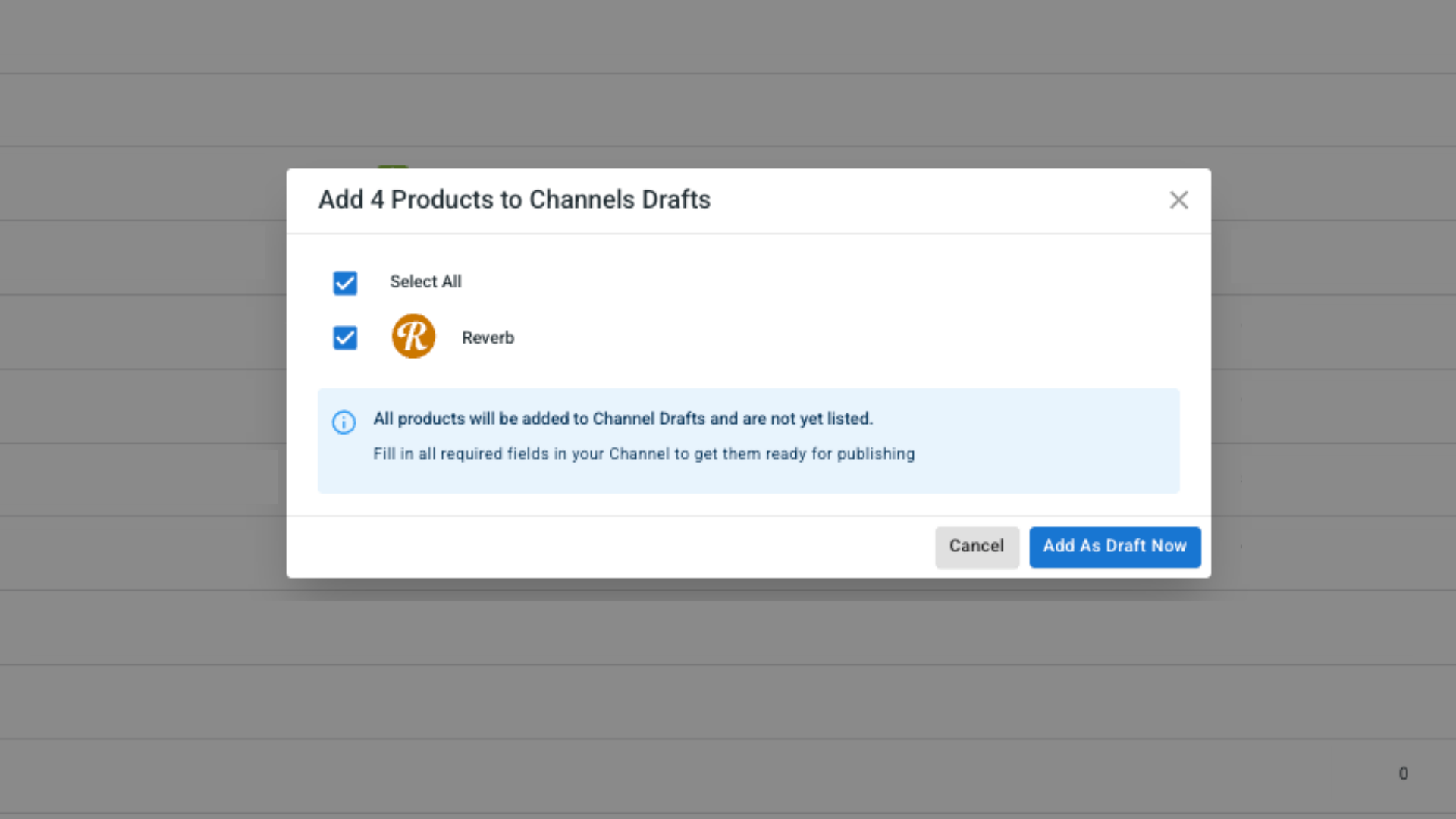
- Check the box next to your Reverb shop and click Add As Draft Now.
- Next, if you have an active subscription with LitCommerce, you can add all items in the All Products section to the selected Sales Channels using the Add All Products To Channel Drafts button.
- Once each listing looks ready, you have the option to choose between Quick Publish and Manual Publish
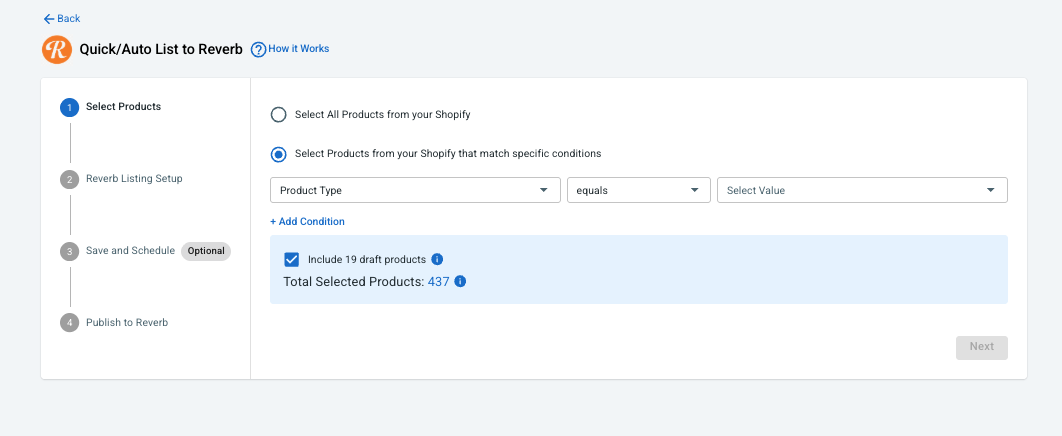
Pro tip: Reverb often requires product details that Shopify does not ask for, such as brand, model, year, finish, and condition. Before publishing, review each draft in the Reverb tab and complete these fields so buyers have a clear picture of the item.
Case 2: You want to import Reverb products to Shopify
If you already sell on Reverb and want to bring those products into Shopify, you can import your existing Reverb listings through LitCommerce instead of recreating them manually.
Here is how to import Reverb listings to Shopify using LitCommerce:
- On the Reverb channel tab, click Import from Reverb.
- Filter which products to import and let LitCommerce auto link matching items between Shopify and Reverb
- Click Begin Import.
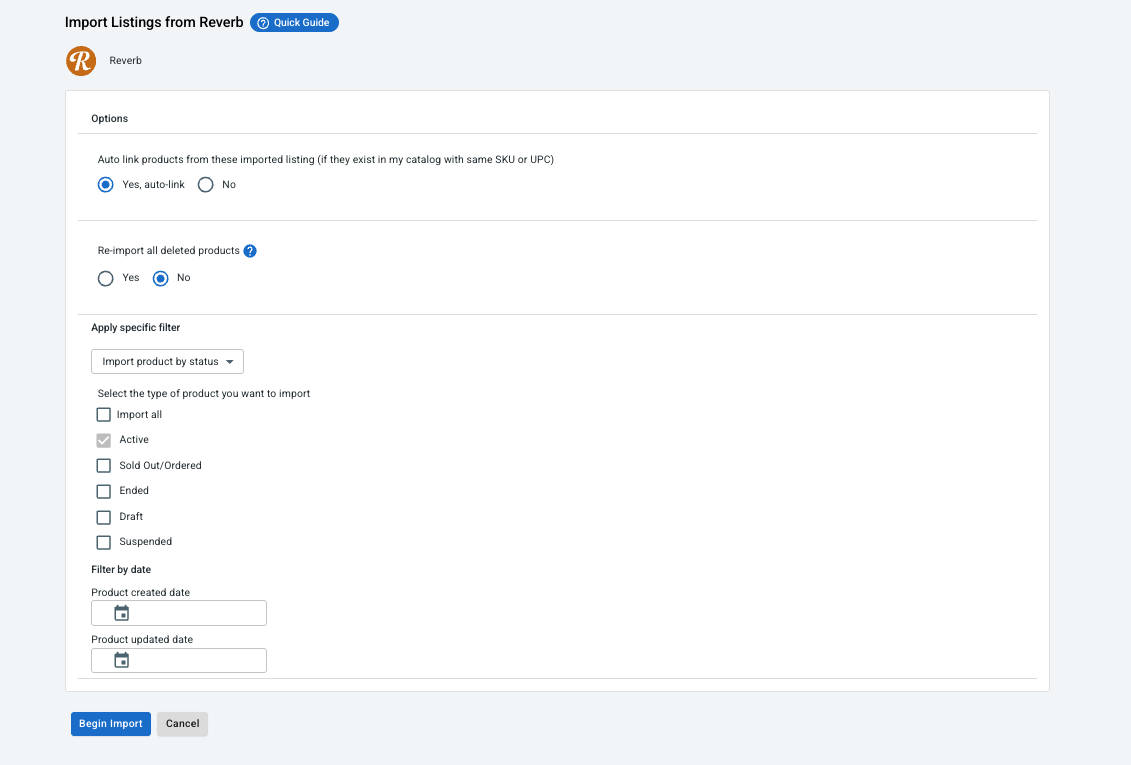
- Once your Reverb listings load into LitCommerce, select the ones you want in Shopify, click Select Action, then Create on Shopify.
That’s it. The selected Reverb products will be created in Shopify. When LitCommerce finds a matching product during import, it can keep the Shopify product and Reverb listing linked for future synchronization.
Case 3: You want to link products on Shopify and Reverb
If the same products already exist on Shopify and Reverb, you do not need to create them again. Instead, link the matching records so LitCommerce recognizes them as the same item. In LitCommerce, a Blue Dot identifies a linked listing, while a Red Dot identifies an unlinked listing.
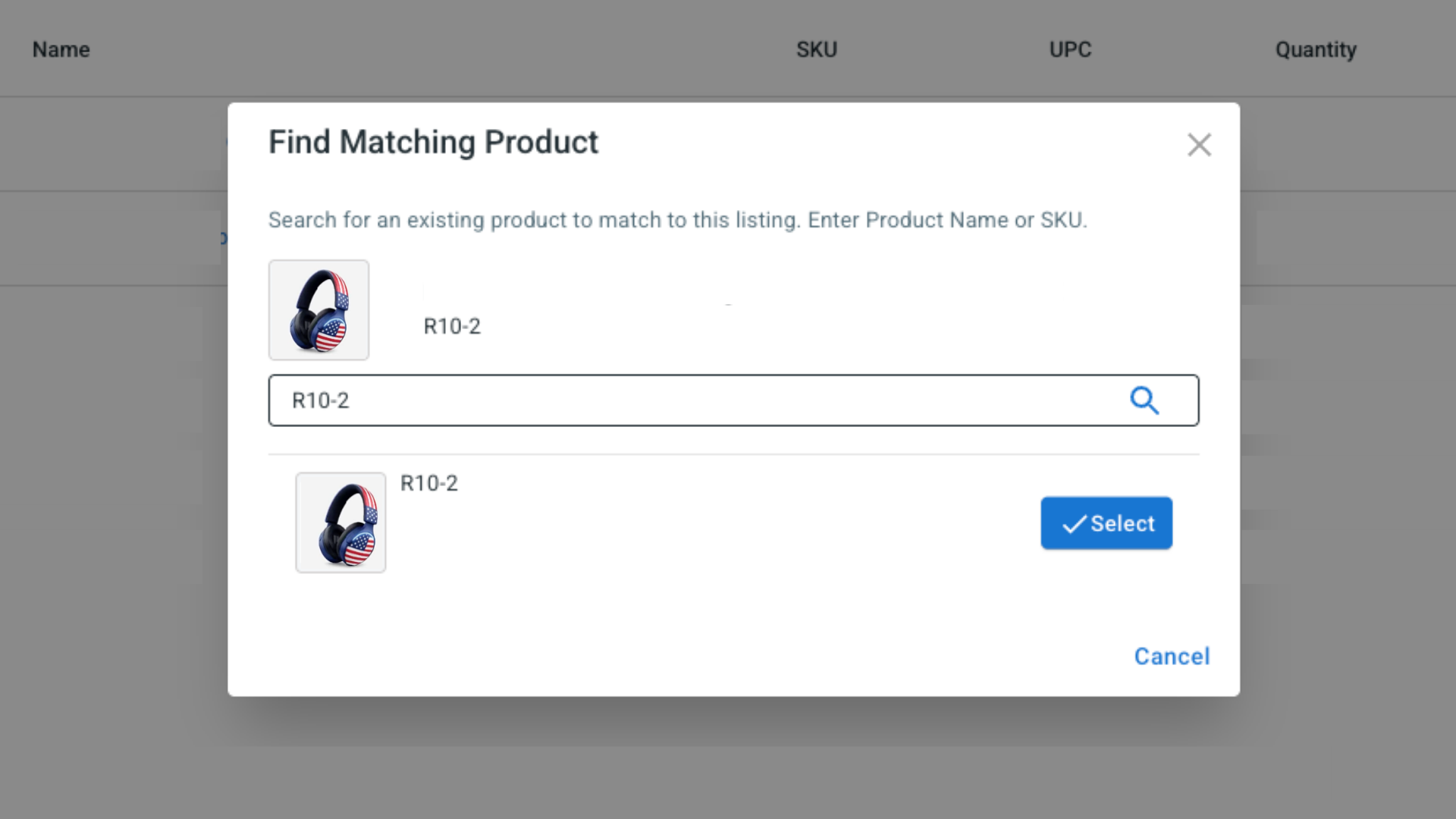
To link an unlinked Reverb listing to a Shopify product:
- Hover over the red dot next to the unlinked product.
- Select Link To A Product.
- Find the matching product in your catalog.
- Click Select next to the correct item.
Once linked, the Shopify product and Reverb listing can share supported price, inventory, and other channel data according to your sync settings.
Step 3: Enable Shopify Reverb Sync
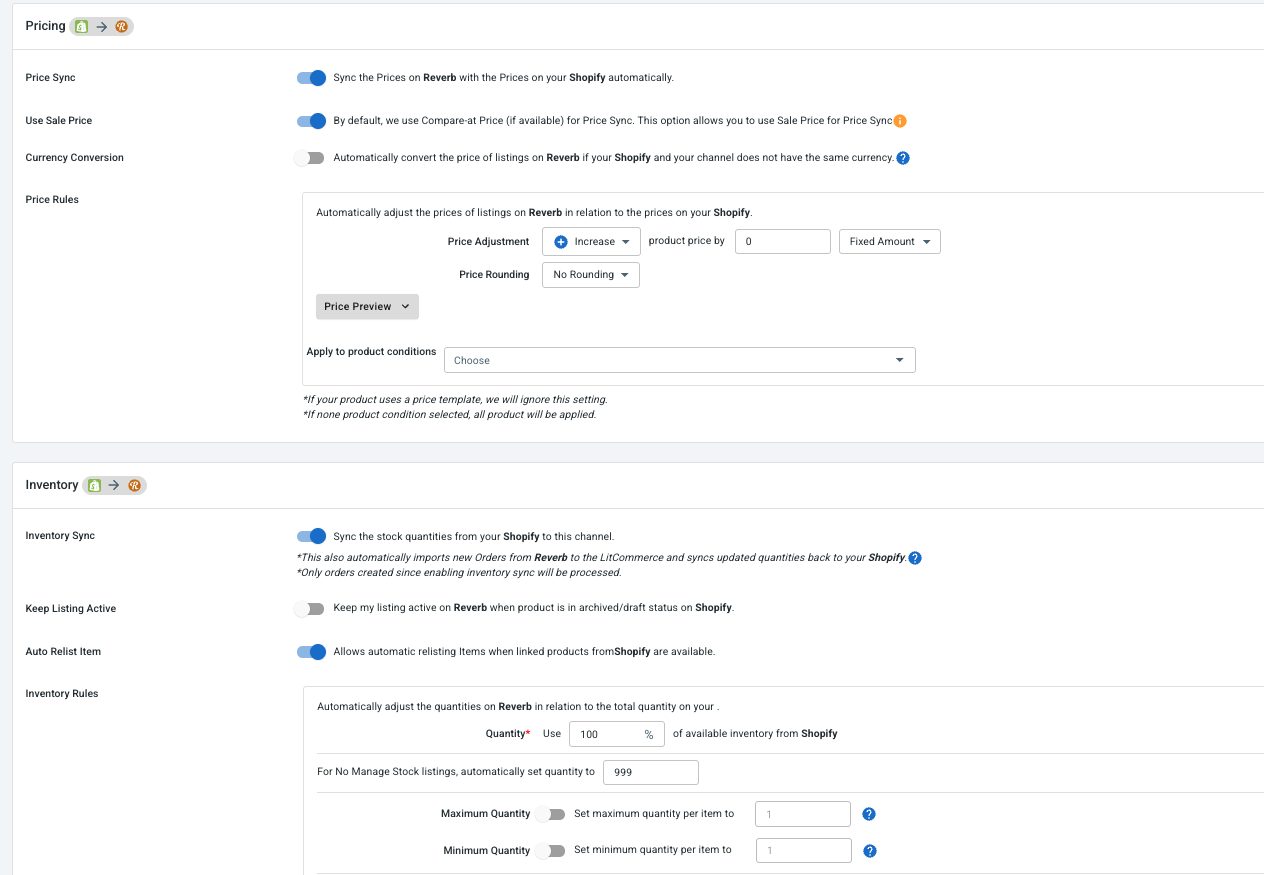
After products have been listed, imported, or linked, open the Reverb channel and go to Channel Settings. This is where you choose how LitCommerce keeps Shopify and Reverb aligned.
There are three main synchronization options to configure:
- Price sync: Enable Price Sync when you want a Shopify price change to update the corresponding Reverb listing. You can also apply a fixed or percentage-based pricing rule when Reverb needs a different price for marketplace costs, promotions, or another channel-specific strategy.
- Inventory sync: Enable Inventory Sync to keep stock quantities aligned between linked Shopify products and Reverb listings. When inventory changes in Shopify, LitCommerce updates the corresponding Reverb listing based on your selected rules. You can set minimum or maximum quantities, control how listings behave when stock reaches zero, or send only a percentage of your Shopify inventory to Reverb.
- Order sync: Enable Import Orders to Main Store when you want Reverb orders to appear in Shopify alongside your regular Shopify orders.
After choosing your preferred settings, click Save Settings at the bottom of the page.
Step 4: Manage Reverb orders from Shopify
Once Import Orders to Main Store is enabled, new Reverb orders can be imported into Shopify. Instead of checking both platforms whenever an order arrives, you can manage more of the order flow from one place.
From Shopify, you can:
- Review Shopify and Reverb orders in one place.
- Follow fulfillment and shipment status.
- Manage Reverb orders alongside orders from other connected channels.
- Compare order activity across your sales channels.
And that’s the basic setup.
With Shopify and Reverb connected through LitCommerce, you can publish Shopify products to Reverb, import existing Reverb listings, link products already available on both platforms, synchronize prices and inventory, and bring Reverb orders into Shopify.
This gives you a more centralized way to manage your Shopify Reverb integration with less repetitive work across the two sales channels.