

Square Amazon Integration

Which Data is Included
In the Square Amazon Sync?


Detailed Guide on Square Amazon Integration
Adding Amazon to your Square setup gives you another channel to sell through, but it also adds another place where product details, prices, inventory, and orders need to stay up to date. Managing those changes separately can quickly become repetitive work. A Square Amazon integration brings the two platforms into a more connected workflow.
With LitCommerce, you can use Square as your Main Store and connect Amazon as an additional marketplace channel. This lets you publish Square products to Amazon, bring existing Amazon listings into Square, synchronize supported data, and route Amazon orders back to your Main Store.
The setup follows four main steps:
- Step 1: Connect Square to Amazon
- Step 2: List and import products on Amazon
- Step 3: Enable Square Amazon sync
- Step 4: Manage Amazon order flow
Step 1: Connect Square to Amazon
Before working with listings, you first need to connect both platforms to LitCommerce. Square will be set as your Main Store. It provides the central product catalog that LitCommerce uses for publishing products, configuring synchronization, and managing connected marketplace channels.
You can connect Square in either of two ways: install LitCommerce through the Square App Marketplace, or create a LitCommerce account and add your Square store directly from the dashboard. Both options take you to the same setup.
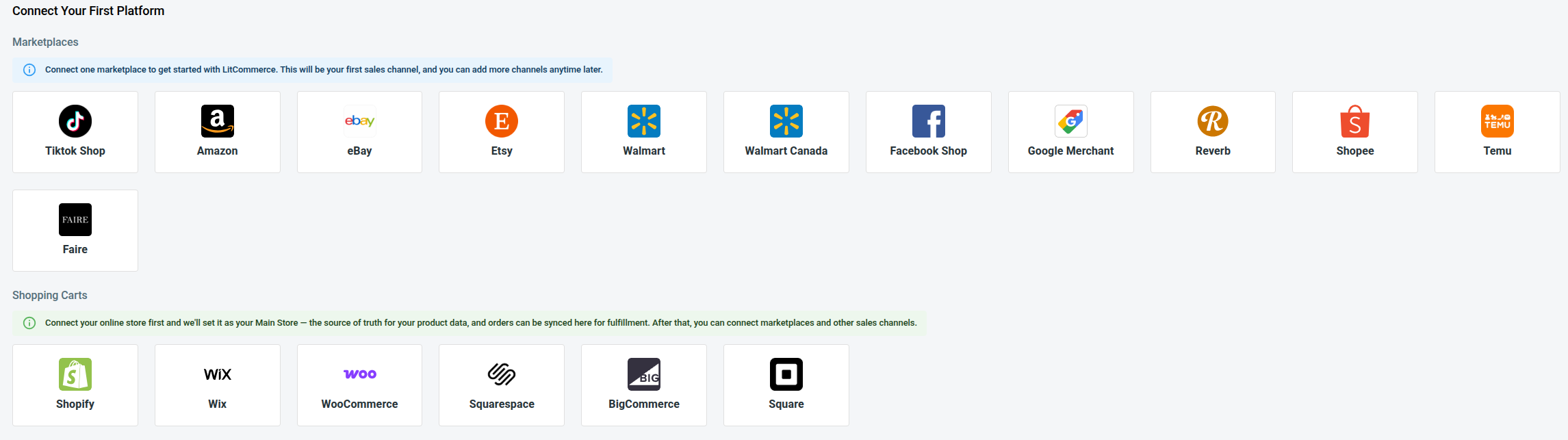
Once Square is ready, LitCommerce will direct you to the First Channel Setup page. From there, add Amazon by following these steps:
- Select Amazon from the available sales channels.
- Enter your Amazon shop name.
- Click Connect Your Account.
- Sign in to your Amazon seller account and grant LitCommerce the requested access.
LitCommerce will show the information required to complete your Amazon connection. Fill in all required fields before continuing.
After the account is authorized, Square remains your Main Store, and Amazon is added as a connected marketplace. With your Square Amazon integration established, you can move on to setting up products on both platforms.
Step 2: List & import products on Amazon
Now that the accounts are connected, LitCommerce brings your Square products into its central catalog. What happens next depends on your existing product setup. You can create Amazon listings from Square products, import products that are already selling on Amazon, or link matching items that already exist on both platforms.
Here is how each case works.
Case 1: You want to list Square products on Amazon
When a product exists in Square but has not yet been listed on Amazon, you can first add it to your Amazon channel as a draft. This draft stage lets you review the transferred product information and complete any Amazon-specific requirements before sending the listing live.
Here is how to list Square products on Amazon:
- Go to All Products and select the Square items you want to list on Amazon.
- Click Select Action and choose Add to Channel Drafts.
- Check the box next to your Amazon shop and click Add As Draft Now.
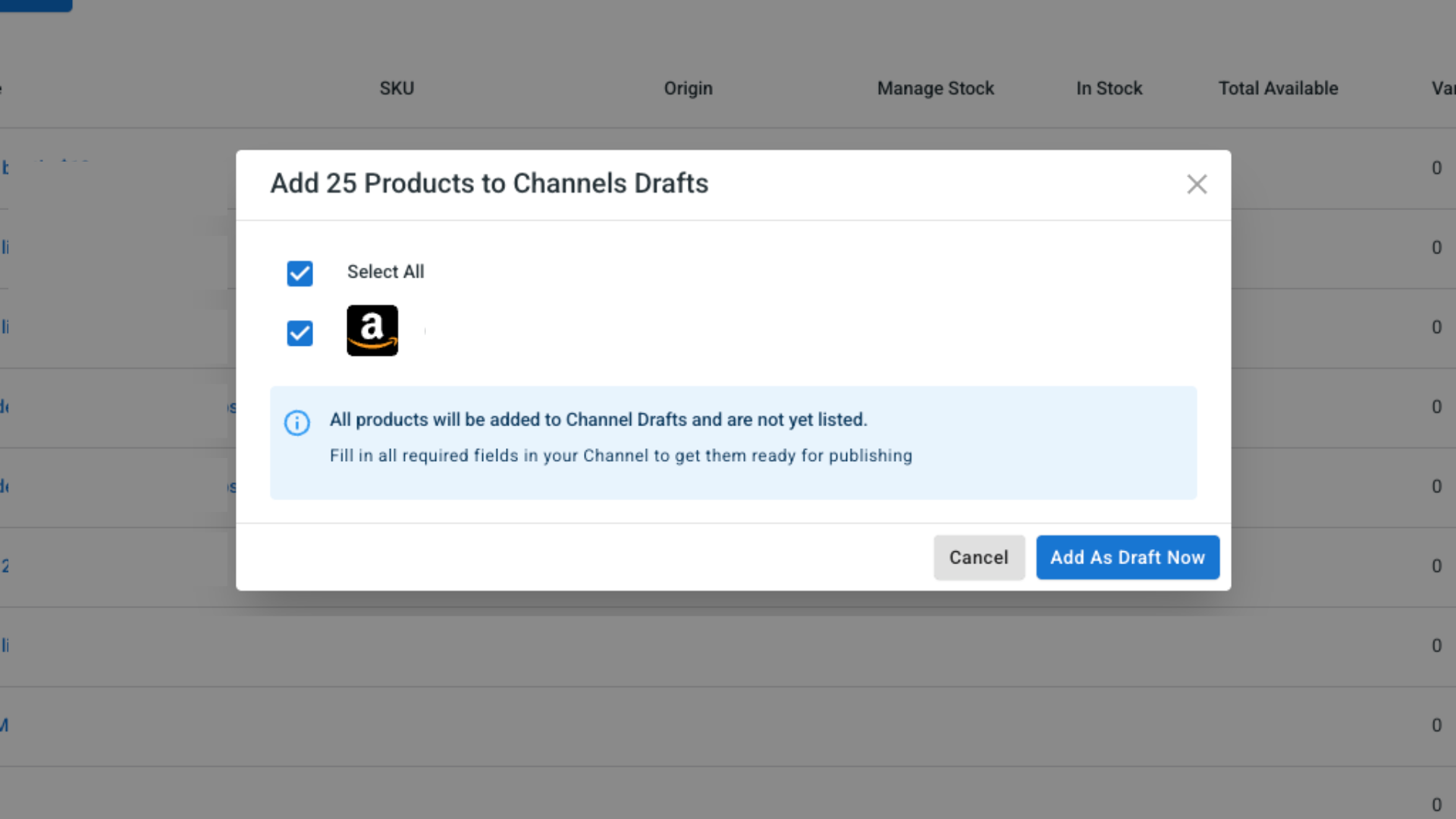
- If your LitCommerce plan supports it, you can use Add All Products To Channel Drafts to send your full product catalog to the selected channel at once.
- Open your Amazon channel and review the draft listings. Complete the required Amazon fields, including any missing category or product attributes.
- Once the listings are complete, publish them manually to Amazon.
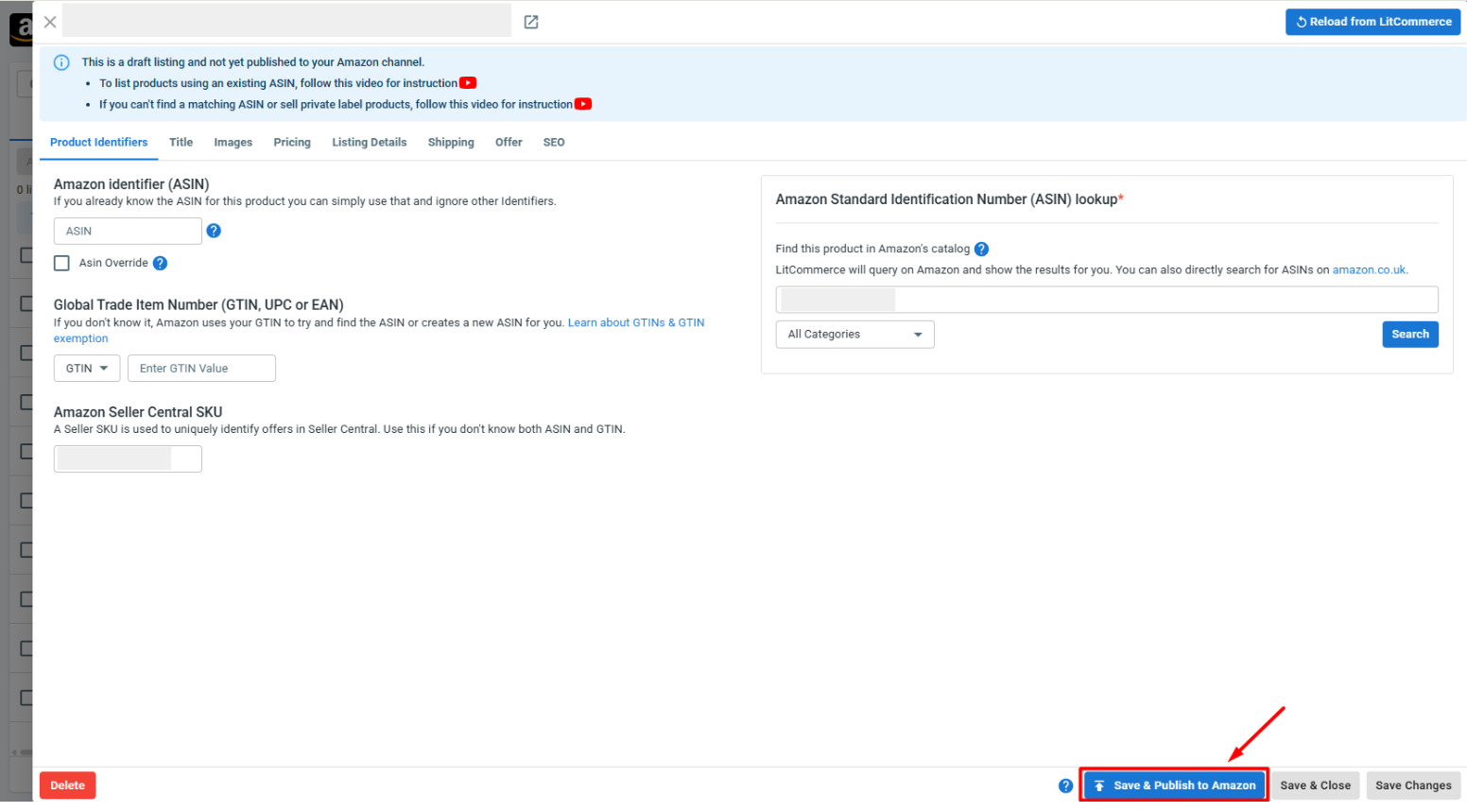
Pro tip: Amazon listings often require more structured product data than what is available in Square. Check your category attributes, product identifiers, variation details, and other required fields carefully before publishing. Unlike some other LitCommerce channels, Amazon does not support Quick Publish, so these details need to be completed through the manual publishing flow.
Case 2: You want to import Amazon products to Square
If your catalog already exists on Amazon, you can work in the opposite direction and bring those products into Square. Rather than recreating the same product information manually, LitCommerce can import your Amazon listings and use them to create products in your Square catalog.
Here is how:
- On the Amazon channel tab, click Import from Amazon.
- Filter which products to import, and let LitCommerce auto-link matching items between Square and Amazon.
- Click Begin Import.
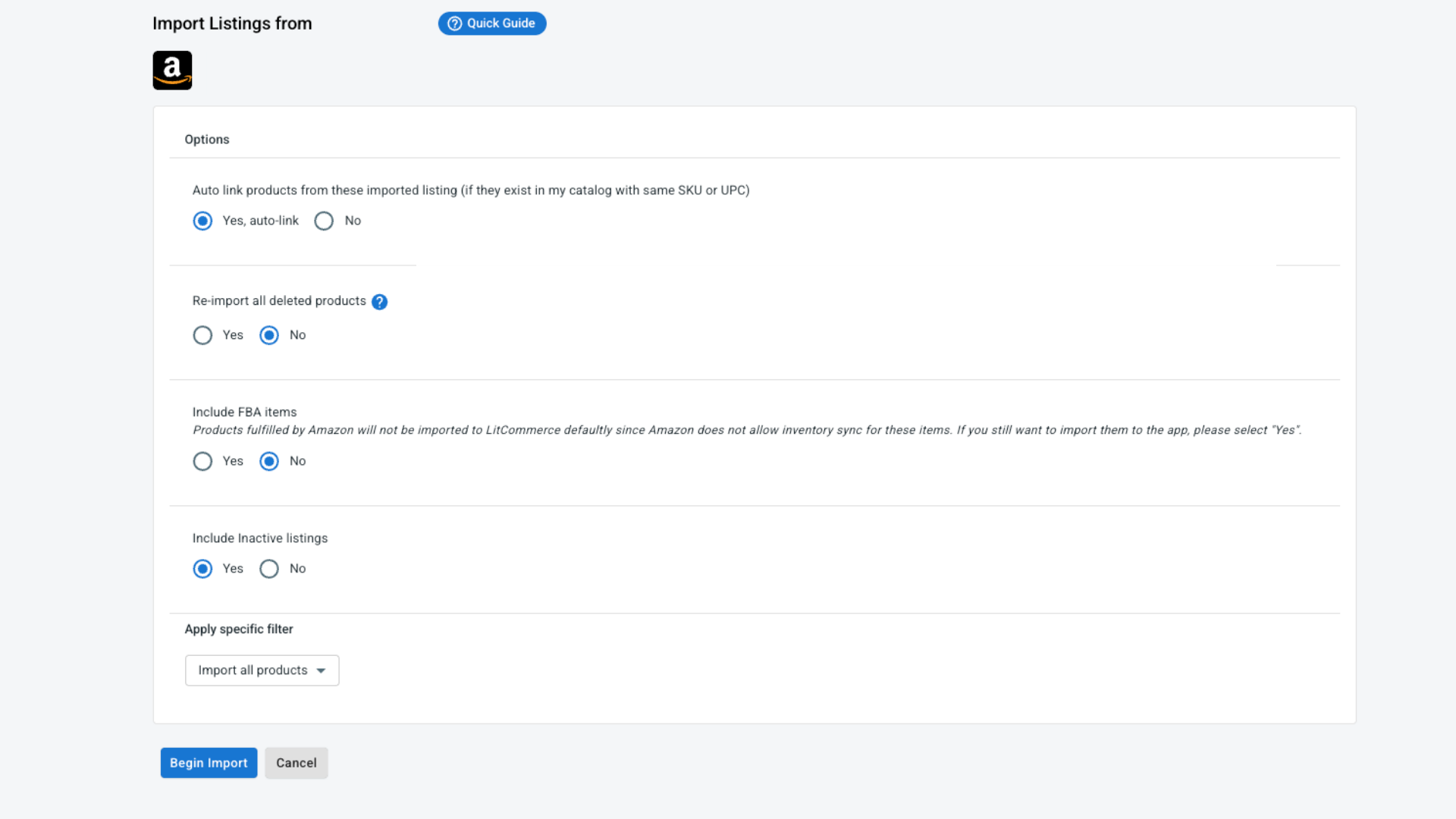
Once your Amazon listings load into LitCommerce, select the ones you want in Square, click Select Action, then Create on Square.
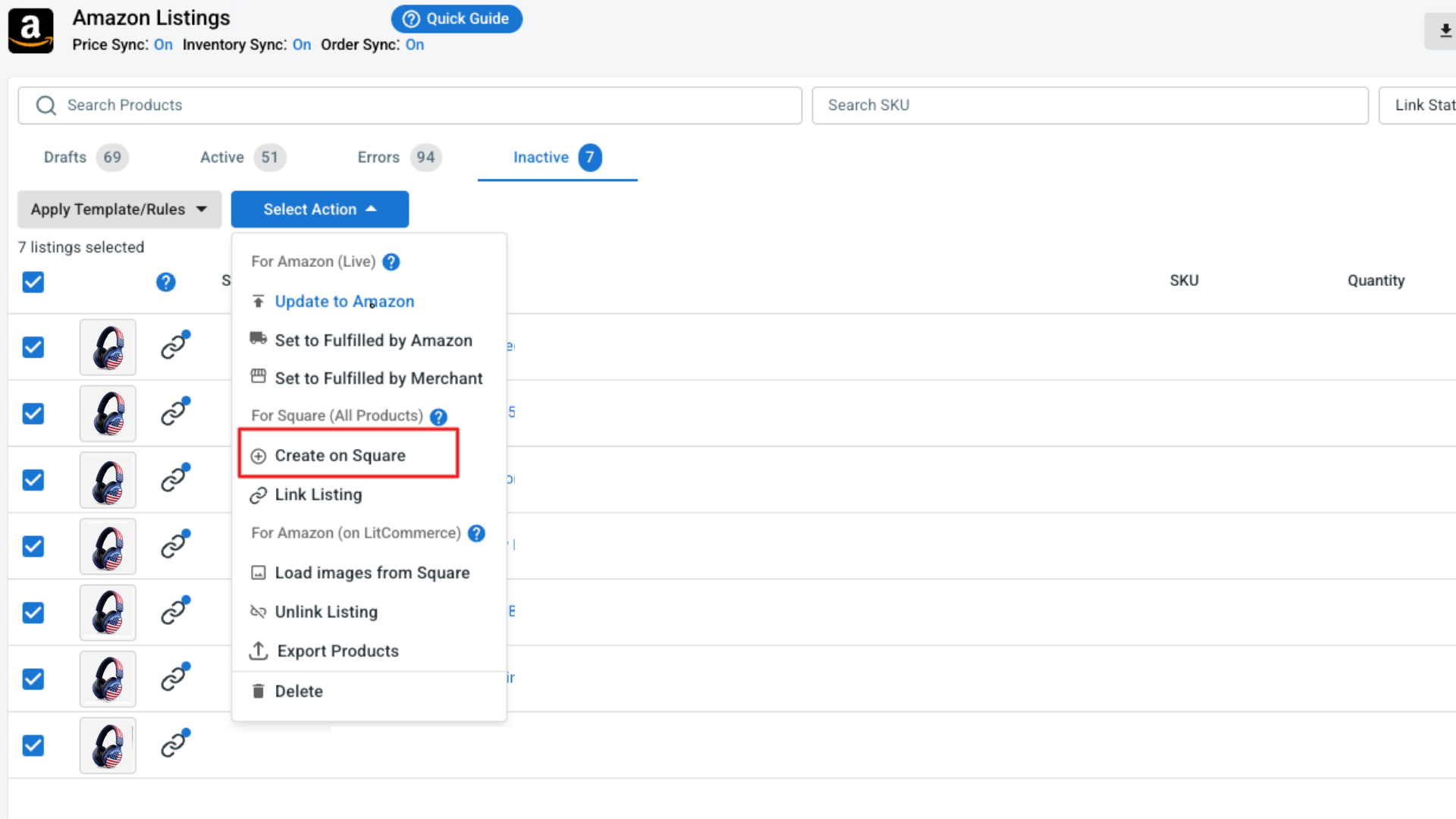
The selected Amazon products will then be created in Square.
Where a corresponding Square product already exists, LitCommerce can link the matching records instead. This avoids creating unnecessary duplicates and prepares those products for synchronization.
Case 3: You want to link products on Square and Amazon
You may also have products that were created independently on both platforms. When the same item already exists in Square and Amazon, there is no need to publish or import another copy. You can simply link the two records so LitCommerce treats them as one connected product. The status indicators make these products easy to identify. A blue dot means the listing has already been linked, while a red dot marks an unlinked listing.
To connect an Amazon listing with its Square product:
- Hover over the red dot next to the unlinked product.
- Select Link To A Product.
- Find the matching product in your catalog.
- Click Select next to the correct item.
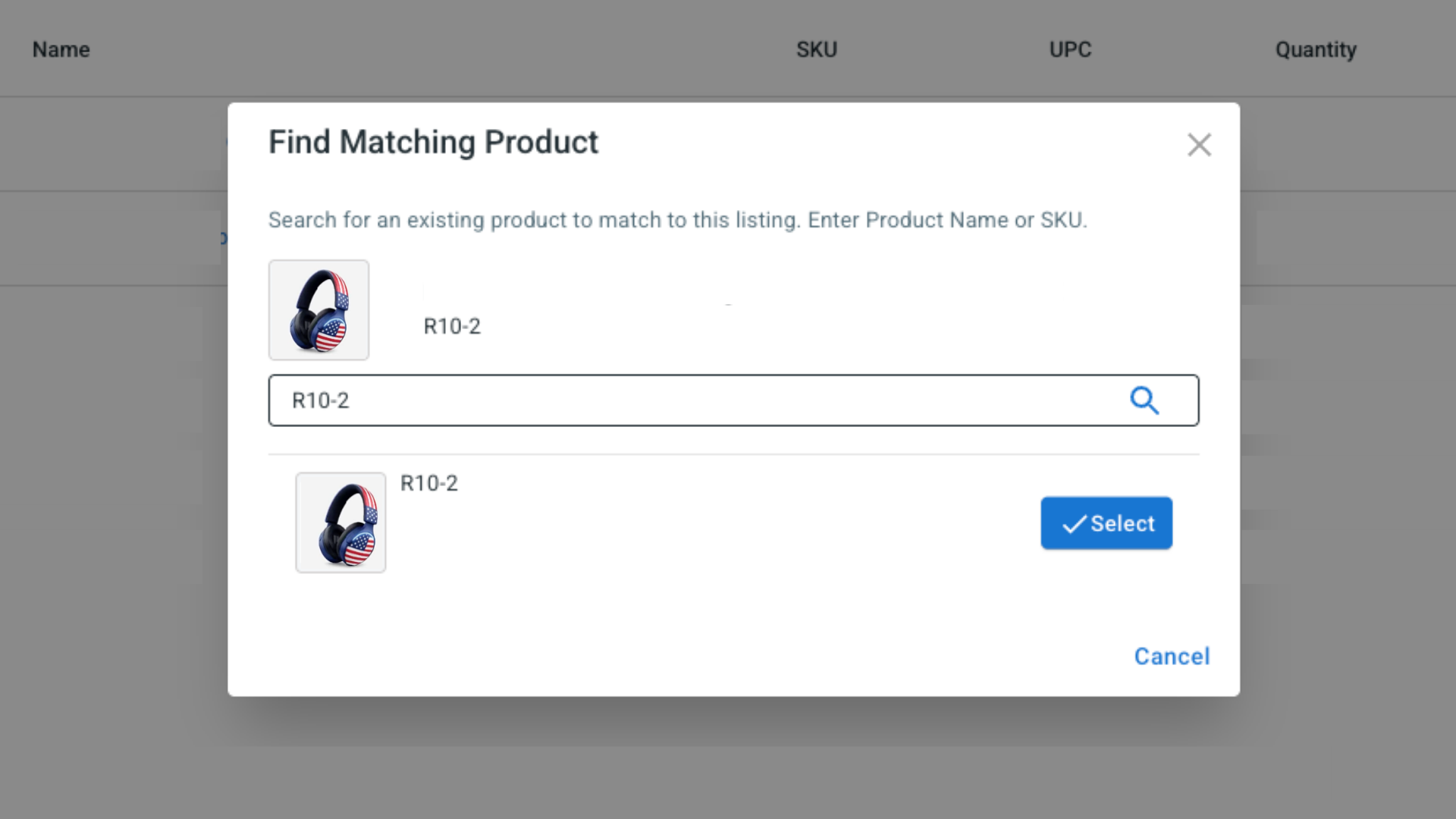
After linking, supported information such as inventory and price can be synchronized between Square and Amazon according to the rules you configure.
Step 3: Enable Square Amazon Sync
Once your listings are connected, you need to decide which updates should move automatically between Square and Amazon. Instead of changing the same information on both platforms, you can use LitCommerce’s channel settings to control how supported price, inventory, and order data are synchronized.
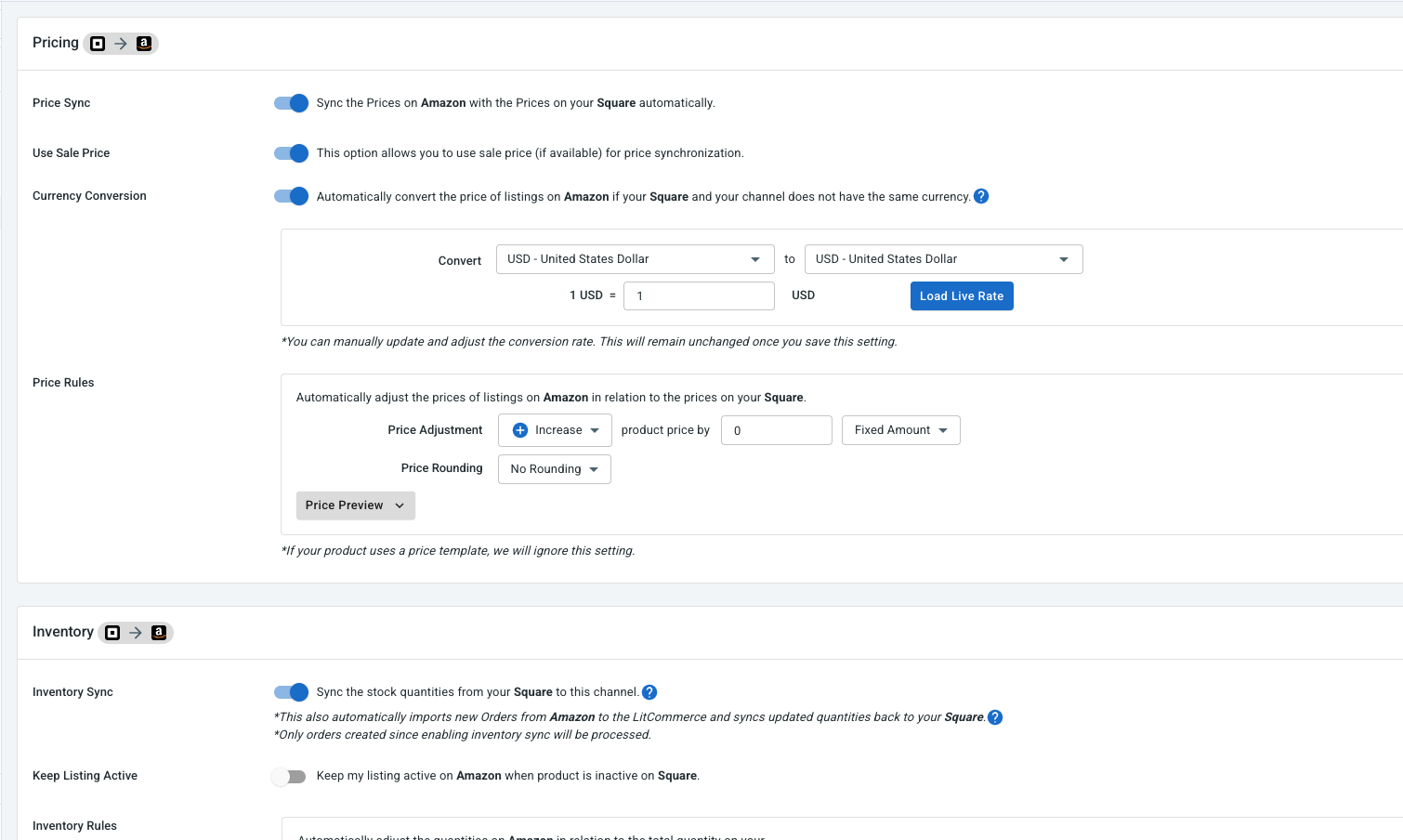
Open your Amazon channel and go to Channel Settings. You will find three main sync options:
- Price sync: Turn on Price Sync to update connected Amazon listings when the corresponding price changes in Square. If you do not want to use the exact same price on Amazon, you can add a fixed or percentage-based rule to adjust it for marketplace costs, promotions, or your channel pricing strategy.
- Inventory sync: Turn on Inventory Sync to keep stock quantities aligned between Square and merchant-fulfilled Amazon listings. LitCommerce uses the inventory in your Main Store together with the rules you set to update connected Amazon listings. You can also set minimum or maximum quantities, control out-of-stock behavior, or make only part of your Square inventory available on Amazon.
Note for FBA products: LitCommerce does not sync inventory for products fulfilled by Amazon. Because FBA stock is stored and managed in Amazon fulfillment centers, Amazon remains the source of truth for those quantities. Other supported data, such as price, can still be synchronized for FBA listings.
- Order sync: Turn on Import Orders to Main Store to import Amazon orders into Square, allowing them to enter the same order workflow as your Main Store orders. Keep in mind that Amazon orders imported through LitCommerce contain product-level information, such as product title, SKU, and price, but do not include customer or shipping details such as the buyer’s name and address.
LitCommerce checks supported price, inventory, and order data every 15 minutes. When you are happy with the configuration, click Save Settings.
Step 4: Manage Amazon orders from Square
The last step is bringing Amazon order activity into your Main Store workflow.
When Import Orders to Main Store is enabled, LitCommerce imports new Amazon orders into Square. This gives you a centralized view of sales across both platforms, instead of checking separate dashboards for each new order.
Amazon orders imported through LitCommerce include product-level details such as the product title, SKU, and price. Customer and shipping information, including the buyer’s name and address, is not included in the imported order data due to limitations in the Amazon API.
Order status updates sync one way, from Amazon into your Main Store, so status changes made on Amazon show up in Square. If you fulfill an Amazon order directly in Square instead, LitCommerce cannot push that fulfillment or tracking information back to Amazon due to Amazon’s API restrictions. If you plan to fulfill an order yourself, fulfilling it directly on Amazon keeps tracking information available to the buyer without extra manual steps.
From Square, you can:
- View Square and Amazon orders in one place
- See Amazon order status updates as they sync into Square
- Handle Amazon orders alongside orders from other connected channels
- Compare order activity across different sales channels
That completes the basic setup.
With Square and Amazon connected through LitCommerce, you can create Amazon listings from your Square catalog, import existing Amazon products into Square, link products that already exist on both platforms, keep supported price and inventory data synchronized, and bring Amazon orders into your Main Store workflow.
Your Square Amazon integration then works as a more centralized setup, helping you maintain both channels without repeating the same product and order tasks in two separate places.