

Square TikTok Shop Integration




Which Data is Included
In the Square TikTok Shop Sync?


Detailed Guide on Square TikTok Shop Integration
TikTok Shop adds a very different sales channel to a Square setup. Customers can discover a product through content and move to purchase quickly, while you still need product data, stock, prices, and orders to stay accurate behind the scenes. A Square TikTok Shop integration helps connect that front-end selling activity with the catalog you already manage in Square.
With LitCommerce, Square remains your Main Store and TikTok Shop becomes a connected sales channel. You can publish Square products to TikTok Shop, bring existing TikTok Shop listings into Square, keep supported data synchronized, and import marketplace orders back to your Main Store.
The setup follows four main steps:
- Step 1: Connect Square to TikTok Shop
- Step 2: List and import products on TikTok Shop
- Step 3: Enable Square TikTok Shop sync
- Step 4: Manage TikTok Shop order flow
Step 1: Connect Square to TikTok Shop
Start by giving both platforms a shared workspace to talk through. In LitCommerce, Square becomes your Main Store, serving as the source for the product, inventory, and order data used across your connected channels.
There are two ways to bring Square on board. You can install LitCommerce from the Square App Marketplace, or create a LitCommerce account and connect your Square store from the dashboard. Both methods take you through the same setup, so pick whichever suits your workflow.
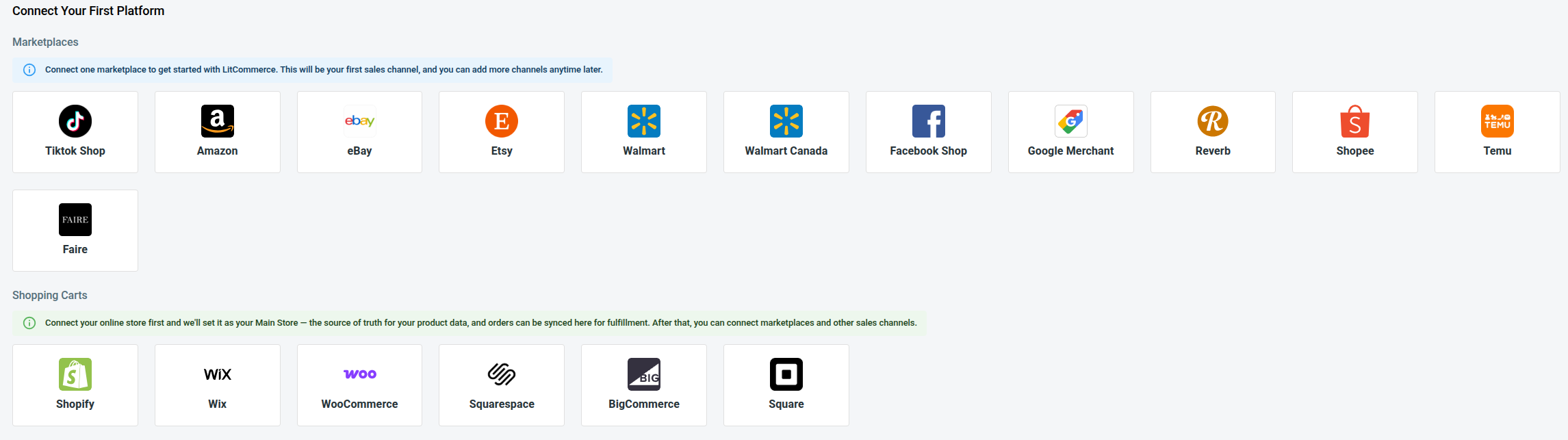
Once Square is set as your Main Store, LitCommerce will take you to the First Channel Setup page. From there, follow these steps to connect TikTok Shop:
- From the list of supported channels, select TikTok Shop.
- Enter your TikTok Shop shop name and click Connect
- Enter your TikTok Shop shop name and click Connect Your Account.
- Sign in to your TikTok Shop seller account and allow LitCommerce to access the requested information.
LitCommerce will show the information needed to complete the connection. Fill in all required fields before continuing.
After authorization, Square stays as your Main Store while TikTok Shop is added as a connected channel. Your Square TikTok Shop integration is now ready for product setup.
Step 2: List & import products on TikTok Shop
Now, when the connection is ready, you need to decide how your existing products should move between the two platforms. There are three common situations: you want to publish Square products to TikTok Shop, bring TikTok Shop listings into Square, or link products that already exist on both sides.
Here is how each case works.
Case 1: You want to list Square products on TikTok Shop
If a product already exists in Square but not on TikTok Shop, you can send it to your TikTok Shop channel as a draft first. This gives you a chance to check the imported information and add any marketplace-specific details before the listing goes live.
Here is how to list Square products on TikTok Shop:
- Go to All Products and select the Square items you want to list on TikTok Shop.
- Click Select Action and choose Add to Channel Drafts.
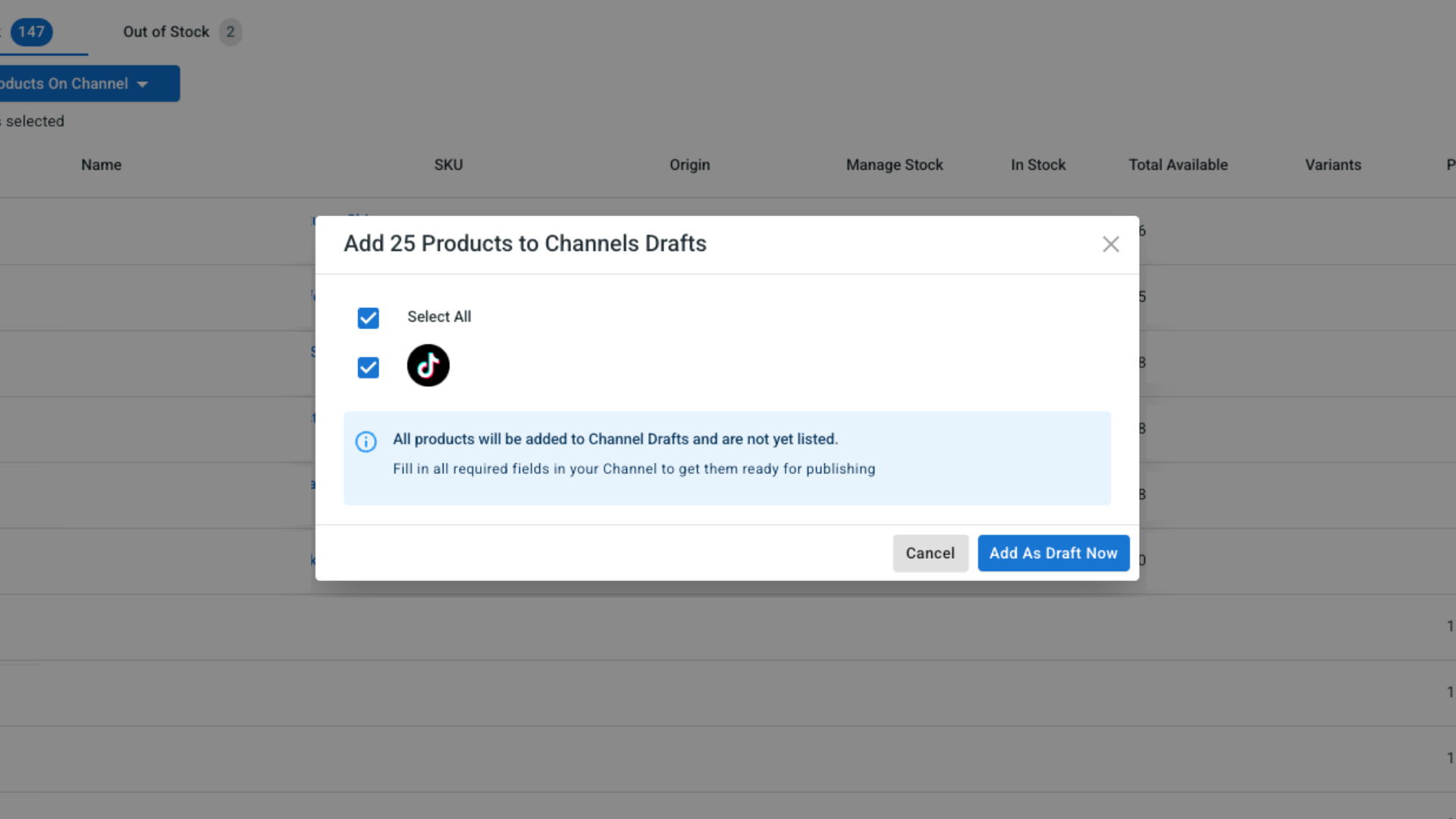
- Check the box next to your TikTok Shop and click Add As Draft Now.
- If your LitCommerce plan supports it, you can use Add All Products To Channel Drafts to send your full product catalog to the selected channel at once.
- When the listings are ready, choose Quick Publish or Manual Publish.
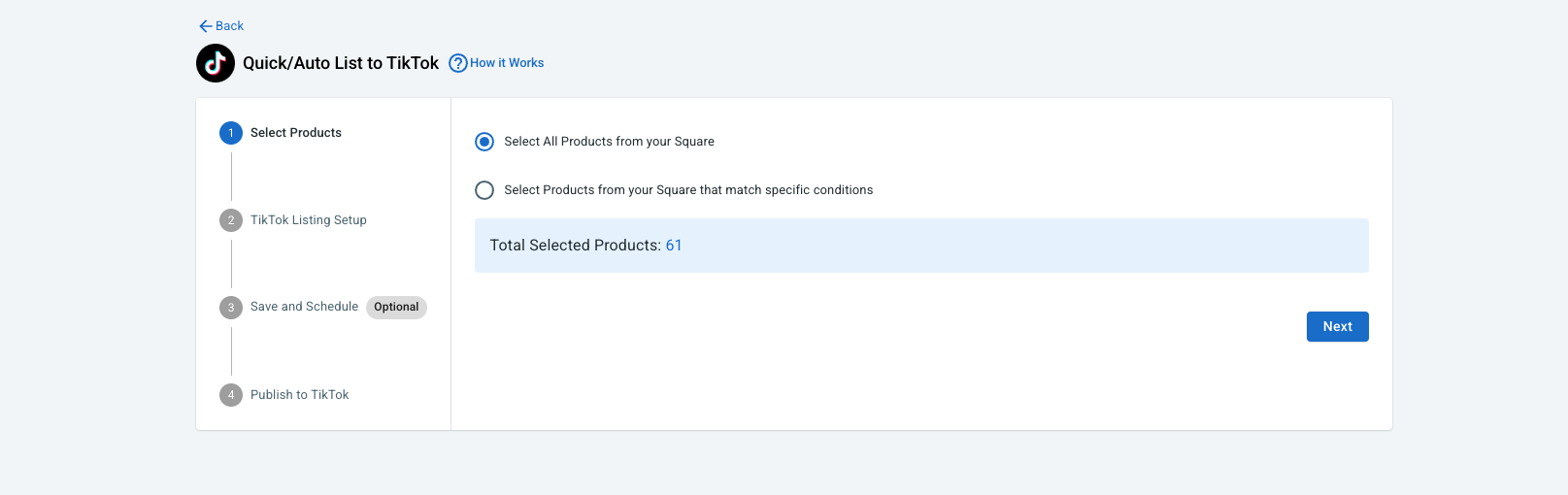
Pro tip: Square product data may not include every field TikTok Shop needs. Check your category, attributes, shipping information, and other required listing details before publishing. Doing this at the draft stage can save you from going back to fix incomplete listings later.
Case 2: You want to import TikTok Shop products to Square
If you started selling on TikTok Shop first, you can also move product data in the opposite direction. Instead of rebuilding those products manually in Square, import the existing TikTok Shop listings through LitCommerce and create the selected items in your Square catalog.
Here is how to import TikTok Shop listings to Square using LitCommerce:
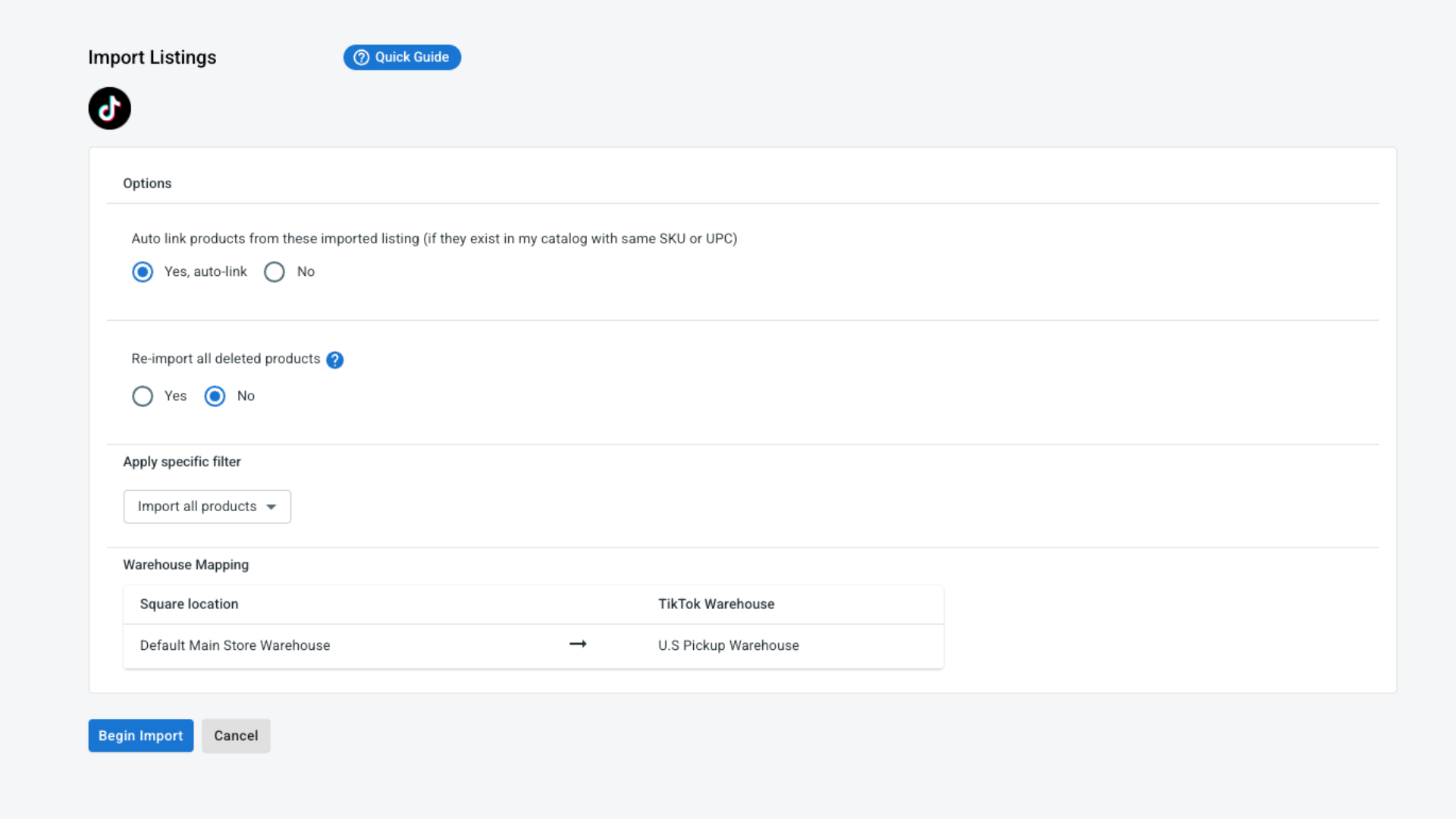
- On the TikTok Shop channel tab, click Import from TikTok Shop.
- Filter which products to import, and let LitCommerce auto-link matching items between Square and TikTok Shop.
- Click Begin Import.
- Once your TikTok Shop listings load into LitCommerce, select the ones you want in Square, click Select Action, then Create on Square.
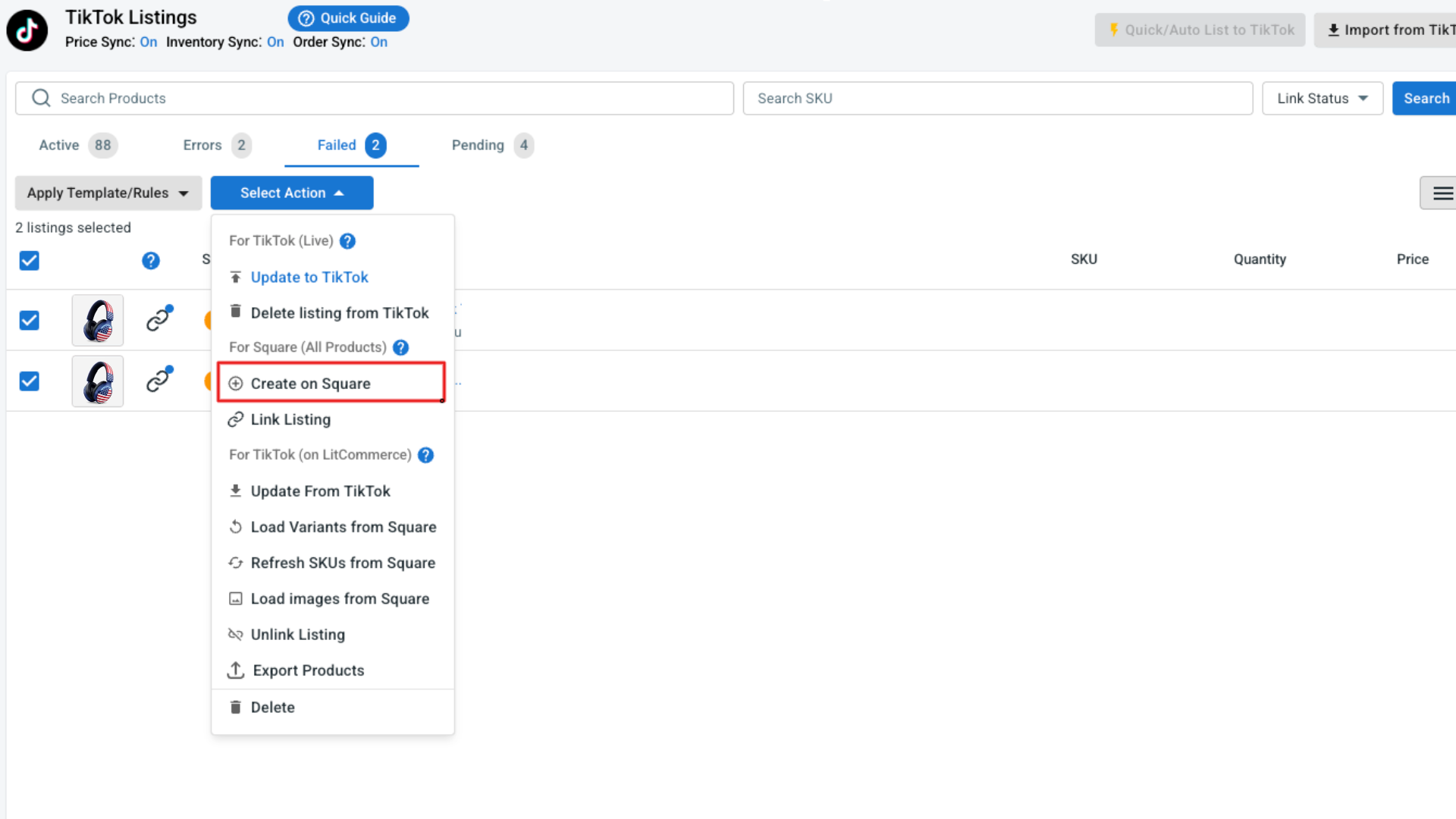
The selected TikTok Shop products will then be created in Square.
If LitCommerce finds an existing match, it can link the two records instead of creating another product. This helps prevent unnecessary duplicates and prepares the products for synchronization.
Case 3: You want to link products on Square and TikTok Shop
Maybe the same product is already available on both platforms. In that case, there is no reason to publish or import it again. You only need to link the two existing records so LitCommerce recognizes them as the same item. In LitCommerce, a blue dot shows that a listing is already linked, while a red dot means it is still unlinked.
To connect a TikTok Shop listing with its Square product:
- Hover over the red dot next to the unlinked product.
- Select Link To A Product.
- Find the matching product in your catalog.
- Click Select next to the correct item.
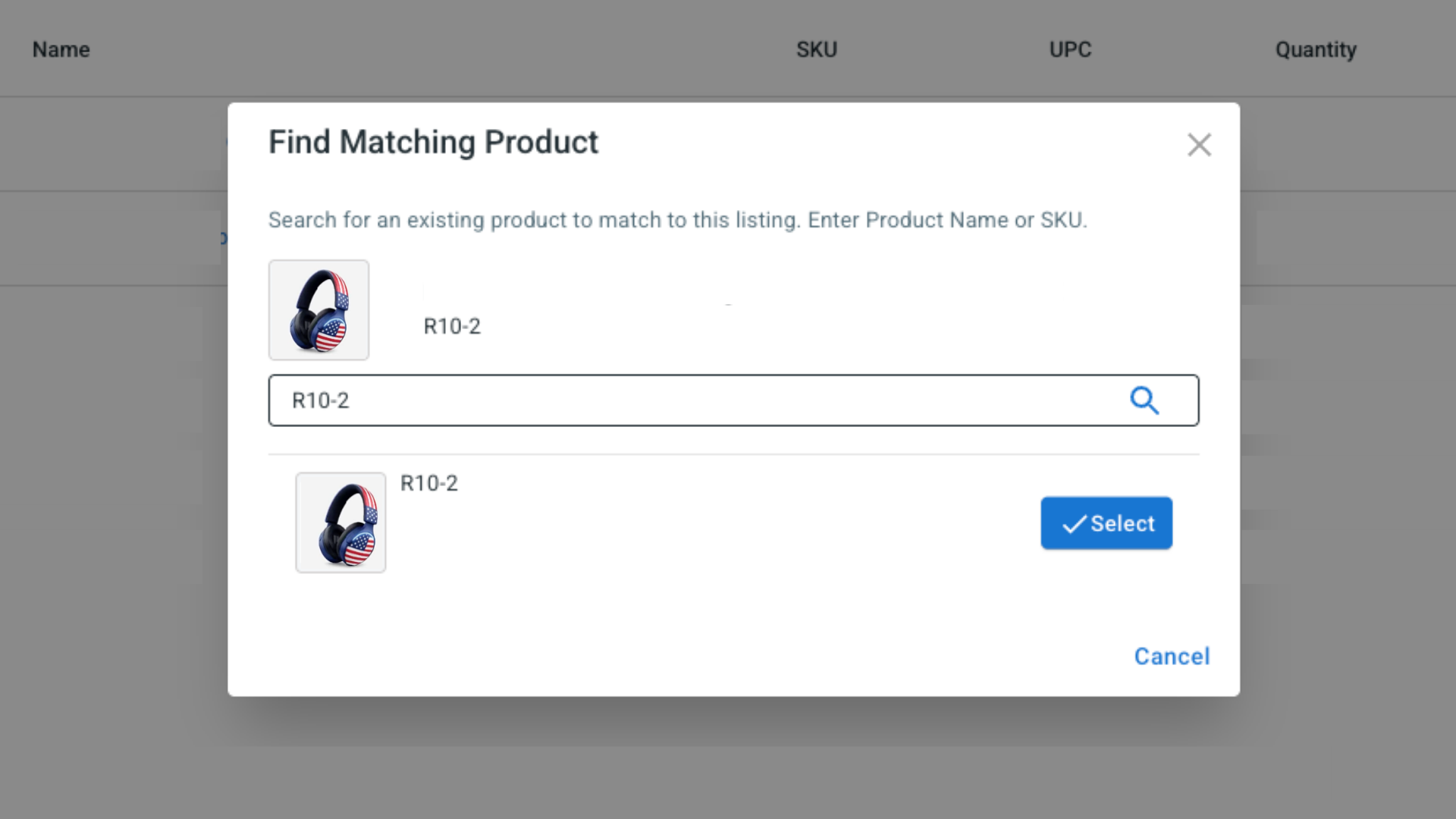
Once linked, the two records can share supported price, inventory, and other channel data according to the sync rules you configure.
Step 3: Enable Square TikTok Shop Sync
Products can start changing as soon as they are live on both channels. A price gets updated, stock drops after a sale, or a new marketplace order comes in. Rather than repeating those updates manually, you can decide which data LitCommerce should keep synchronized between Square and TikTok Shop. Open your TikTok Shop channel and go to Channel Settings.
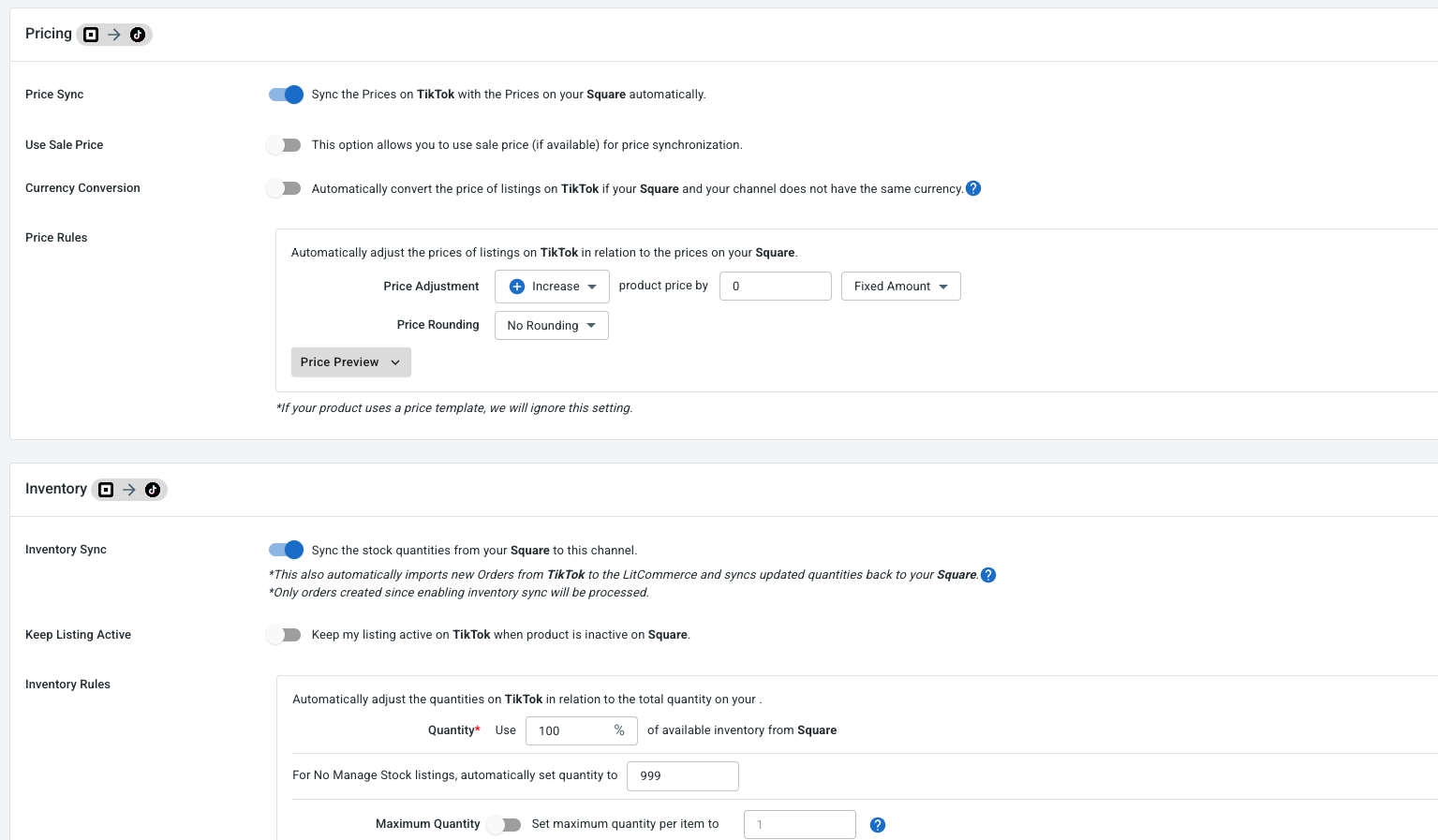
There are three main synchronization options to configure:
- Price sync: Turn on Price Sync if you want Square price changes to update the corresponding TikTok Shop listings. You can also apply a fixed or percentage-based pricing rule when you want to use a different price on TikTok Shop for promotions, marketplace costs, or another channel-specific strategy.
- Inventory sync: Turn on Inventory Sync to keep available stock coordinated between linked Square products and TikTok Shop listings. LitCommerce updates the marketplace quantity according to changes in Square and the inventory rules you set. You can also define minimum or maximum quantities, control out-of-stock behavior, or make only part of your Square stock available on TikTok Shop.
- Order sync: Turn on Import Orders to Main Store if you want TikTok Shop orders to be imported into Square alongside your regular Main Store orders.
LitCommerce checks supported price, inventory, and order data every 15 minutes. Once your preferred rules are in place, click Save Settings.
Step 4: Manage TikTok Shop orders from Square
The last step is bringing TikTok Shop orders into the same workflow you already use for Square.
With Import Orders to Main Store enabled, new TikTok Shop orders can be imported into Square. This gives you a more centralized view of sales activity without having to switch between the two platforms every time an order arrives.
From Square, you can:
- View Square and TikTok Shop orders in one place
- Keep track of fulfillment and shipment progress
- Manage TikTok Shop orders together with orders from other connected channels
- Compare order activity between your sales channels
That completes the setup.
With Square and TikTok Shop connected through LitCommerce, you can publish Square products to TikTok Shop, import existing TikTok Shop listings into Square, link products already available on both platforms, synchronize supported pricing and inventory data, and bring TikTok Shop orders into your Main Store workflow.
A Square TikTok Shop integration helps keep the operational side of selling connected while you use TikTok Shop as another place to reach and convert shoppers.