

Shopify Amazon Integration
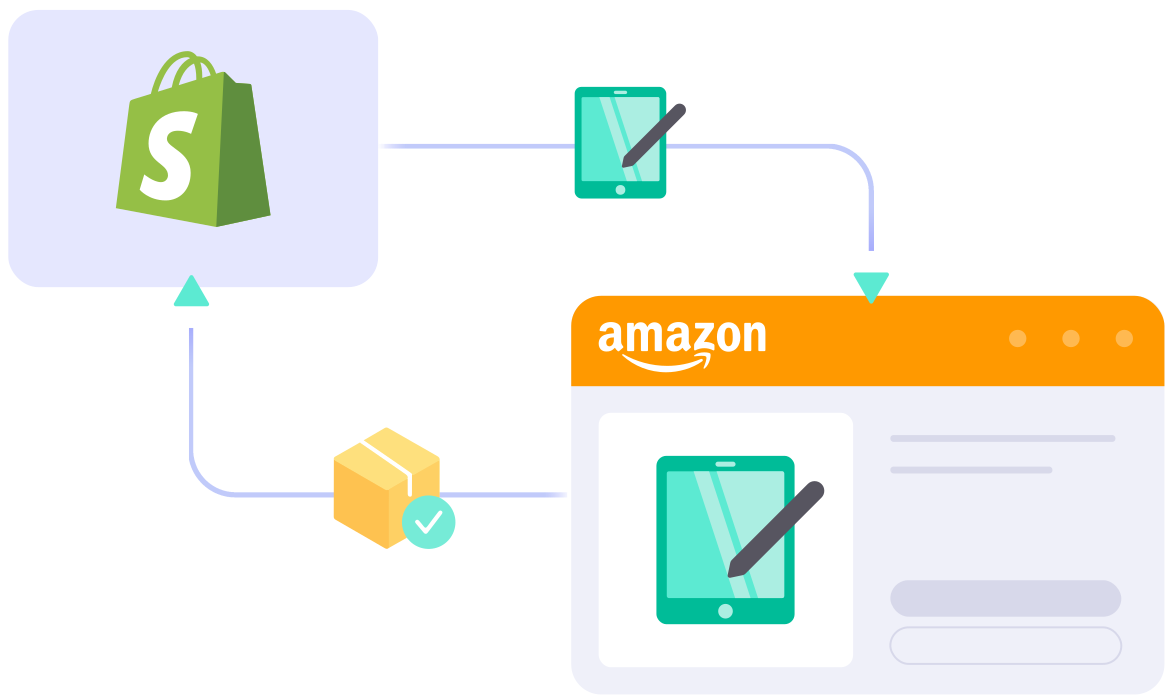
What Can You Get From
Shopify Amazon Integration?


Things to Know Before Integrating Shopify with Amazon
Understanding how the LitCommerce Amazon integration works will help you visualize our tool’s operation. All you need is to grasp this information, trust our support team, and grow.

Detailed Guide on Shopify Amazon Integration
Selling on Shopify and want to expand to Amazon? As the biggest marketplace on earth, Amazon puts your products in front of millions of ready-to-buy shoppers, so it’s one of the smartest moves you can make to grow your store, without doubling your work.
In this guide, we’ll show you how to set up your Shopify Amazon integration using LitCommerce, covering:
- Step 1: Connect Shopify to Amazon
- Step 2: List and import products on Amazon
- Step 3: Set up Shopify Amazon sync
- Step 4: Manage your order flow
No technical skills are needed, so anyone can follow along. Let’s get into it!
Step 1: Connect Shopify to Amazon
To link Shopify to Amazon, first, set up Shopify as your Main Store inside LitCommerce. Your Main Store acts as the central hub that holds your full product catalog and inventory, and every channel you add syncs to and from it.
You can install LitCommerce straight from the Shopify App Store, or you can connect your Shopify store from inside the LitCommerce app.
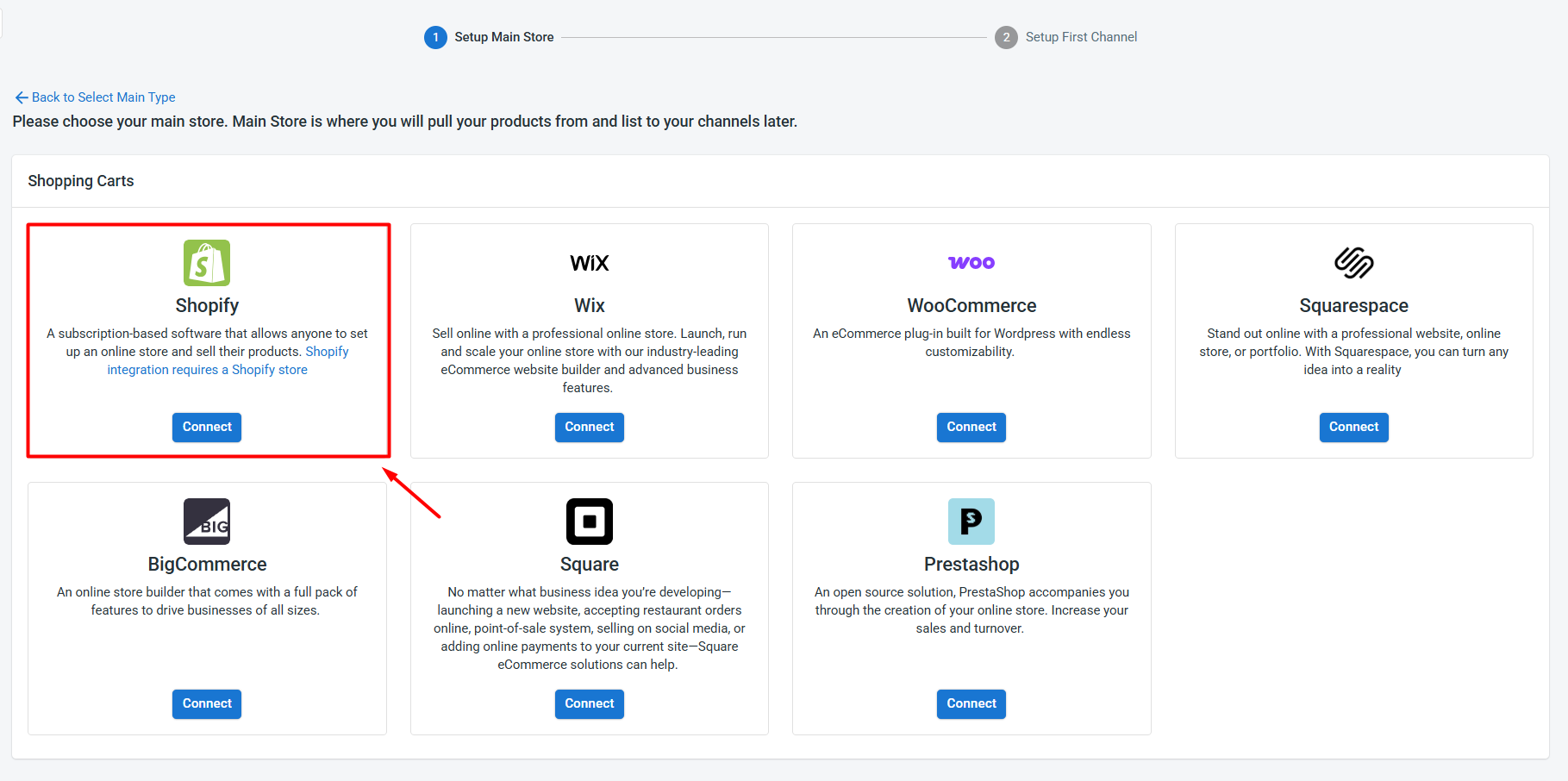
Once Shopify is set as your Main Store, follow these steps to connect Amazon:
1. From the list of supported marketplaces, find Amazon and click Connect under the Amazon logo.
2. Enter your Amazon store name, pick your marketplace country, such as Amazon US, and click Connect Your Account.
3. Give LitCommerce permission to access your existing Amazon seller data.
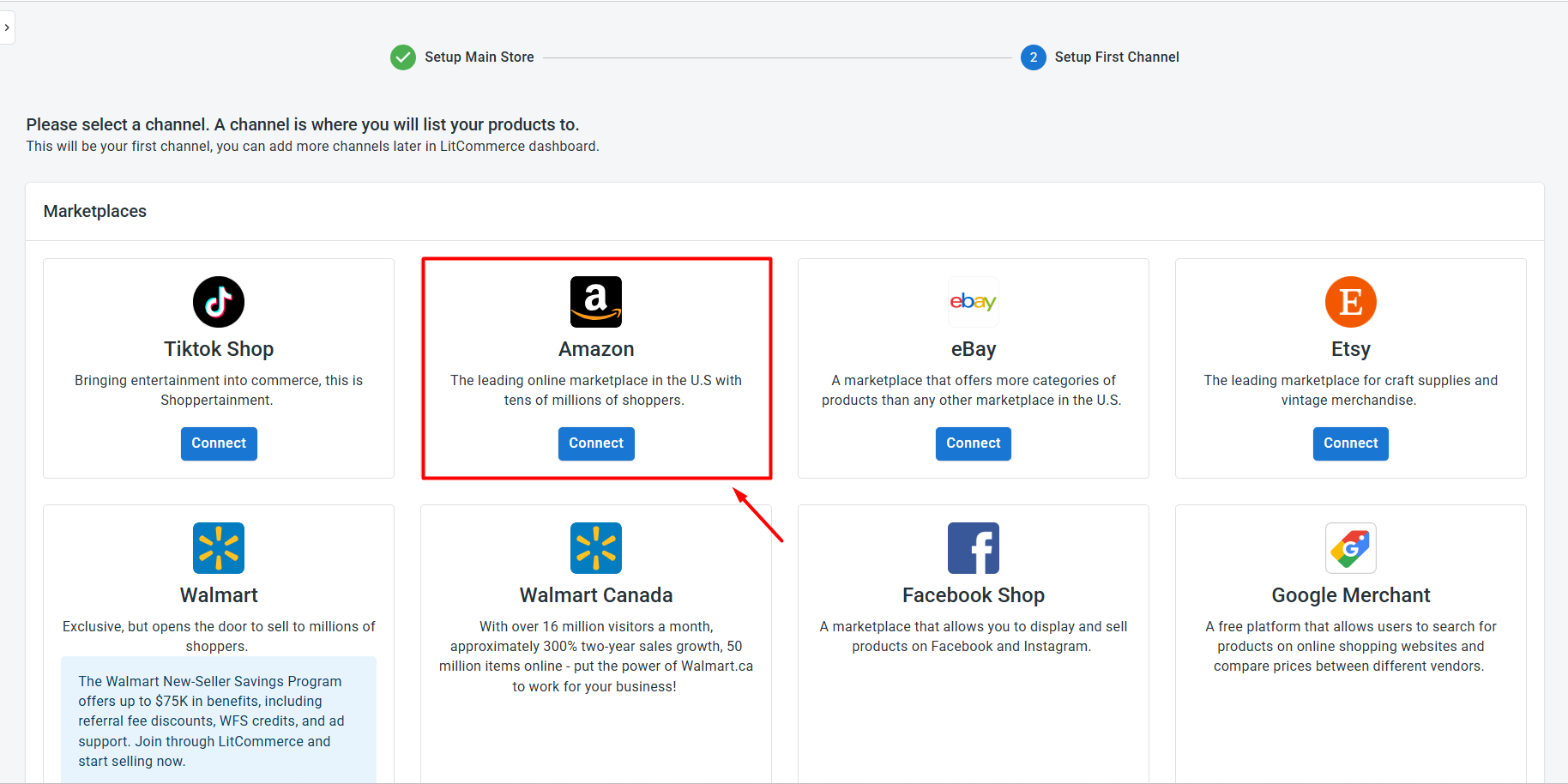
After you confirm, your Shopify and Amazon stores sit side by side on your dashboard. You’ve now linked Shopify to Amazon and you’re ready for the next step.
Pro tip: Beyond Amazon, LitCommerce supports plenty of other Shopify integrations, including Shopify eBay, Shopify Etsy, and Shopify TikTok Shop. You can add as many channels as you like to the same Main Store and run them all from one screen.
Step 2: List and Import Products on Amazon
Now that you’ve linked Shopify to Amazon, what you do next depends on where your listings currently live. You can list your Shopify products on Amazon, import from Amazon to Shopify, or simply link products across both platforms. Let’s walk through each option.
Case 1: List your Shopify products on Amazon
Once your Shopify store is successfully connected, LitCommerce will automatically pull your Shopify products so they’re ready to list on Amazon.
Before you start, it helps to know which of two situations each product falls into:
- The product already exists on Amazon. You’ll list it using the existing ASIN from the Amazon catalog.
- The product isn’t on Amazon yet. In this case you’ll need to apply for a GTIN Exemption and send a proof to LitCommerce so the team can configure it for your store.
Either way, the listing steps stay the same. Here’s how to list your Shopify products on Amazon:
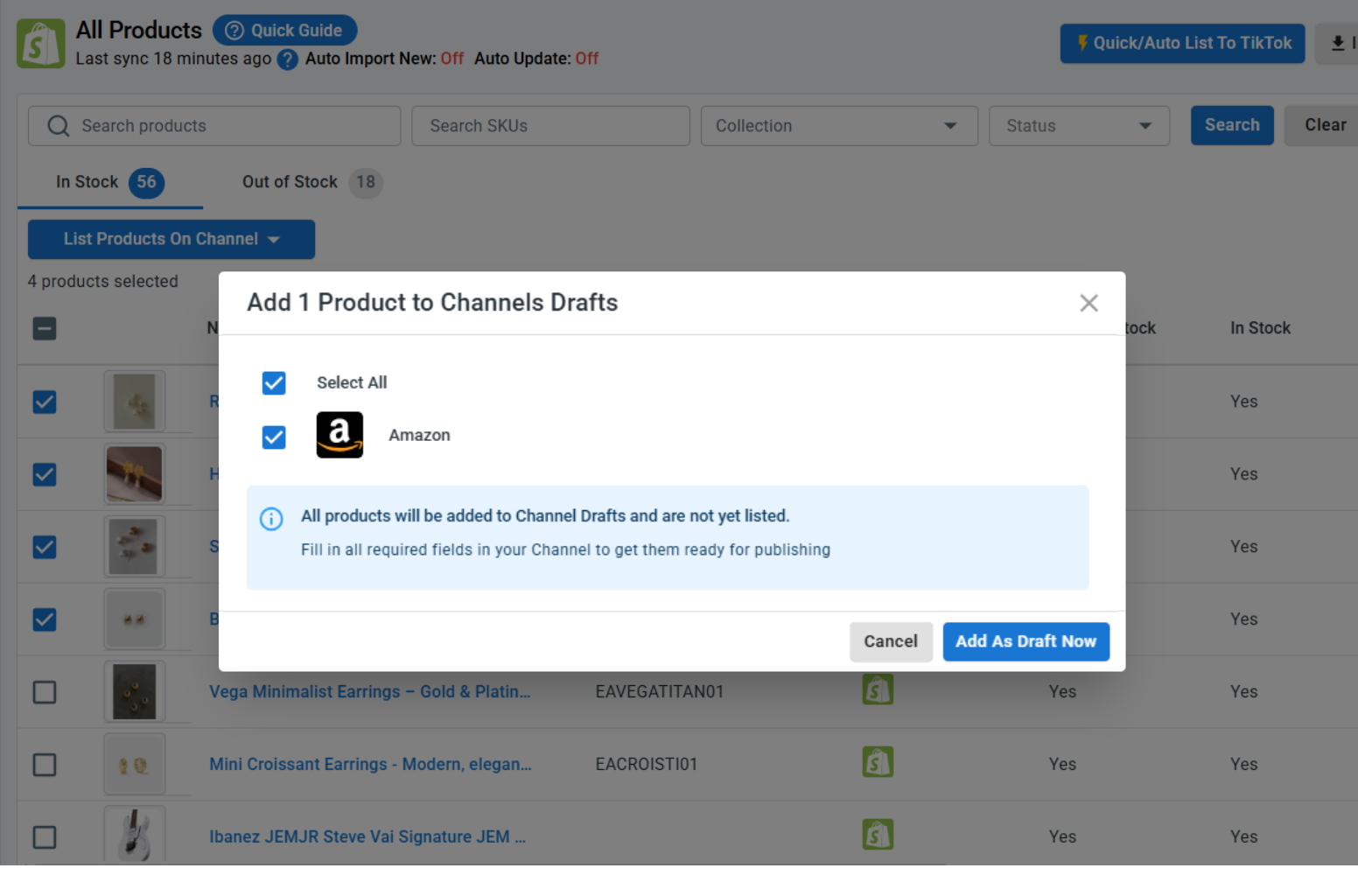
1. Go to All Products and select the Shopify items you want to list on Amazon.
2. Click Select Action, then choose Add to Channel Drafts.
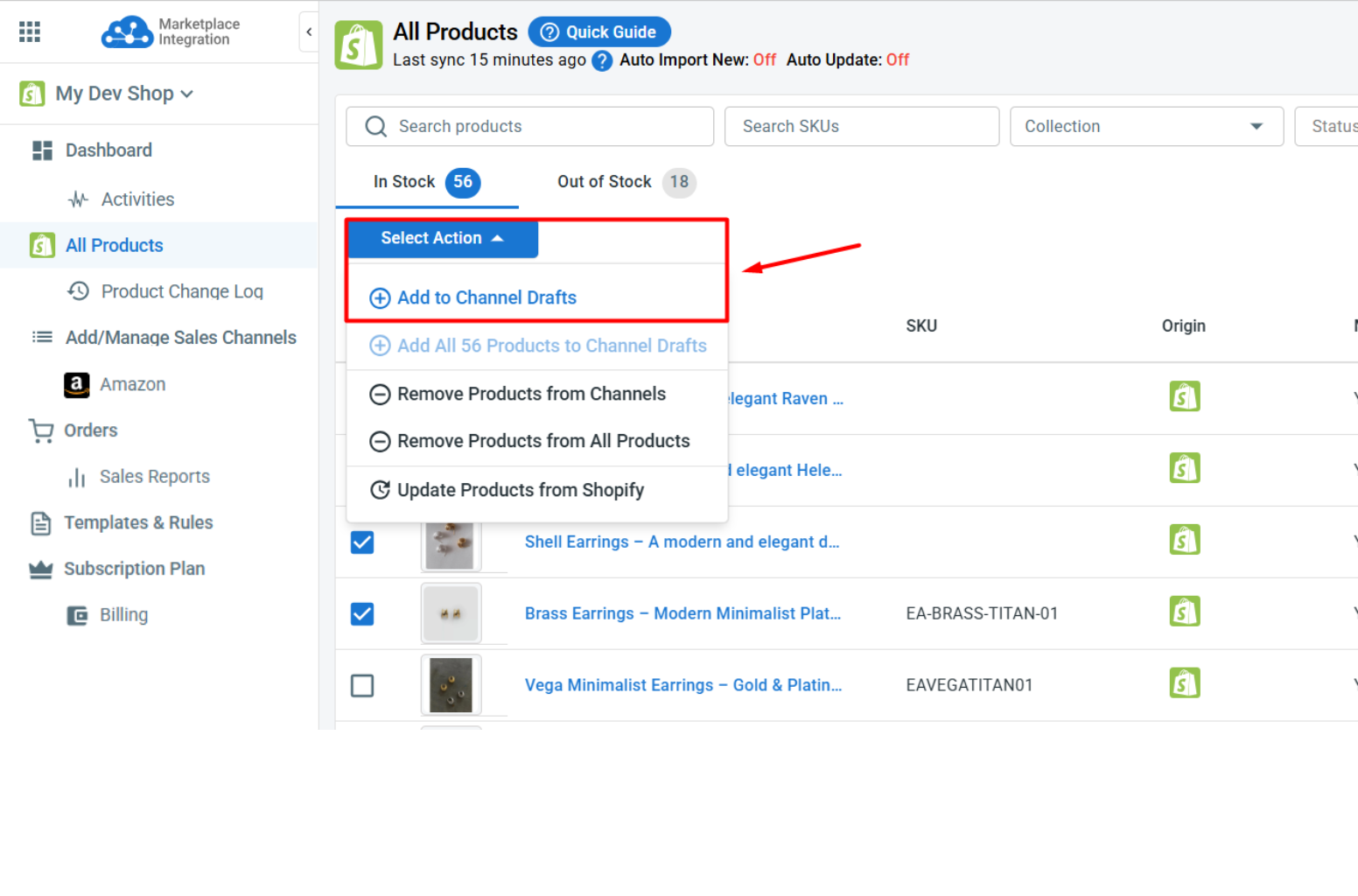
3. Check the box next to your Amazon store, then click Add As Draft Now.
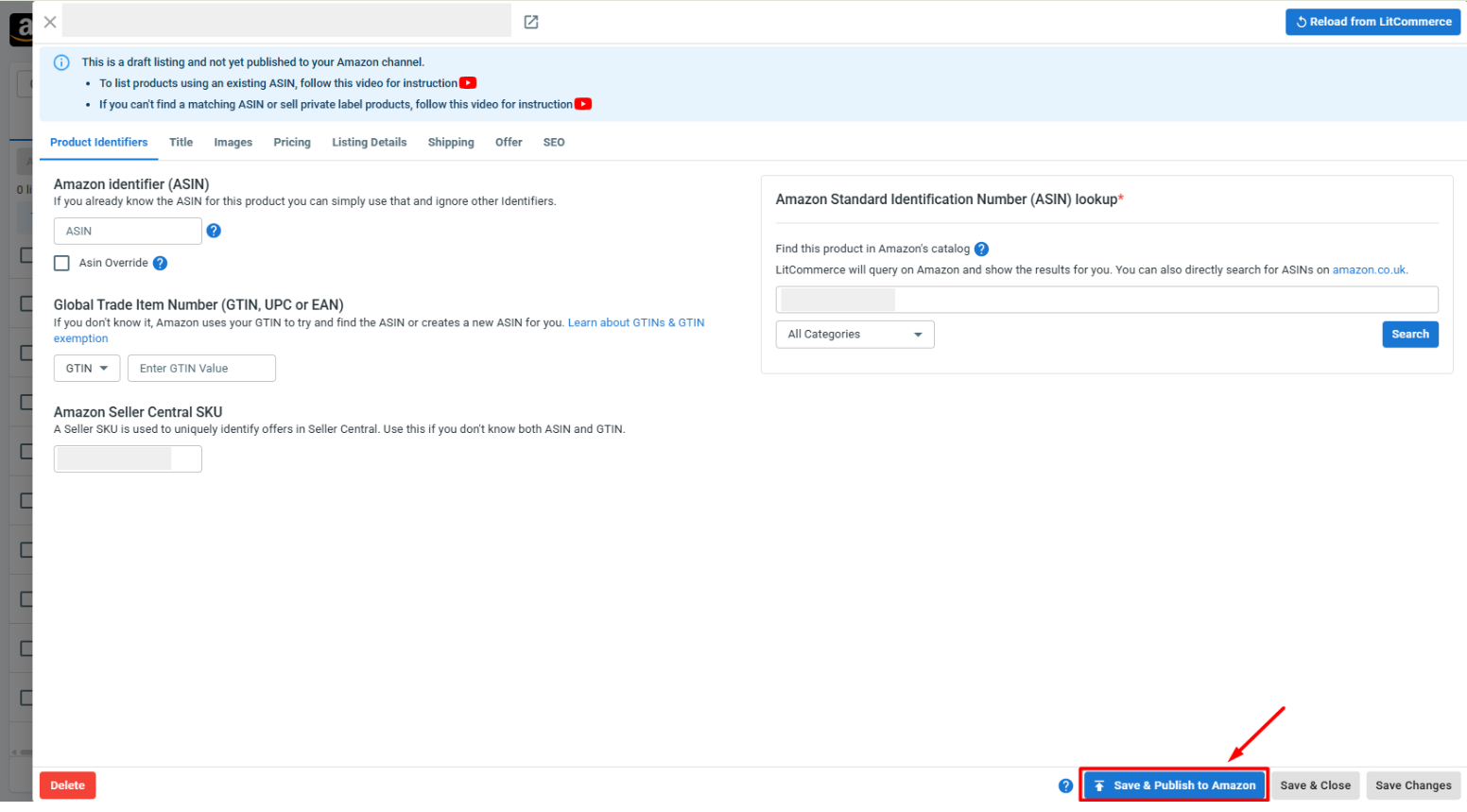
4. Open the Amazon tab and review each draft listing. Amazon usually asks for more product details than Shopify, such as product identifiers (ASIN, GTIN, UPC, etc), condition, and shipping information.
5. Fill in the required details..
6. Once a listing looks good, click Save and Publish to Amazon.
Pro tip: Rather than editing products one at a time, use templates for your offer, shipping, and pricing details, then apply the same settings to many products at once. This lets you edit your
Amazon listings in bulk and cut your listing time dramatically, which is a huge help if you have a large catalog.
Case 2: Import your Amazon products into Shopify
Selling on Amazon already and want to bring those listings into Shopify?
Here is how to import Amazon products into Shopify using LitCommerce:
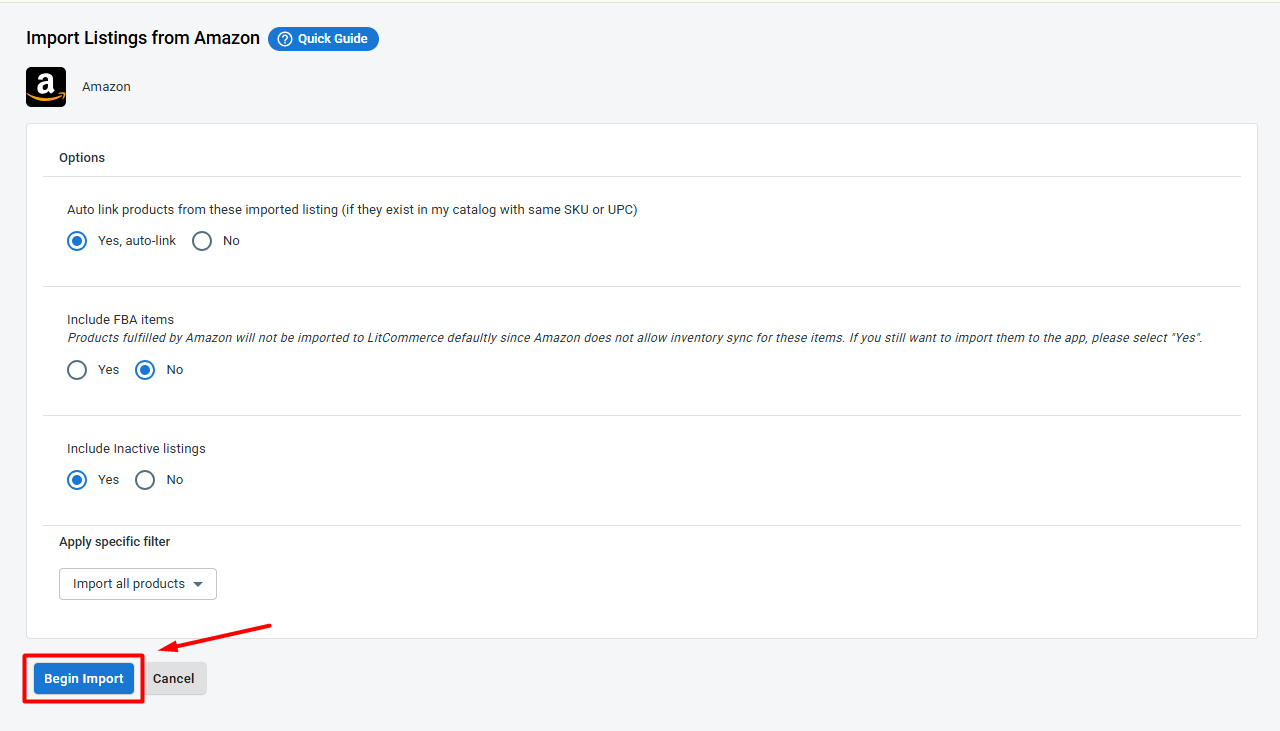
1. On the Amazon channel tab, click Import from Amazon.
2. Filter which products you want to bring in, and let LitCommerce auto-link your items across Shopify and Amazon.
3. Click Begin Import to start.
4. Your Amazon listings load into LitCommerce. From there, select them, click Select Action, then choose Create on Shopify.
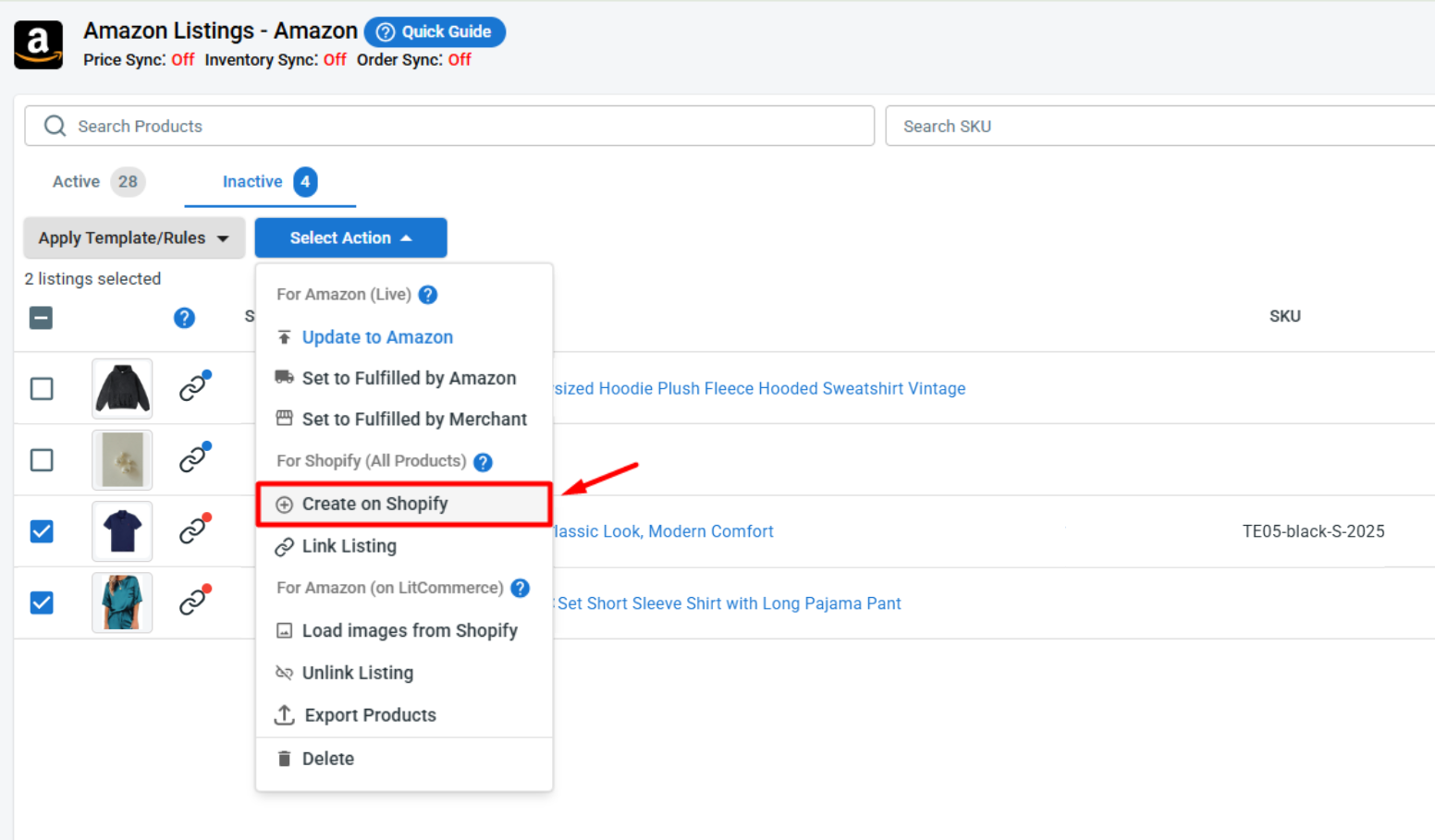
That’s it. Your listings now live on both Amazon and Shopify stores, linked together and ready for syncing.
Case 3: Link products across Shopify and Amazon
When you import products, any items LitCommerce links automatically appear with a blue dot, while items that still need linking show a red dot. To link the unmatched products yourself, follow these steps:
1. Hover over the red dot on an unlinked product.
2. Choose Link To A Product.
3. Find the matching item and click Select next to it.
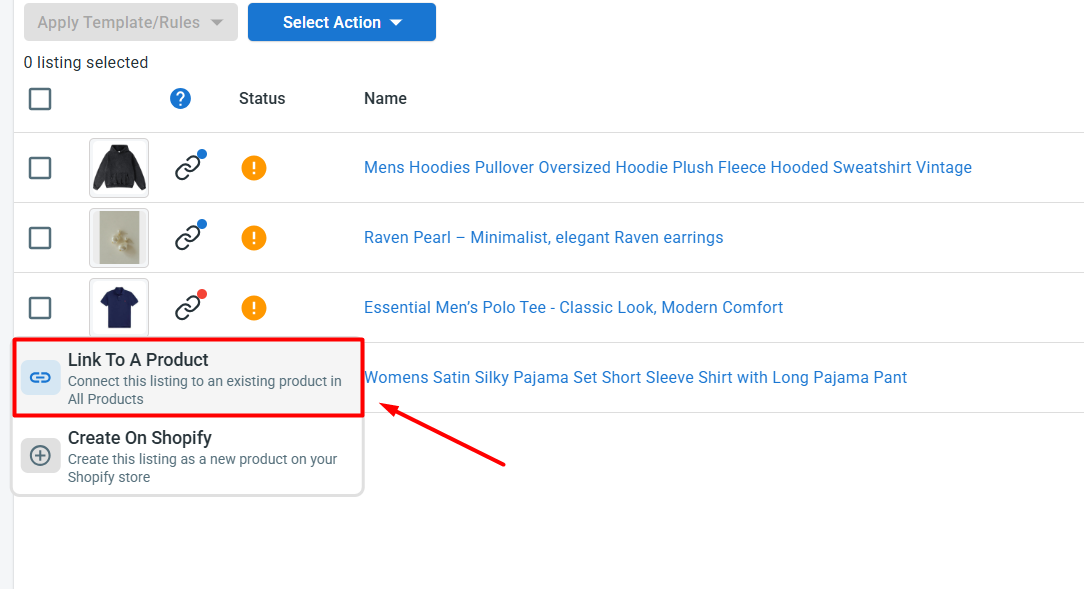
Once you’re done, your products are linked in both directions, from Shopify to Amazon and back, and they’re ready to sync.
Step 3: Turn On Shopify Amazon Sync
With your products linked, you can now set up Shopify Amazon sync to keep your inventory, pricing, and orders consistent across both channels without any manual work.
To open these settings, click Channel Settings in your Amazon store inside LitCommerce. Here are 3 main sync settings you can configure for your Shopify Amazon integration:
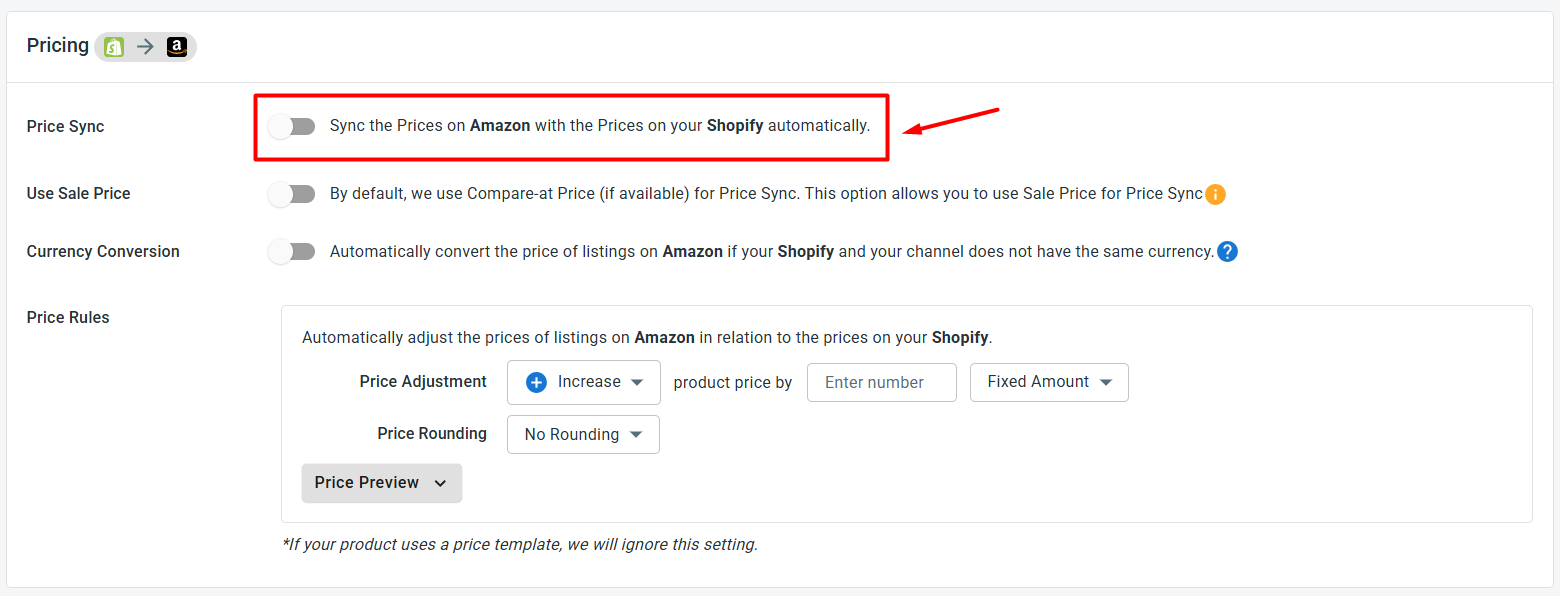
- Price sync: Turn this on and any price you adjust in Shopify updates automatically on Amazon. You can also apply price rules to raise or lower your Amazon prices by a set amount or percentage, which comes in handy since Amazon’s fees often differ from Shopify’s.
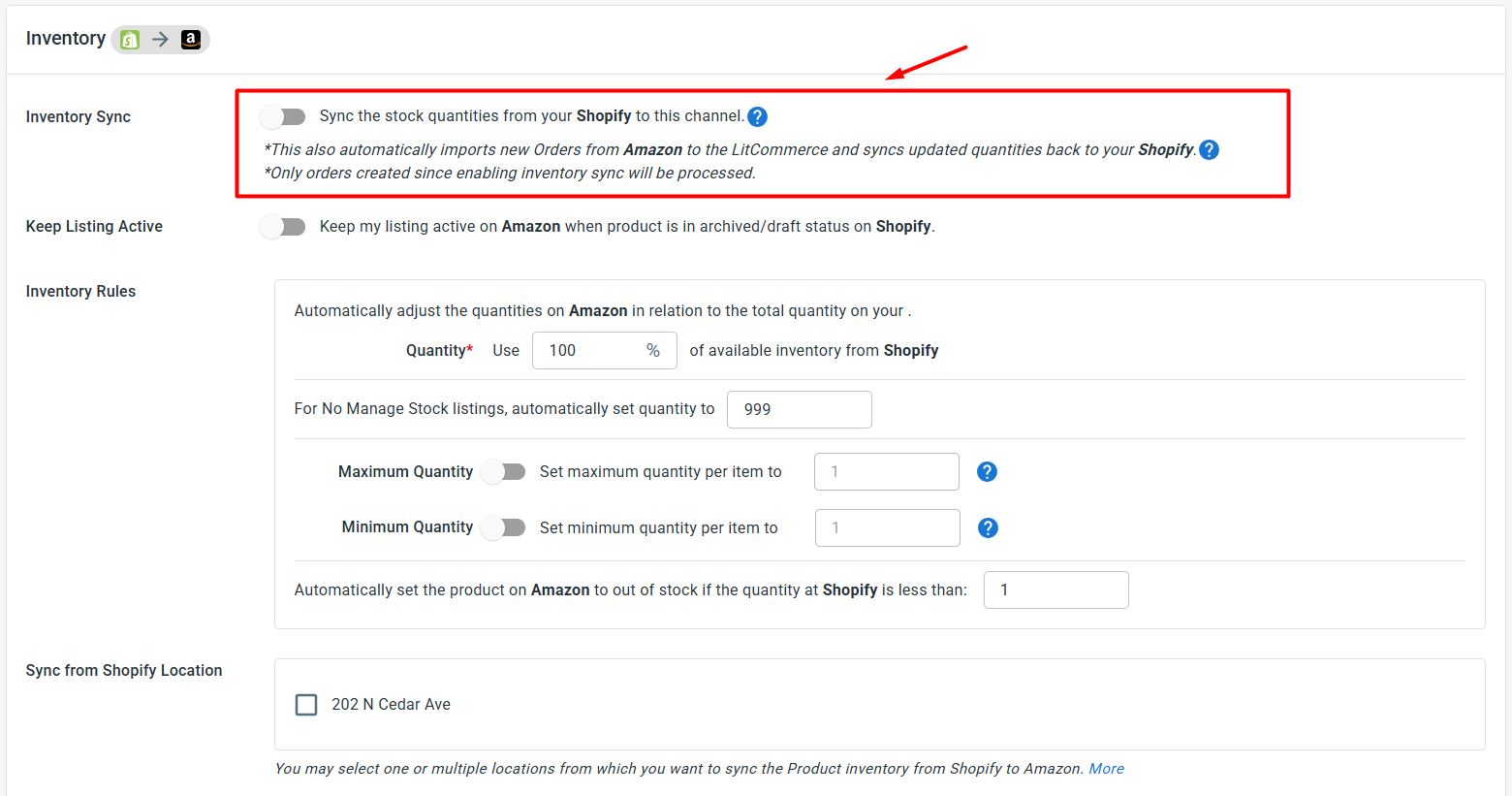
- Inventory sync: Keep your stock counts aligned across Shopify and Amazon so you never oversell. You can set minimum and maximum thresholds, keep listings active when stock hits zero, and use inventory rules to sync only a percentage of your Shopify stock to Amazon.
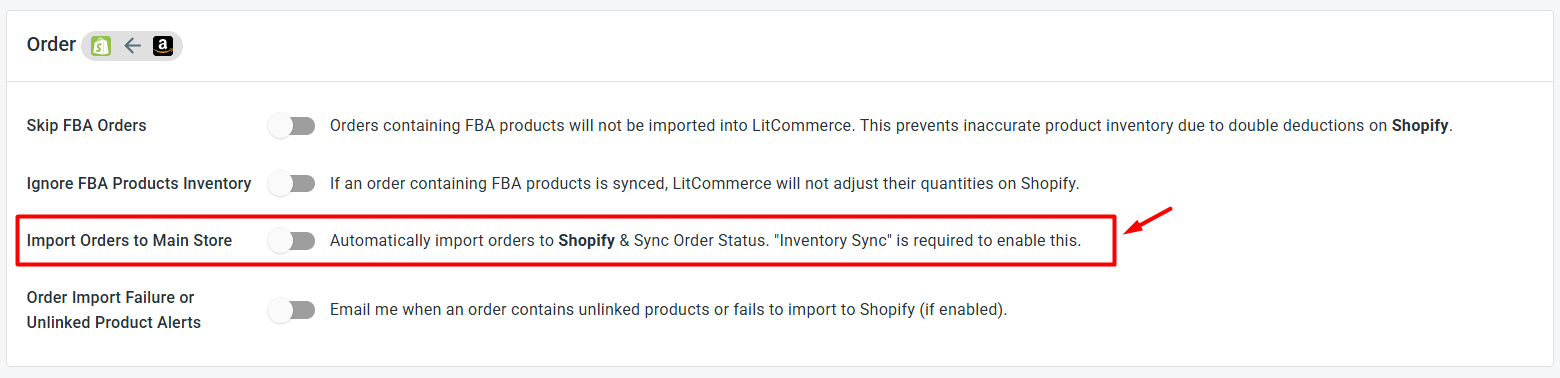
- Order sync: Choose Import Orders to Main Store to bring all your Amazon orders into your Shopify dashboard, so you can manage everything in one place.
A quick note on Amazon products. Two limits are worth knowing before you rely on sync. First, LitCommerce can’t sync inventory for products handled through Fulfillment by Amazon (FBA), because Amazon stores that stock in its own warehouses, apart from your store’s inventory.
Second, due to Amazon’s data limits, orders imported from Amazon won’t carry shipping or customer details such as name and address, though you’ll still see the purchased product information like title, SKU, and price.
Once your settings look right, click Save Settings at the bottom of the page.
Step 4: Manage Your Order Flow
With Import Orders to Main Store switched on, every Amazon order lands in your Shopify dashboard right next to your Shopify orders. That means no more hopping between two seller accounts to see what sold and what’s waiting to ship.
So, from this single, unified view, you can:
- Review all your Shopify and Amazon orders in one place
- Track shipment status across both channels at the same time
- Spot which one drives more revenue, and learn what’s working, so you can build a smarter selling strategy.
And that’s your Shopify Amazon integration, set up end to end. Once it’s running, your catalog reaches a brand-new audience on Amazon while your prices, stock, and orders keep themselves in step, leaving you free to focus on growing the business.