


Should You Integrate eBay with Other Platforms?
DefIf you sell anywhere besides eBay, definitely YES! Learning how to integrate with eBay is a multichannel selling strategy that can enhance your online presence with an expanded reach, increased visibility through multiple channels, and optimized operations.
But if this concept seems overwhelming to you, don’t worry because LitCommerce is about to walk you through:
- What to prepare on eBay before you connect anything
- Three routes you can take to integrate with eBay
- A 4-step guide to connect eBay with your store, screen by screen, plus the two other routes sellers take
Let’s get the ball rolling!
What Do You Need to Know about eBay Integration?
The preparation stage before you dive into the steps of how to integrate with eBay is crucial since it makes sure you have everything in place. Ready to tick all the boxes in the eBay integration checklist? Here it goes!
- Get your store or marketplace ready: It’s worth noting that your online store needs to be all set in every integration process, including one for eBay. If you’re not using a store and selling on another marketplace instead, that account needs to be ready too.
- Set up an eBay store: Your eBay store should be good to go as well. Information verification, listing optimization, and fulfillment options are your key takeaways.
- Familiarize yourself with seller policies on both platforms: Make sure you have familiarized yourself with all policies before integrating with eBay because this marketplace always attempts to facilitate a safe shopping experience.
- Ensure proper inventory management: A proper inventory management system will be extremely useful as you go multichannel selling, and the eBay case isn’t an exception.
- Choose an integration method: You can integrate with eBay in 3 ways – integrating manually, hiring a technical expert, and using a third-party integration plugin or app.
- Get compatible payment methods: eBay might use different payment methods than your online store. So, give eBay’s methods a check and choose those that are compatible with both channels.
How to Integrate with eBay in 3 Different Ways?
As mentioned above, there are three ways to connect eBay with your store, and the right one comes down to how big your catalog is and how much of the work you want to keep doing by hand:
- Do it manually, either listing separately on both channels or using an eBay plugin from your current platform, if one exists
- Hire a developer to build the connection on eBay’s API
- Use a third-party multichannel selling tool that handles the connection for you
Now, let’s take a closer look at these three methods of how to integrate eCommerce store with eBay.
1. Integrating eBay manually
When it comes to manual connect your store to eBay, there are usually two ways:
- Selling separately but simultaneously on different platforms;
- Using the integration plugin or app provided by your current platform.
The first is selling on both channels separately. You list on your store, then list the same product again on eBay, and from then on you keep two sets of stock numbers in your head. It works when your catalog is small, and turnover is slow. It stops working the day two buyers on two channels order your last unit within the same hour. There is no sync here, so inventory, shipping, and order status are all on you.
On the other hand, you can simply install a plugin from your web-based store and start integrating with eBay. However, stay updated because not all platforms support plugins that allow integrating eBay.
Notes: By any chance you are selling on Shopify and want to connect to eBay, you would need to either sell separately or use a third party because eBay has long removed its official sales channel app from Shopify.
2. Hiring an expert
The second option is to hire a developer to build the connection for you on eBay’s API. You explain how your business works, they write the code, and you never touch an API key yourself. It saves you time, and you skip the technical side completely.
The cost is the problem. A custom build is the most expensive of the three routes, and the bill does not stop when the build does. eBay retires API calls and fields on a set schedule. Each one gets a deprecation date, then a decommission date when it stops working for good. Every change is work your developer has to redo.
So budget for a maintenance retainer, not a one-off project. Agree upfront on who fixes things when a call breaks on a Saturday. If your budget is tight, this route is hard to justify.
3. Using third-party eBay integration tools
Answering how to integrate with eBay, you can consider using a third-party tool. As the digital era begins, thousands of multichannel selling solutions are launched to simplify such integration procedures. The tool holds the eBay connection, keeps up with eBay’s API changes for you, and gives you a dashboard instead of a codebase. This is where most sellers end up.
So the real question is not whether to use one. It is whether the tool actually supports the channels you sell on today, plus the ones you’re planning to add, and whether it handles the features that matter for your workflow: bulk listing edits, inventory sync across channels, sync speed, and order management in one place.
More than that, nowadays, third-party eBay integration tools come with diverse marketplace mapping, affordable pricing tiers, and impressive functionality. Some of the most popular apps are LitCommerce, Sellbrite, CedCommerce, and Sellbery.
LitCommerce is a powerful multichannel selling solution for businesses of all sizes, and integrations for eBay are among our most popular packages. We are now supporting:
- Shopify eBay integration
- Wix eBay integration
- WooCommerce eBay integration
- BigCommerce eBay integration
- Squarespace eBay integration
- Square eBay integration
We also support pairing eBay directly with other marketplaces:
- Amazon eBay integration
- Etsy eBay integration
- TikTok Shop eBay integration
- Walmart eBay integration
- Google Merchant eBay integration
If you want to sell on more channels and eBay simultaneously, LitCommerce will help you connect to 15+ most trending marketplaces. Check out more on our Marketplace Integration!
How to Integrate with eBay Using the LitCommerce App?
LitCommerce offers a powerful eBay integration package. This app currently supports integration with eBay on 6 different shopping carts, including Shopify, Wix, WooCommerce, BigCommerce, Squarespace, and Square. You can also pair your eBay store with Amazon, Etsy, TikTok Shop, Walmart, and Google Merchant, all from the same account.
Now, let’s keep you waiting no more. Here is a general guide for how to integrate with eBay, wrapped in 4 major steps:
- Step 1: Connect eBay to other stores
- Step 2: List products on both platforms
- Step 3: Turn on real-time data sync
- Step 4: Manage your integrated eBay order flow
Step 1: Connect eBay to other stores
Start integration by linking your eBay store with any other stores you have.
First, let’s connect your eBay store to LitCommerce:
- Go to the LitCommerce app.
- Then log in using your LitCommerce account. If you haven’t got an account on LitCommerce, simply click Sign up and create one. If you’re still finalizing your store branding before connecting, note that you can change your eBay username at any time, so it’s easy to align your eBay store name with the rest of your business first.
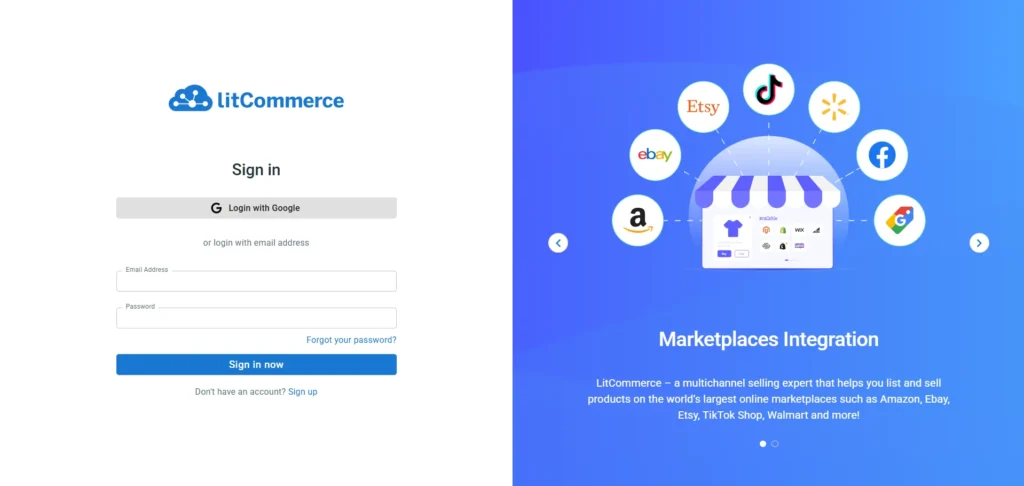
- Next, you need to set up and connect to your online store. As mentioned, the app supports up to 6 eCommerce platforms, and you can now choose whichever platform empowers your business. At this step, simply choose the platform and click Connect.
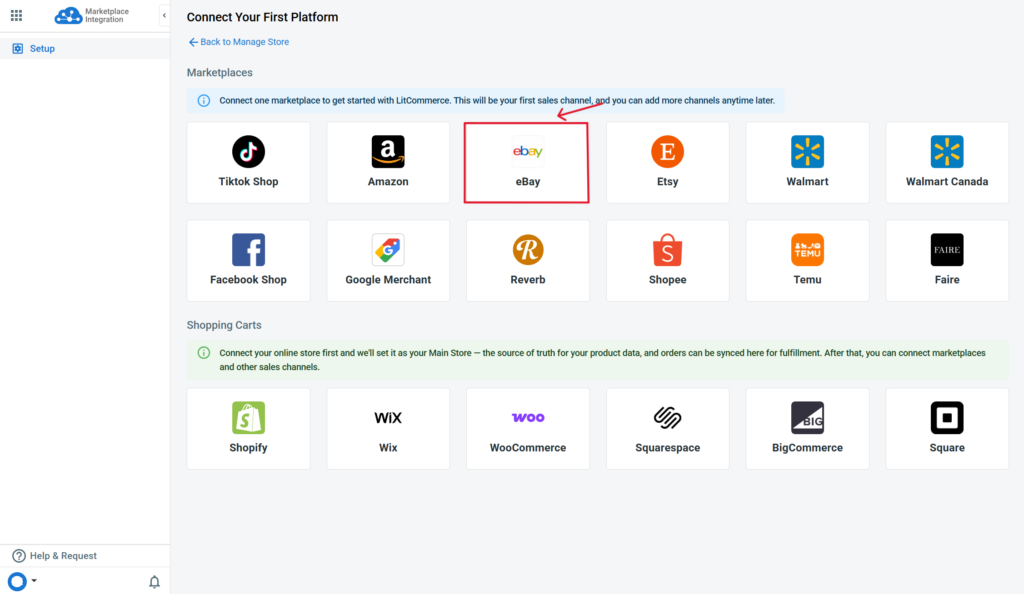
From here, there are two cases to pay attention to:
Case 1: You already run an online store on Shopify, WooCommerce, Wix, or BigCommerce
If you sell on your own store and want eBay linked to it, the flow is the same as above, with one difference: on this screen, connect your store instead of eBay. The app supports six platforms here: Shopify, Wix, WooCommerce, BigCommerce, Squarespace, and Square. Pick the one your store runs on.
To show the full eBay integration process, I will use Shopify as the example. The screens look much the same on the other five platforms.
Choose Shopify from the list.
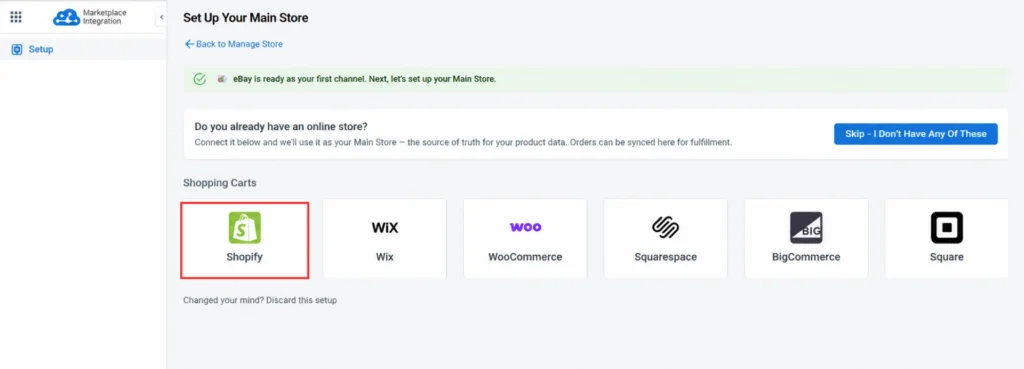
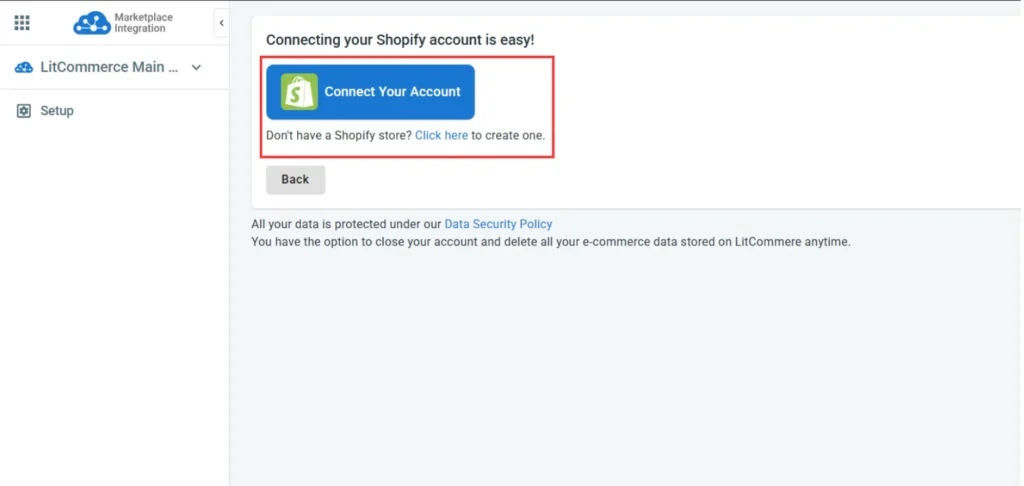
From here, click “Connect your account”, follow the instructions, and we’ll redirect you to your store on Shopify.
Click Install our app to allow the integration process to continue.
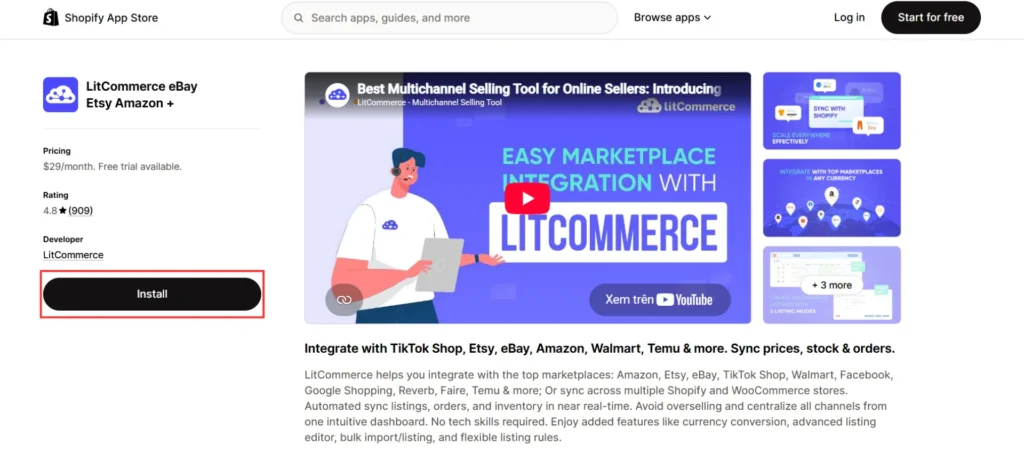
Once you have connected both accounts, the setup for how to integrate with eBay is done. Your store and your eBay shop now sit in one dashboard, and your Shopify store runs as your Main Store – the source for creating products on other platforms and managing all information (inventory, price, etc.)
Case 2: You only sell on eBay and other marketplaces and don’t have an online store.
This route is for sellers whose products live on eBay and other marketplaces and who do not have an online store yet. Choose Skip – I Don’t Have Any of These. LitCommerce becomes your Main Store – the central product catalog that connects your eBay listings with your listings on every other marketplace you sell on.
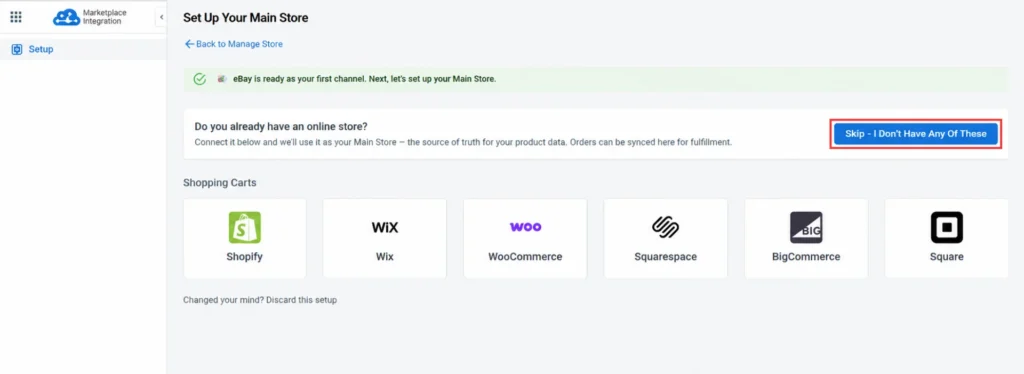
From here, if you sell on other marketplaces besides eBay, connect them the same way. LitCommerce supports integration with several other channels, including Amazon, Etsy, TikTok Shop, Walmart, Google Merchant,….
Go to Add/Manage Sale Channels, click Add New Channel, choose the marketplace or shopping cart you want to add, provide the required account details, and click Connect.
How to Integrate with eBay in 4 Steps?
LitCommerce lets you integrate eBay with 20+ other sales channels in 4 simple steps: Connect – List – Sync – Manage. Learn more details with us now!
Step 2: List products on both platforms
Next, our “How to Integrate with eBay” guide will show you 3 cases to list products on both selling channels:
- List products on eBay
- Import products from eBay
- Link and sync the same products on channels
Beyond just getting products live, it’s worth understanding how eBay ranks them — our tips on how to work with the eBay algorithm explain what Cassini rewards so your synced listings actually get seen.
Case 1. List products on eBay
The first case will show you how to list products on eBay, given that all your products are live on your online store or other marketplaces. How you start depends on which setup you’re using.
- If your online store is your Main Store, all your products will be imported into the LitCommerce dashboard automatically; no extra step needed.
- Otherwise, if your products are currently live on other marketplaces and LitCommerce runs as your Main Store, you need to import them into LitCommerce before listing them on eBay.
Either way, when your products show up on the All Products tab, you’re ready to start listing them on eBay:
- Navigate to the All Products section in the left sidebar.
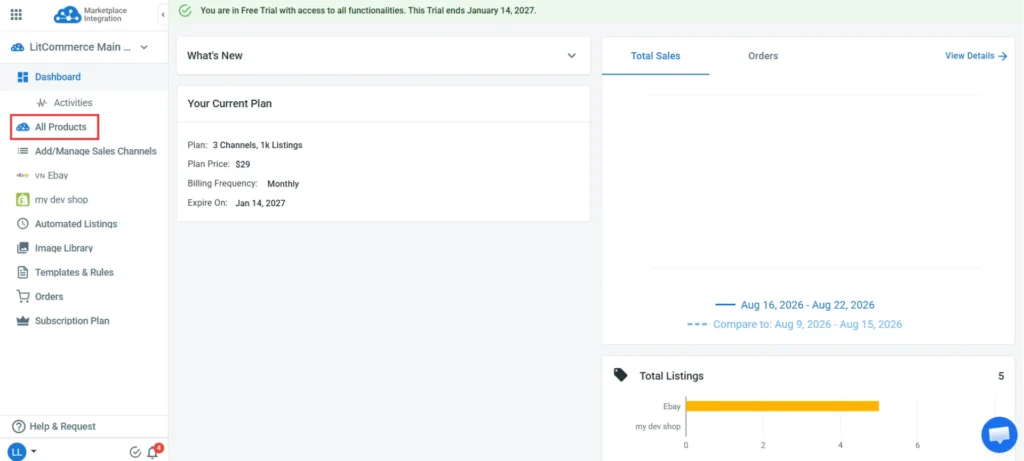
- Tick the checkboxes next to the products you want to list on eBay.
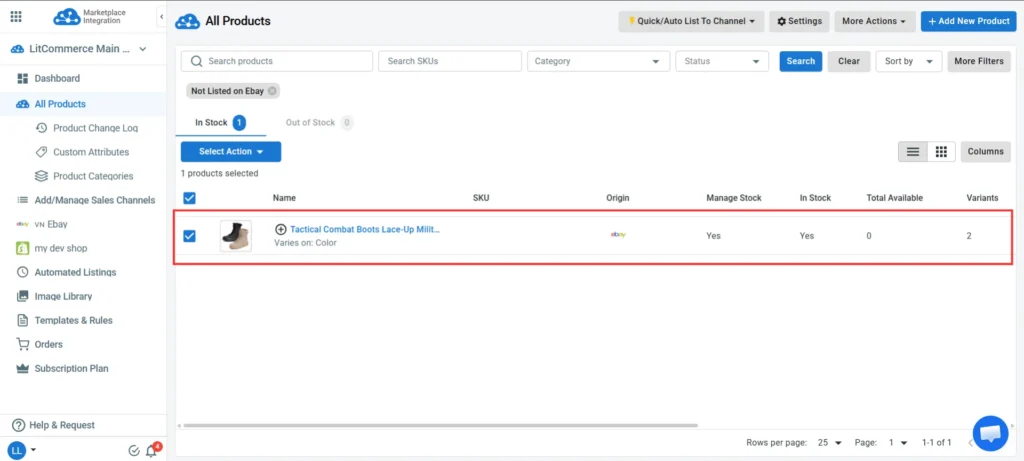
- Click Select Action and choose Add to Channel Drafts
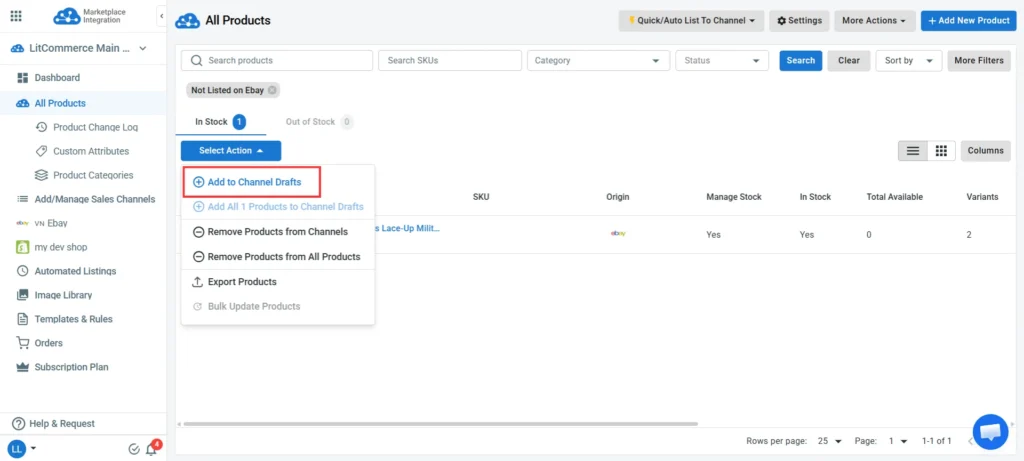
- Tick the box beside your eBay store and Add As Draft Now.
Once you finish these steps, your product listings will become the Draft listings on your eBay shop on LitCommerce. You can choose to edit all listings before they go live.
Templates and Rules
When you first list products on eBay using LitCommerce, there will be a pop-up window asking you about setting up a default listing template. Later on, this template will automatically apply to your new draft listings on eBay. The reason why the LitCommerce system offers a default template setup is to prevent cases in which sellers haven’t updated eBay listing requirements yet (mainly product information). However, listing on your online store doesn’t always require the same details.
Speaking more, Templates are attributes and settings for listings on certain sales channels (including eBay). LitCommerce also offers you Listing Rules, which refer to a set of templates. Yet, both will serve you as a means to list with much less effort!
AI Features Support Creating & Optimizing eBay Listings
Most of the work in listing on eBay is not decision-making; it’s typing: eBay asks for fields your store never had, and a description written for your own site rarely reads well on a marketplace. LitCommerce’s AI writer handles this for you:
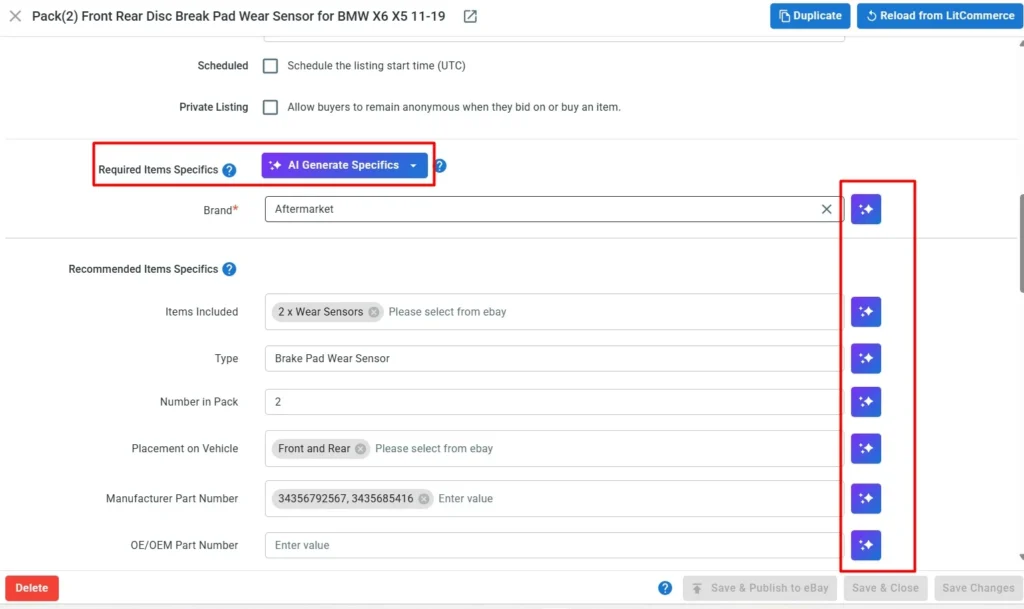
- Optimize Description For eBay: Type a few keywords or a plain sentence; LitCommerce then writes an eBay-ready description you can apply with one click.
- Optimize Title: same idea, tuned for eBay’s title format and search behavior.
- Item Specifics: for some product categories, LitCommerce can auto-fill the structured fields eBay requires (Brand, Type, Size, Material…), the details buyers filter by that make or break whether your listing shows up in search.
Single Edit and Multi Edit Modes
Also, for the listing edition, you may use LitCommerce Single Edit or Multi Edit mode. So, what exactly are these editing modes? The “How to Integrate with eBay” guide by LitCommerce will reveal it to you just now!
- Single Edit mode: Simply tab into the draft listing in your eBay store and edit every product detail you want. Once you’ve finished, save all your changes.
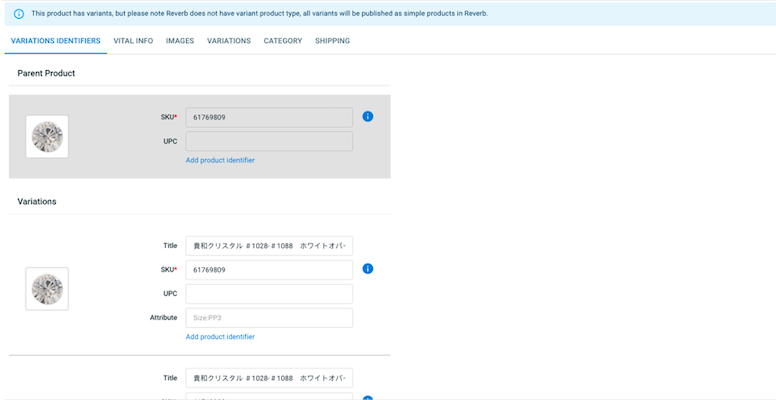
- Multi Edit mode: This is also called our QuickGrid feature. It could be your game-changer if you have hundreds or thousands of listings to edit over a short while. However, the Multi-edit mode doesn’t come in our Free Forever Plan.
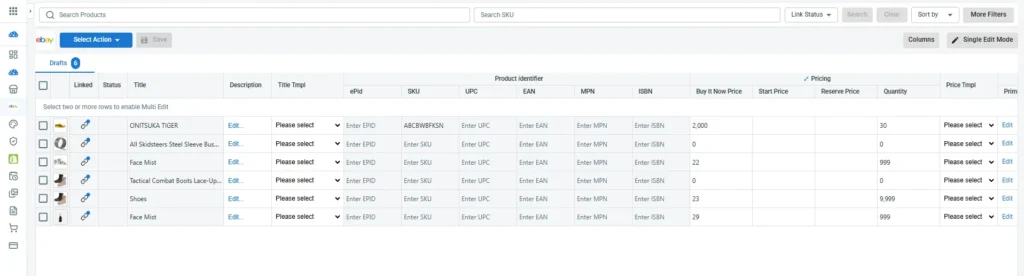
Case 2. Import products from eBay and create them on your other store
The second case in listing products on eBay and your online store applies when you have a live listing on eBay but not your online store. Now, let’s learn how to import products as a part of our How to Integrate with eBay guide!
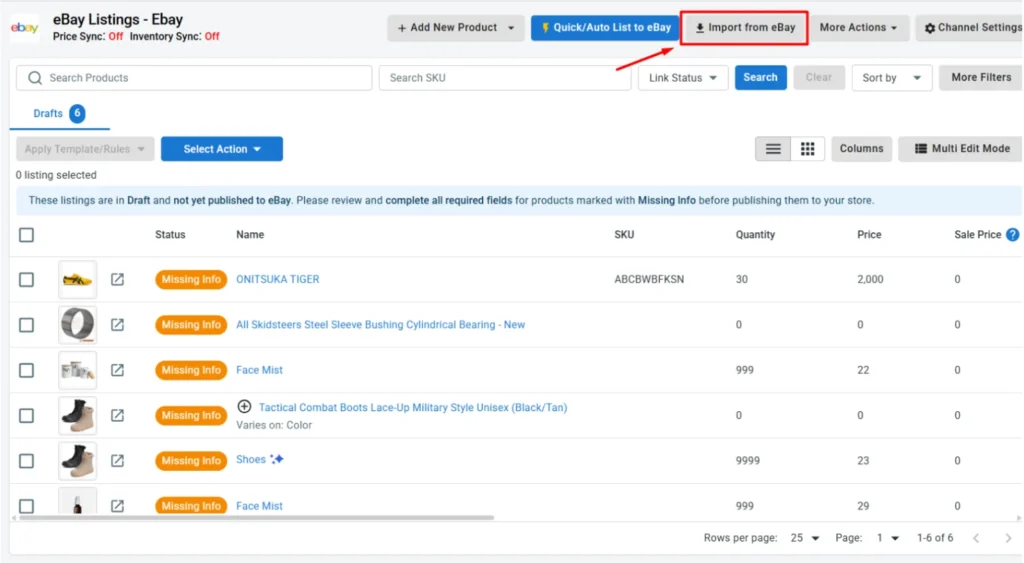
- Go to your eBay store from the list of connected sales channels in LitCommerce.
- In the new interface you are directed to, click Import from eBay.
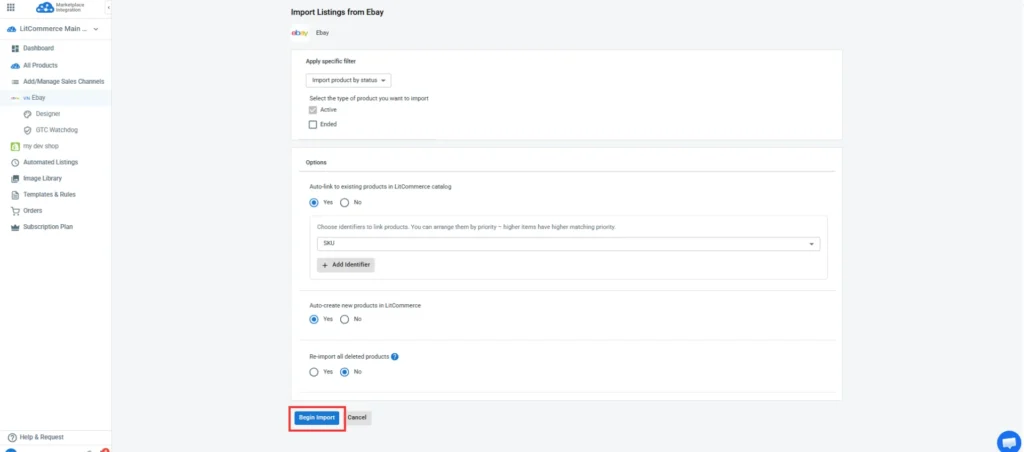
- Next, our app will ask you a few questions before the import begins. Simply choose if you want to link products, re-import, or add any specific filters for your eBay listings. When all is done, click Begin Import.
Then, you have two paths depending on what your Main Store is. If your online store runs as your Main Store, select the products you want to list in your store, click Select Action, then Create on Shopify (or whichever shopping cart you use).
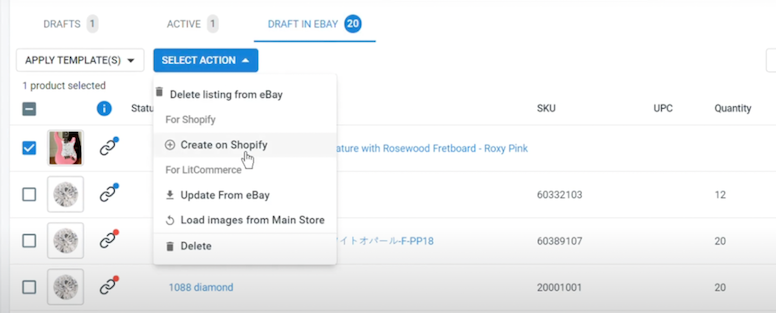
Or, if you only sell on eBay and other marketplaces, with LitCommerce as your Main Store, imported products are created directly in your LitCommerce catalog, no extra step needed. From there, select the products you want to list, click Select Action, then Add to Channel Drafts, and choose the marketplace you’re listing to.
Then, just follow the same guide as listing products on eBay above to list them to other marketplaces.
Case 3. Link the same products from eBay and your online store
In particular, this happens when you have listed products on both your online store and your eBay shop. Now you must link them to sync sales and inventory later on.
Linking products also prevents you from having duplicated listings on eBay and other sales channels. Duplicated listings can pose a challenge for any seller on eBay, including you. This is due to eBay’s rules for listing quantity (based on the seller’s performance) and listing charges (written in the rulebook).
Let’s go into the details!
When you choose to Import from eBay, like the 2nd case above, we will automatically link the same products in your catalog, or products with the same SKU, if you use our default options during your product import.
However, there can be chances that not all SKUs match one another. Should that be the case, here’s how to link the same products across different sales channels:
- Check if your products are linked or not based on the blue and red dots. A blue dot means your products are linked, and a red for vice versa.
- Hover over the red icon on the unlinked listings, click Link to a product, and LitCommerce will help you find the matching items.
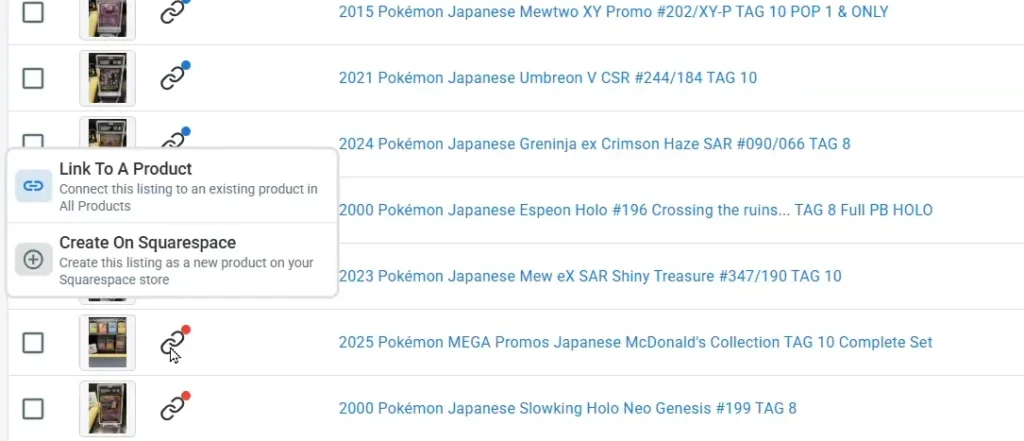
- Search for matching products and simply link them. Otherwise, type the SKU of the item you want to link to.
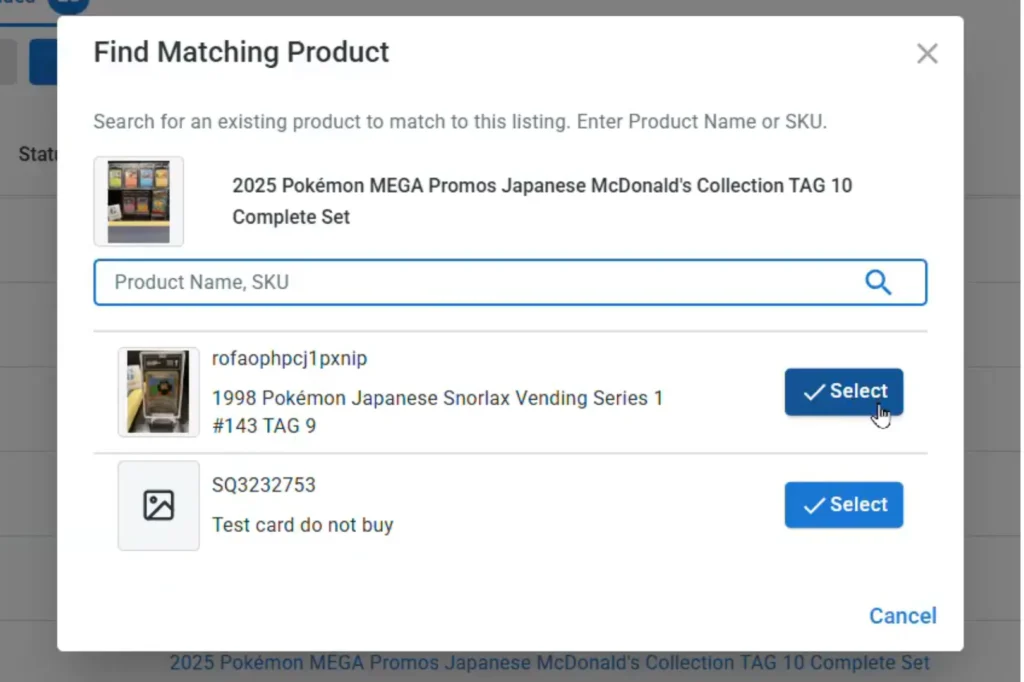
- Hit Select beside the item showing up on the screen. As soon as your product linking is complete, you’ll get a notification from LitCommerce.
That’s everything about product listing as we learn how to integrate with eBay. Moving on with your integration process, we’ll walk through real-time data sync across channels.
Step 3: Turn on automatic data sync
Data synchronization on eBay and your store simplifies this whole multichannel selling process. Once turning on this feature, you’ll be able to sync pricing, inventory, and orders in one place – no more overselling or stocking out. LitCommerce runs this sync automatically every 15 minutes on all plans.
Without any delay, here are our instructions for data synchronization.
- From your eBay shop dashboard on LitCommerce, go to Channel Settings.
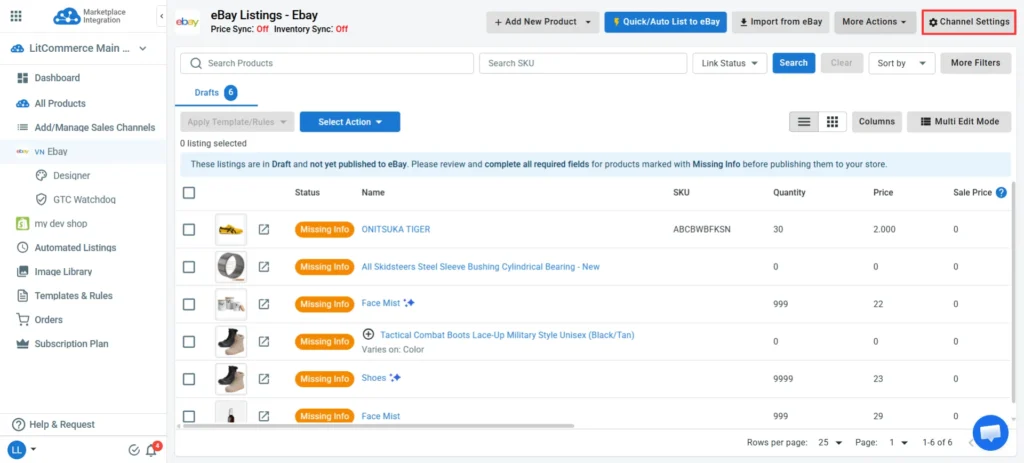
- Once you navigate to the Channel Settings, the LitCommerce app will redirect you to an interface where you can turn on Price, Inventory, and Order sync.
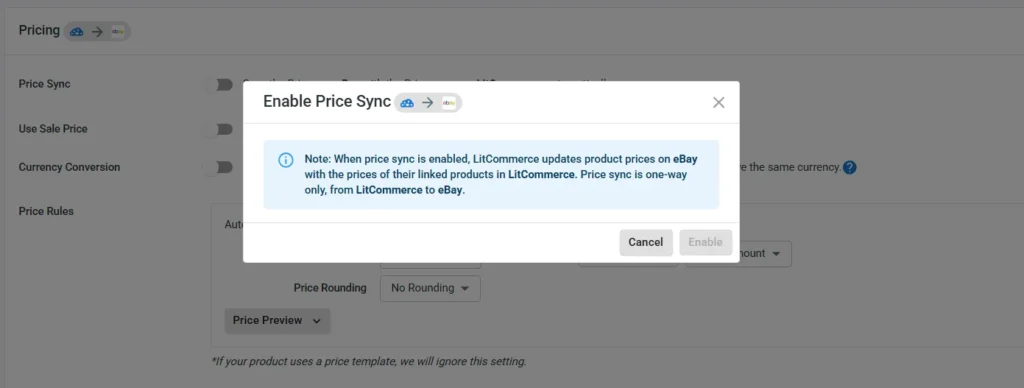
- Feel free to choose any automatic sync function based on your business needs. Anytime you choose to switch on Price, Inventory, or Order sync, there will be a pop-up window asking you to confirm some information, as in the image below.
- As you’ve configured every sync function you want, simply scroll down to the end and click Save Settings.
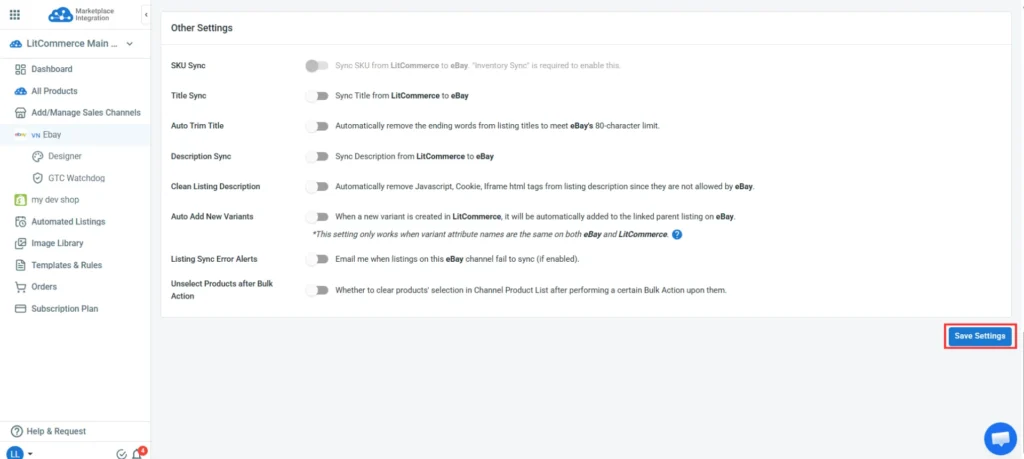
It’s that simple to switch on the real-time data sync with LitCommerce. However, this part of our “How to Integrate with eBay” guide has some notes you might want to take.
1. Pricing sync
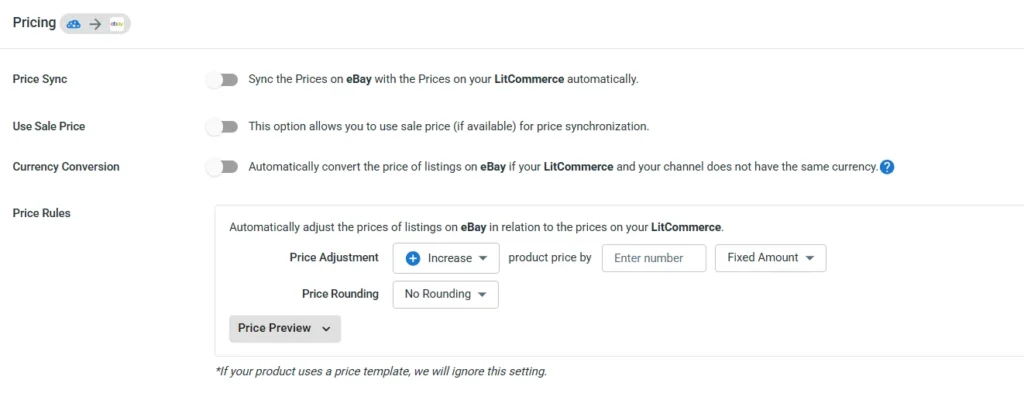
Starting with Price Synchronization, LitCommerce lets you keep your eBay prices aligned with your Main Store. And when you want your eBay prices to move differently from your store, turn on Price Rules. Once Price Rules is enabled, you can increase or decrease your eBay prices by a percentage or a fixed amount. You can also apply price rounding, automatically convert currencies, and use sale prices when available.
- Price Preview: enter a test price to see how your settings affect the final price shown on eBay, so you can check your pricing strategy before syncing it across listings.
- Strike-through Price: available to sellers eligible for and enrolled in eBay’s Strike-through Pricing program. Once set up, LitCommerce syncs discounted prices so buyers see the original price alongside the reduced one.
Beyond price syncing, you can combine this with eBay’s own promotional tools to create more compelling offers. For example, you can run a sale on eBay to mark down groups of listings or send offers to interested buyers who have shown interest in your items but haven’t purchased yet.
2. Inventory sync
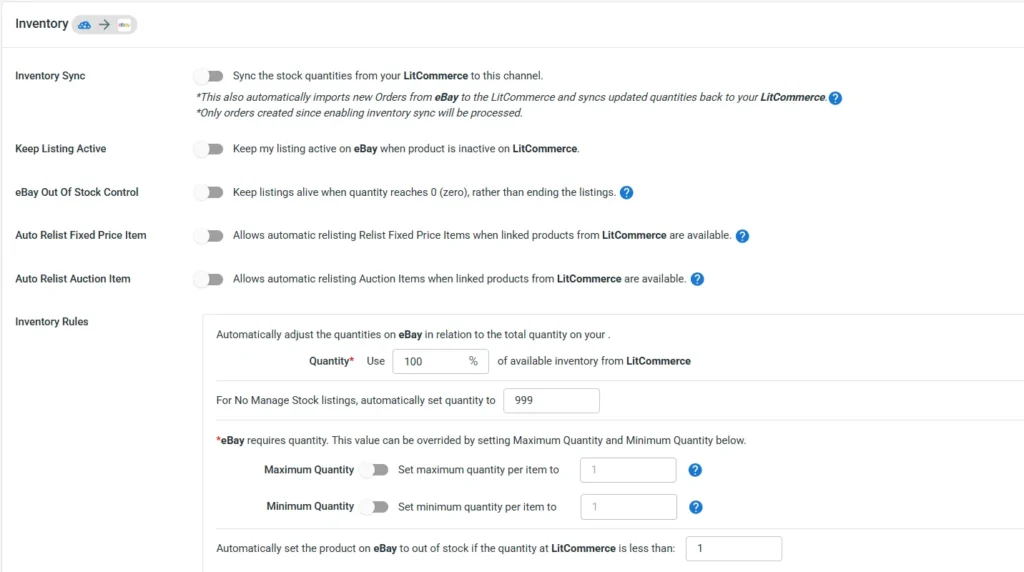
Next in our eBay integration guide, we’ll walk through inventory sync. This works much like price sync: you set it to keep inventory quantities aligned across eBay and your other channels, whether that’s your online store (Shopify, Wix, WooCommerce…) or other marketplaces you sell on. Just like Price Rules, you can set Inventory Rules to increase or decrease the quantity displayed on your eBay store by a percentage or a fixed amount based on your Main Store’s stock.
Further, on the Inventory real-time sync function for eBay, you might want to take these notes:
- eBay Out of Stock Control: Our app will keep your listings live on eBay even when the inventory reaches zero. This also means your customers will still be able to browse it but not purchase it. Nonetheless, remember that such listings will be on display for 30 days, then unlive.
- Auto Relist Fixed Price Item: This functionality lets you automatically relist an item on eBay when it reaches the listing expiration date (according to eBay’s rules). To know more about eBay’s regulations for listings, please visit its policies here.
- Auto Relist Auction Item: Normally, your auction item quantity can only reach 1, and your auction listings can only go live in a certain period of time. By using our Auto Relist Auction Item, you can automatically relist without doing all the manual tasks on eBay when your previous auction ends.
Keep eBay in Sync, Automatically
LitCommerce syncs your price, inventory, and orders for you, with an automatic sync cycle every 15 minutes on every plan — so you can focus on selling, not spreadsheets
3. Order sync
In the Order section, choose Import Orders to Main Store to pull all eBay orders into your shopping cart dashboard or LitCommerce dashboard so you can manage everything in one place.

LitCommerce can also send Unlinked Product Order Alerts. Turn it on and you get an email whenever an order comes in containing a product that is not linked yet. That matters because an unlinked product does not deduct stock anywhere else, so you find out before it turns into an oversell rather than after.
Fulfillment gets easier on the eBay side too once orders pick up. When one buyer takes several items, combining shipping on eBay cuts your postage and leaves you with one parcel to pack instead of three.
4. Other sync settings
Apart from Price, Inventory, and Order sync, LitCommerce also syncs SKU, listing description, title, and product clearance. Once switched on, these attributes stay aligned between your online store and your eBay shop, so you’re not updating the same field twice.
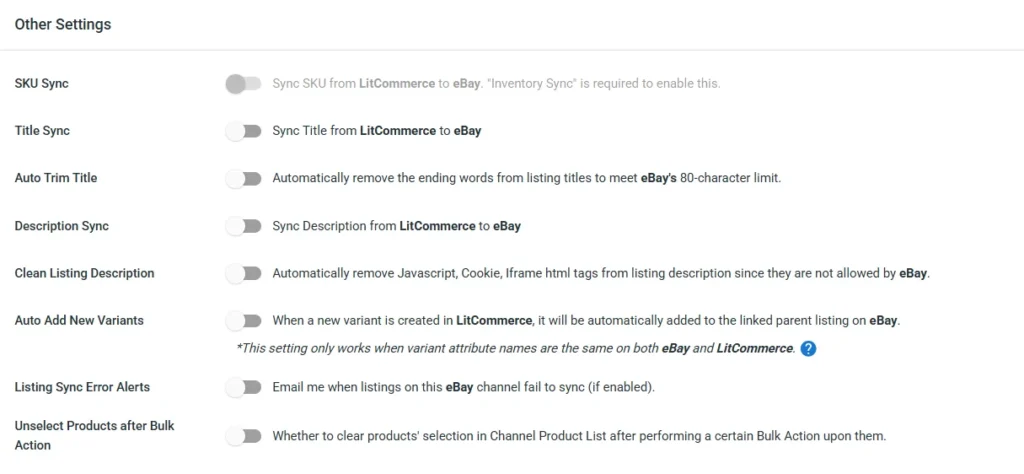
Buyer messages can sit here as well. Switch on the Messages Page and your eBay messages come into LitCommerce, where you read and reply without opening eBay. You can pull in eBay’s system notifications the same way, so policy updates and buyer questions land in one place. On eBay, reply speed feeds into your seller metrics, so having messages where you already work is worth more than it sounds.

Notes: If you turn on Title and Description sync, check your current titles and descriptions on both your store and eBay shop first. If your store’s titles or descriptions exceed eBay’s character limits, they can come through as overwritten or truncated on eBay..
Step 4: Manage your integrated eBay order flow
The final step in our “How to Integrate with eBay” guide is managing your order flow. How this works depends on which setup you’re using.
Case 1: You manage orders from your online store
If your online store (Shopify, Wix, WooCommerce…) is your Main Store, Order Sync pulls eBay orders into your store’s order system automatically. You keep working from the dashboard you already use, and eBay orders show up alongside your store orders without extra steps.
Case 2: You manage orders on LitCommerce
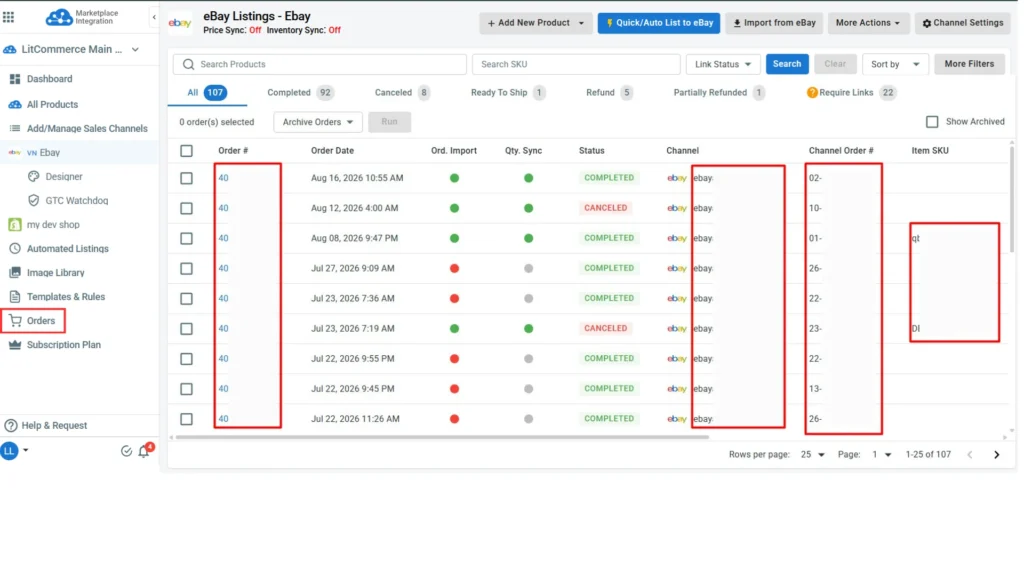
If you only sell on eBay and other marketplaces and choose LitCommerce as your Main Store, orders are managed directly inside the app. Go to Orders on the left-side menu bar. From there, you can monitor every order made across all connected channels, eBay included, and manage them from one centralized dashboard.
Why Choose LitCommerce for Connecting Your Store to eBay?
Most multichannel tools treat eBay as just another channel. You get one listing form that works for every marketplace, which means the parts unique to eBay, like item specifics or business policies, are left for you to sort out.
LitCommerce built ours the other way around. As an official eBay Solution Provider, the eBay channel follows how eBay actually works, not a shared form stretched to fit. Here’s what that means:
- eBay’s 20+ regional sites. eBay runs as separate marketplaces per country (ebay.com, ebay.co.uk, ebay.de…). LitCommerce lets you set currency, tax, and price rules by region, something marketplaces without a regional structure like this don’t need.
- Auto-relist and GTC monitoring. eBay listings expire and need relisting to stay visible. LitCommerce auto-relists using your saved templates and flags Good ‘Til Canceled listings before you pay an unnecessary renewal fee.
- Item specifics and Business Policies, mapped exactly. eBay requires structured fields (Item Specifics) and account-level rules (Business Policies) that don’t exist in this form on other marketplaces. LitCommerce fills them in the way eBay’s API expects, not a generic listing form.
Request Extra Functions for Your eBay Integration
Do you know that we can tailor special features just for your business? Discuss your needs with us and see what we can do for you now!
If our highlights aren’t convincing enough to you, take a look at what our customers have to say about their experience with how to integrate your website with eBay.
They have exceptional customer service! They respond extremely fast on their chat!
The app itself saves us so much time to upload products on eBay, Etsy, Amazon, and Walmart!It is quite an advanced app, so you do need to spend time to learn it but once you know how to use it, it’s amazing!
I tried several other programs that promised smooth integration of my shopify store to Amazon, eBay, and ETSY. None of them delivered. Litcommerce, in contrast, was so easy and worked flawlessly. Importantly, when I ran into trouble, the support team was super helpful and highly responsive. Nearly immediate response times. Highly recommend!!
How to Integrate with eBay – FAQs
1. What is eBay integration?
eBay integration is a process through which you connect your online store to the eBay marketplace. Once you’ve integrated two platforms successfully, expect an enhanced selling experience since you’ll likely get streamlined operations between connected sales channels, a synchronized data flow, and centralized business management.
2. Can I integrate my website with eBay?
Yes, you can! As a matter of fact, you can integrate your website with eBay in three major ways: integrating with eBay manually, hiring an expert who does all the coding, and using a third-party multichannel selling solution. If you are about to choose a third party to integrate with eBay, LitCommerce is worth your consideration.
3. How to integrate with eBay?
You can integrate with eBay using a third-party multichannel selling solution in 4 simple steps:
Step 1: Connect your online store with eBay
Step 2: List products on both selling channels
Step 3: Allow real-time data sync
Step 4: Manage your integrated order flow
As you learn how to integrate with eBay, especially using a third-party multichannel selling tool, we highly recommend you give LitCommerce a quick check!
4. Which platforms does LitCommerce connect to eBay?
LitCommerce supports connecting to eBay with a range of popular eCommerce platforms, including Shopify, Wix, WooCommerce, Squarespace, BigCommerce, and Square.
You can also connect eBay directly with other marketplaces you sell on, such as Amazon, Etsy, TikTok Shop, Walmart, and Google Merchant.
Either way, your Main Store is either your shopping cart (Shopify, WooCommerce…) or LitCommerce itself if you don’t have one. From there, you add eBay as a sales channel and manage product data across all connected channels through LitCommerce.
5. How much does eBay integration cost?
It depends on how the tool charges you. LitCommerce starts at $29 a month for 1,000 listings across 3 channels, with unlimited order sync on every plan, and a 7-day free trial to test the setup first.
Start Integrating with eBay Today!
Have you got all the materials you need to start your multichannel selling journey on eBay yet? With the content we provided above, we definitely look forward to a YES. By any chanceHave you got all the materials you need to start your multichannel selling journey on eBay yet? With the content we provided above, we definitely look forward to a YES. By any chance, if you need a recap, remember that you can integrate your store with eBay in three ways: doing it manually, hiring a technical expert, and using third-party multi-selling software.
If you choose a third party, here is how to integrate with eBay in just 4 simple steps:
- Step 1: Connect eBay to other stores
- Step 2: List products on both platforms
- Step 3: Turn on real-time data sync
- Step 4: Manage your integrated eBay order flow
That’s pretty much everything you need to know about “How to Integrate with eBay.” It’s time to get ready and kickstart your process. And while you integrate with eBay and have any concerns, don’t hesitate to contact us. We will be more than happy to help.
For more eBay integration guides, check out our eBay blog hub. Happy selling!