



If you retype the same product details for every eBay listing, you are losing hours you do not have. An eBay listing template is a saved set of product information and formatting that you reuse across listings instead of starting from zero each time.
The confusing part is that eBay runs two separate template systems. Seller Hub listing templates store category, item specifics, and policies. HTML description templates control the layout inside the description box.
This how to use ebay listing templates guide covers both systems, plus the CSV templates used for bulk upload.
Key takeaways
- Seller Hub templates and HTML description templates do two different jobs and are built in different places.
- eBay caps saved templates at 50 per account.
- eBay bans active content such as JavaScript, forms, and iframes inside descriptions.
- Editing a template never updates listings you already published with it.
- Bulk tools start paying off once you apply the same template dozens of times a week.
Which eBay Listing Template Do You Actually Need?
Before you learn how to use eBay listing templates, you need to know which of the three systems you are actually dealing with. Most sellers reach for the wrong tool first, so start here before building anything. The table below shows what each option controls and where it lives.
| Template type | What it controls | Where you create it | Cost | Applies to existing listings? |
| Seller Hub listing template | Category, item specifics, Business Policies, format, starting price | Seller Hub, on the Listing templates page | Free | No, new listings only |
| HTML description template | Layout and design of the description box only | Any text or code editor, pasted into eBay | Free if you build it yourself | Yes, if you re-paste it manually |
| Business Policies (shipping, payment, returns) | Shipping cost, payment terms, return window | Seller Hub, under Account settings | Free | Yes, changes apply account-wide |
| Third-party tool template | Category, specifics, drag-and-drop description design, and bulk rules combined | Tools like LitCommerce | From $29/mo (1,000 listings, 3 channels), 7-day free trial | Yes, through bulk edit and template rules |
If you sell in one or two categories, a free Seller Hub template is enough. Add an HTML description template once you want a consistent, branded look. If you publish more than 20 listings a week across several categories, template rules in a bulk tool save more time than they cost.
Set up the Seller Hub template first either way. It costs nothing and takes about ten minutes.
How to Use eBay Listing Templates in Seller Hub
Seller Hub templates are eBay’s free, built-in way to save a full set of listing details and reuse them. eBay lets you save up to 50 templates per account.
To learn how to use eBay listing templates efficiently, start with one product category and save only the details you plan to reuse.
- In Seller Hub, open Listing templates and select Create new template.
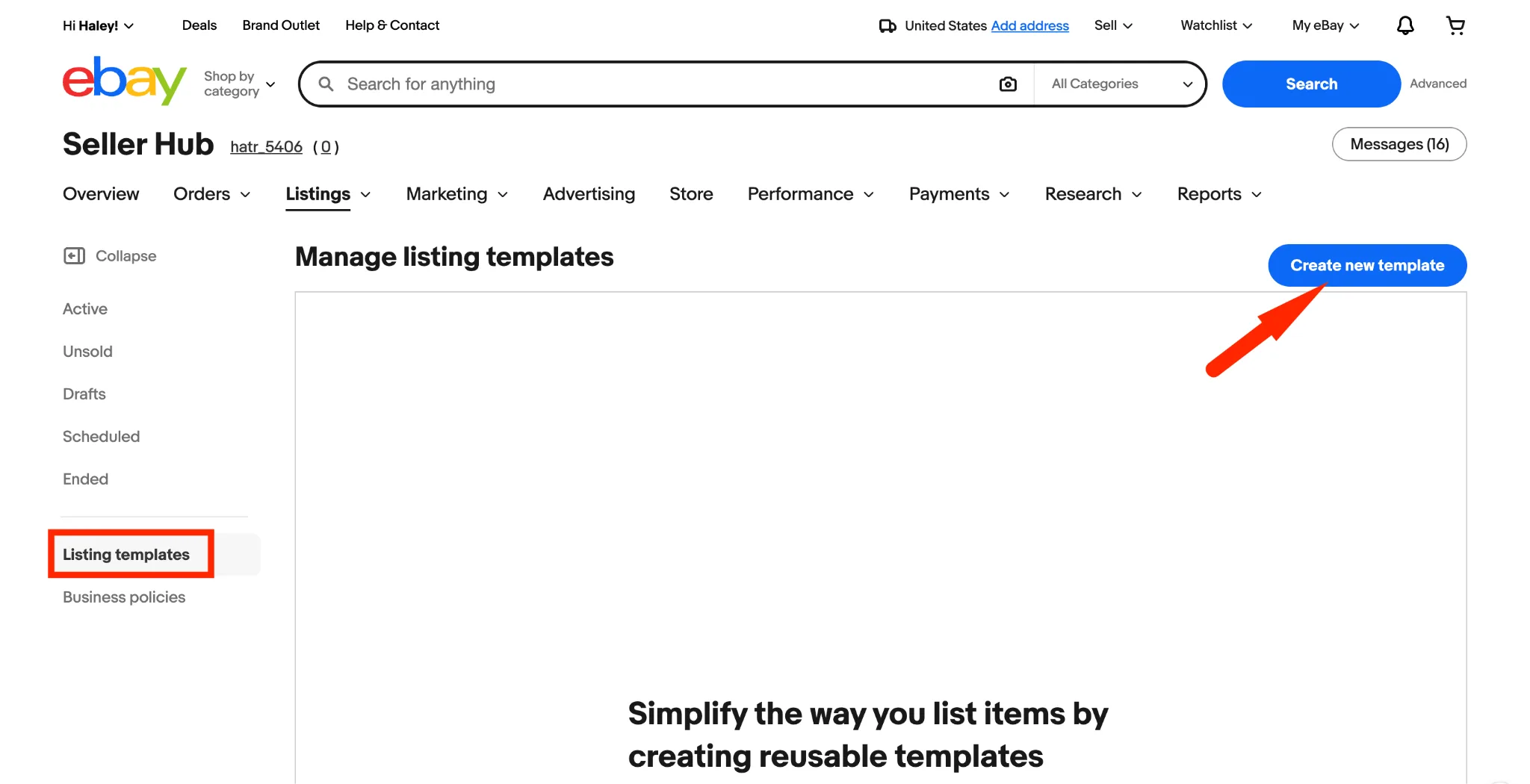
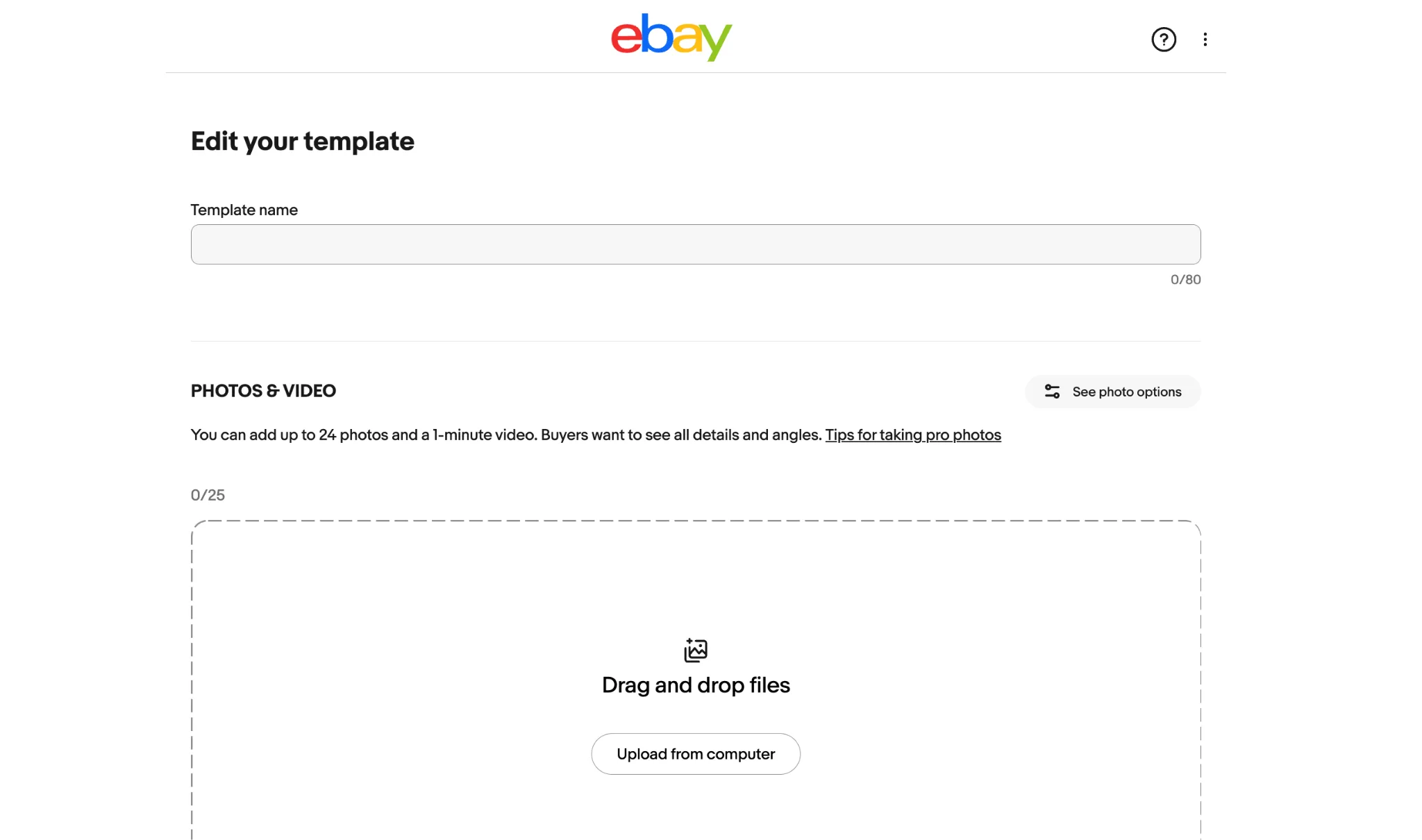
- Name it so you recognize the item type later. “Hardcover Book, Used, Same-Day Shipping” still makes sense at template number 30. “Template 3” does not.
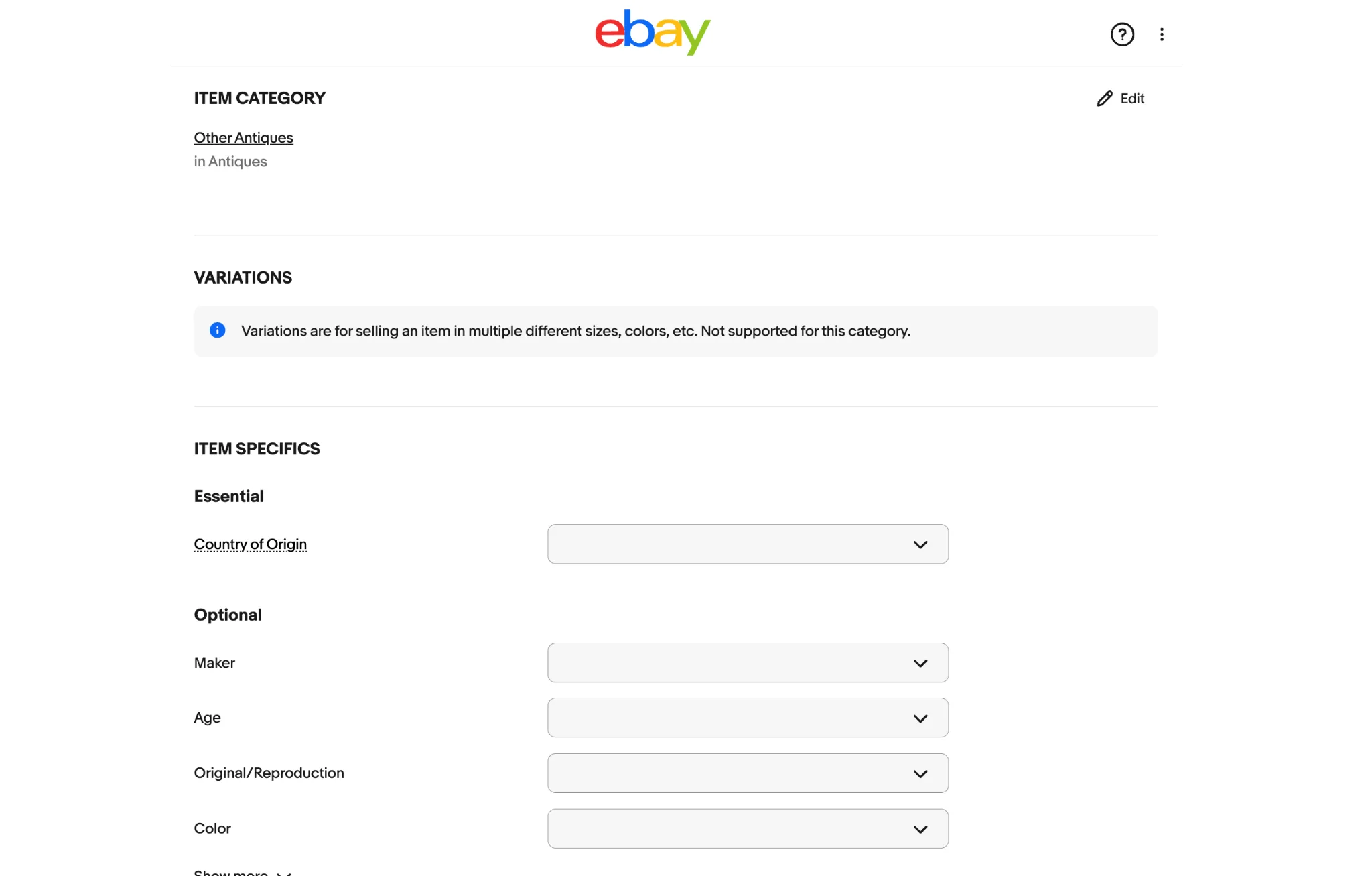
- Fill in the listing details you want to reuse, such as: category, item specifics, condition, description, pricing, shipping, and more.
- Select Preview to check it, then hit Save template.
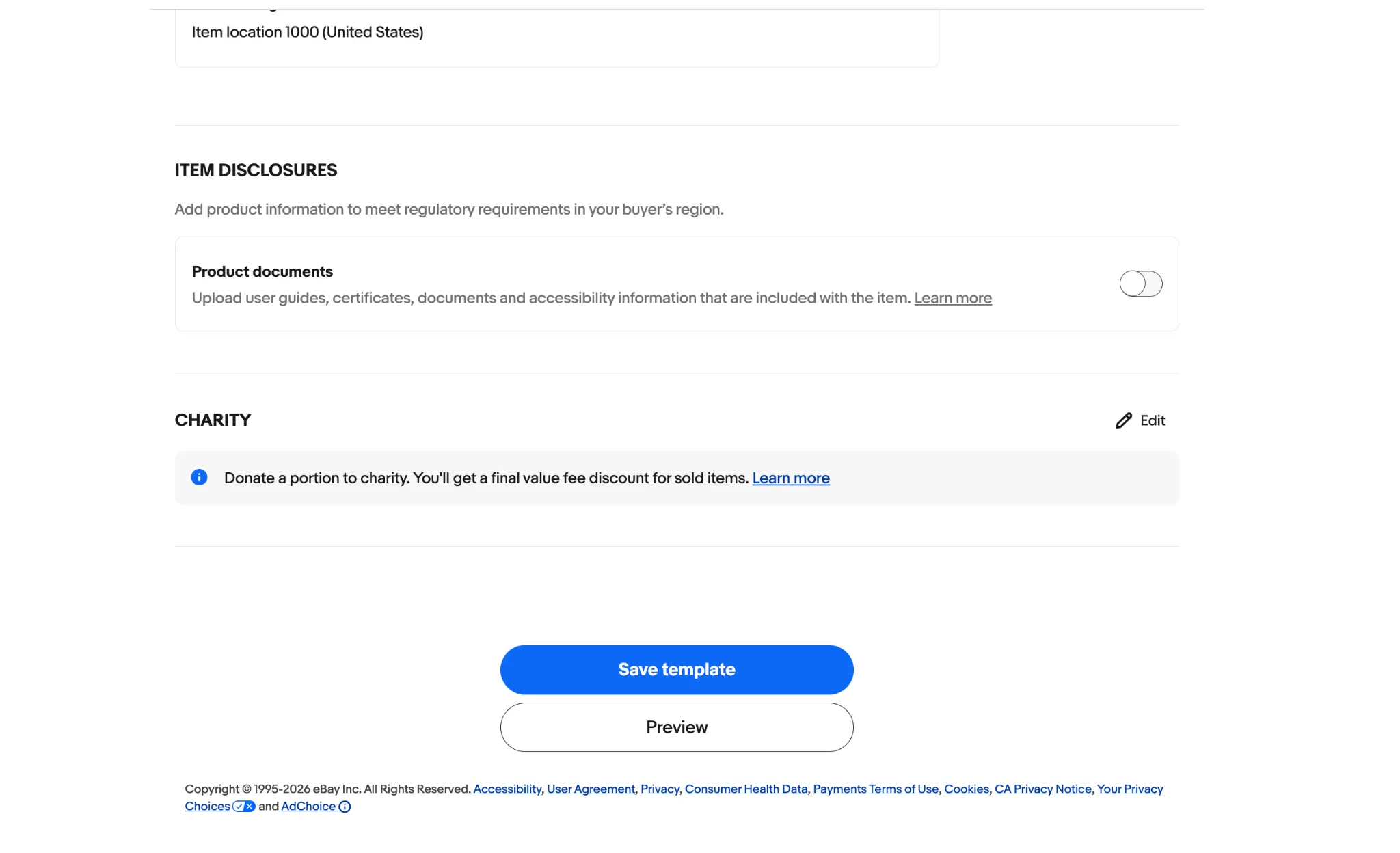
Notes: Templates help you apply shared settings like categories, shipping, returns, and pricing. You can customize each listing with its own title, photos, description, quantity, and product details to avoid duplicates and errors.
- To list an item from that template, go back to Listing templates in Seller Hub.
- Find your template and select Create listing from the Actions dropdown.
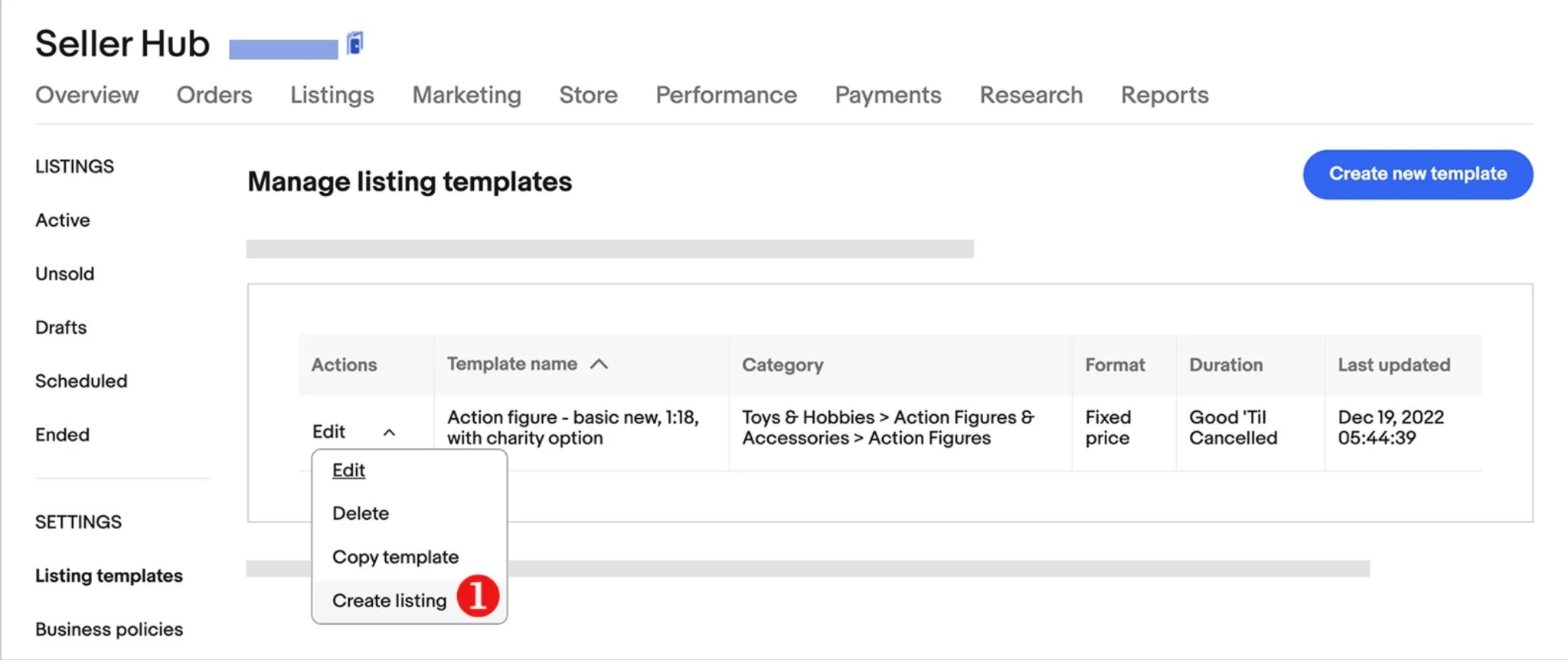
- Review the pre-filled fields, swap in this item’s title, photos, description, and specifics, then click “List it” to publish listing.
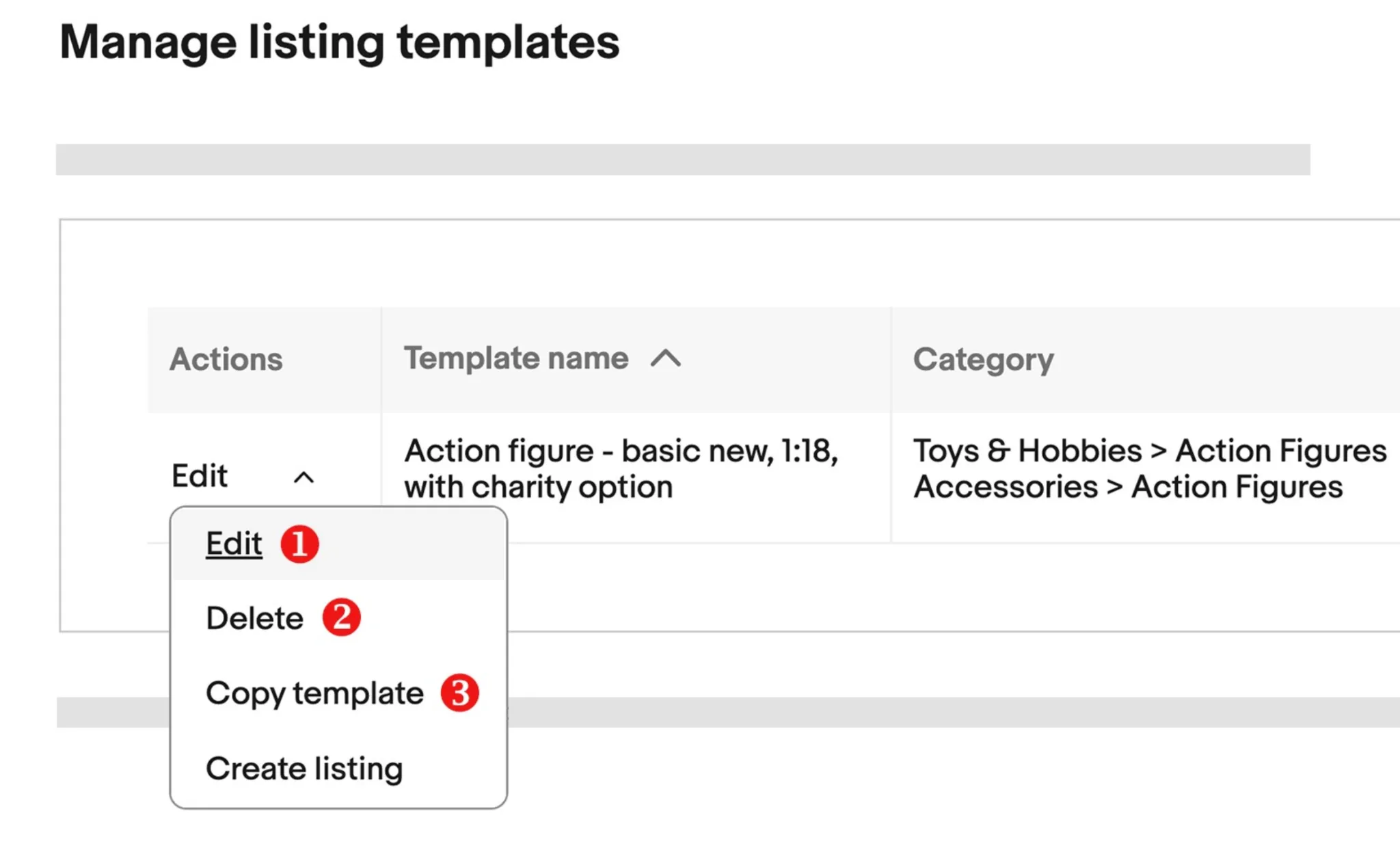
Manage your eBay listing templates in the Templates section of Seller Hub, where you can rename, edit, or delete saved templates anytime.
Editing a template does not change listings you already created from it. The template feeds new listings only. If your return policy changes, you edit active listings separately or run a bulk update through a third-party tool.
When you reach the 50-template cap
Audit what you actually use before creating anything new.
- Pull up your template list and sort by last-used date if Seller Hub shows one.
- Delete templates tied to discontinued product lines or one-off sales events.
- Merge near-duplicates such as “Used Books” and “Used Books, Fiction” into one broader template, then adjust item specifics per listing.
Next read: 10 helpful tips for eBay listing optimization, which covers what to do with the listings once your templates are in place.
How to Build an eBay HTML Description Template
An HTML description template controls the description box only. It has no effect on category, price, or policies, which live in your Seller Hub template. You build the HTML once, save the code, and paste it into new listings with the product details swapped in.
A description template usually runs in this order:
- Header or banner with your logo
- Product overview with name, brand, condition, and key features in plain text
- Specifications table with dimensions, materials, and compatibility
- Policy block covering returns, warranty, and shipping timeline
- FAQ block answering common buyer questions
A starter template you can copy
These eBay listing template examples show how a simple HTML layout organizes product details. Replace the placeholders with accurate information for each item before publishing.
This block is deliberately plain. It renders the same on a phone and a desktop, and it contains nothing eBay bans.
How to apply this template: Copy the HTML code below. In your eBay listing, switch to the HTML editor (or use the “HTML” tab in the description box). Paste the code, then replace each bracketed placeholder — such as [PRODUCT NAME], [BRAND], and [VALUE] — with your actual product details. Save and preview your listing before publishing.
<div style="max-width:100%;font-family:Arial,sans-serif;font-size:15px;line-height:1.6;color:#222;">
<h2 style="font-size:20px;margin:0 0 12px;">[PRODUCT NAME]</h2>
<p><strong>Brand:</strong> [BRAND] <strong>Condition:</strong> [CONDITION]</p>
<p>[TWO SENTENCES ON WHAT IT IS AND WHO IT SUITS]</p>
<h3 style="font-size:17px;margin:20px 0 8px;">Specifications</h3>
<table style="width:100%;border-collapse:collapse;">
<tr><td style="padding:6px;border:1px solid #ddd;width:40%;">Dimensions</td><td style="padding:6px;border:1px solid #ddd;">[VALUE]</td></tr>
<tr><td style="padding:6px;border:1px solid #ddd;">Material</td><td style="padding:6px;border:1px solid #ddd;">[VALUE]</td></tr>
<tr><td style="padding:6px;border:1px solid #ddd;">Compatibility</td><td style="padding:6px;border:1px solid #ddd;">[VALUE]</td></tr>
</table>
<h3 style="font-size:17px;margin:20px 0 8px;">Shipping and returns</h3>
<p>[DISPATCH TIME] · [RETURN WINDOW] · [WARRANTY]</p>
</div>Percentage widths instead of pixel widths are what keep the table readable on a phone. Inline styles are used because eBay does not allow external stylesheets.
What HTML Does eBay Allow, and what is banned?
eBay bans active content in listing descriptions. That includes JavaScript, embedded media players, HTML forms, iframes, popups, redirects, and external stylesheets. The reasoning is practical: those elements can be used for phishing or malware, and they render inconsistently across devices.
Plain HTML and inline CSS are fine. Text, tables, images, and links cover almost everything a description needs.
Before publishing anything new, preview the listing on a phone and check your code against eBay’s current active content policy. Treat a flagged listing as a signal to review your HTML, not as proof that one specific tag caused it.
Create professional eBay descriptions without writing HTML
With LitCommerce Description Templates, you can choose from 100+ free, responsive eBay listing templates and customize them using a drag-and-drop editor and apply them to multiple eBay listings.

How to Apply Templates Across Many Listings At Once
Knowing how to use eBay listing templates inside Seller Hub works well for reusing the same settings across similar products. But as your catalog grows, keeping those settings consistent across hundreds of listings becomes just as important.
This is where the LitCommerce eBay listing tool can help. You can create reusable templates. Then, set rules to automatically assign the right templates to products based on specific conditions.
- After signing up for LitCommerce, connect to the eBay channel.
- Go to Template & Rules on the left sidebar. On an eBay channel, you get five templates to work with:
- Title & description template
- Pricing template
- Category template
- Business policies template
- Auto relist template
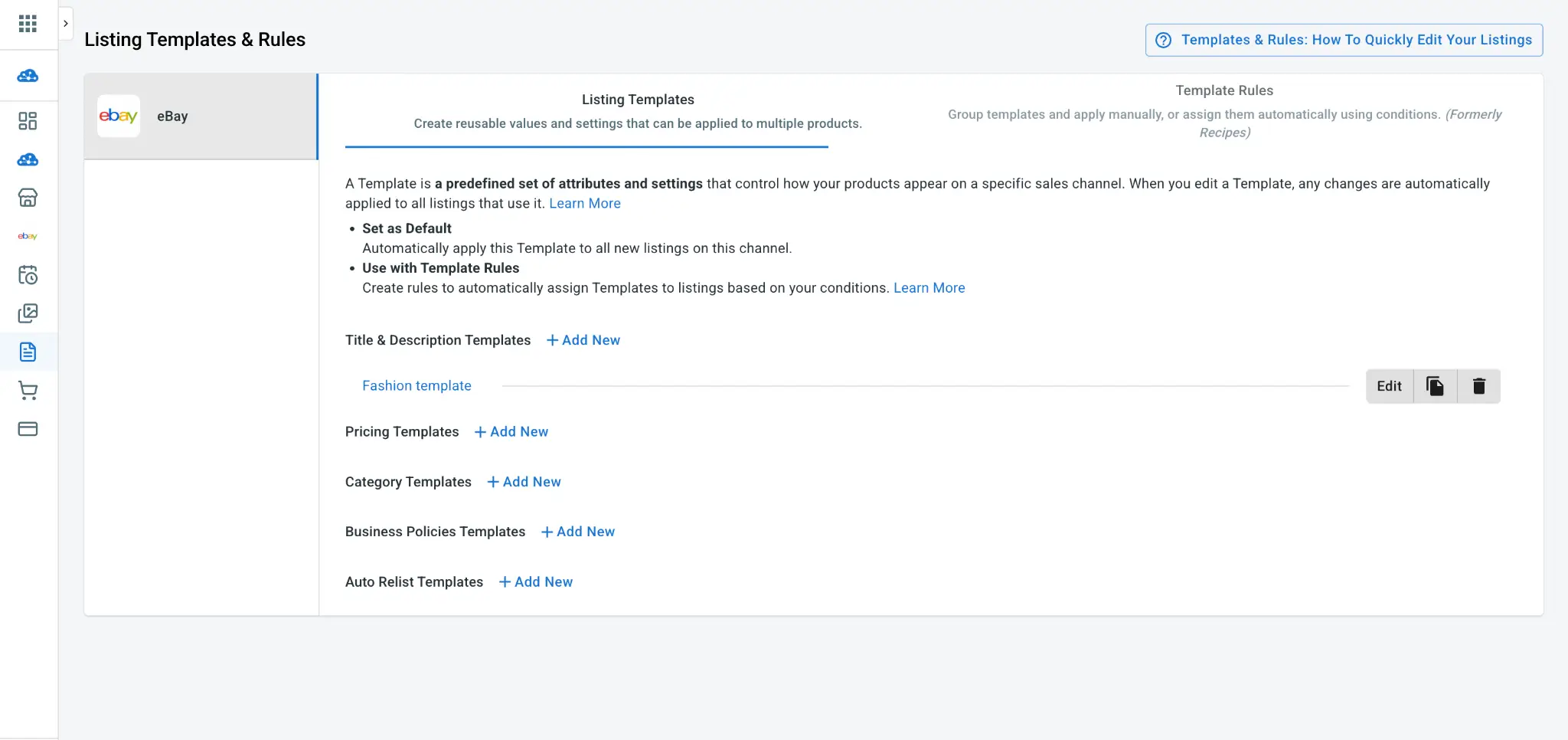
- Add template name to differentiate it from other templates, fill in template details then click “Save”
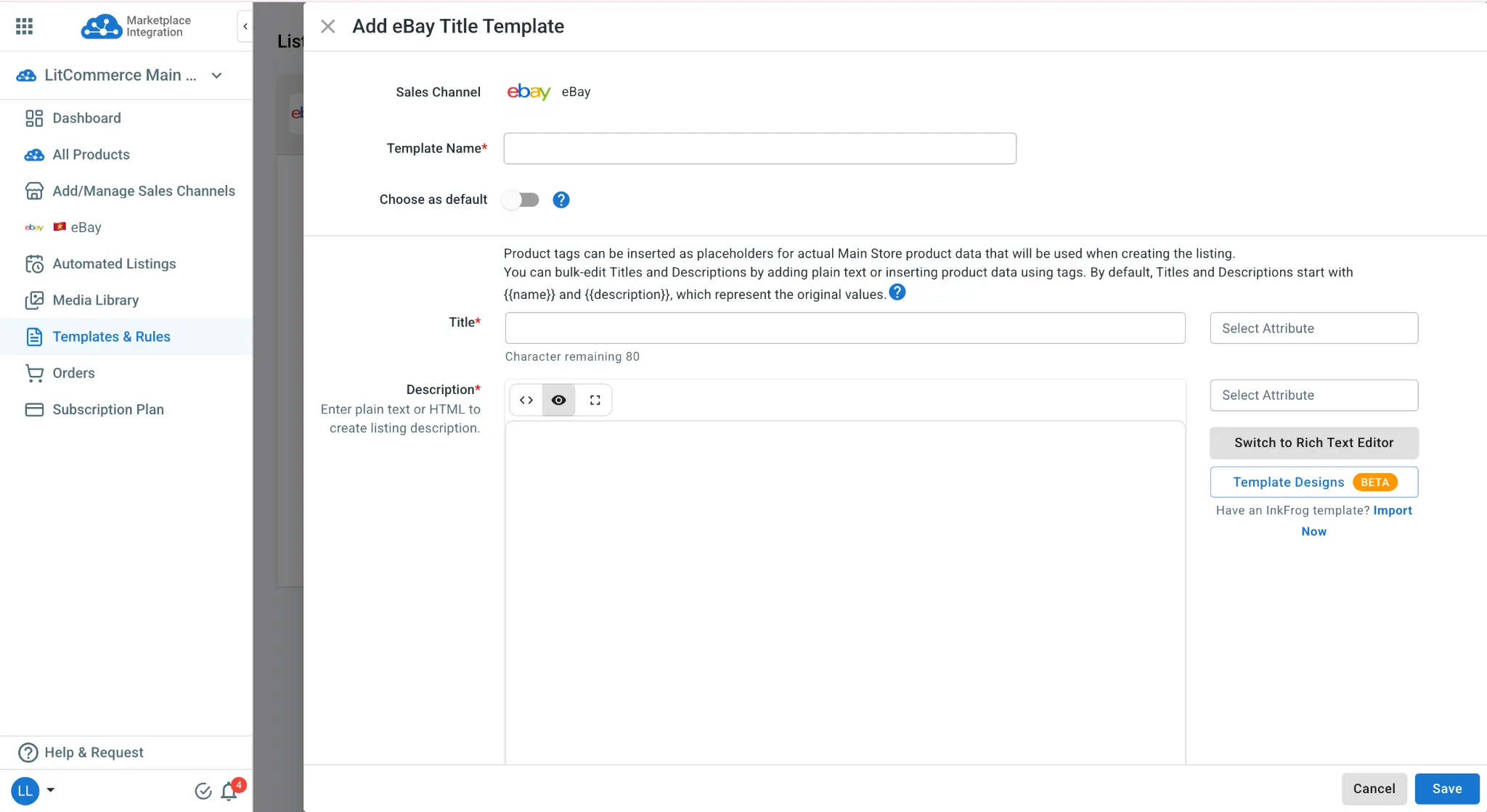
To help you create eBay title & description templates in a minute, LitCommerce Description Templates let you create and customize eBay product descriptions using a Rich Text Editor or HTML Editor. You can format text, add images, and adjust the layout without editing each listing individually, making it easier to maintain consistent, professional-looking descriptions.
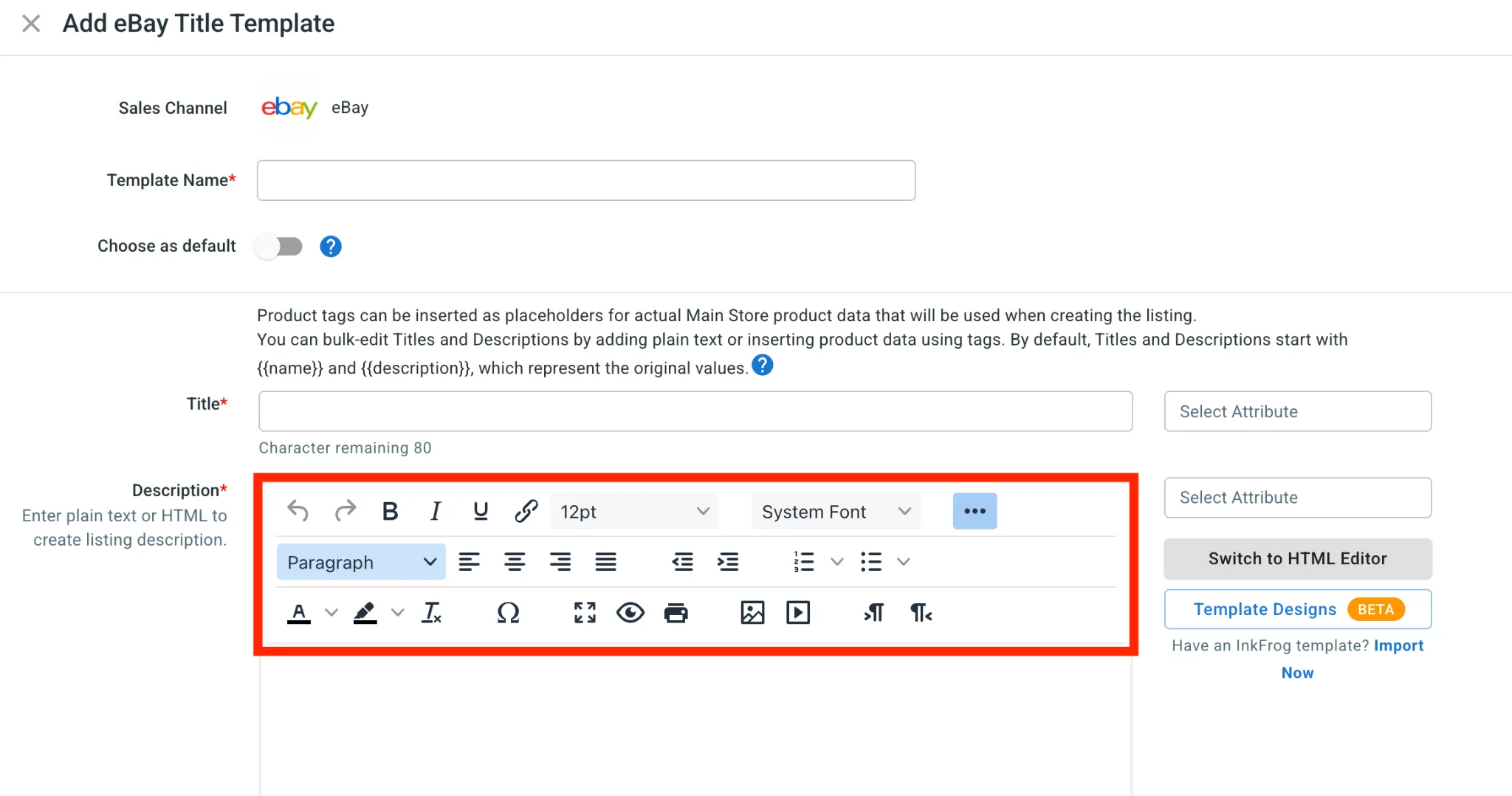
Notes: Editing a template and saving it will apply the change to all listings using that template, with price, inventory, title, description, and SKU updates syncing to eBay every 15 minutes. That way, you can manage listing settings across a larger catalog without configuring each product individually.
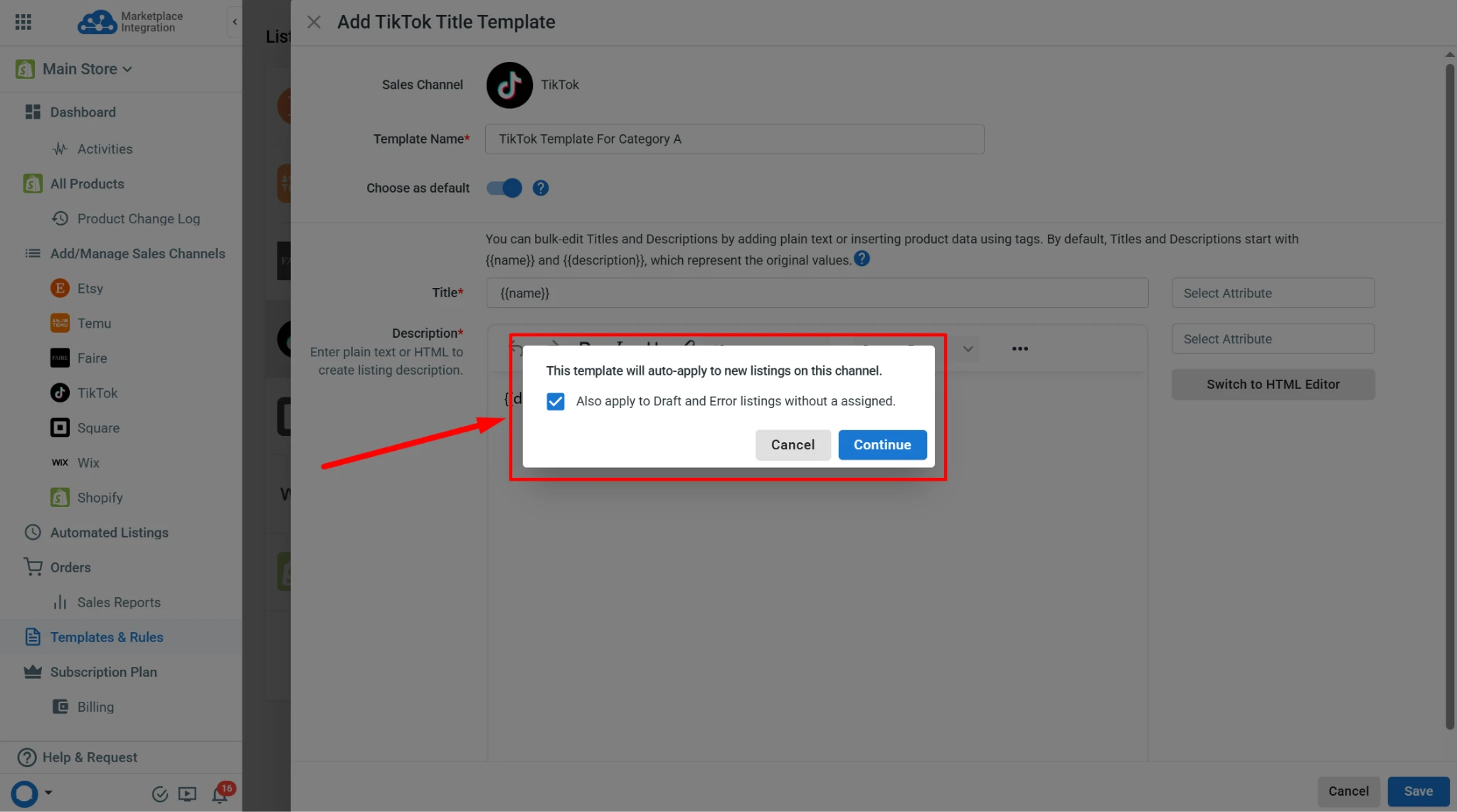
You can tick the box Also apply to Draft and Error listings option to apply the default template to all listings without a template assigned.
- Go to the Template Rules tab and click + Add New to bundle your templates into one rule.
- Select the templates you want in the rule, then enter a Rule Name. A rule does not need every template type.
- In Set conditions to auto-apply this rule, click +Add Condition and build each condition from a product field, a comparison, and a value, joined with And or Or. Rules with conditions are marked (Auto-Apply) and apply to new listings added to the channel.
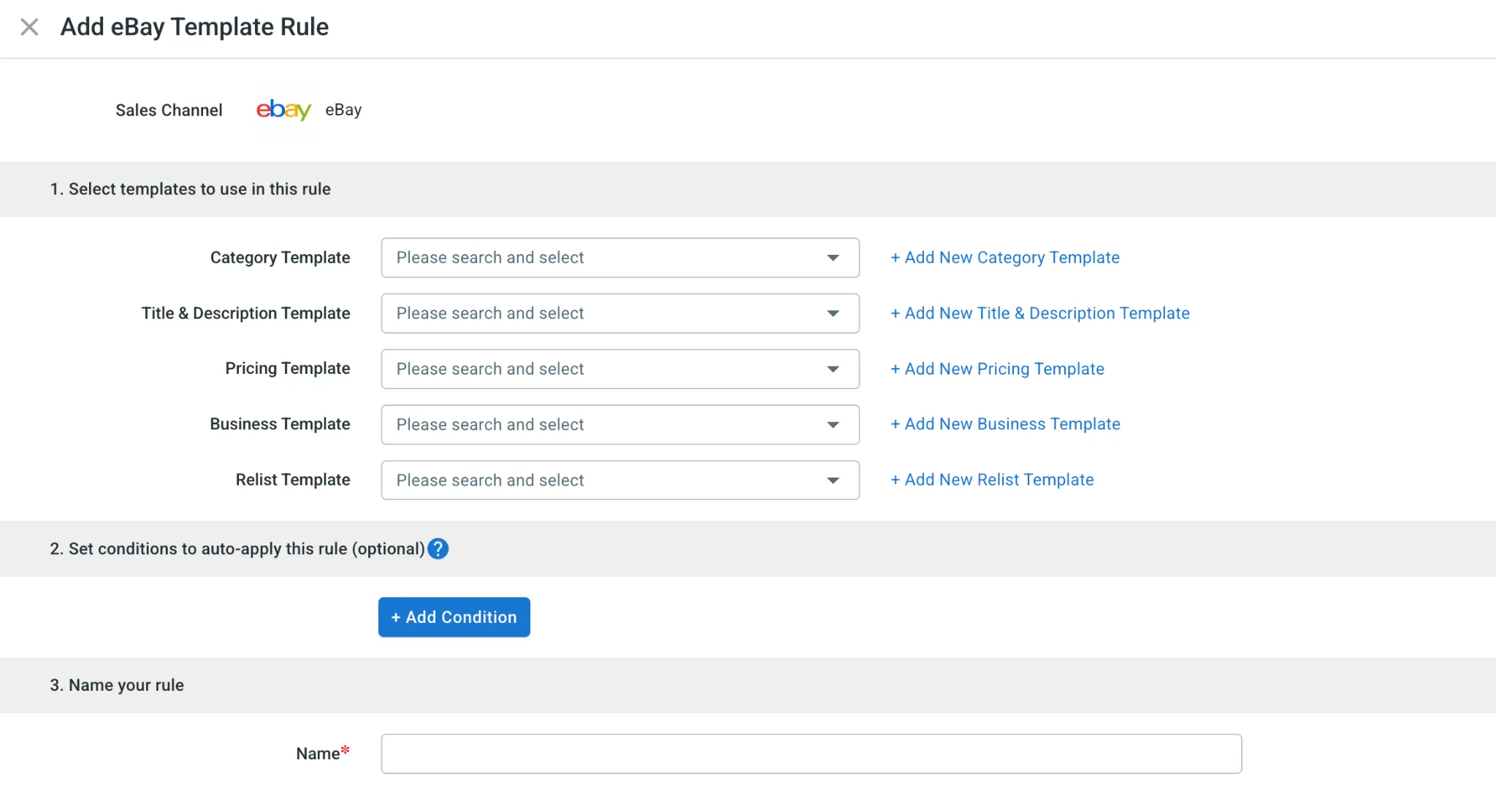
- Click Save to store the rule, or Save & Apply to assign it to every eligible Draft and Error listing on the channel. Use Run Now later to apply it again after a change.
- To add products, go to All Products, select the ones you want to sell, click Select Action and choose Add to Channel Drafts, then pick your eBay channel. Default templates and auto-apply rules fill these drafts in as they arrive.
- To assign a template by hand, open the eBay channel, select the listings, click Apply Template/Rules, and choose the templates or rules to apply. The channel page shows which templates each listing is using.
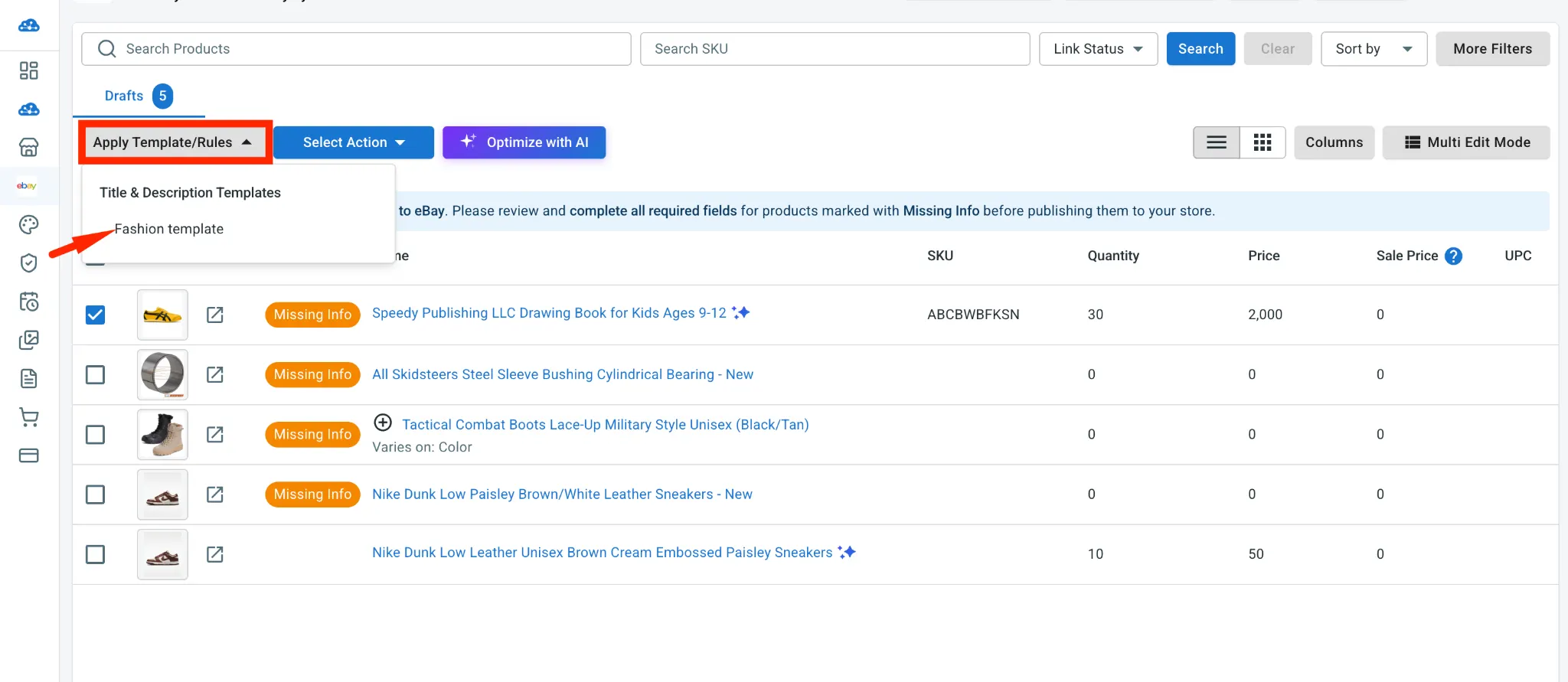
- Open the Draft tab, select the listings and run Publish to eBay for the whole batch. Accepted listings move to Active, and the rest land in Error with the reason attached, so you fix those and republish.
For more details, check out this “How to Use LitCommerce’s eBay Listing Templates” guide
This is the same logic behind listing multiple items on eBay efficiently. Batch the repetitive work and keep the product-specific details separate.
Additionally, eBay listing best practices include checking item specifics, using clear product photos, and previewing each listing before publishing. Review any fields copied from a template to make sure they match the individual item.
How to Use eBay Listing Templates: FAQs
What is the difference between an eBay Seller Hub template and an HTML description template?
A Seller Hub template saves listing settings: category, item specifics, Business Policies, format, and starting price. An HTML description template controls only the layout inside the description box. They are built in different places, they do not sync with each other, and most sellers need both.
Are eBay listing templates free?
Yes. Seller Hub listing templates and HTML description templates are both free and built into eBay.
How many listing templates can I save on eBay?
Up to 50 per account. Once you hit the cap, merge near-duplicate templates or move to a bulk listing tool.
Where do I find my saved eBay templates?
On the Listing templates page in Seller Hub. That page holds every saved template, plus the Actions dropdown for creating a listing, editing, copying, or deleting one.
Can I design an eBay description template without writing HTML?
Yes. eBay only accepts plain HTML and inline CSS in the description box, but you do not have to write that code yourself. A visual template builder generates compliant markup from a drag-and-drop layout, pulls product fields such as title, price, and shipping from your store automatically, and still leaves a custom HTML block available if you want to edit the code directly.
Final Thought
Learning how to use eBay listing templates can save you time and keep your listings consistent. Whether you use Seller Hub templates for listing details, HTML templates for product descriptions, or CSV templates for bulk uploads, each option helps simplify a different part of the listing process.
As your business grows, LitCommerce makes listing management easier with customizable description templates, bulk listing tools, and automated updates across multiple sales channels.
Need help managing your eBay listings? Contact us for assistance, or explore the Blog for more eBay selling tips and guides.