




How to see sold items on eBay on both the eBay desktop site and mobile app? Here is a quick answer:
- Using desktop (preferred):
- Option 1 – Using Default Search: Enter your keywords, use the “Show only” filter on the left menu, and tick “Sold items.” This will show sold listings from the last 90 days.
- Option 2 – Using Advanced Search: Click “Advanced” next to the search bar, input your keywords, and select “Sold listings” or “Completed listings” for both sold and unsold results, also up to 90 days.
- Option 3 – Using My eBay: From the Seller Hub > Orders > All Orders. You can review their sold listings from the last two years, including details such as sale price and status.
- Using mobile:
- Search for your item > choose “Filter” > scroll down to find “Sold items,” and tap “Show results.” You can click an item for more sale details.
Now, let’s get to the details and start your eBay sold items research!
Why Should Sellers Search for eBay Sold Items?
Before delving into how to see sold items on eBay, let’s explore how the eBay sales history can help sellers increase their sales.
- Conduct product research: One of the most compelling reasons for sellers to explore eBay sold items is the sales data it provides. You can identify what is sold on eBay and then whether that product is in high demand or worth selling by checking its billing date and the number of sold items.
- Price your product properly: By looking at the eBay sold prices, you can understand how much buyers are willing to pay. After calculating the eBay selling fee, setting the right price on eBay helps you avoid pricing your items too high or too low, which might turn off potential buyers or miss out on profits.
- Set Free Shipping: Free shipping can make your listings more competitive. By learning how to search for sold items on eBay and checking them, you can see if free shipping played a role in successful sales. If it did, consider adjusting your price and offering free shipping.
- Optimize your listing: You can learn how to create and optimize your listing by analyzing the strategies used in eBay sold listings. Look for how your competitors write product titles and use pictures. Besides, you can examine the listing method used for a product to determine whether eBay Auction or Buy It Now is more suitable for your item. Creating an appealing listing will increase your chances of attracting buyers.
Since free and fast delivery shows up so often in successful sales, it pays to get your fulfillment right first. Our guide on how to ship on eBay walks through carriers, handling times, and rates. Now that you understand the benefits of checking eBay sold items history, let’s explore how to access them on different devices.
Boost your sales by selling beyond eBay today!
Once you know what sells and how to price it on eBay, LitCommerce helps you list, sync, and manage eBay products across 10+ sales channels more efficiently to reach more customers and boost your sales.

How to See Sold Items on eBay Website?
First, let’s explore how to see sold items on eBay on your computer. eBay provides a straightforward method to access and explore sold listings on their website. You have 2 options: using eBay’s default search or Advanced search.
Key Notes:
To see sold items on eBay, you can use its default or advanced search. Between these two options, the Advanced search feature helps select more filters to refine search results, such as keywords or biddings.
For whatever search option you choose, simply enter keywords that describe the items you want to look up. Then, choose Sold items and click Search for results.
#1. View sold items on eBay using eBay’s default search
eBay provides various filters, allowing both sellers and buyers to customize their search on eBay. Luckily, you can also use the Sold Items filter (previously Sold Listings) when searching for items sold on eBay. Using the Search bar and filters is the easiest way to see sold items on eBay.
To see items sold on eBay, follow these steps:
- Enter Keywords in the Search bar
- Tick “Sold items” in the “Show only” section of the left menu.
- Now, you can see a list of items sold in the past 90 days.
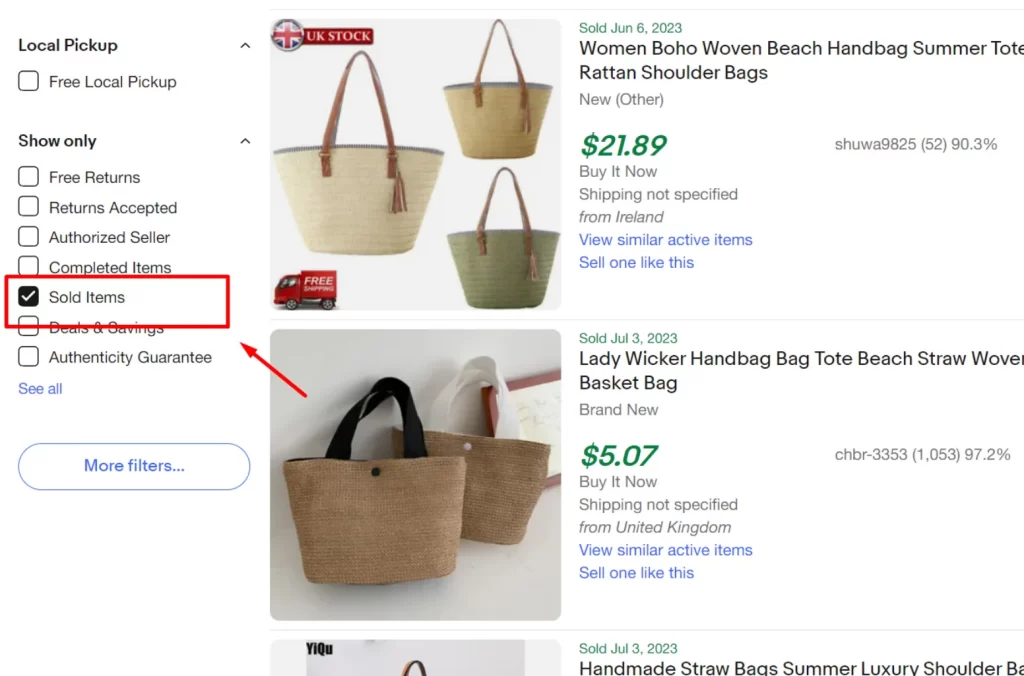
Under each item, you will see several listing details, including product title, product condition, eBay sold prices, listing format (eBay Auction or Buy It Now), shipping fee, and seller’s username.
If you want to learn more about the details of the listing, simply click on the item. If the listing is ended, you’ll be able to see the sold date and the SOLD label on the eBay sold listings. Otherwise, you will see the current active listing of that sold item.
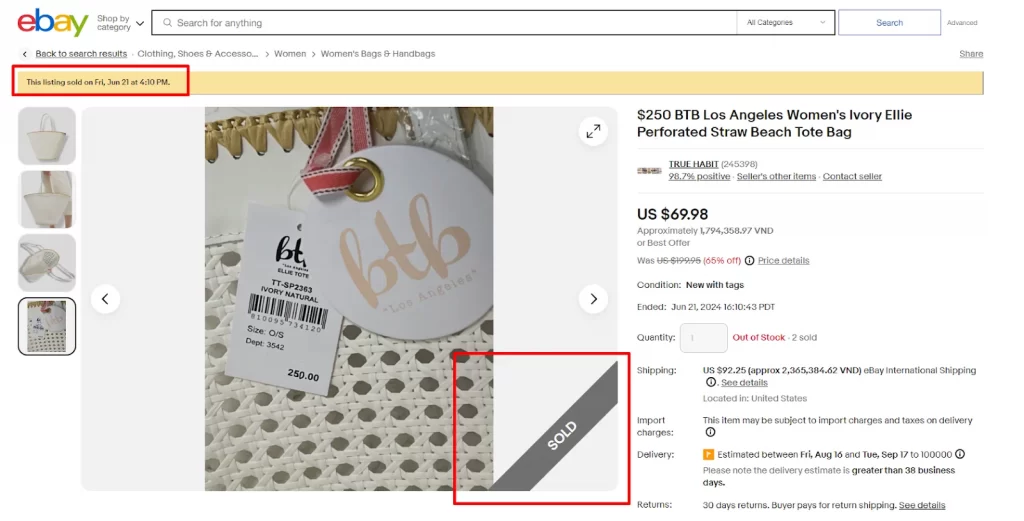
Moreover, below the listing details, you can click View similar active items to see more of the similar items currently listed. Or, if you are selling an identical item and want to list your product like that, click Sell one like this. It helps you create a listing template with the exact details already filled in for you.
Besides the Sold Items filter, you can further customize your eBay sold item search by selecting other filters such as listing format, price range, and shipping options.
#2. View sold items on eBay using Advanced search
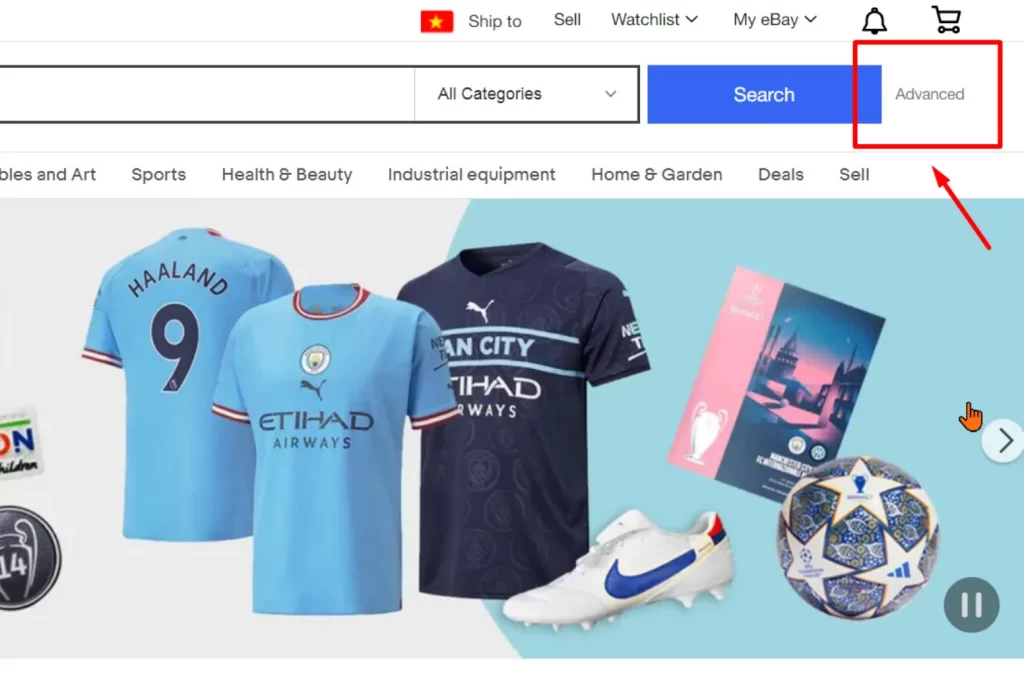
Another way we will guide you on how to see recently sold items on eBay is by using the eBay Advanced search feature.
Follow these steps to access Advanced search and view the sold items on eBay:
- Click Advanced on the right side of the search bar.
- Search for the relevant keyword and select the Sold items filter.
- Click the Search button to view the sold listings.
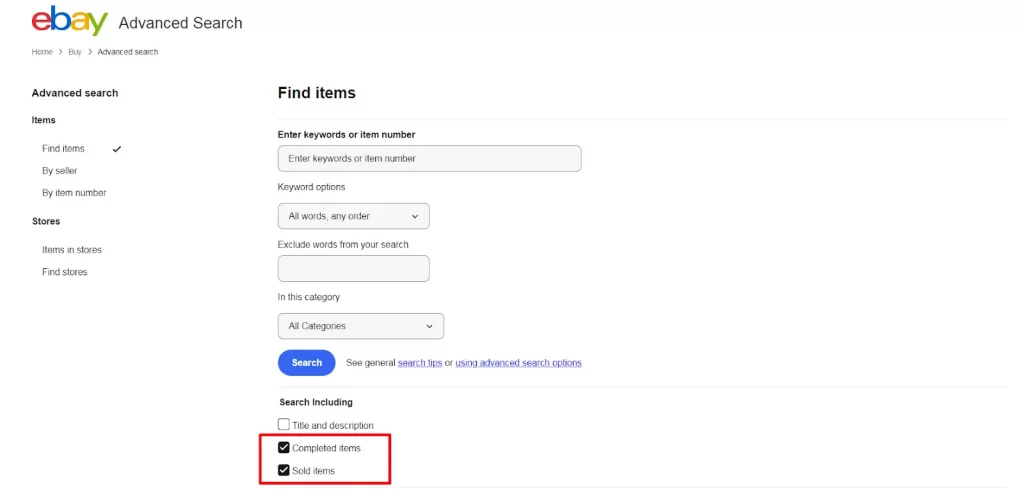
Similarly to using filters as mentioned above, you can also choose category, price, listing method, and so on to optimize your eBay sold listings search and tailor them to your specific needs.
#3. View your eBay sold items on Seller Hub
As an eBay seller, you can view your own sold items in addition to those of the other sellers. You can see the sales history of items you’ve sold for the last 2 years in Seller Hub or My eBay.
To view your eBay sold items, follow these steps:
- Go to your Seller Hub or My eBay
- Select Listings, then click Ended on the sidebar menu
- Choose Sold from the search drop-down menu and click Search.
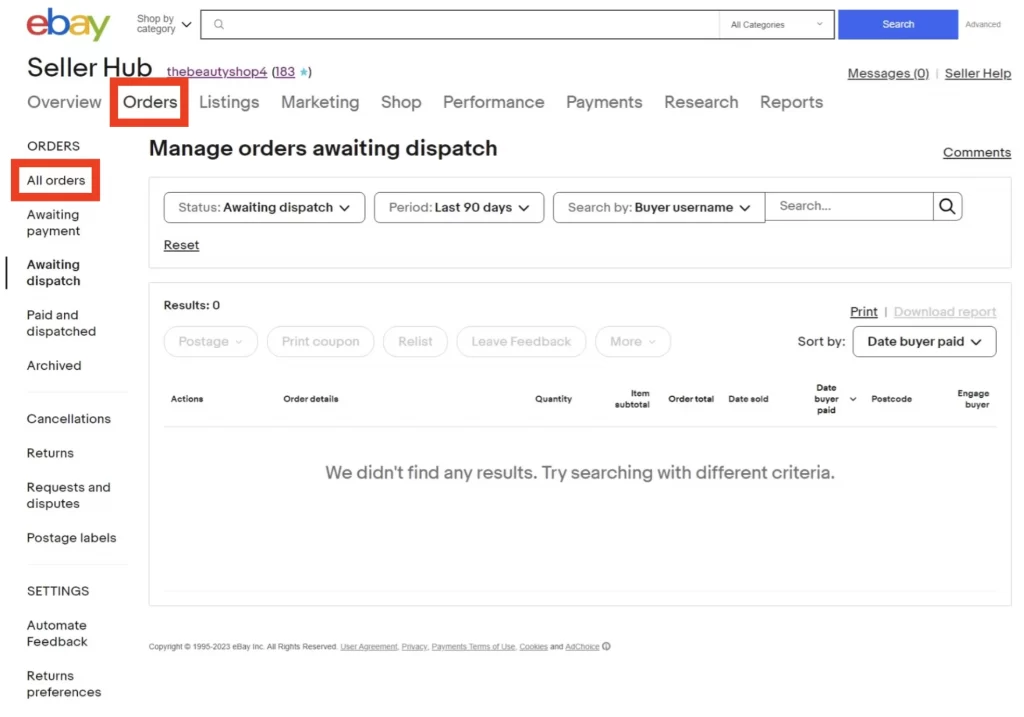
Once finished, you can see the details of the eBay sold items, including the photo, title, sale price, available quantity, number of watchers, end dates, and sales status. Here, you can also relist an item or sell similar ones if you have more in stock. When you are ready to relist at scale, our guide on how to list multiple items on eBay shows you how to publish in bulk instead of one listing at a time. To view your sold items on the eBay app, follow the same steps.
Now that you know how to look up items sold on eBay with a website interface, let’s learn how to see items sold on eBay mobile.
How to See Sold Items on the eBay App?
Do you mainly use the eBay mobile app? Or may you want to know how to view sold items on eBay mobile while your laptop is not with you? Just like on the eBay website, you can easily use filters to see eBay sold items. Let’s find out how!
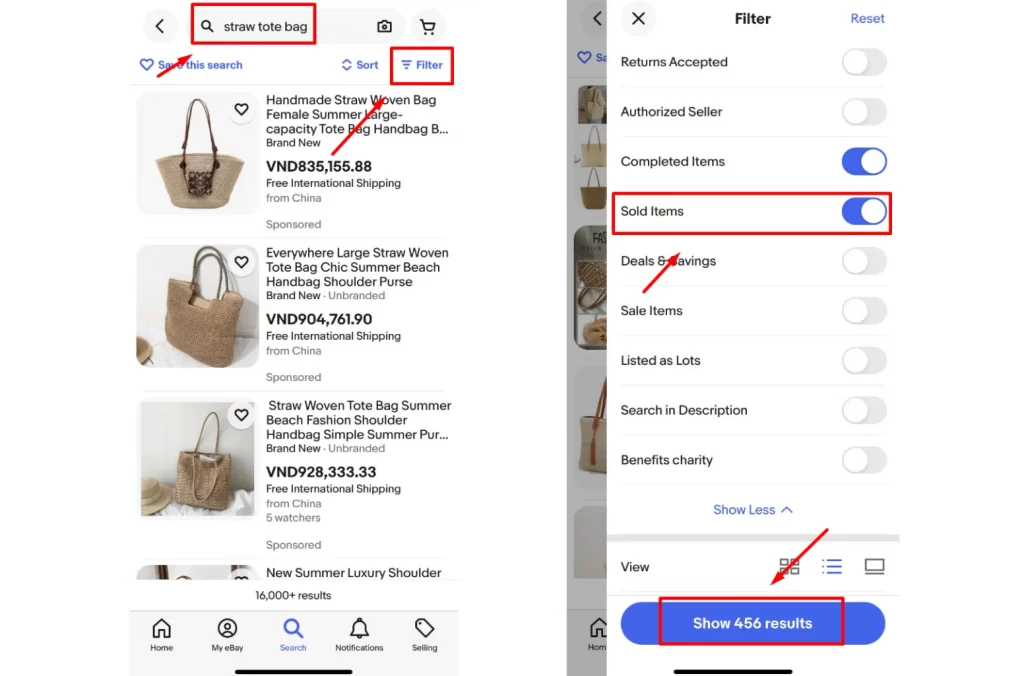
To view the eBay sold listings on the eBay mobile, follow these steps below:
- First, search for the keyword related to the item you’re interested in.
- Tap on the Filter option, scroll down, and choose Sold items from the list of filters.
- Finally, tap Show results to see the filtered sold items.
- Click on the items, then tap See original listing to view the eBay sold listing.
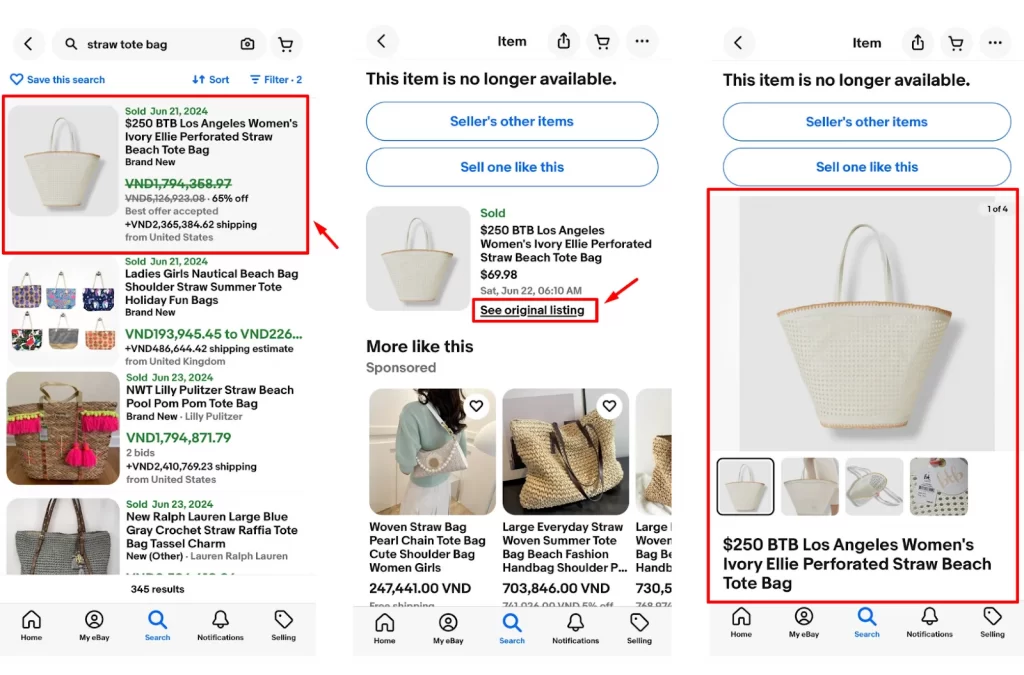
By following these simple instructions on how to check sold items on eBay, you’re able to browse the sold listings on your mobile device effortlessly.
Knowing how to track sold items on eBay is crucial for sellers who want to stay competitive. If you’re managing listings across multiple platforms, it can be tricky to keep tabs on all your sales data. Knowing how to track sold items on eBay is crucial for staying competitive, and it gets harder when you sell on several platforms at once. A marketplace integration tool centralizes your sales data, including sold listings from eBay and other channels, and syncs everything automatically every 15 minutes so you always have a complete view of performance.
Selling the same item on eBay and another channel?
Once you have a shortlist of products with proven sales, the next job is getting them listed without copying each one by hand. See the ways to list multiple items on eBay at once, and which one fits the number of products you sell.

Tips for Comprehensive Research Beyond Seeing Sold Items on eBay
Beyond simply viewing how to see sold items on eBay, you should check unsold and current listings to have a complete market picture. That will help you make a more informed decision when you launch a new product or improve your current listing on eBay.
Check unsold listings
Learning how to search for sold items on eBay and analyzing their data is crucial. However, don’t forget to check unsold listings. You can learn about product demand, pricing competitiveness, and how to improve your listings by analyzing unsold listings. When reviewing unsold listings, consider the following:
- Product demand: Check which items or product designs have remained unsold. This can help you avoid producing products with limited demand.
- Pricing comparison: By comparing the prices of unsold items with similar sold ones, you can identify if their price was too high. This action will help you to find the right price range for your listings.
- Listing optimization: Evaluate the item’s title, description, images, and details. This helps you identify areas for improvement in your listings and avoid listing mistakes.
To see the unsold listings, you will access them by using the eBay Completed Items (previously Completed Listings). You can easily see the Completed Items filter right above the Sold Items filter. Green prices indicate sold items in these completed listings, while black prices represent unsold items.
A product with 500 sales may seem attractive, but the real question is how many listings failed to sell. That’s why experienced sellers often look at sell-through rate rather than sold volume alone.
For example:
- 500 sold listings out of 600 total listings = strong demand.
- 500 sold listings out of 5,000 total listings = much weaker demand.
Combining Sold Items with Completed Items gives you a clearer picture of actual market demand. Shipping costs shape that demand too, so if buyers often purchase several items at once, knowing how to combine shipping on eBay can make your listings more attractive than a competitor’s.
Don’t forget current listings
While looking at sold and unsold listings gives you eBay sales history, it’s equally important to monitor current listings. Keeping an eye on active listings provides valuable insights into real-time market dynamics and trends. When analyzing current listings, consider the following aspects:
- Pricing strategies: Pay attention to how sellers price items, especially those with similar features or conditions. This information helps you set competitive prices for your listings.
- Listing quality: Evaluate the overall quality of listings, including images, descriptions, and other relevant details. Analyzing well-optimized listings can give you ideas for improving and making your listings stand out.
- Popular categories and trends: This knowledge helps you spot profitable niches or adjust your offerings accordingly. Once you know your competitive price, you can also nudge interested shoppers over the line by learning how to send offers to buyers on eBay who are watching but have not purchased yet.
How to See Sold Items on eBay over 90 Days?
However, when you use Advanced Search or filters to search for an eBay sold item, please note that the information available is limited to the past 90 days.
To see eBay sold items older than 90 days, you can use eBay Terapeak, which provides some historical sales up to the past 3 years. With Terapeak, you can view the number of sold items, eBay sold prices, the sell-through rate, or the shipping cost paid by the buyers, which is not available by other searches.
One of the benefits of eBay is that you can easily access this research tool in the Research tab on your Seller Hub dashboard. eBay Terapeak offers two tools: the Terapeak Product Research and the Terapeak Sourcing Insights tool. While the Terapeak Product Research tool is free for all sellers, the Terapeak Sourcing Insights tool is free only with a Basic, Premium, Anchor, or Enterprise Store subscription.
For serious product research, Terapeak is often more valuable than standard sold listings. While sold listings show individual transactions, Terapeak helps sellers identify long-term trends, average selling prices, seasonal demand, and sell-through rates.
Many experienced eBay sellers use sold listings for quick validation and Terapeak for deeper market analysis before investing in inventory.
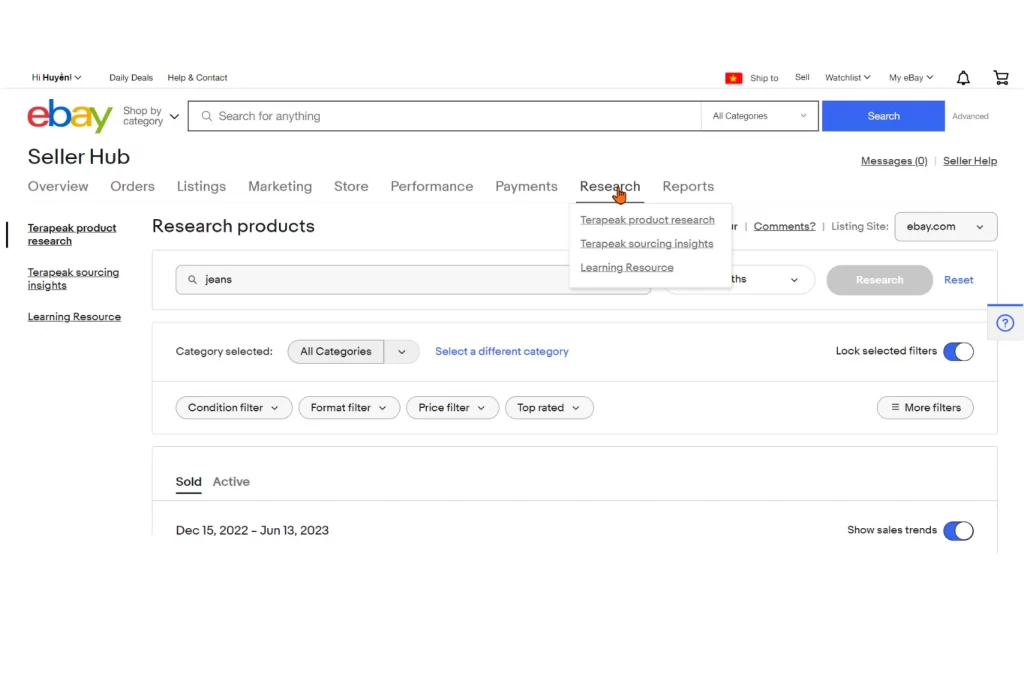
Furthermore, you can use this tool to research the best selling products on eBay and decide whether to enter those markets. Before you source anything, though, it is worth checking eBay’s list of prohibited items so you don’t invest in products you are not allowed to sell. Any more ideas about eBay Terapeak and how you use it to find sold items on eBay? Let us know!
More About Checking Sold Items on eBay – FAQs
How to see sold items on eBay?
To see sold items on eBay, use either Default Search Bar or Advanced Search option. Input Keywords describing the items, then check the Sold Items box and click Search. Moreover, you can use the Completed Items filter to see both Sold and Unsold items.
How to view sold items on eBay older than 90 days?
To see sold items older than 90 days on eBay, you can use the eBay research tool: eBay Terapeak. You can easily access this tool by heading to the Research tab in your eBay Seller Hub.
Can you still see sold items on eBay?
Yes, eBay still lets sellers and buyers see sold items on eBay. You can use the default search bar or the Advanced search option to view sold and unsold items on this platform for up to 90 days. Otherwise, you can also find your own eBay sold items coming back in 2 past two years on Seller Hub or My eBay.
How to see sold items on eBay mobile?
You can see sold listings on eBay Mobile through the eBay app, following the steps below:
1. First, search for the keyword related to the item you’re interested in.
2. Tap on the Filter option, scroll down, and choose Sold items from the list of filters.
3. Finally, tap Show results to see the filtered sold items.
You can also see eBay sold items on the app with their images. Although this function is not available anymore on the eBay app, there could still be a way. Here is how:
– Go to the Filter Customize menu and make sure you’ve enabled the “Lockable Filter” for your search results.
– Then conduct a keyword search and choose Sold items in the filter menu.
– When a padlock icon shows up next to the filter option, tap that padlock so that it closes and locks the filter option.
– Now all your searches will show Sold items only until you make changes to filter settings.
– If you want to search for sold items on eBay using images, simply do an image search, and you’ll get your results.
Is there a way to look up sold items on eBay?
Yes, you can easily look up eBay recently sold items to check market value or past listings. There are 3 ways to do that:
– Option 1 – Using Default Search: Enter your keywords, use the “Show only” filter on the left menu, and tick “Sold items.” This will show sold listings from the last 90 days.
– Option 2 – Using Advanced Search: Click “Advanced” next to the search bar, input your keywords, and select “Sold listings” or “Completed listings” for both sold and unsold results, also up to 90 days.
– Option 3- Using My eBay: From eBay Dashboard > My eBay > Selling. You can review their own sold listings from the last two years, including details like sale price and status.
How to filter by sold on eBay?
If you’re referring to filtering sold items on eBay, follow these 2 ways:
On eBay Search Results
1. Search for a product or keyword on eBay.
2. In the left-hand filter menu, scroll down to Show only.
3. Check Sold Items.
This will display listings that have successfully sold, along with their sale prices and dates.
On eBay Seller Hub (Your Own Listings)
1. Go to My eBay or Seller Hub.
2. Navigate to Orders.
3. Select Paid and Shipped or Completed Orders.
4. Use filters such as date range, item title, or order status to narrow results.
How to View Sold Items on eBay with Just 3 Steps!
You’ve walked through 3 ways on how to see sold items on eBay, via website and mobile app. By analyzing the data of sold listings, you can make smarter selling decisions, increase your chances of success, and unlock the full potential of eBay as one of the best-selling platforms.
Keep updated with the market demand to stay ahead of the competition and maximize your selling potential.
For more seller tips and eCommerce guides, explore the LitCommerce Retailer Blog. If you need extra support with growing your online business, don’t hesitate to Contact us.