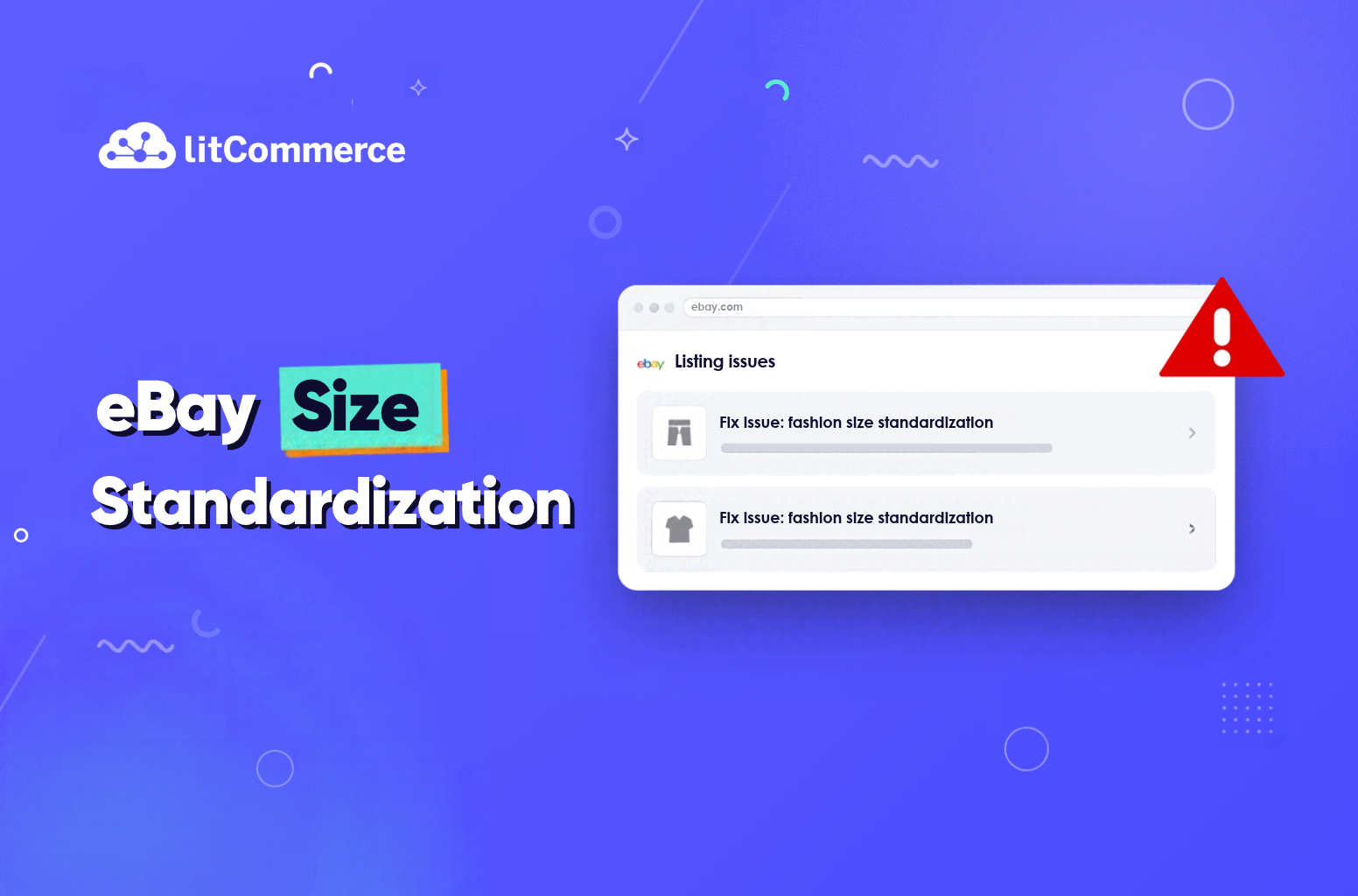
eBay size standardization requires every apparel and footwear listing to use a supported value in the Size item-specific field. In practice, eBay wants “M” in that field, not “Ladies Medium” or “See description.”
Since August 26, 2026, eBay hides listings with missing or unsupported sizes from search. Those listings stay hidden until you pick a supported value.
This guide walks you through the rule, the timeline, the accepted values, and the most common errors. It also shows you how to fix sizes across hundreds of listings without editing them one by one.
Key takeaways:
- eBay size standardization means the Size item specific must hold a value from eBay’s dropdown for that category.
- eBay started enforcing the rule on August 26, 2026, and it hides non-compliant listings.
- Size, Size Type, and Department are separate fields, and each one holds different information.
- Size ranges such as “S-M” or “6-12 months” need to become one size in the Size field.
- A wrong size mapping can raise returns, so you should test it on a few listings first.
What is eBay Size Standardization?
eBay size standardization is eBay’s rule that the Size item specific only accepts values from a fixed list. The list depends on the category, the eBay site, and, on eBay US, the Size Type you choose. Custom text like “Ladies M,” “fits like a 10,” or “N/A” no longer passes.
eBay makes these changes because its size filters only work with standard values. A buyer who filters by “M” won’t see a listing that says “Medium” in the Size field. Standard values also make sizes easier to compare, which helps buyers order the right fit.
eBay links the change to better search visibility, more consistent listing performance, and fewer returns. For more visibility beyond sizing, our guide to eBay listing optimization covers titles, photos, and item specifics.
What changed in the Size field
Before this change, many sellers typed size details freely. Some listing tools also sent the store’s own size labels straight to eBay. As a result, the same medium shirt could appear as “M,” “Medium,” “Ladies M,” or “Size M.”
Now, eBay checks the required Size field against its accepted values. According to eBay’s size guidance, other fields such as EU Size or UK Size don’t affect this check. Your title and description can still use natural, buyer-friendly wording.
Size vs size type vs department
Most size errors happen because sellers put three kinds of information into one field. Each piece has its own place in an eBay listing:
| Field | What it holds | Example |
|---|---|---|
| Size | The size only, picked from the dropdown | M, 10, 32 |
| Size Type | The fit range, when the category asks for it (eBay US) | Regular, Petite, Plus, Big & Tall, Juniors, Maternity |
| Department | The person the item is for | Women, Men, Unisex Adult |
| Title and description | Tag size, brand sizing, fit notes, and measurements | Tagged “Ladies M,” chest 38 in, runs small |
For example, a women’s petite blouse tagged “Ladies M” needs three separate entries. The Size field gets “M,” Size Type gets “Petite,” and Department gets “Women.” The original tag text then goes in the description.
eBay Size Standardization Timeline and What Happens to Old Listings
eBay rolled out size standardization in two phases during 2026. Full enforcement started on August 26, 2026, so the rule already applies to your new and existing listings.
| When | What eBay does |
|---|---|
| June 2026 | eBay starts converting clear values automatically, such as “Small” to “S.” It flags unclear values like “See description” or “N/A” with warnings. It also removes custom size entry for new listings. |
| Before August 26, 2026 | eBay updates existing listings when it can match the size with confidence, such as “Lg” to “L.” |
| From August 26, 2026 | eBay hides listings that still have missing, unsupported, or unclear sizes. Listings with non-standard or missing condition values are also blocked or held. |
What happens to a listing with an unsupported size
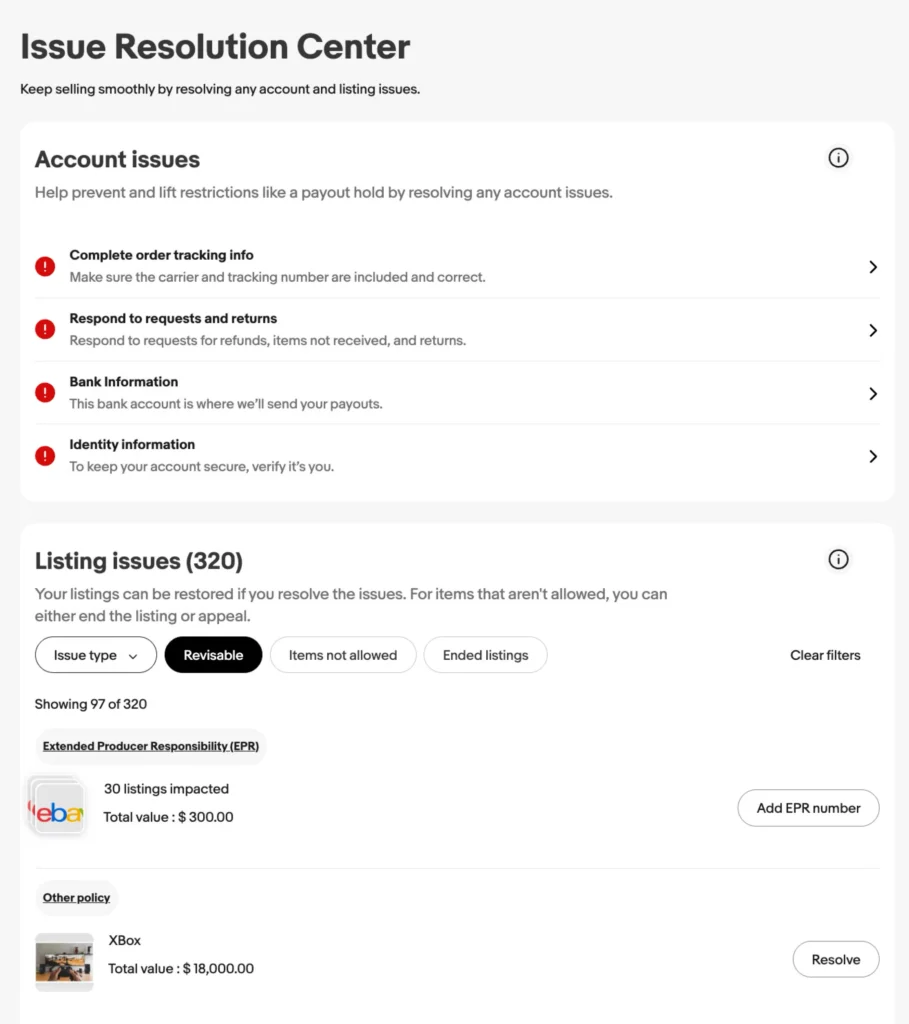
eBay doesn’t delete the listing right away. Instead, it hides the listing from search and sends you an email. You can find every affected listing in the Issue Resolution Center in Seller Hub.
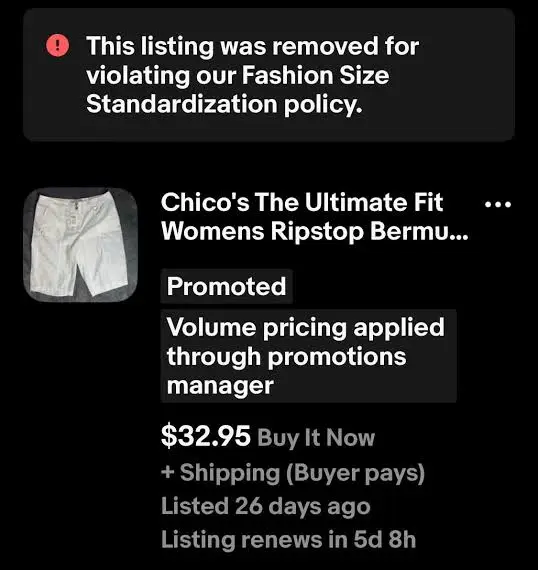
Good ‘Til Cancelled listings stay hidden until you select a supported size. You also can’t create or revise a listing with an unsupported size. eBay may still convert simple values like “Small” to “S” after August 26, but you shouldn’t rely on it.
This guide follows eBay.com (US). Accepted values can differ on eBay UK, eBay DE, and other sites. Always check the dropdown on the site where you sell.
What Size Values Does eBay Accept?
eBay size standardization accepts only the values that appear in the Size dropdown for each category. In its seller notice, eBay groups them into letter sizes (2XS, XS, S, M, L, XL, XXL), numeric sizes, and regional formats (US, UK, EU). The exact list changes by category, so one master list won’t work for every product.
You have two reliable ways to see the accepted values for your category:
- In Seller Hub: You open the listing form, choose the category, and click the Size field. The dropdown shows every value eBay accepts there.
- Through the API: Developers call getItemAspectsForCategory for the leaf category. The values returned for the Size aspect are the only values eBay accepts.
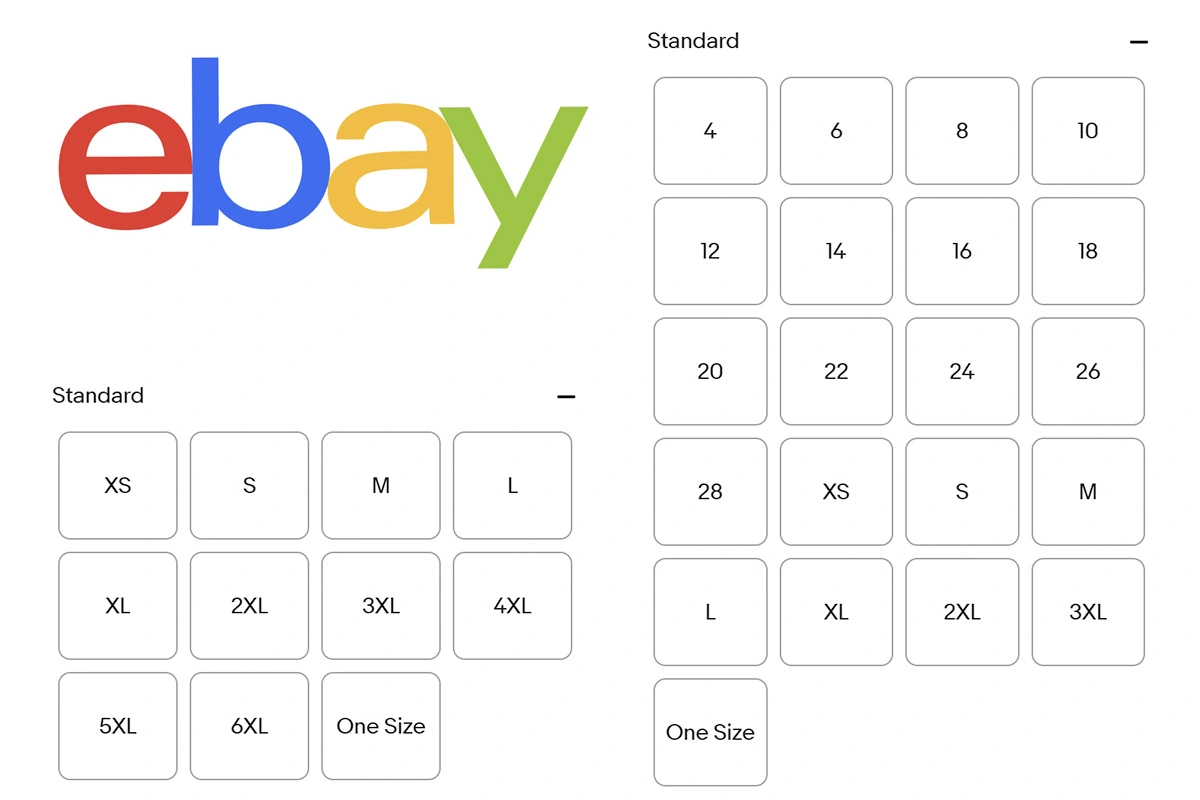
The API may describe Size as a free-text field. eBay notes that this label doesn’t mean it accepts any value.
Clothing sizes and size type
Most clothing categories use letter sizes, numeric sizes, or both. On eBay US, the Size Type you choose changes which sizes appear. For example, an “XLT” shirt belongs under Big & Tall, not Regular.
You should keep the size and the Size Type in separate fields. When a category requires both, eBay expects a valid pair. A plus-size dress, for instance, uses Size Type “Plus” and the matching value from the Plus dropdown.
Pants, jeans, and bras
These categories use more than one measurement. eBay’s guidance says jeans and pants should use the supported waist size and add the inseam. Bras should use the supported band and cup size, with the label size in item specifics or the description.
Shoes
Shoe sizes depend on the region. eBay asks you to select the supported regional size (US, UK, or EU) for the category. You can also add the size printed on the shoe to the description.
A bare “42” can mean different things in different regions. That’s why you should confirm the region before you map any shoe size.
Baby and kids clothing
eBay asks you to choose the closest age or size from the dropdown. You can then add age, height, or weight guidance in the description. A combined range from your catalog, such as “6-12 months,” still needs to become one dropdown value.
One Size items
A tag that says “One Size” doesn’t automatically mean you can enter “One Size.” eBay’s own example is an item tagged One Size that fits like XS/S. In that case, you select the closest supported size and add “Tagged One Size; fits like XS/S” elsewhere in the listing.
How to Map Your Catalog Sizes for eBay Size Standardization
Size mapping links each size label in your catalog to one value that eBay accepts. The 5 steps below run in order, from finding the problem to checking the fix.
Step 1: Find the listings affected by eBay size standardization
You start with a list of what needs fixing. You can pull that list from three places:
- Issue Resolution Center in Seller Hub: It shows the listings eBay has hidden for size. These listings earn nothing until you fix them, so you handle them first.
- Active listings in Seller Hub: eBay flags listings with missing required item specifics there. You can download those listings as a spreadsheet.
- Your store catalog: You export apparel and footwear products from Shopify, WooCommerce, or BigCommerce. The file should include the SKU, product type, size option, and every variant value.
You keep an untouched copy of each export. That copy lets you undo a bad change later.
A quick search also catches problems that reports miss. You search your own eBay store for a common item and apply a size filter. Any listing that drops out of the results still carries a non-standard size.
Step 2: Sort every size value into four groups
You list every unique size value from your exports. You then sort each value into a group, because each group needs a different action.
| Group | Examples | What you do |
|---|---|---|
| Standard | S, M, 10, US 8 | You keep it, but you confirm it exists in the category’s dropdown. |
| Clear but non-standard | Small, Lg, SM, Ladies M | You map it to the matching standard value. |
| Unclear | One Size Fits Most, OSFA, S-M, Tag M fits S | You review it by hand and choose the closest size. |
| Missing or invalid | Blank, N/A, Unknown, See description | You fix it in your store catalog first. |
Values with fit notes or ranges should never go into an automatic rule. For example, “Tag M fits S” doesn’t mean the same thing as “M.”
Step 3: Build a size mapping sheet for eBay size standardization
You create one row for each unique source value. Each row fills three eBay fields in this order: Department, Size Type, and then Size. On eBay US, the Size dropdown changes with the Size Type. So if a size doesn’t appear in the list, the Size Type is often the problem.
The sample sheet below covers the labels we see most often in fashion catalogs. You should still confirm each value in your category’s dropdown before you use it.
| Source value | Department | Size Type | eBay Size | Note for the description |
|---|---|---|---|---|
| SM | Women | Regular | S | None needed |
| Ladies M | Women | Regular | M | Tag size: Ladies M |
| Mens L | Men | Regular | L | None needed |
| UK 12 (eBay US listing) | Women | Regular | US equivalent, often 8 | UK and US sizes differ, so you check the brand’s size chart. |
| 6-12 months | Matches the item | Not used | One age value from the dropdown | Full range from the tag |
| S-M | Women | Regular | M or S | The range can stay in the title. |
| XLT | Men | Big & Tall | The matching Big & Tall size | None needed |
| 1X | Women | Plus | The matching Plus size | None needed |
| One Size (fits like XS/S) | Women | Regular | S or XS | Tagged One Size; fits like XS/S |
| 42 (shoes) | Men | Not used | The matching regional size, such as EU 42 | You confirm the region on the shoe first. |
| N/A, See description, blank | None | None | None | You fix the product data in your catalog. |
Accepted values differ between categories. If you sell in several categories, you add an eBay category column to the sheet.
Step 4: Apply the mapping on eBay
Where you apply the mapping depends on where your listings come from.
- Go to Active listings and update the item specifics.
- For hundreds of listings, you fill the Size column of the Step 1 spreadsheet from your sheet and upload it again. The next section covers these bulk methods in more detail.
To skip these manual edits, you can also rely on LitCommerce. LitCommerce handles size mapping for you inside one dashboard. You can pick the right value from eBay’s own dropdown, so you never type a size by hand.
If you sell on several channels, LitCommerce connects your Shopify, WooCommerce, or BigCommerce store to eBay, Etsy, Amazon, and 10+ other channels. It pulls your products into All Products, lists them on each channel, and keeps inventory and prices in sync every 15 minutes. For eBay fashion listings, its Size Value Mapping feature turns your store’s size labels into values eBay accepts.
Size Value Mapping works in three simple steps:
1. Pick eBay’s value for each label. In Channel Settings, you match each store label to a value from eBay’s list, such as “Ladies M” to “M.” The feature covers fields such as Size and Shoe Size.
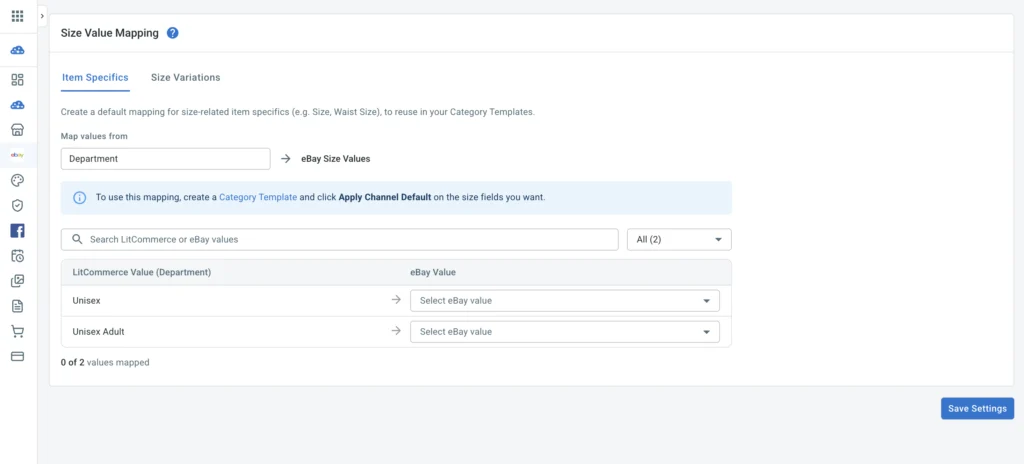
2. You can reuse the rules in your templates. In Category Template, you click Apply Channel Default, or you set a custom mapping for one category.
3. LitCommerce sends the mapped value to eBay. When you add a product from All Products to an eBay draft, its Size variations follow your rules automatically.
For sellers, this setup removes most of the manual work. You fix each size label once, and one rule covers every listing with that label. You choose values from eBay’s list in the dashboard, so typos never reach eBay. Your values in All Products stay the same. eBay receives the values it accepts, and your Etsy buyers still see your original labels.
Map your eBay sizes once with LitCommerce
LitCommerce’s size value mapping turns your store’s size labels into values eBay accepts. Your Shopify, WooCommerce, or BigCommerce catalog keeps its original labels for every other channel.

Step 5: Test the mapping, then roll it out in batches
You test the mapping on five listings before a full rollout. A useful test set includes one top seller, one variation listing, one shoe listing, one pre-owned item, and one listing synced from your tool. For each listing, you check three things:
- The Size field shows the value you intended.
- The other item specifics stay unchanged.
- The listing isn’t hidden or on hold.
You then update the rest in batches. You start with top sellers and multi-quantity listings, then move to slow-moving stock. After each batch, you check the Issue Resolution Center for new errors. This order protects your sales, because one wrong rule can spread to hundreds of listings at once.
How to Fix Size Values on Many Listings at Once
You can apply eBay size standardization in bulk, and the right method depends on how many listings you need to fix and where they come from. Manual edits work for a handful of items, while a mapping rule in your listing tool scales to hundreds.
| Method | Best for | Main limit |
|---|---|---|
| Seller Hub edits | Fewer than 10 listings | Each listing takes several clicks. |
| CSV bulk upload | Sellers who list directly on eBay | A typo in the file repeats across every row. |
| Mapping rules in a listing tool | Stores that sync from Shopify, WooCommerce, or BigCommerce | You need to set up the rules once per category. |
Edit a few listings in Seller Hub
You open the Issue Resolution Center in Seller Hub and select an affected listing. You then correct the Size field, check the Size Type, and save. This approach is fine for a small shop, but it gets slow past 10 listings.
Bulk update with a CSV file
Seller Hub Reports lets you download your active listings as a CSV file. You can then fix the Size column with find and replace, based on your mapping sheet, and upload the file again.
This method is faster, but it has no safety net. eBay only checks the file after you upload it. A single wrong find-and-replace rule can change every matching row, so you should upload a small test file first.
Notes for API sellers
If your system sends listings through the eBay API, you should pull accepted values with getItemAspectsForCategory for every leaf category. You then send only those values. When Size Type and Size are both required, you send them as a valid pair. Our guide on how to get and use an eBay API key covers the setup.
Map sizes once with a multichannel listing tool
A listing tool fixes the root cause instead of the symptoms. Most size errors start in your store catalog, and the tool sends those labels to eBay on every sync. If you only fix eBay, the next sync can bring the old label back.
With LitCommerce, you map sizes once with Size Value Mapping in Channel Settings and reuse it in your eBay Category Templates. LitCommerce then keeps inventory, prices, and titles in sync on a 15-minute cycle. You can also cross-list the same products to Etsy, Amazon, and 10+ other channels from one dashboard. If you’re still comparing options, our roundup of eBay listing software tools shows how other tools handle bulk edits.
Stop fixing eBay size errors one listing at a time
LitCommerce lets you set eBay item specifics once and apply them to hundreds of products with Templates & Rules. Your Shopify, WooCommerce, or BigCommerce catalog keeps its own size labels.
Common eBay Size Errors and How to Fix Them
Most size errors come from three causes: a placeholder value, a size outside the category’s list, or two pieces of information in one field. The table below matches each error to its cause and its fix.
| Error or notification you see | What causes it | How to fix it | Where to fix it |
|---|---|---|---|
| “[value] is not a valid value for Size,” for example, “See description is not a valid value for Size” | The Size field holds a placeholder or a label that isn’t in the category’s dropdown. | You replace it with the closest dropdown value. You then move the original label to the description. | Seller Hub listing form, or the size mapping in your listing tool |
| “Invalid Size Type for Size” | The size doesn’t exist under the Size Type you picked. An “XLT” shirt under Regular is a common case. | You switch the Size Type to the right group, such as Big & Tall. Alternatively, you pick a size from the Regular list. | Item specifics in Seller Hub or in your listing tool |
| The listing won’t publish or revise, and Size is flagged as missing | The Size field is empty. Often, the listing tool didn’t link your product’s size option to eBay’s Size field. | You add a supported size. In your tool, you link the store’s size option to eBay’s Size item-specific. | Listing tool settings, then resend the listing |
| An eBay email says your listing is hidden, and it appears in the Issue Resolution Center | An existing listing still had a size that eBay couldn’t match after August 26, 2026. | You select a supported size. The listing returns to search once the size is valid. | Issue Resolution Center in Seller Hub |
| eBay rejects a size such as “S-M,” “10/12,” or “UK 10-11” | The field holds a range or two sizes at once. | You choose the one size that fits best. If you stock several sizes, you create one variation per size. | Item specifics, or the variation setup |
| A shoe size is rejected | The value is a bare number, or the region doesn’t match the category. | You check the region on the shoe and pick that regional size from the dropdown. | Item specifics |
| One variation blocks a whole multi-size listing | A single variation holds an invalid size, so eBay stops the full listing. | You add a new variation with a valid size and retire the old one. The steps appear in the next section. | Seller Hub or your listing tool |
| The listing is on hold for condition | The Condition field is missing or uses a non-standard value. | You choose a supported condition for the item. | Item specifics |
Error wording can vary slightly between Seller Hub, the eBay app, and third-party tools. If you see a size error that isn’t listed here, you can contact eBay Support and share the Item ID.
Return and “Item Not as Described” Risks From Wrong Size Mapping
A wrong mapping can cost you more than a hidden listing. If the Size field says “M” but the item fits like an “L,” the buyer has a valid reason to open an “item not as described” return.
Under eBay’s Money Back Guarantee, sellers usually cover return shipping for items not as described. These returns also appear in eBay’s service metrics, which compare you with similar sellers. Many fashion sellers worry about this, because “closest size” isn’t always the true size.
You can lower that risk with four habits:
- Test every new mapping rule on a few listings before a full rollout.
- Add key measurements, such as chest, waist, inseam, and length, to the description.
- Note the original tag size and fit, for example, “Tagged L, runs small, fits like M.”
- Add a size chart image to listings from brands with unusual sizing.
Vintage clothing with no size tag
Vintage sellers often have no tag to go by. In that case, you measure the garment and compare it with a modern size chart. You then pick the closest dropdown value and list the exact measurements in the description.
Old sizing also runs smaller than modern sizing in many cases. A vintage “14” can fit much smaller than a modern 14, so measurements protect you more than the tag does.
Secondhand items with a readable tag
A readable tag gives you a strong starting point. You use the tag size when it matches an option in the dropdown. If the item has shrunk or been altered, you choose the size that fits now and explain the change in the description.
Brand sizes that don’t exist in the dropdown
Some brands use their own scale, such as 1 to 6. eBay’s advice is to pick the closest supported size and add the brand size elsewhere in the listing. You can also add a custom item specific such as “Brand Size” so buyers see it at a glance.
eBay Size Standardization: FAQs
What is eBay size standardization in simple terms?
eBay size standardization is eBay’s rule that the Size field must use a value from eBay’s dropdown. Custom labels like “Ladies M” go in the title or description instead. The rule covers apparel and footwear listings.
Will my old eBay listings be hidden?
Yes, eBay hides old listings if they still have a size it can’t match. Since August 26, 2026, eBay hides those listings from search and emails you. The listing comes back once you select a supported size.
What should I do with vintage clothes that have no size tag?
You measure the item and compare it with a modern size chart. You then choose the closest dropdown size. The exact measurements go in the description, so buyers can check the fit themselves.
Will changing the size reset my sales history?
For a single-item listing, it won’t. A size change is a normal revision, so the Item ID and history stay. For a multi-variation listing, you add a new variation instead, and its sales history starts from zero.
What if my size isn’t in eBay’s dropdown?
You select the closest supported size, then add the real size, brand size, or measurements to the description or a custom item specific.
Get Ahead of eBay Size Standardization Today!
eBay size standardization is now part of every apparel and footwear listing. The fix follows a clear order: you find hidden listings, check the accepted values, build a mapping, and test it. After that, you roll out the update in batches and watch the Issue Resolution Center for a week.
For sellers who sync a store catalog to eBay, the mapping step matters most. Once it lives in your listing tool, every future sync sends eBay the right size. If you need help setting up Size Value Mapping, our team is ready to help through the Contact Us page. For more guides on selling across marketplaces, you can visit the Blog.