



You already run a profitable WooCommerce store, and now you’re ready to add eBay and Amazon to the mix. That’s a smart choice. Amazon and eBay are two of the biggest marketplaces in the world. But selling on all 3 channels at once brings a new problem: managing listings, inventory, and orders separately for each platform. One little typo in a stock count and you may be stuck overselling a product you don’t actually have.
This is where WooCommerce eBay Amazon integration comes in. Instead of juggling 3 separate backends, you connect your store once and manage listings and inventory from a single place, while also listing on eBay and Amazon much faster than building each listing manually.
Here’s what this guide covers:
- 3 methods to connect WooCommerce with eBay and Amazon
- What to prepare before WooCommerce eBay Amazon integration
- A setup guide for WooCommerce eBay Amazon integration in 4 steps
Let’s get into it.
Three Ways to Connect WooCommerce with eBay and Amazon
WooCommerce doesn’t have a native connector to eBay or Amazon. So to set up WooCommerce Amazon and eBay integration, you can try one of three approaches. Each one fits depending on your business scale and preference.
1. Manual export and listing
This method means exporting products from WooCommerce as a CSV, reformatting the file to match eBay’s Item Specifics and Amazon’s category fields, then uploading to each platform separately using its native tools. Nothing syncs automatically after that.
It fits sellers with fewer than 30 SKUs, seasonal shops that list once a quarter, or anyone testing eBay and Amazon before committing to a tool. The cost is zero, and you keep full control over every listing.
However, it breaks down when a sale happens on eBay, and nothing tells Amazon to reduce that item’s stock. Overselling then really becomes a matter.
On top of that, every price change or new SKU means re-exporting, reformatting, and re-uploading to two platforms by hand. With 50+ SKUs, this workload risks making your team unproductive.
2. Separate plugins for each marketplace
Here, you install one WooCommerce-to-eBay plugin and a separate WooCommerce-to-Amazon plugin for multichannel selling. Each one syncs its own marketplace’s inventory, price, and orders back to WooCommerce independently.
This works reasonably well for 30 to 100 SKUs, and it suits sellers who don’t mind managing two plugin dashboards alongside WooCommerce’s own admin.
The cons: the eBay plugin and the Amazon plugin don’t talk to each other. You need to manage 2 different dashboards, not that convenient! A sale on eBay updates WooCommerce, but nothing tells the Amazon plugin to adjust its own listing quantity until its next sync cycle, if at all. That means checking three dashboards manually to confirm stock matches, which defeats much of the time savings the plugins were supposed to deliver.
3. A unified multichannel integration tool
A unified tool connects WooCommerce, eBay, and Amazon through one central system. Instead of managing separate plugins, you can control all 3 platforms from a single dashboard, from listings and inventory to orders.
This approach suits growing catalogs, frequent orders, or especially teams that want to reduce manual work. There are
LitCommerce is a centralized multichannel integration tool that works this way. It provides WooCommerce integration for the top +5 leading marketplaces in the world. Once WooCommerce, eBay, and Amazon are connected, you can:
- List WooCommerce products on eBay and Amazon, or vice versa.
- Keep inventory and pricing synchronized across all three channels (syncs on a 15-minute cycle).
- Manage WooCommerce, eBay, and Amazon orders from one place.
- Apply channel-specific listing settings for each marketplace.
Especially, besides setting up WooCommerce eBay Amazon integration, LitCommerce provides additional features tailored to each marketplace.
For eBay, you can:
- Design reusable eBay description templates.
- Generate and optimize titles and descriptions with AI.
- Find matching categories and view the item specifics you need to fill in.
- Connect and manage multiple eBay accounts.
- Clone listings between connected eBay accounts.
For Amazon, you can:
- Find existing products using the ASIN Lookup tool.
- List products approved under Amazon’s GTIN exemption.
- Optimize Amazon listing content for search.
What You Need Before You Connect WooCommerce to eBay and Amazon
Getting this checklist done first prevents most of the frustration sellers run into mid-setup.
Amazon & eBay seller account
Your eBay account needs to be active and verified, with Business Policies set up in Seller Hub covering payment, shipping, and returns. Note that since October 15, 2025, eBay retired the separate Shipping and Payment & Return tabs for new listings; Business Policies now handle that configuration entirely.
For Amazon, create and verify an Amazon seller account. Then, review Amazon’s selling requirements and choose either the Individual or Professional selling plan. If you own a registered trademark, you can also consider joining Amazon Brand Registry for additional brand protection and selling tools.
Marketplace-specific requirements to check
eBay’s Item Specifics are category-required fields, things like Brand, Size, or Condition, and a listing gets rejected or flagged if they’re left blank. Amazon works differently: you either match an existing ASIN or create a new listing entirely, and certain categories (electronics, apparel) demand extra data like weight or dimensions that WooCommerce doesn’t always store by default.
You’ll also need to decide between Merchant Fulfilled Network (you ship the order yourself) or Fulfillment by Amazon. Since WooCommerce is your fulfillment base, most sellers integrating this way run MFN.
Standardizing your WooCommerce product data
With accounts and requirements sorted, the last piece is making sure your WooCommerce catalog itself is ready to list smoothly on both marketplaces. On eBay and Amazon, you may not be able to list a product if its listings lack required information. So, well preparing and cleaning this up first saves rework later.
You can check this product information before running WooCommerce Amazon eBay integration:
- Titles run 50 to 80 characters and avoid vague terms like “Item” or “Product”
- Descriptions run at least 100 characters with clear feature and benefit language
- Every product has a price set (never $0 or blank)
- SKUs are unique and follow a consistent format, with no random codes or spaces
- Products are assigned to a WooCommerce category
- At least one high-quality image (1200x1200px minimum) is attached
- Stock quantity is entered, not left at an infinite or undefined status
- Variants are structured as Variable Products with Attributes, not separate standalone SKUs
Missing images and infinite stock settings are the two mistakes that cause the most listing rejections and buyer confusion once you go live.
How to Set Up WooCommerce eBay Amazon Integration: Step-by-Step
With that preparation ready, here’s exactly how WooCommerce eBay and Amazon integration with LitCommerce works, from start to finish.
Step 1: Connect WooCommerce with eBay and Amazon
Start by connecting WooCommerce to LitCommerce. You can find LitCommerce in the WooCommerce plugin or create an account on LitCommerce and add your store. Either way, WooCommerce becomes the Main Store, the place where your products, SKUs, prices, images, and stock counts live as the single source of truth for your integration.
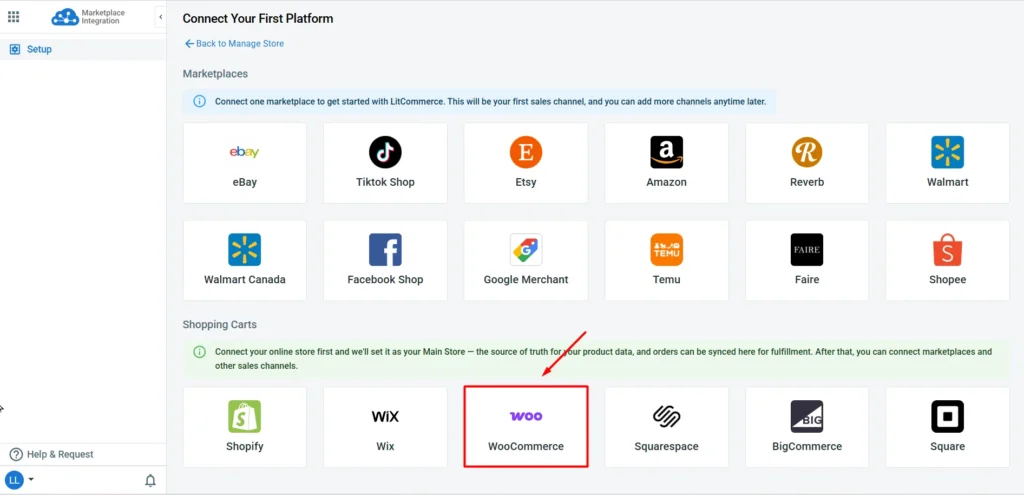
From there, continue to connect your eBay and Amazon stores to LitCommerce. Make sure to choose the correct marketplace country for each (eBay.com vs eBay.co.uk, or the right Amazon marketplace), since this grants the tool permission to read and write listings, inventory, and orders on your behalf.
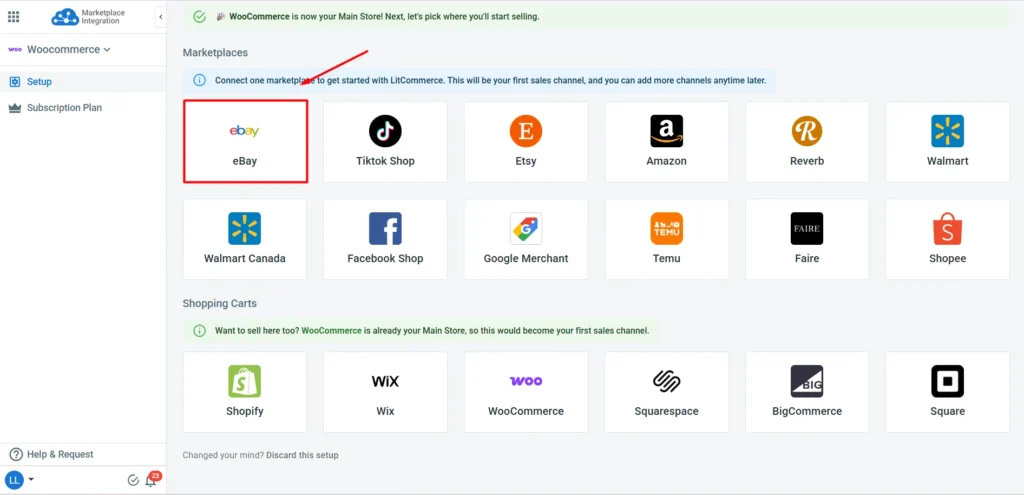
Once finished, you have successfully linked your WooCommerce store to eBay and Amazon, and you are ready to list, import, and link products across these 3 channels.
Plus, you’re not limited to just these two. If you’re also selling on Etsy or TikTok Shop, LitCommerce lets you add those channels the same way. Check out our guides on Etsy integration for WooCommerce and how to set up TikTok Shop for WooCommerce if you want to expand further.
Step 2: List & import your products on eBay and Amazon
After you connect WooCommerce with eBay and Amazon, the next step is to list your products. Depending on where your products currently live, you’ll fall into one of three cases:
Case 1: List products from WooCommerce to eBay and Amazon
If your products only exist on WooCommerce so far, this is your starting point. Let’s list WooCommerce products on eBay first.
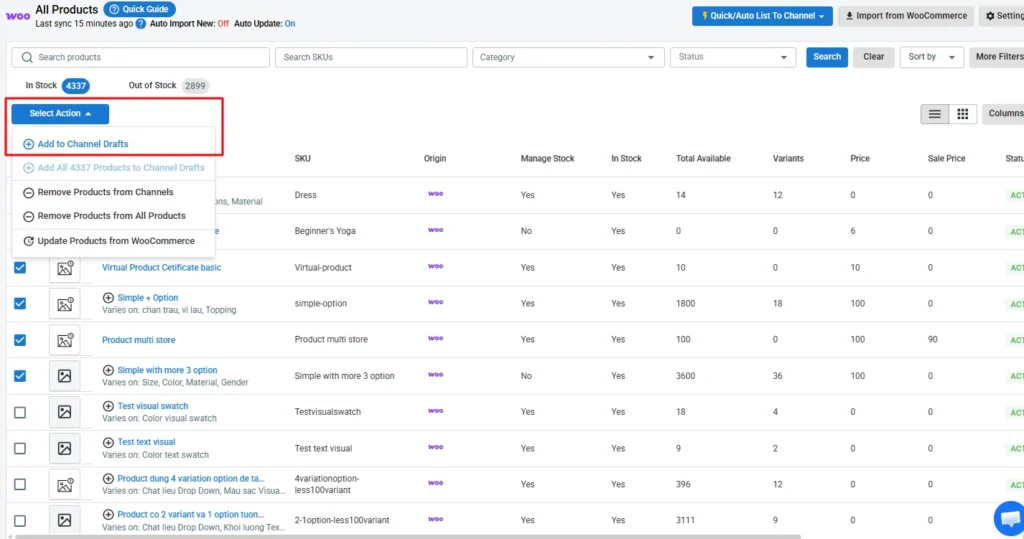
Once you connect WooCommerce as your Main Store, products in WooCommerce will automatically import into the All Products tab. From there, follow these steps to list your WooCommerce products on eBay:
- Select the WooCommerce products you want to list
- Then, click Select Action > Add to Channel Drafts, check the box next to your eBay store, and click Add As Drafts Now.
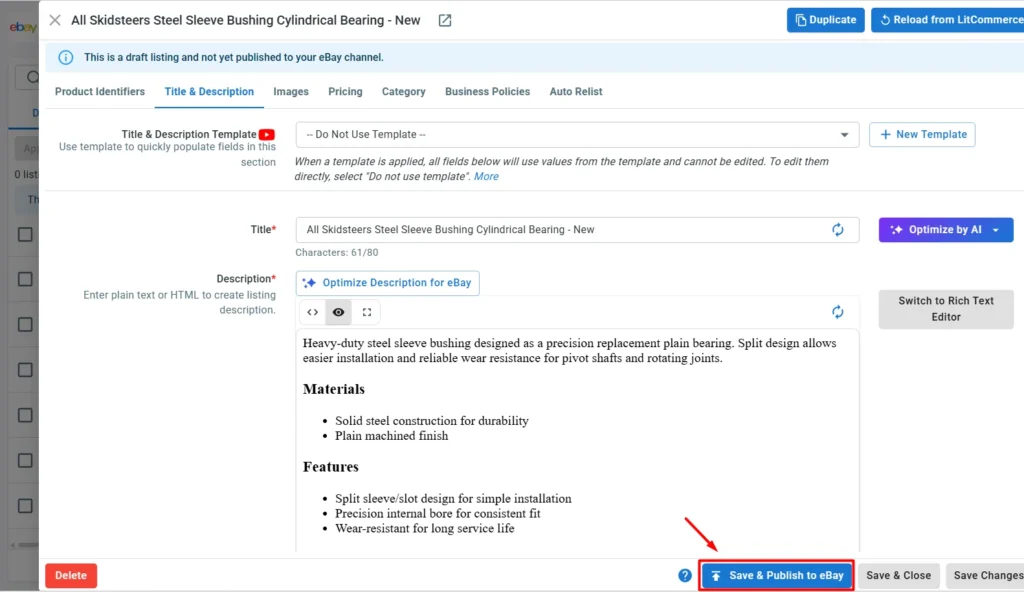
- Go to the eBay tab, open each draft, and fill in the required fields. For example, review your product category, then your item specifics, etc. When editing your eBay listing, you can also set up Auto-Relist to keep listings active without manual renewal.
- Once your item is ready, click Save and Publish to eBay.
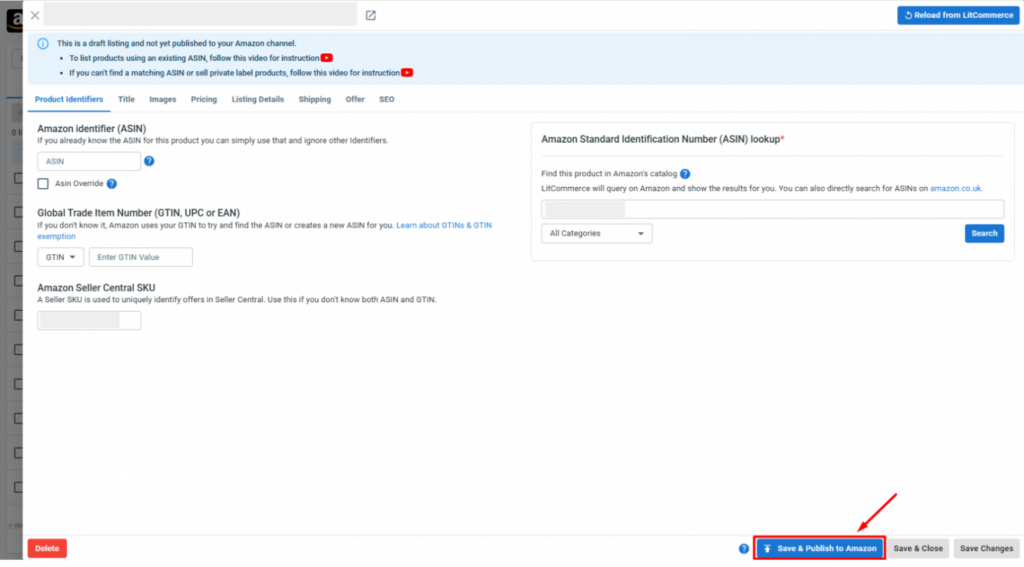
Similarly, to list your WooCommerce products on Amazon, follow the same process. For Amazon, you can search for your ASIN or apply for a GTIN exemption, and let LitCommerce configure it for you so you can list on Amazon. Don’t forget to optimize your listings to meet Amazon’s requirements.
Case 2: Import existing eBay and Amazon listings into WooCommerce
If you already sell on eBay or Amazon and WooCommerce is the new addition, import instead of relisting manually.
To import products from eBay to WooCommerce, follow these steps:
- From the eBay channel tab, click Import from eBay.
- Filter which products to bring in, and turn on auto-linking so matching SKUs connect automatically.
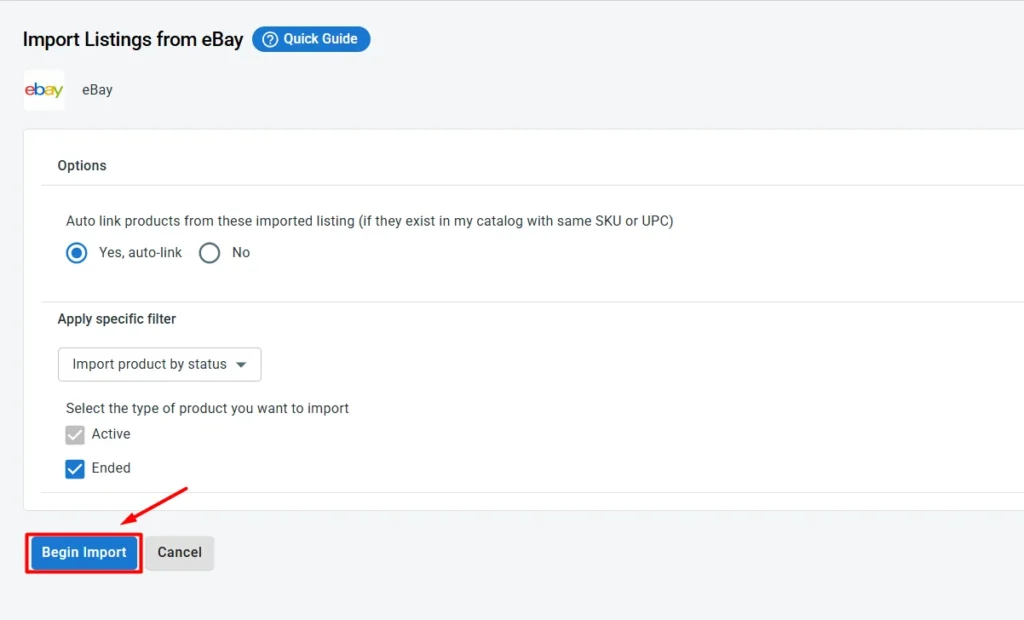
- Once finished, click Begin Import.
- Your imported eBay listings will show up in LitCommerce. Select the ones you want to bring over, click Select Action, then choose Create on WooCommerce.
After that, follow the same steps to import products from Amazon to WooCommerce.
Case 3: Link products that already exist on all three platforms
When importing products from Amazon and eBay to WooCommerce, if auto-linking is turned on, products that match successfully will show a blue dot, and anything that can’t be matched automatically will show a red dot instead.
To connect the unmatched ones between Amazon and WooCommerce, or eBay and WooCommerce:
- Hover over the red dot next to the unlinked product.
- Select Link To A Product.
- Find the corresponding item and click Select.
Once that’s done, the product is linked across all three platforms and ready to sync automatically going forward.
Step 3: Set up WooCommerce, eBay, and Amazon sync
The next step in your WooCommerce eBay Amazon integration is setting up automatic synchronization. This keeps prices, inventory, and product information consistent across all three platforms.
First, go to the All Products tab and click Settings. Turn on Automatic Update so LitCommerce can update product changes from WooCommerce in the All Products catalog.
Next, open your Amazon or eBay channel and select Channel Settings. From there, you can configure the following options:
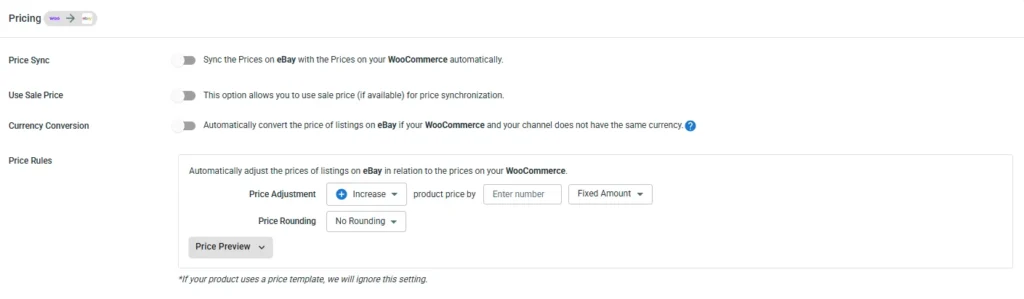
- Price Sync: This allows LitCommerce to automatically update prices on Amazon and eBay when they change in WooCommerce. So you only need to make changes from one platform, and they are synced to the 2 marketplaces, instead of editing all of 3 platforms. You can also create Price Rules for each channel. For example, increase prices by a fixed amount or percentage to help cover Amazon referral fees or eBay final value fees.
- Inventory Sync: LitCommerce checks and updates inventory across WooCommerce, Amazon, and eBay every 15 minutes. When a product sells on one channel, it sends the new quantity to the other connected channels. This helps reduce stock mismatches and overselling. Remember that LitCommerce can only update inventory automatically for linked products. If an order contains an unlinked product, its WooCommerce stock will not change.
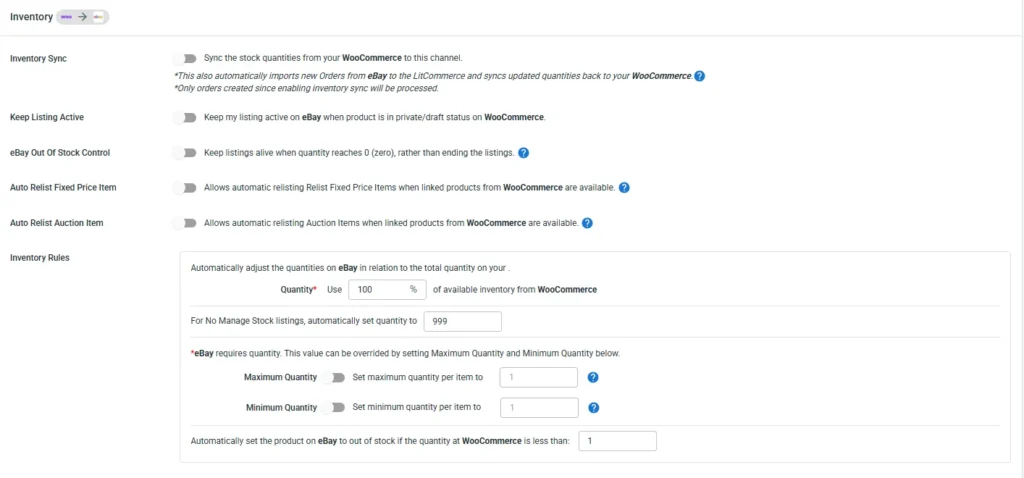
You can also use Inventory Rules to control how much WooCommerce stock appears on each marketplace. For example, you can:
- Send only a percentage of your available stock to Amazon or eBay.
- Set minimum and maximum quantities for each channel.
- Control what happens to a listing when its inventory reaches zero.
These rules give you a stock buffer and reduce the risk of selling more items than you can fulfill.
Note: LitCommerce cannot control inventory for Fulfillment by Amazon (FBA) products. Amazon stores and manages FBA inventory separately from your WooCommerce warehouse.
Additionally, scroll down to enable other sync options, such as Title Sync and Description Sync. These settings help keep your product information updated whenever you make changes in WooCommerce.
Step 4: Manage Amazon and eBay orders from WooCommerce
The final step is bringing your marketplace orders into WooCommerce.
Enable Import Orders to Main Store in the Channel Settings for both Amazon and eBay. New marketplace orders will then appear in WooCommerce alongside orders placed directly on your website.
This lets you manage WooCommerce, Amazon, and eBay orders from one dashboard instead of checking three platforms separately.

Please note that Amazon limits the customer information shared through its API. Imported Amazon orders may not include the buyer’s name, address, or shipping details. LitCommerce can still import purchased product data, such as the title, SKU, quantity, and price.
LitCommerce also provides several settings to help you control how orders are imported:
- Skip Unpaid Orders: Prevent unpaid Amazon and eBay orders from being imported.
- Import Orders with Unlinked Products: Import orders even when their products are not linked to WooCommerce.
- Order with Unlinked Products Notifications: Receive an email when an unlinked order cannot be imported into WooCommerce.
And that’s it. With these settings enabled, your WooCommerce eBay Amazon integration can handle product updates, inventory, pricing, and orders through one connected workflow.
WooCommerce eBay Amazon Integration – FAQs
Can I connect WooCommerce to eBay and Amazon at the same time?
Yes, most unified tools let you connect WooCommerce to eBay and Amazon within a single setup session rather than doing them sequentially. Among the best tools for WooCommerce eBay Amazon integration, LitCommerce stands out for supporting cross-listing and syncing data across these 3 channels with features customized for eBay and Amazon.
Is there a free way to integrate WooCommerce with eBay and Amazon?
Manually integrating WooCommerce with eBay and Amazon costs nothing but carries high time and oversell risk as your catalog grows. Unified tools like LitCommerce don’t offer a permanent free plan for full multichannel integration, but they typically include a 7-day free trial with full feature access so you can test the workflow before paying anything.
How often does LitCommerce sync data across WooCommerce, eBay, and Amazon?
LitCommerce runs a 15-minute sync cycle for eBay and Amazon inventory, pricing, and orders. That’s not real-time, but it’s frequent enough to catch most stock changes before they cause a conflict, especially compared to hourly plugin syncs or manual re-uploads.
What happens if I oversell across WooCommerce, eBay, and Amazon?
You’ll need to cancel the extra order on whichever platform can’t fulfill it. Amazon, in particular, penalizes high cancellation rates through its Order Defect Rate, and repeated overselling incidents can put your selling privileges at risk on that marketplace.
Sell on WooCommerce, eBay, and Amazon Together, Smarter!
Manual export, separate plugins, and a unified integration tool each solve the WooCommerce eBay Amazon integration question differently, and none of them is a universal best choice. The right one depends on your SKU count, your sales frequency, and how much manual reconciliation you’re willing to tolerate week to week.
With LitCommerce, you can connect WooCommerce easily to eBay & Amazon, list or import products across all three platforms, configure inventory and pricing sync, and manage incoming orders from one place.
The real payoff comes after the connection: automated sync keeps stock levels, prices, and orders aligned across WooCommerce, eBay, and Amazon so you spend less time on manual updates and avoid costly overselling mistakes.
Ready to explore more ways to sell across channels beyond WooCommerce, Amazon, and eBay? Check out our Multichannel Selling hub for guides on connecting more marketplaces and scaling your store.