


Wondering how to create a listing on eBay? You can list your first product in about 10 minutes once you know the steps.
This guide walks you through eBay’s 2026 listing process, from uploading product photos and choosing a category to writing SEO-friendly titles, descriptions, and item specifics. You’ll also learn how to use AI to speed up listing creation and optimization, so you can publish your first listing with confidence and attract potential buyers.
Key Takeaways
How to Create a Listing on eBay in 11 Steps
Answering how to list things on eBay goes beyond simply showcasing your product on the platform. It’s about persuading customers to make a purchase through the value you provide. This entails creating a comprehensive, captivating, well-informed, and visually appealing listing.
Before you start, make sure you have an eBay seller account. If you do not have one yet, check out our guide on how to sell on eBay for setup instructions.
Once your account is ready, follow these steps to create a listing on eBay.
Step 1: Go to eBay’s selling section
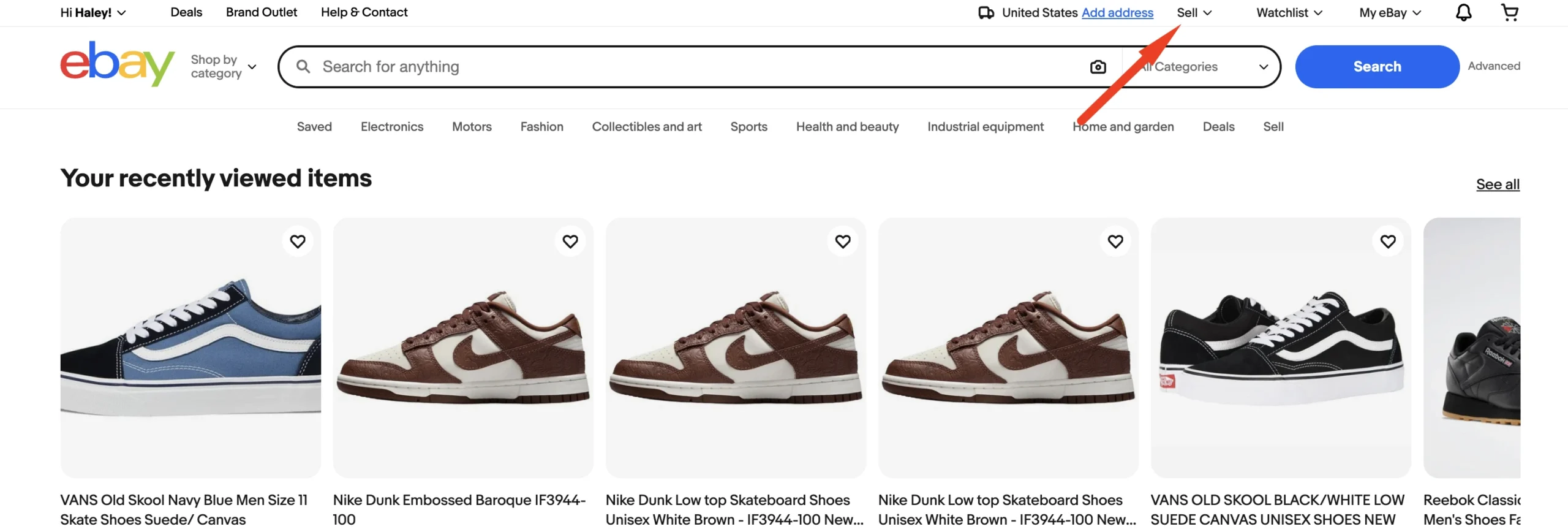
Log in to your eBay account and click Sell in the top navigation bar. You can also go directly to Seller Hub > Listings > Create listing.
eBay offers several listing tools depending on your inventory size. Here is what is available according to eBay’s Seller Center:
- Advanced listing tool – Best for sellers with roughly 25 to 100 items. You describe your item, and the tool starts a listing based on similar products. Then you fill in the details, upload photos, and review for accuracy.
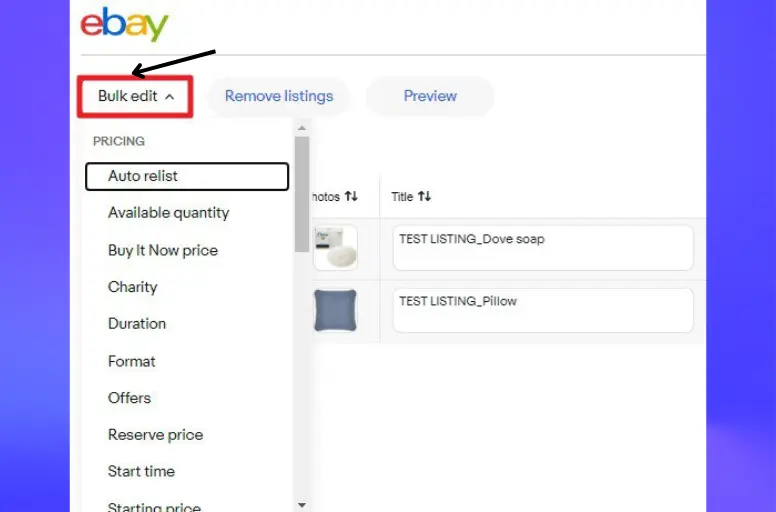
- Bulk listing – Best for sellers with 100 to 250 items, especially when many products are similar. It lets you manage thousands of similar listings with bulk actions and bulk updates.
- Seller Hub Reports – Best for sellers with 250 to 1,000 items. You import a CSV or XLSX file to upload your inventory in bulk. This method requires some technical knowledge, including proper file formatting.
- Photo upload – Best for standardized items like trading cards. eBay’s AI-powered tool transforms product images into detailed listing drafts in seconds. Upload your photos in bulk, and eBay generates the listings for you.
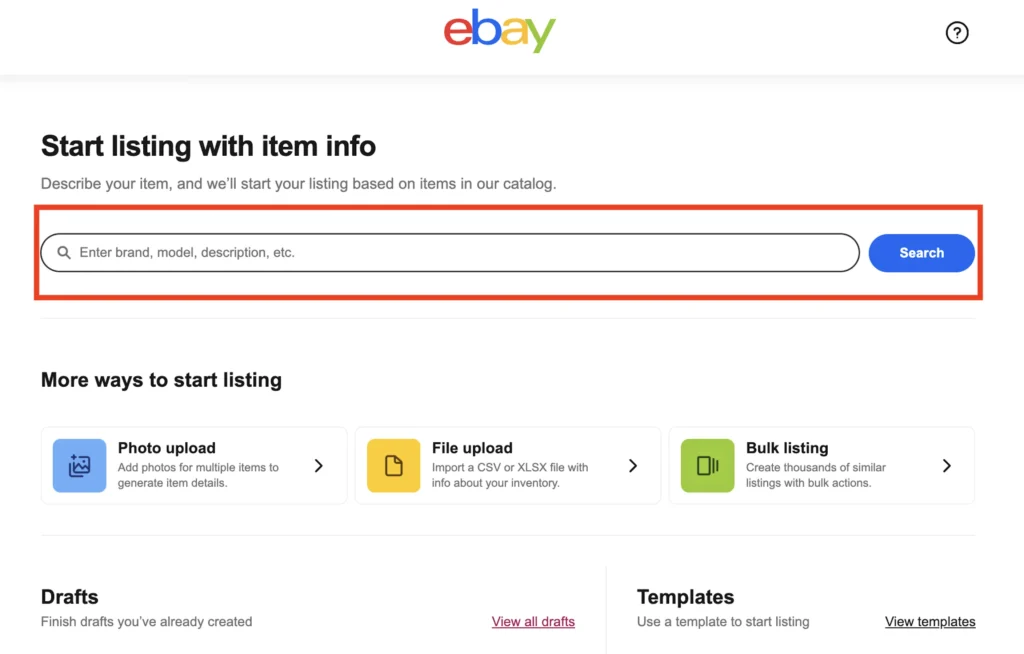
For this guide, we will use the Advanced listing tool, which works for all product types and gives you full control over every listing detail.
Prior to progressing to the next stage, it is worth highlighting that eBay’s selling limit has been implemented for sellers. It limits how many items sellers can list and sell within a designated period. If you require further information.
Step 2: Describe the product for sale
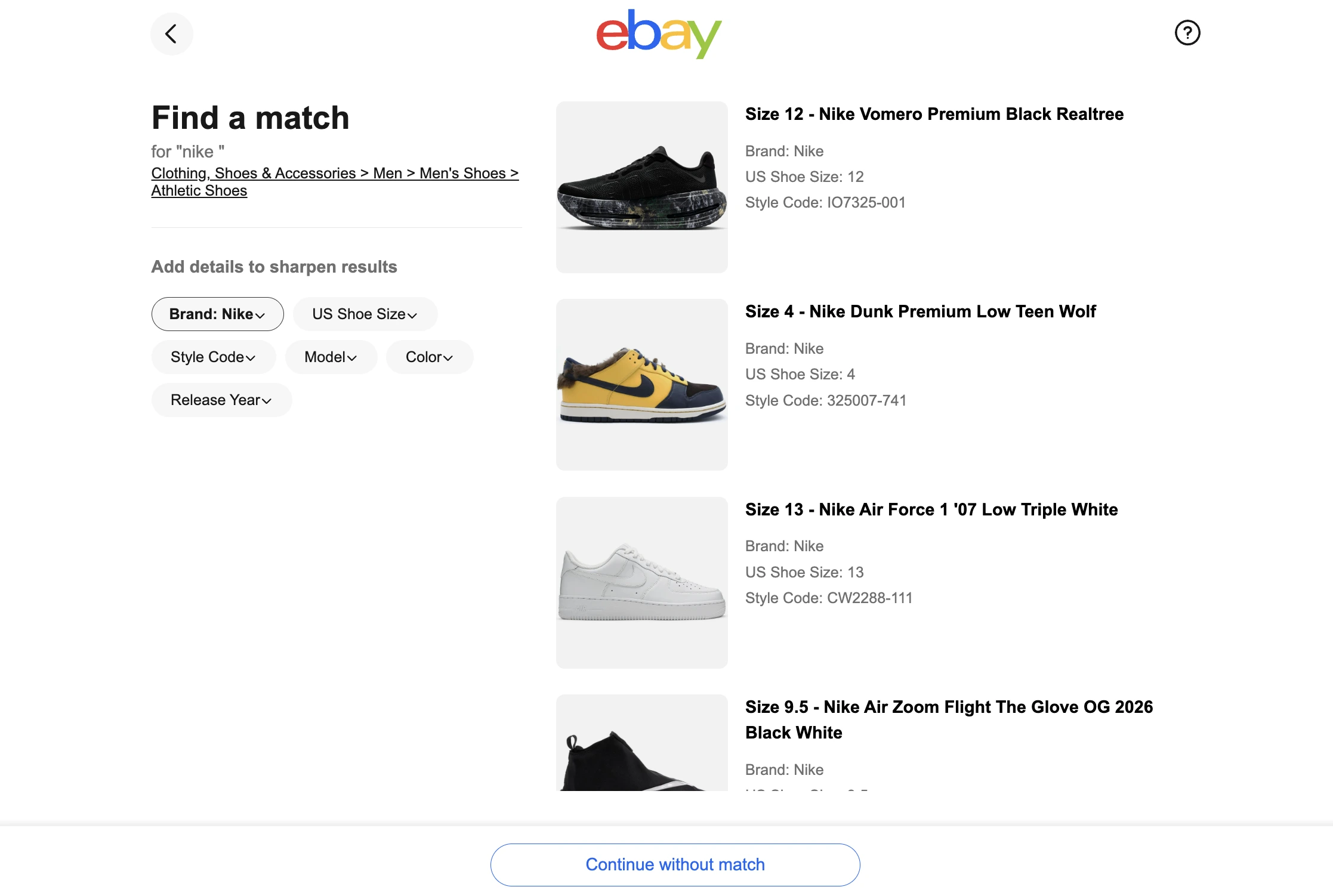
To continue the process of how to create a listing on eBay, start typing your product name, GTIN, UPC, EAN, ISBN, or other eBay product identifier in the search bar. eBay will show matching products from its catalog.The more words are in your request, the more accurately eBay will suggest the relevant products for you to choose from
Here’s a clear explanation for you:
- UPC (Universal Product Code): A 12-digit barcode used to identify retail products in North America.
- ISBN (International Standard Book Number): A 10- or 13-digit code identifying books and other publications worldwide.
- VIN (Vehicle Identification Number): A 17-character code unique to each vehicle.
- Part Number: A unique code manufacturers assign to identify specific parts or components.
However, creating and optimizing eBay listings manually can take hours, especially when managing a large product catalog. With LitCommerce’s AI-powered listing features, you can create complete eBay listings and improve existing ones in one place.
For new eBay listings, LitCommerce offers 3 AI-powered methods:
- Create listings from images: Upload at least one product photo. AI analyzes the image to identify details like product type, color, material, and style.
- Create listings from product URLs: Paste a product link, and AI extracts available product information from the page to build your listing.
- Create listings from keywords: Enter a product title or keyword, select the matching product, and let AI generate the listing details.
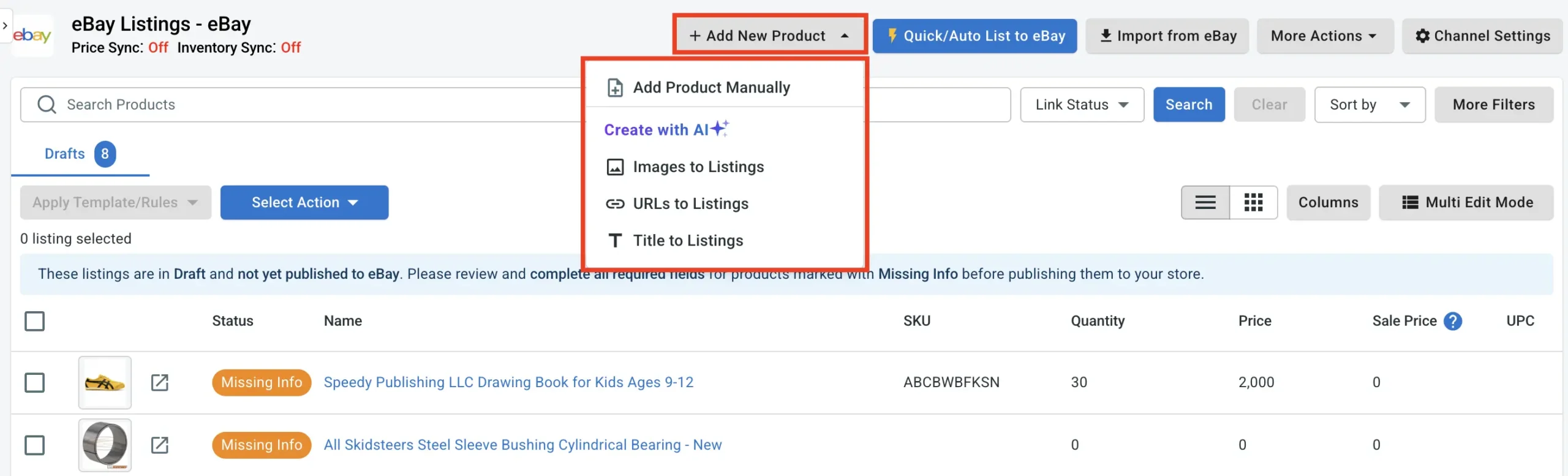
Whichever method you choose, LitCommerce AI generates a keyword-rich title, product description, suggested eBay category, and relevant item specifics. You can then review and refine the details before publishing.
Step 3: Upload photos and video
To continue our topic on how to make a good eBay listing, you need to upload photos of your items. eBay allows up to 24 photos per listing at no extra cost. Use as many as you need to show the product from every angle.
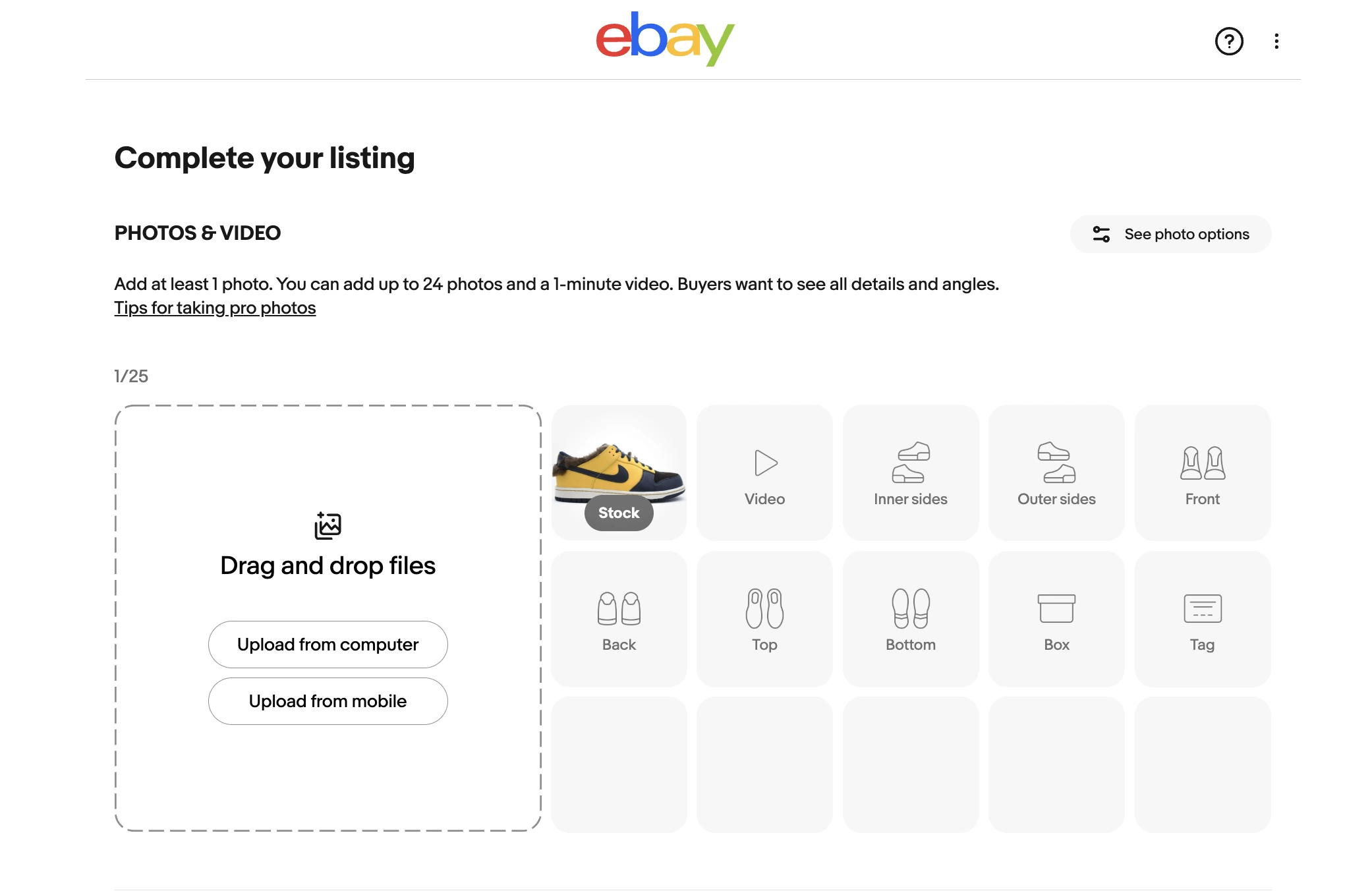
Photo requirements and tips:
- Minimum size: 500 x 500 pixels. Recommended: 1,600 x 1,600 pixels for zoom functionality.
- Use a clean, white or neutral background for your main photo.
- Show the product from the front, back, sides, top, and bottom.
- Include close-ups of labels, tags, serial numbers, and any defects (for used items).
- Do not add text overlays, watermarks, or borders to your photos.
Video: You can also upload a short product video to your listing. Video is especially useful for electronics, collectibles, and items where buyers want to see the product in action.
AI background tool: If you are listing from the eBay mobile app, you can use the AI background removal tool to clean up product photos. It removes cluttered backgrounds and replaces them with a professional-looking setting.
Step 4: Write your title and choose category
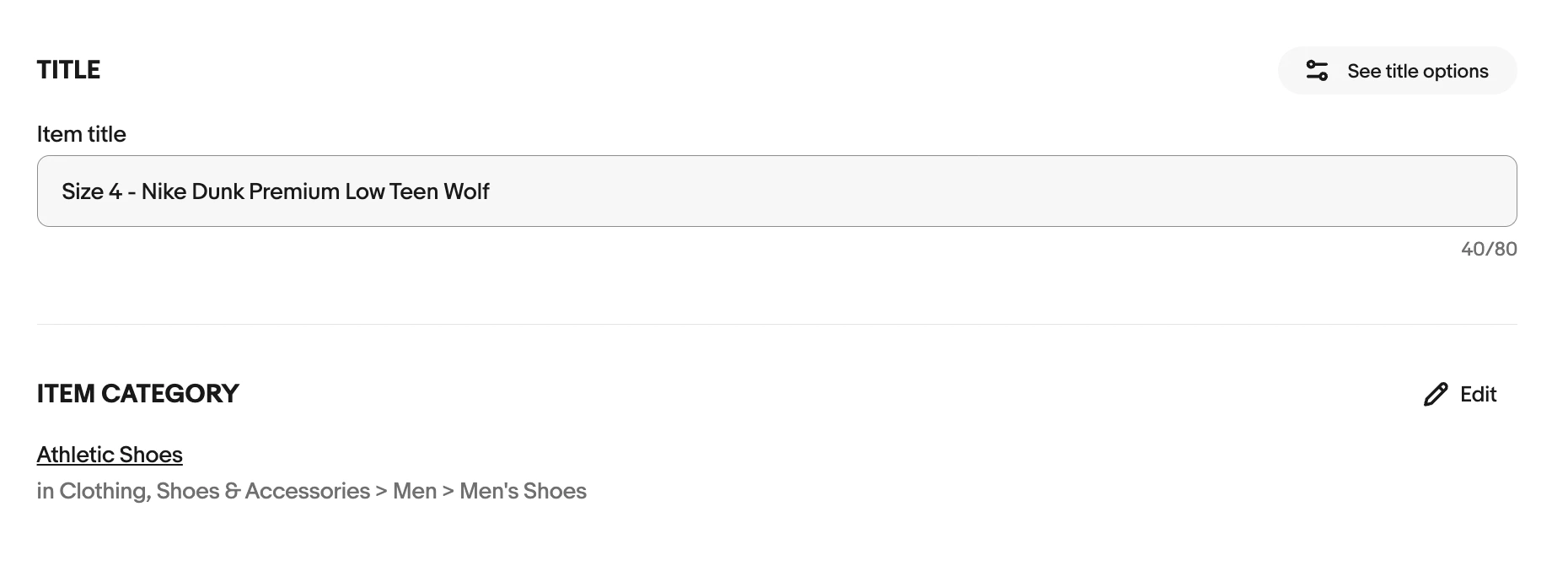
The third step in our guide on how to create a listing on eBay is to find a title and product category for your listing. At first glance, this step seems simple. However, you need a title strong enough to encourage users to explore your eBay listing.
So, we offer some tips to help you create a compelling title and a practical description. We come into the title first, and here are some recommendations:
- You get up to 80 characters. Use all of them.
- Place the most important keywords at the beginning of the title.
- Include the brand, model, size, color, and condition when relevant.
- Avoid filler words like “WOW,” “LOOK,” or “L@@K.” These waste character space and do not help search ranking.
- Do not repeat words. eBay’s search engine (Cassini) does not reward keyword repetition.
Example of a strong title:
Nike Air Max 90 Men’s Running Shoes Size 10 White Black NEW
Example of a weak title:
AMAZING Nike Shoes!! LOOK!! Great Deal!!!
For existing eBay listings, LitCommerce offers two AI-powered optimization features. The AI title optimization feature helps you refine product titles by fixing grammar, adjusting length, translating them into the marketplace’s language, and more.
The AI description optimization feature rewrites and improves product descriptions to make your listings more search-friendly and appealing to potential buyers.
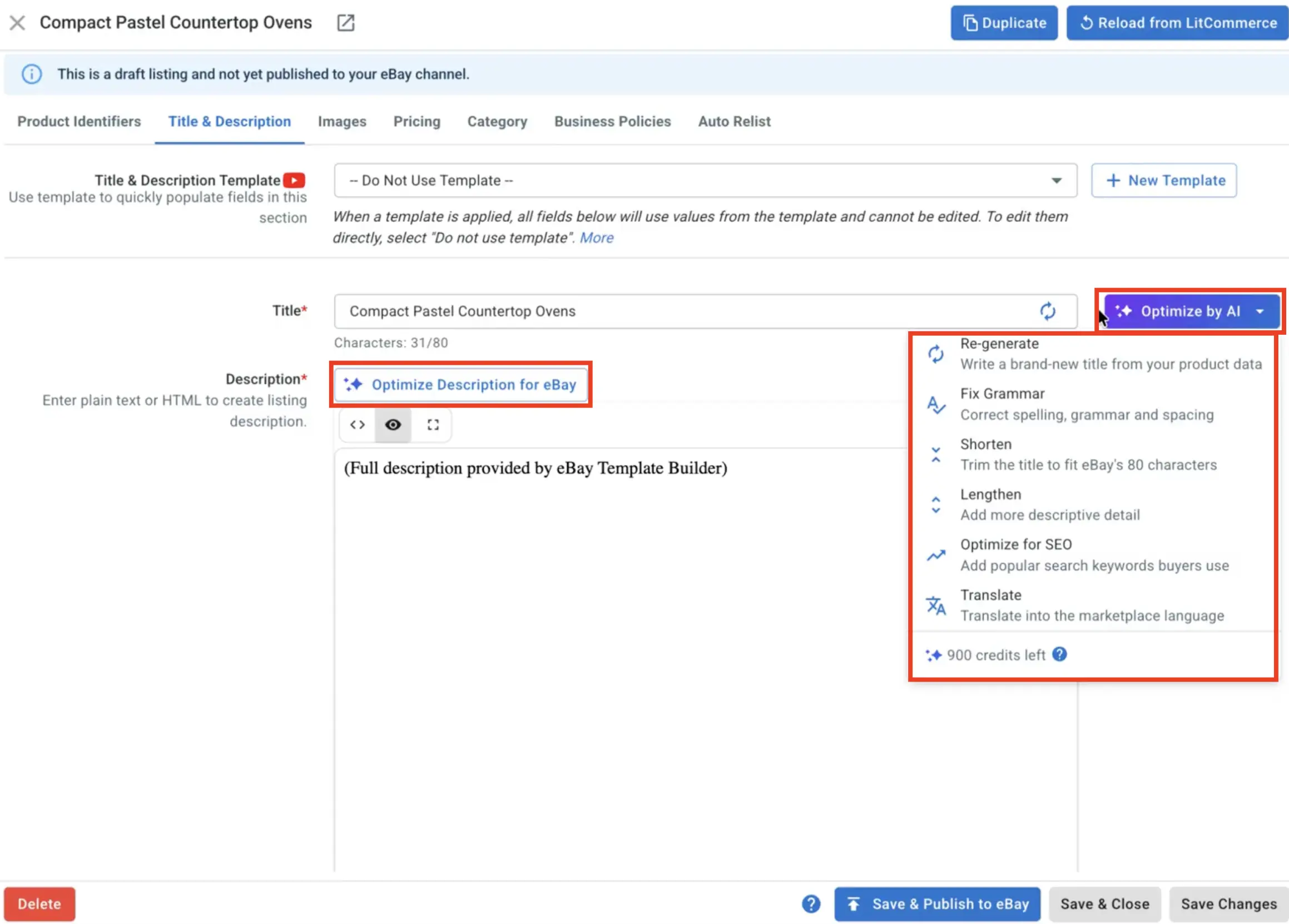
Together, these AI tools help you spend less time creating and editing listings while keeping your eBay catalog complete and consistent.
List products on eBay up to 80% faster with AI
With eBay integration, LitCommerce AI generates complete eBay listings, refines titles & descriptions, and fills in item specifics in a few clicks. Skip repetitive tasks and get your products ready to sell faster.

Step 5: Fill in Item Specifics
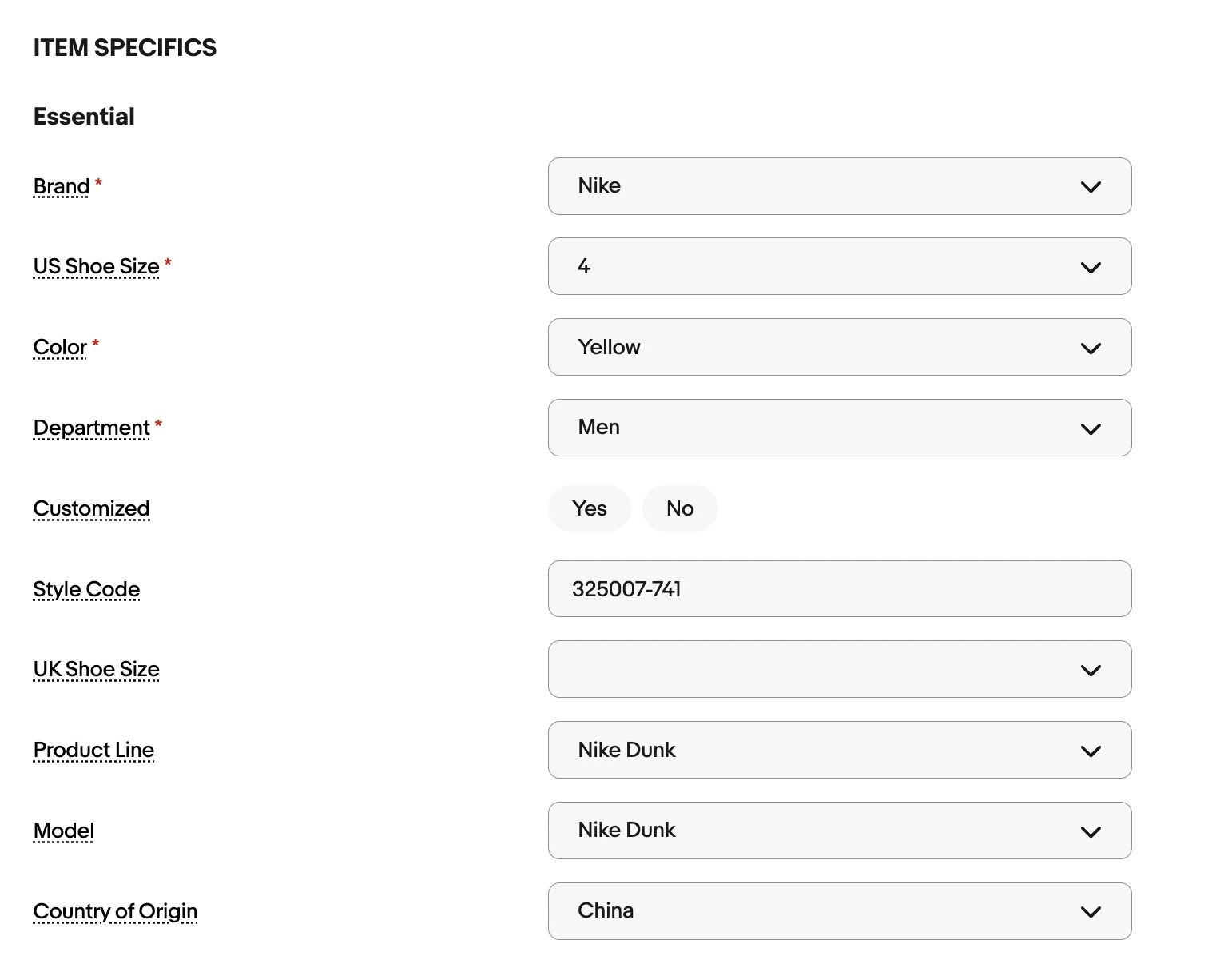
The next step in listing on eBay is to add specific details and variations about the item. Item specifics are structured details like brand, color, size, material, and type. They play an important role in eBay SEO by helping buyers find your products through search filters. Filling them in correctly can improve your listing’s visibility in relevant searches.
Some item specifics are required (marked with a red asterisk). Others are recommended. Fill in as many as possible, even the optional ones. Listings with complete item specifics rank higher in eBay search results.
Important for apparel and footwear sellers:
These include brand, size, color, shape, style, etc. Item specifics appear at the top of the description and give an overview of your item to help buyers decide to move ahead or go back to checkout. You must include accurate and pertinent information in the item-specific section to provide practical details.
To save even more time, LitCommerce users can generate item specifics with AI directly inside the listing workflow. Just choose a category for your eBay listing, select one or more item-specific fields, and run the AI generation.
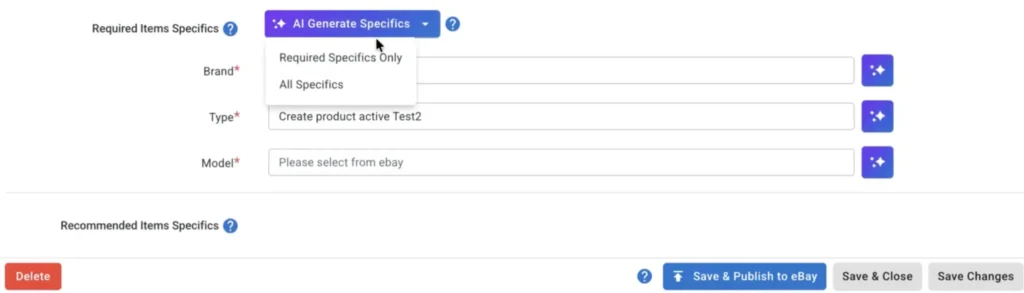
Our AI feature suggests values based on your existing product information, so you can fill in multiple fields at once instead of typing each one by hand.
Step 6: Provide item condition and description
The next step in how to create a listing on eBay is to specify your item’s condition and write a clear, detailed description. This helps buyers understand exactly what they’re purchasing and make confident buying decisions.
Select the condition that matches your item: New, Used, Refurbished, or other options depending on your category.
If your item is not new, eBay requires a condition description. Use this field to explain what makes your item unique, including notable features and any flaws. Be honest and specific. Buyers who know exactly what to expect are less likely to open return requests.
Then, write a compelling description that covers the product’s key features, dimensions, materials, what is included in the package, and any flaws or signs of wear (for used items).
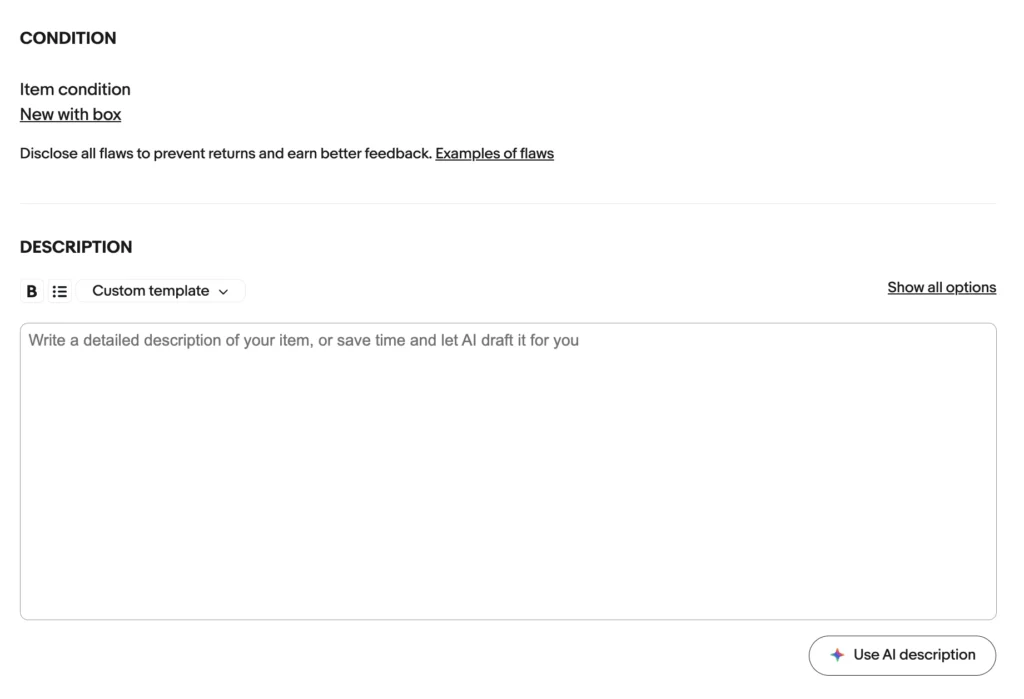
The description also plays an equally important role as the title in keeping customers on the listing on eBay. Therefore, it would be better to generate a description that:
- Place the unique selling points (USPs) and essential details at the beginning of the description.
- Use clear, concise language that includes relevant keywords.
- Write a clear, detailed description that answers buyer questions before they ask.
- Cover the product’s condition, dimensions, materials, what is included, and any flaws (for used items).
- List the item’s most appealing attributes in bullet points or concise paragraphs.
- Make sure to mention any accessories that come with the product, if applicable.
- Avoid making false claims about your products.
- Don’t include any irrelevant information that may bore or disinterest the buyer
Step 7: Combine variations about the item
If your product comes in different sizes, colors, or styles, you can list all variations under a single listing instead of creating separate ones.
- It helps appear on Google Product Search (One of the top traffic sources).
- You can cater to a broader range of buyer preferences and provide them with more options
How to create a variation listing on eBay?
- On the listing description page, simply click on the Create Variation button. If you can’t find this button, there are two possible reasons:
- Variations are not supported in the category you are listing in.
- Variations can only be used with fixed-price listings, not auction-style listings. To fix this, scroll down and choose Fixed price in the Selling details section.
- Once you click on the Create Variation button or Edit, you will be directed to the variation page. Here, you can add the attributes you want to display on your listing page and select the appropriate options for each attribute based on your stock.
- Finally, review the variations to ensure your inventory matches the quantity selected for each variation. You can delete variations for which you are missing inventory.
Some notes to take down as you learn how to create a listing on eBay
- You can have up to 250 variations in a single listing for no additional fee.
- After utilizing the variations options, the subsequent steps in this tutorial should be performed individually for each item variation. For instance, if you’re selling shoes and find that the black pair sells better than the red pair, you can set a higher price for the black items than the red ones. This process follows the same approach as the other steps outlined in the “How to create a listing with variations on eBay” guide.
Step 8: Set your selling format and price
Choose how you want to sell:
- Buy It Now (Fixed Price) – Set a fixed price. Buyers purchase immediately. This is the most common format and is recommended for most sellers.
- Auction – Set a starting price and let buyers bid over a set period (1, 3, 5, 7, or 10 days). Best for rare, collectible, or hard-to-price items.
- Auction with Buy It Now – Combine both. Buyers can bid or purchase at a set price. The Buy It Now option disappears once someone places a bid.
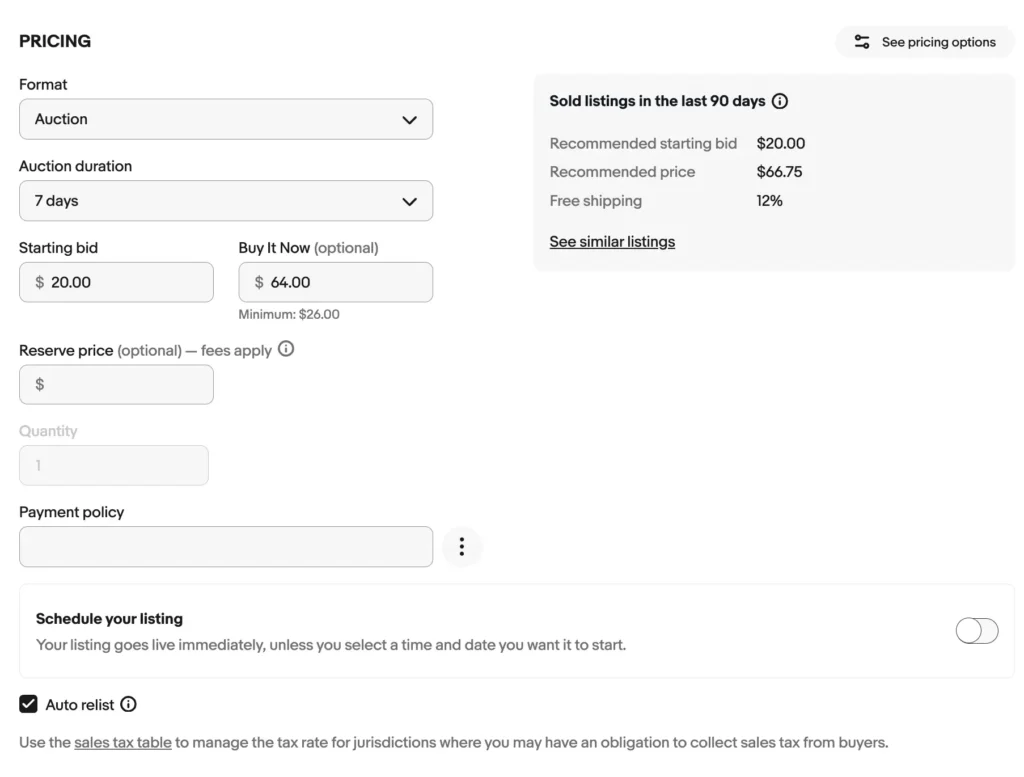
Additionally, there are a few things to note:
- In an auction-style listing, it is permissible to add a Buy It Now price, provided it is at least 40% higher than the starting price.
- You have the option to enable Best Offers. It enables potential buyers to propose offers for your item, and it is your prerogative to accept or reject these offers.
- If you have multiple identical items or variations of an item, you can create a single fixed-price listing that includes all the variations.
Pricing tips:
- Research completed listings (use eBay’s Sold items filter) to see what similar products actually sold for.
- Factor in eBay fees, shipping costs, and your profit margin when setting your price.
- Consider enabling Best Offer on fixed-price listings to attract negotiation-friendly buyers.
At this step, you can also choose to promote your listing with eBay’s advertising tools. We cover this in the best practices section below.
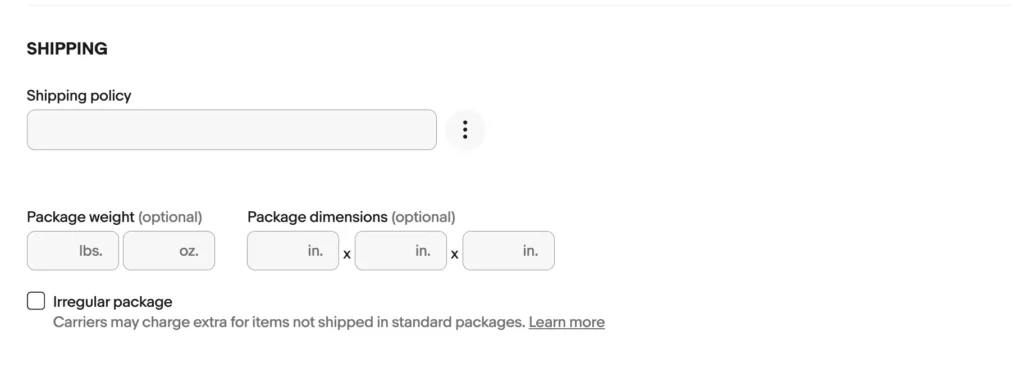
Step 9: Set up the shipping details
To proceed on how to make eBay listings stand out, you need to select your shipping options. This can be done by following these actions:
- During listing creation, you will come across a section dedicated to shipping.
- eBay provides recommended delivery options that you can choose from if available. Alternatively, you can select your shipping options based on your preferences and requirements.
- eBay offers the option to create business policy templates to make the shipping process more efficient. These templates allow you to set up predefined shipping policies that can be applied to all your listings.
- If you list your item on eBay.com, you must remember that Domestic Shipping refers to the territory of the United States. You can enable the slider next to Add Additional International Service in the International shipping section if you want to add international shipping options.
- If the item you’re selling is large or complex to ship, you can offer a local pickup option. This allows the buyer to collect the item in person, eliminating the need for shipping.
Pro tips: Offering free shipping can improve your search ranking on eBay. Many top sellers build the shipping cost into their item price and offer “free” shipping to buyers.
Step 10: Specify your preferences for selling
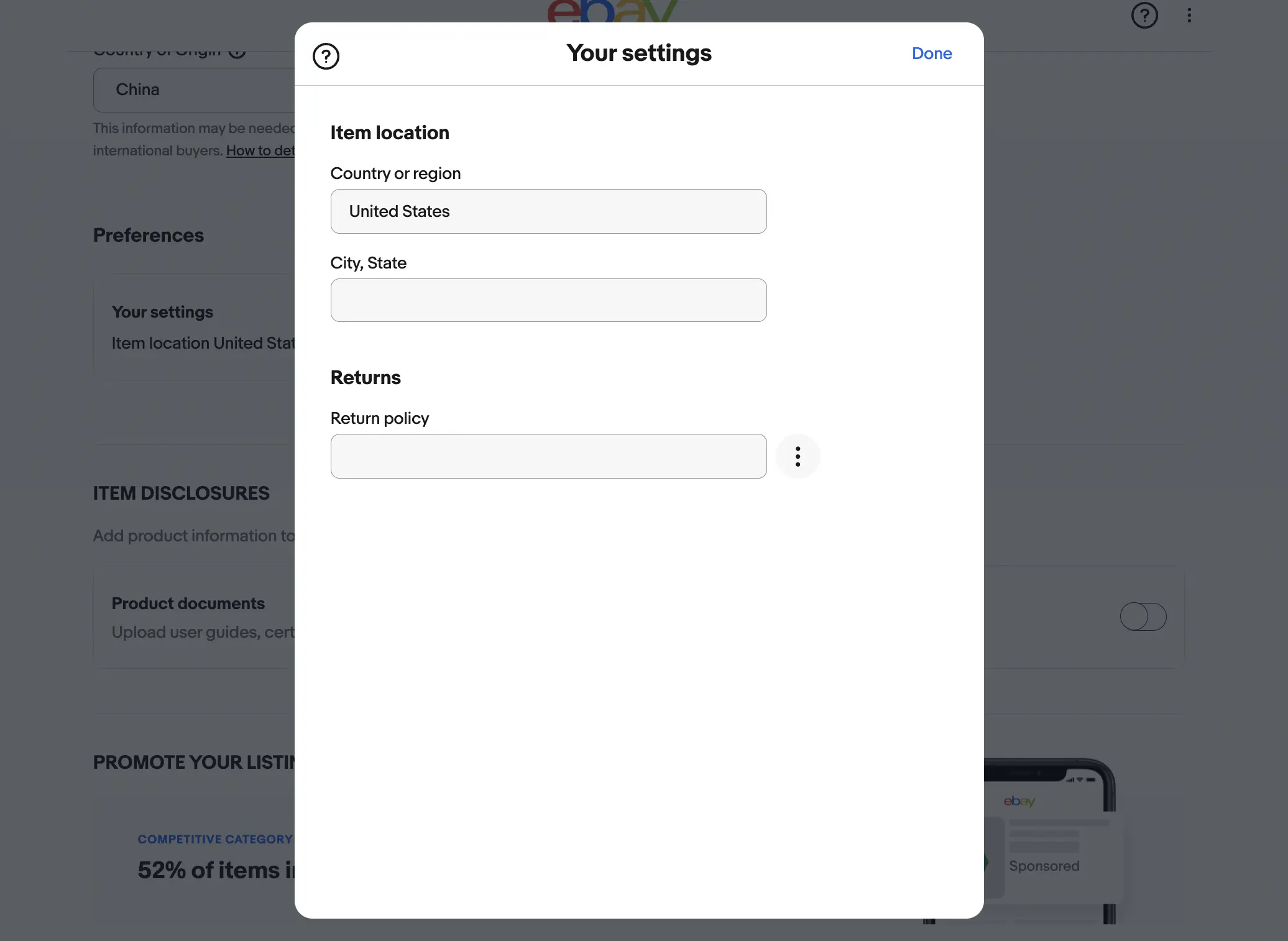
As your next step in how to create a listing on eBay, you can specify some of your selling preferences.
- Returns: Decide whether to accept returns, and set the return window (14, 30, or 60 days). Listings with returns enabled tend to rank higher and convert better.
- Payment: eBay uses Managed Payments for all transactions. Buyers can pay with credit cards, debit cards, Apple Pay, Google Pay, PayPal, and other methods. You do not need to configure payment options per listing because eBay handles this automatically.
- Item location: The item location is an important aspect of your listing as it helps buyers make informed purchasing decisions based on shipping charges and delivery times. When creating a listing, you should specify the city and country where your item is located.
To modify one of these aspects, you need to click on each of them simply. If you want to adjust all aspects, please choose the Edit option.
Step 11: Review and publish your listing
Now, your process of how to create a listing on eBay is almost ready. If you come across a blue “i” symbol above a particular section, it indicates that additional information is required before you can list that section.
To check what your listing will look like to buyers. Your eBay listing:
- You need to choose Preview at the bottom of the page
- If everything is as you wish, click on List. If you are unsatisfied, you can edit it again or tap Save for later. Now, your listing will be saved as a draft. You can revise and list it later.
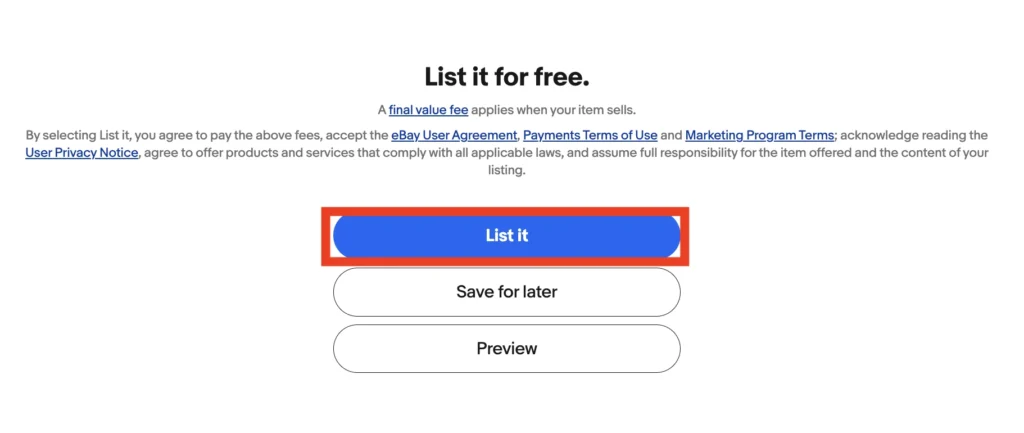
At the bottom of the page, you will find the total of all relevant fees. If you come across the phrase “List it for free,” this indicates that there are no charges associated with listing the specific item. However, it is important to note that a Final value fee will be applicable upon selling the item.
Saving drafts: If you are not ready to publish, save your listing as a draft. You can store up to 250 drafts using the quick listing tool or up to 5,000 drafts through Seller Hub. Drafts expire after 75 days, so come back to them before they disappear.
eBay fees at a glance:
- Insertion fee: The first 250 listings each month are free. After that, each additional listing costs $0.35.
- Final value fee: 13.6% of the total sale amount (item price + shipping) for most categories, on items up to $7,500.
- Per-order fee: $0.30 per order for orders of $10 or less, or $0.40 per order for orders over $10.
For a full breakdown by category, read our guide to eBay selling fees.
3 Methods to Create Bulk Listings on eBay
If you have more than a handful of products to list, creating each one manually is not practical. Here are the main ways to create eBay listings in bulk.
| Method | Best for | How it works | Limitations |
|---|---|---|---|
| Sell Similar | 5-10 similar items | Duplicate an existing listing, then edit the details that differ | Still one listing at a time, does not scale |
| Bulk Listing | 100-250 items | Edit multiple fields at once from one screen in Seller Hub | eBay-only, no cross-channel sync |
| Seller Hub Reports | 250-1,000+ items | Upload a CSV/XLSX file mapped to eBay’s field format | Requires technical knowledge of eBay’s file structure |
These eBay-native tools get the job done if eBay is your only channel. But they all require building your catalog from scratch inside eBay, which means double work if you already sell on Shopify, WooCommerce, or another platform.
That is where a third-party tool like LitCommerce changes the process. Instead of recreating listings manually, you can list your Shopify or WooCommerce products on eBay with AI doing the heavy lifting. LitCommerce’s AI generates optimized titles, descriptions, and item specifics from your product data or photos. Every listing goes through a draft review before publishing, so you stay in control.
And unlike eBay’s native tools, LitCommerce syncs inventory, prices, and orders across eBay and other marketplaces every 15 minutes, so you never oversell. For a broader comparison of tools, check out our guide to eBay listing software
5 Common Mistakes When Creating an eBay Listing
Even experienced sellers make these errors. Avoiding them from the start saves time and helps your listings perform better.
Choosing the wrong category
Listing a product in the wrong eBay category means buyers won’t see it when they use category filters. It can also trigger incorrect fee rates.
How to avoid it: When eBay suggests categories based on your title, pick the one that most closely matches your product. If you are unsure, look at where similar completed listings were categorized.
Skipping recommended Item Specifics
Many sellers fill in only the required fields and skip the recommended ones. This limits your listing’s visibility because eBay uses item specifics to power search filters.
How to avoid it: Fill in every item specific that applies to your product. The more structured data eBay has, the more search filters your listing appears in.
Using too few or low-quality photos
Listings with only 1-2 blurry photos convert poorly. Buyers want to see exactly what they are getting, especially for used or pre-owned items.
How to avoid it: Upload at least 5-8 clear photos. Show every angle, every detail, and every flaw. Use all 24 available photo slots if your product warrants it.
Keyword-stuffing your title
Cramming your title with repeated keywords or unrelated terms hurts readability and does not help eBay search ranking. eBay’s Cassini search engine prioritizes relevance, not keyword density.
How to avoid it: Write titles for humans first. Include the most important attributes (brand, model, size, color, condition) and skip filler words or repeated terms.
Not checking the mobile preview
Over half of eBay purchases happen on mobile devices. A listing that looks fine on desktop may display poorly on a phone, with cut-off titles, awkward image crops, or unreadable descriptions.
How to avoid it: Always preview your listing on a mobile device (or use eBay’s mobile preview) before publishing. Pay attention to how your main photo, title, and price appear in search results.
6 Best Practices When Listing on eBay
If you inquire about “How to make your eBay listing appear first?” or “How to make eBay listings stand out”, you undoubtedly consider the five best practices stated above, which include:
- Utilize eBay’s templates
- Leverage eBay advertising features
- Optimize your listing for search
- Link to related products
- Be aware of additional costs
1. Utilize eBay’s templates
The first response to the answer “How to make a good eBay listing” should be taking advantage of eBay’s templates. eBay provides a variety of templates that sellers can use to create professional-looking listings. These templates are designed to enhance the visual appeal of your listings and make them more enticing to potential buyers. If you’d rather start from a polished design instead of building one yourself, ready-made eBay listing templates give every product a clean, consistent layout you can reuse across your store
To use an eBay listing template, you can follow our guide above:
- Go to Seller Hub on eBay.
- Click on the Listings tab.
- Click Listing Templates in the sidebar menu or use the quick link.
- Select Create new template.
- Name your template and add the listing details.
- Preview the template and save it.
2. Leverage eBay advertising features
One of the top-notch pieces of listing on eBay tips is to use some of eBay advertising features. These features help you:
- Save time reaching customers
- Reach more eBay users
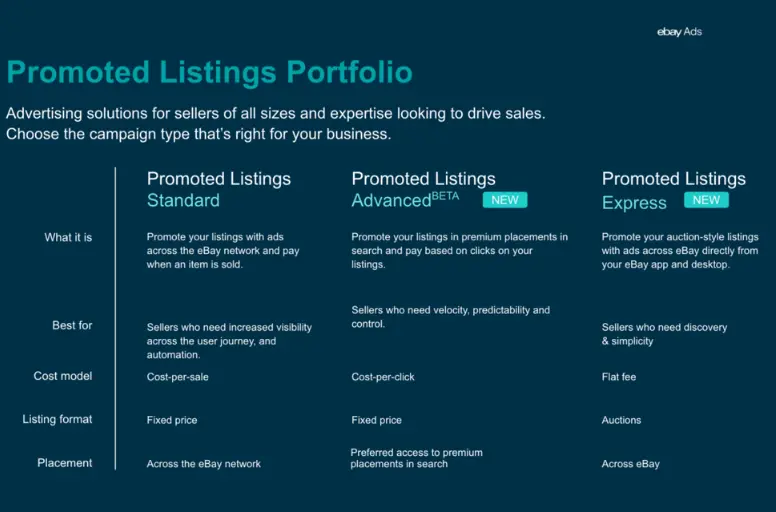
There are 4 eBay advertising features that you should consider, including:
- Promoted listings standard: A feature that allows sellers to convert purchase-ready shoppers into eBay buyers by giving their listings high visibility placements. With this feature, sellers can get their listings in front of more buyers and are only charged for the ad if it helps their items sell
- Volume pricing: This feature lets sellers offer discounts to buyers who purchase multiple quantities of their items. This feature can help sellers attract more buyers and increase sales.
- Promoted listings express: A feature that allows sellers to promote their auction-style listings with ads across the eBay network. Sellers only pay when their items sell, making it a quick, simple, and low-risk advertising option
- Promoted listings advanced: It gives sellers high visibility and control over their advertising campaigns. With Advanced campaigns, sellers can promote their listings in the top slots or premium placements on the search results page and pay-per-click on their ads. This feature offers sellers more control over their budget and keyword targeting.
3. Optimize your listing for search
When creating a listing on eBay, it’s essential to optimize it for search. This means using relevant keywords in your title and description to ensure that your listing appears when buyers search for similar products. You should:
- Conduct research to identify the most popular and relevant keywords for your products
- Incorporate keywords strategically into your listing.
4. Link to related products
Another effective way to address how to make eBay listings stand out is by linking to related products. You can include links to these products in your listing if you offer complementary or similar items. This increases the visibility of your other listings and encourages buyers to explore additional products that may interest them. By linking to related products, you can:
- Cross-promote your offerings
- Increase the visibility of your other listings
- Encourage buyers to explore additional products that may interest them.
These best practices on your journey of how to create a listing on eBay can be done through the following actions:
- Ensure that both the listing and the related product have the same SKU code .
- If you already have products in the eBay Products Catalog, you can link the listing to the corresponding product in the catalog to enable data flow and accurate updates.
- If you don’t have products in the catalog, you can import them in bulk from eBay or Amazon to create the necessary product links.
- Alternatively, you can manually add a link to another listing in the description box to connect them.
If you sell the same catalog on more than one platform, a marketplace integration tool makes this easier by pulling your products into eBay and keeping listings, stock, and orders in sync from a single dashboard — so you’re not rebuilding each listing channel by channel.
5. Be aware of additional costs
While implementing how to create an eBay listing is generally free, it’s essential to be aware of any additional costs that may apply. For example, eBay charges fees for certain listing upgrades, such as adding more photos or using advanced listing features. Additionally, you may incur shipping and handling costs when fulfilling orders.
By being aware of these additional costs, you can:
- Accurately calculate your profit margins
- Set appropriate prices for your products.

How to Create a Listing on eBay – FAQs
To deal with answer “How to create a reserved listing on eBay”, go to My eBay or Seller Hub and find your listing. Select Revise from the More Actions menu, and in the Pricing section, lower or remove the reserve price. Remember, setting a reserve price may affect the visibility and competitiveness of your listing, so it’s important to consider your pricing strategy carefully. To create a private listing on eBay, follow these steps: The cost for the process of how to create a listing on eBay includes two main types of fees: insertion fees and final value fees. To list items on eBay for free, you can take advantage of the monthly free listings that eBay offers. Every month, you receive a certain number of free listings, allowing you to list items in many categories without paying insertion fees. However, remember that other fees, such as final value fees, may still apply when your item sells. It’s important to familiarize yourself with eBay’s fee structure and any additional fees for optional features or upgrades. To create a bundle listing on eBay , you can follow these steps:
Follow Our Create a Listing on eBay Guide to Get Success
By following our comprehensive guide and tips we provide, you will be able to create a professional and highly effective eBay listing effortlessly.
Furthermore, let’s explore LitCommerce, a platform that offers a range of powerful resources to elevate your presence in eCommerce. Feel free to Contact us for additional details.
Furthermore, to stay up-to-date with the latest trends and insights in the eCommerce industry, follow our blog. By doing so, you’ll have access to exceptional eCommerce business insights that can be shared with fellow entrepreneurs daily. Happy selling!